
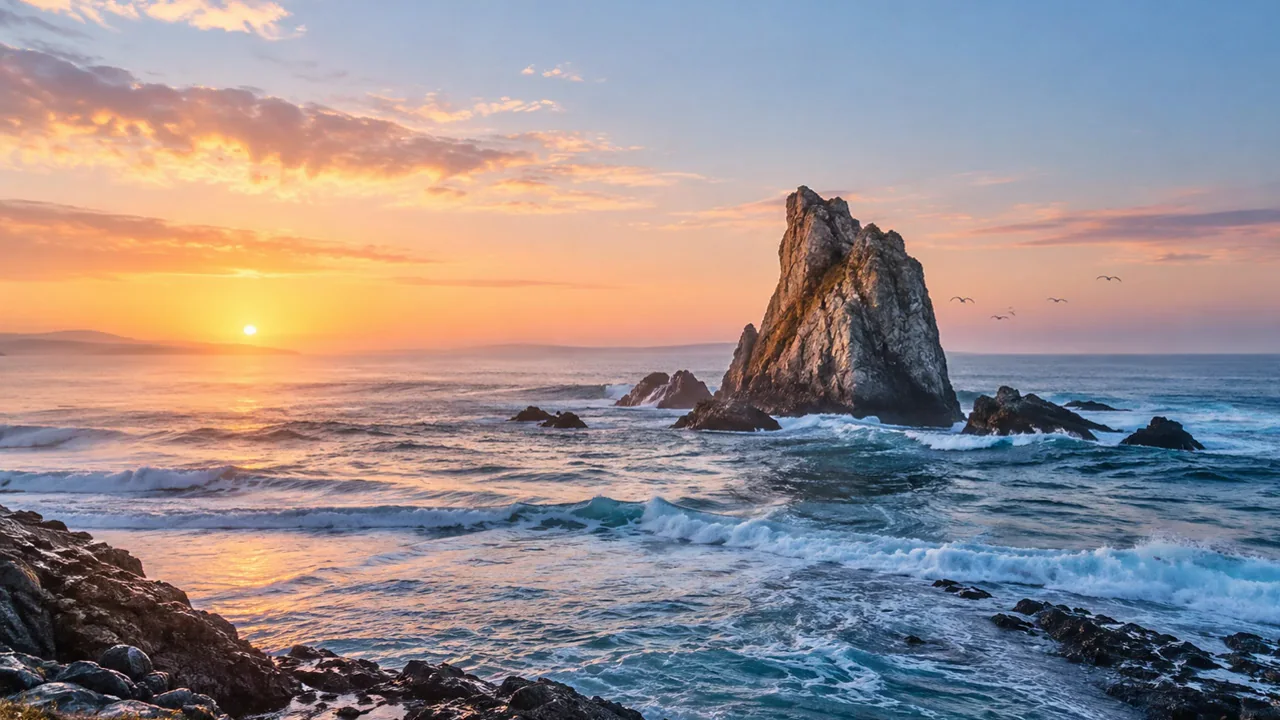
Sea stacks in morning light
Prompt: Ocean breakers move around coastal sea stacks; wide shot, slow upward tilt into sunrise.
Video model
Prepare a focused video idea with a defined location, visible action, and a shot direction that is easy to review.
This prepares a draft in your studio; generation starts when you click create.
Video draftPrompt: Ocean breakers move around coastal sea stacks; wide shot, slow upward tilt into sunrise.
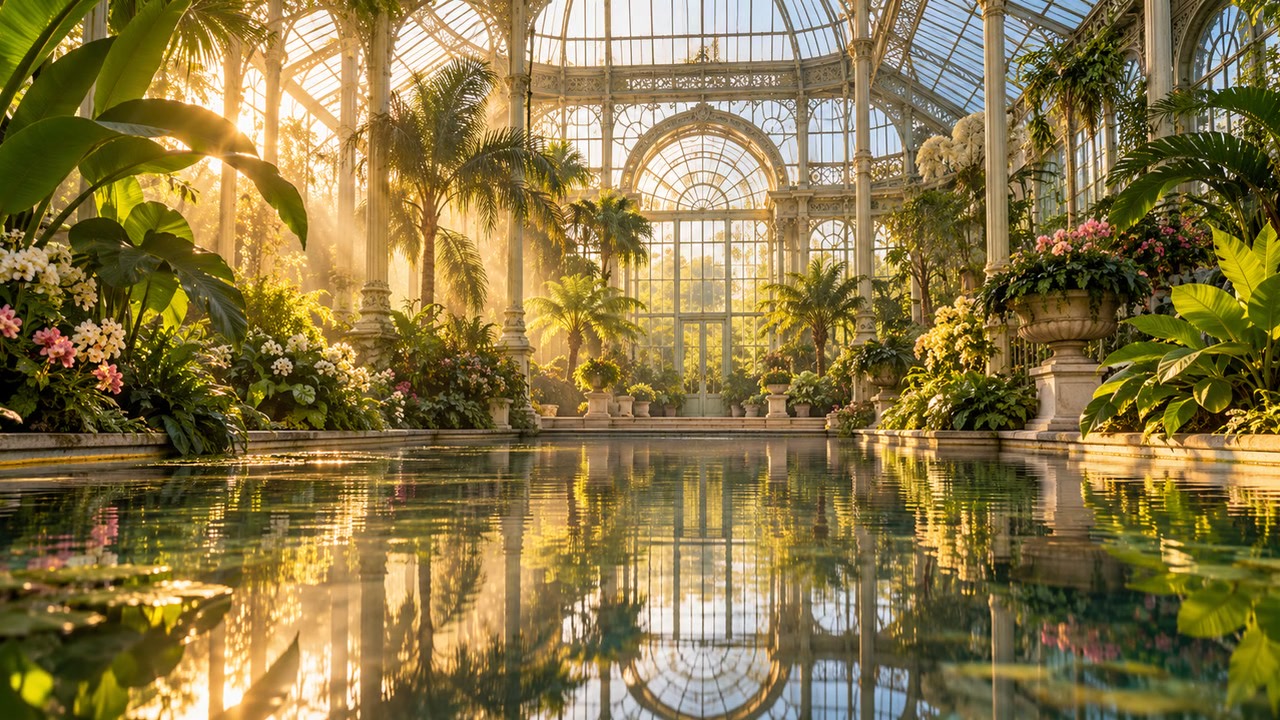
Prompt: Sunlight shifts over tropical leaves beside a conservatory pond; still camera.
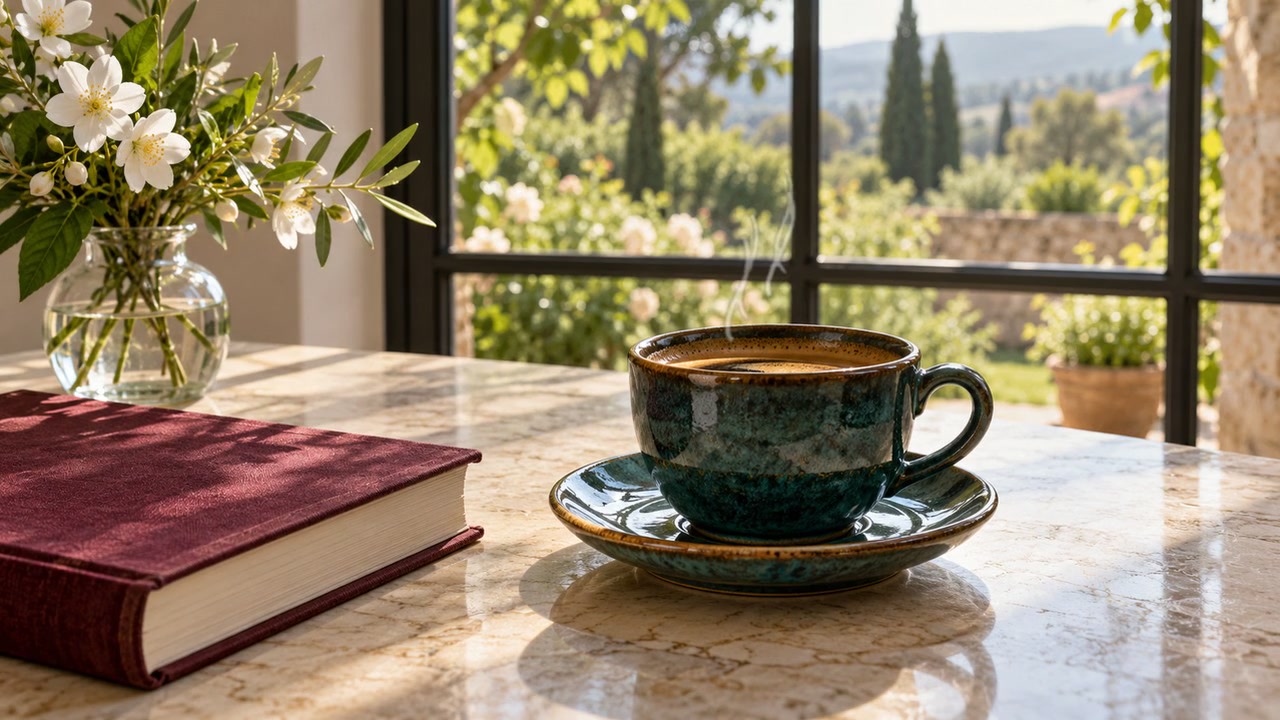
Prompt: A cup of coffee rests beside an open notebook as window light moves across the table; close framing.
Veo 3.1 Fast is available in Wizmade Video Studio. Start with a text prompt, or add a starting image for image-to-video. This page prepares an editable draft with the model selected. Review the supported output settings and current credit quote in Studio before creating.
Browse all modelsUse the prompt field to describe a direction for Veo 3.1 Fast; keep the central idea easy to review before continuing.
The Studio draft keeps Veo 3.1 Fast selected while you inspect the settings available for this video workflow.
These options reflect the current Wizmade integration. Available combinations depend on the selected workflow.
| Setting | Available options |
|---|---|
| Workflow | Text to Video; Image to Video (Start Image) |
| Resolution | 720p, 1080p |
| Aspect ratios | 16:9, 9:16 |
| Duration | 8s |
| Outputs | Up to 1 per request |
| Credits | The current 💎 quote appears before creation. |
Write a prompt for Veo 3.1 Fast and make the subject and visual direction explicit.
Add an optional starting image, then choose the supported duration, resolution and aspect ratio in Studio.
Open the saved draft, inspect the available parameters, and start creation there when ready.
The page selects the exact Veo 3.1 Fast model ID. Review the mode-specific options in Studio before creating.
Add one starting image to switch this draft from text-to-video to image-to-video.
Your prompt and selected model are saved as a text-to-video draft, or image-to-video when you attach a starting image. You can review the draft before creating in Studio.
No. Browsing and preparing a draft do not start generation or deduct credits. Creating is a separate Studio action.
Visit Pricing for current plan information, then review applicable settings in Studio before creating.
Create Seedance 2.5 AI videos up to 30 seconds with synchronized audio, fluid motion, and visual reference guidance in Wizmade.
4 min read
Shape a video draft by describing what moves, what stays still, and how the scene should be framed.
3 min read
Turn a small story beat into a practical video prompt with a subject, a visible change, and a deliberate camera choice.
3 min readYour prompt, selected model, and any starting image will be carried into Video Studio.
We use essential cookies and analytics to understand site usage and improve your experience on Wizmade. Read our Privacy Policy for details.