
A wardrobe change at the jeweler’s bench
The edit swaps historical clothing for a modern hoodie while keeping the jeweler’s pose and workbench recognizable.
Example prompt
“Replace her clothing with Gen-z fancy clothing”
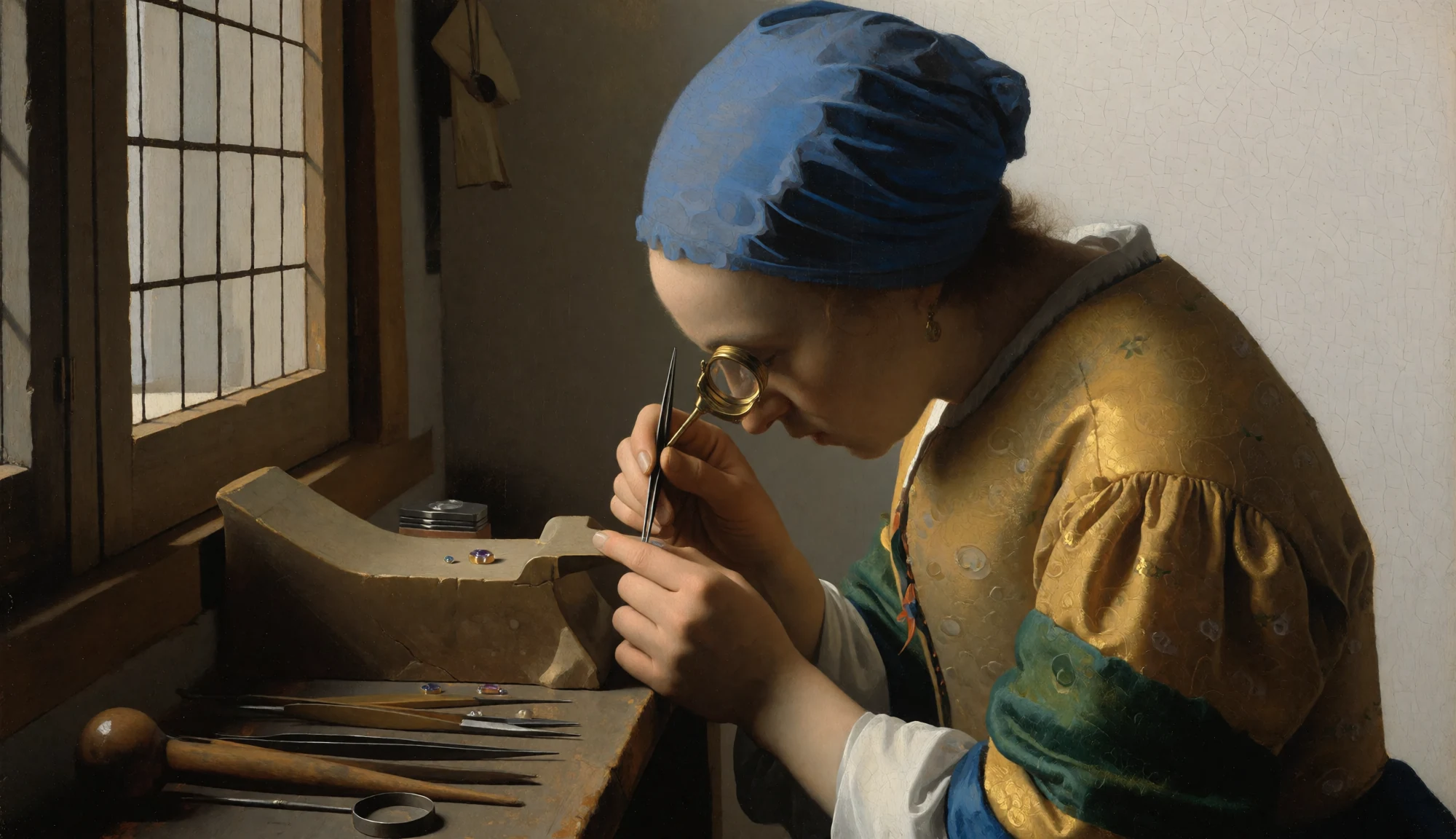
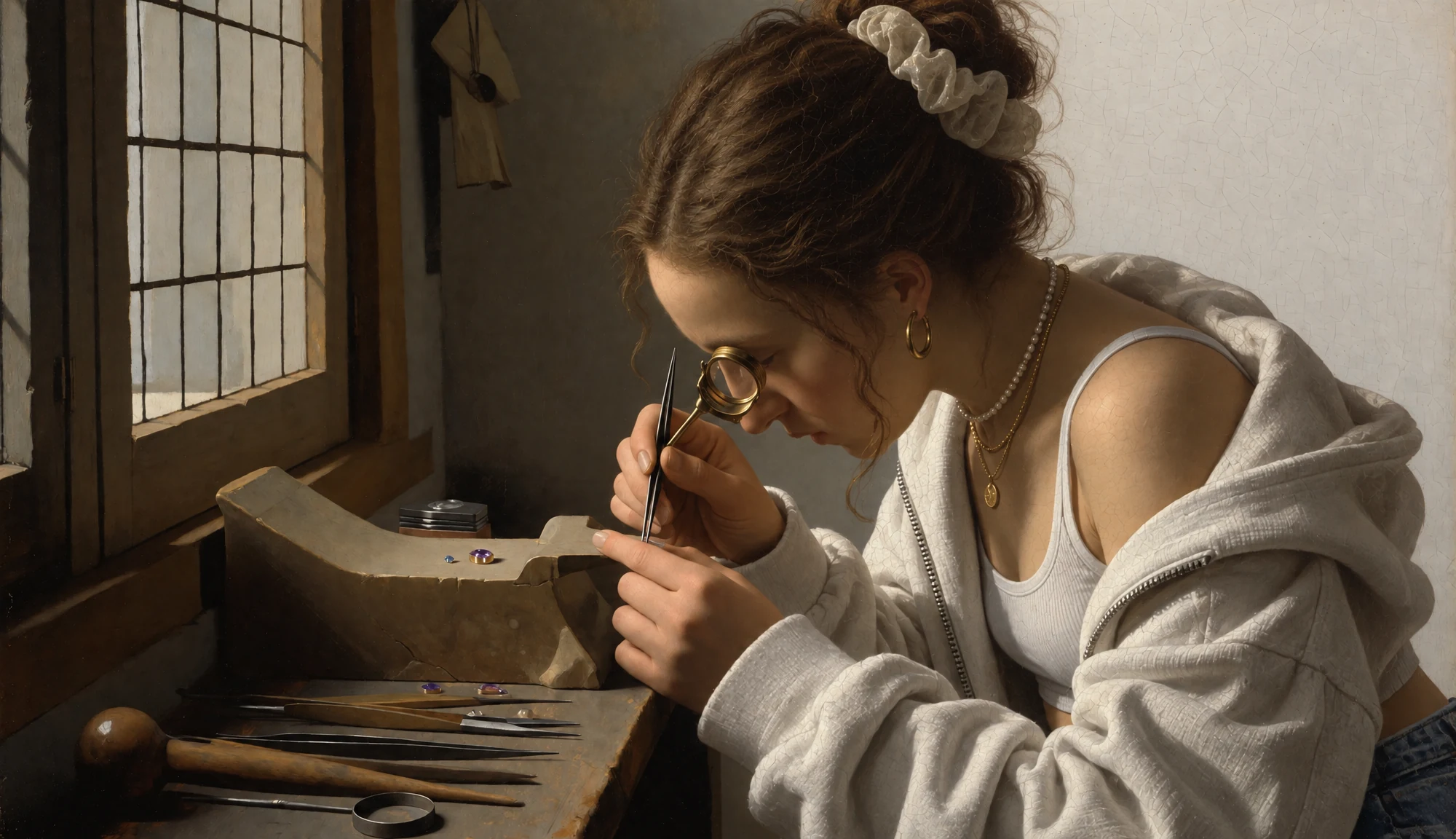
OpenAI released Sunburst on September 8, 2026 for precision work. GPT Image 2.5 follows edit instructions more closely, preserves more reference detail, and renders more natural light and texture.
See how Sunburst handles precise edits, natural lighting, readable text, structured layouts, reference styles, and successive revisions.
Describe what to change while using the reference to guide the rest of the scene.
Specify the light and depth of field to set the look of a new image.
Place an exact tagline where it reads clearly in the composition.
Use a cutaway, callouts and an ordered flow to explain a mechanism.
Use a reference’s pixel palette and outlines on a different subject.
Revise the setting while keeping the product and message recognizable.
Compare the original and edited images to see which details carry through. To try this edit, add your own reference in Image to Image.
The edit swaps historical clothing for a modern hoodie while keeping the jeweler’s pose and workbench recognizable.
Example prompt
“Replace her clothing with Gen-z fancy clothing”
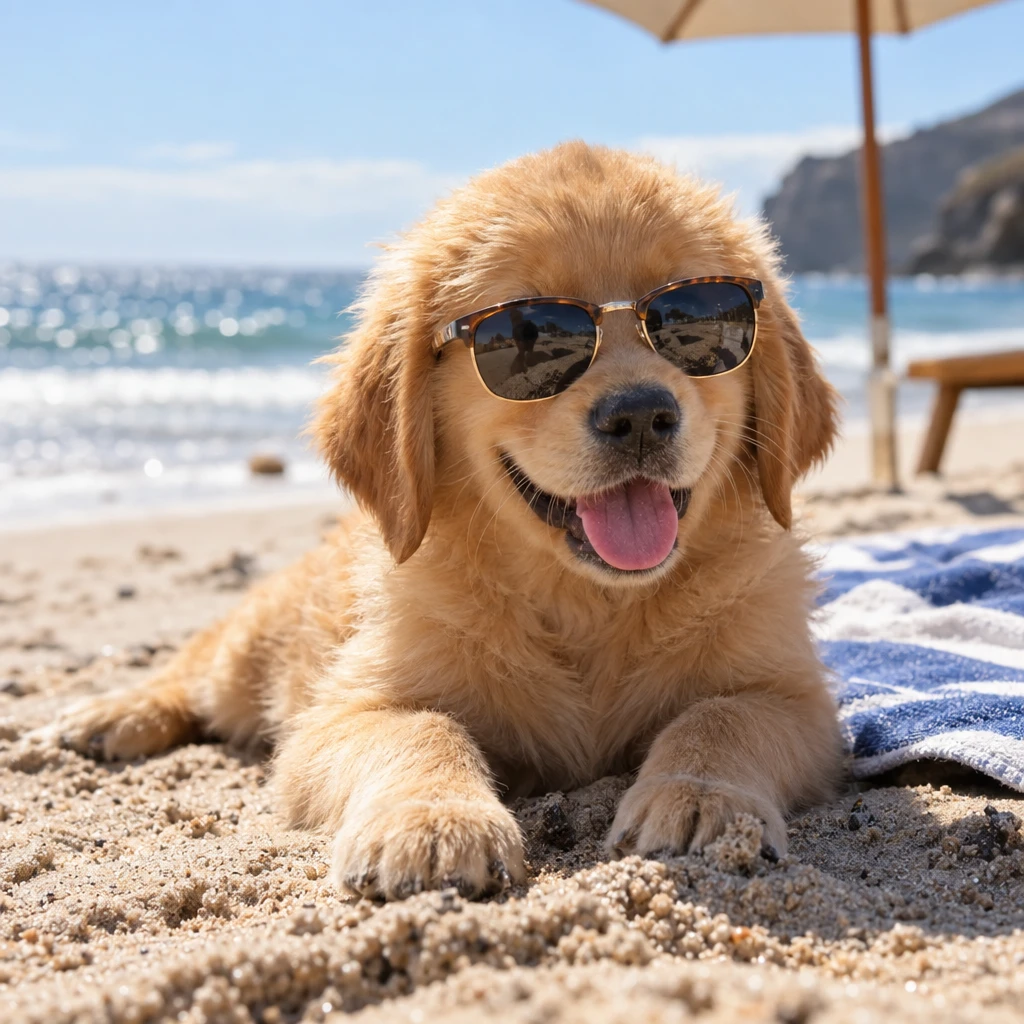
The GPT Image 2.5 update brought more natural-looking light and richer textures. Here, a short prompt sets a bright outdoor scene with a shallow depth of field.
Sunlight picks out the puppy’s fur and brightens the sand, with the sea and umbrella softly out of focus.
Example prompt
“A golden retriever puppy wearing tiny sunglasses on a sunny beach, photorealistic, shallow depth of field”
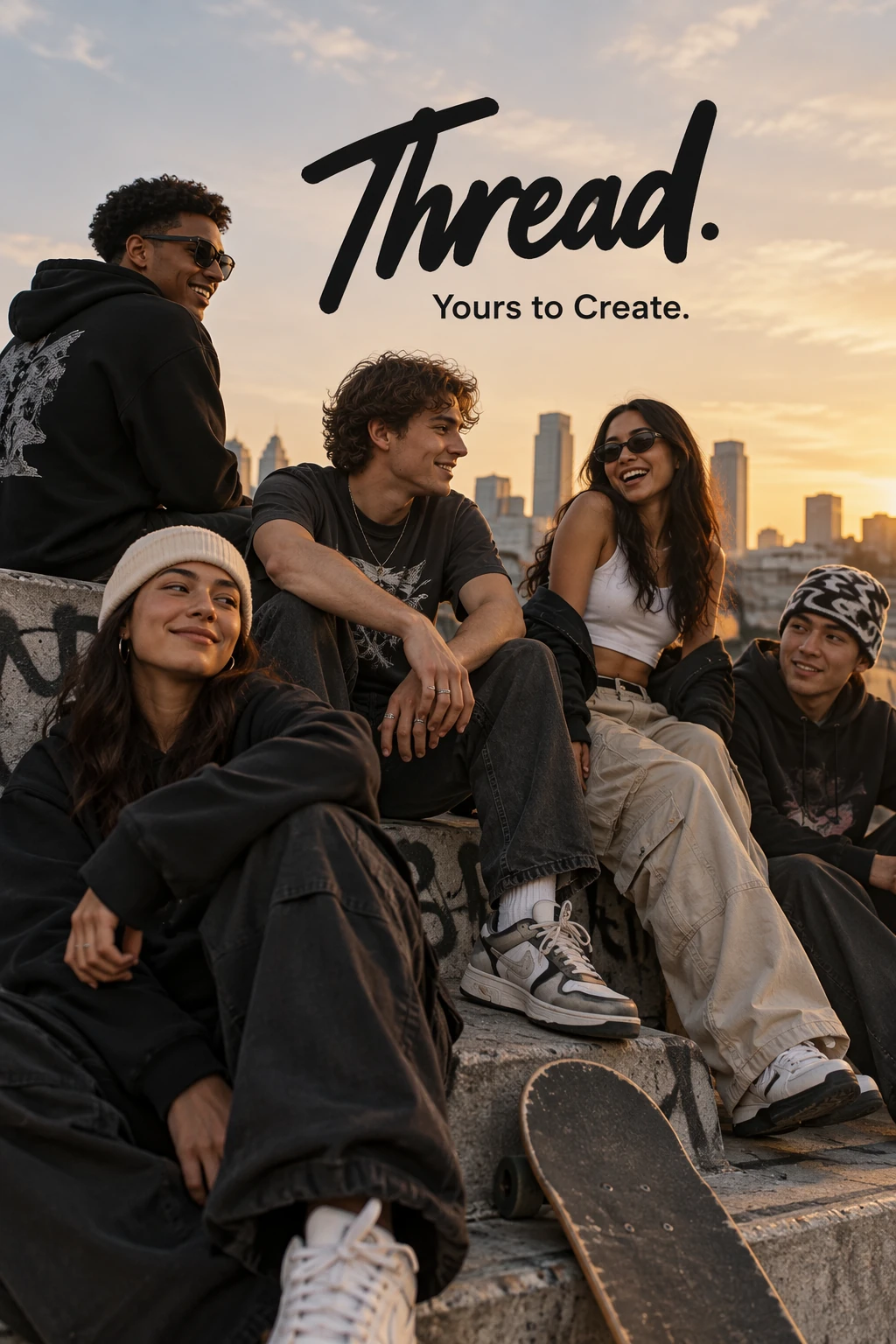
Use a brief with literal copy and a defined layout. The result places the brand name and tagline in the open sky above the group.
The hero image reads “Thread.” with “Yours to Create.” directly below it.
Example prompt
“Create a streetwear campaign for Thread. Show a group of friends against an evening city skyline and set “Yours to Create.” once below the Thread wordmark.”
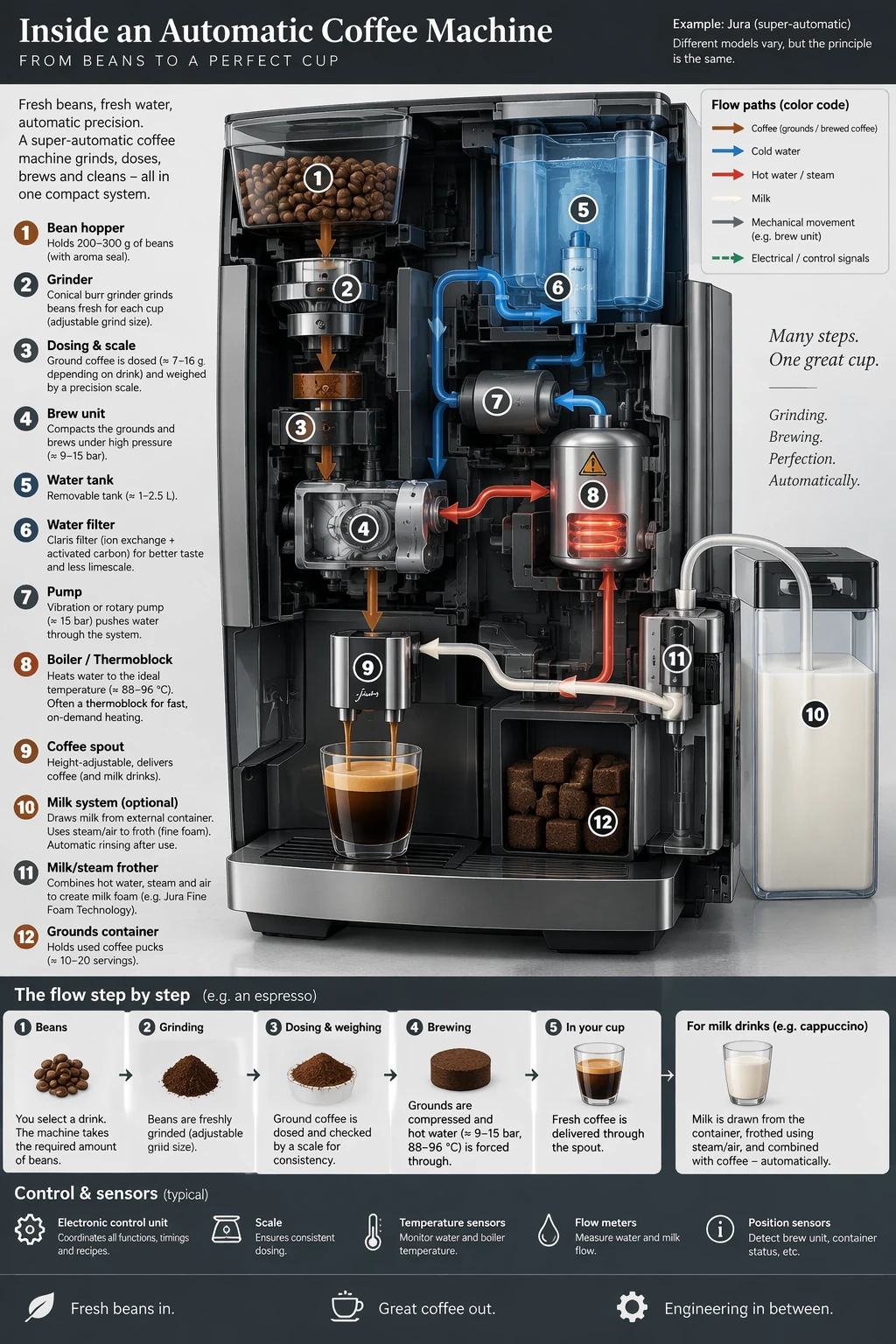
The model organizes the grinder, water tank, boiler and brew path into one technical illustration with a separate process strip.
A labeled cutaway anchors the page, and the bottom row sequences the steps from beans to coffee.
Open full-size diagramExample prompt
“Design a portrait infographic that explains an automatic espresso machine. Center a cutaway, label the grinder, water tank, boiler and brew unit, and add an ordered bean-to-cup process strip at the bottom.”
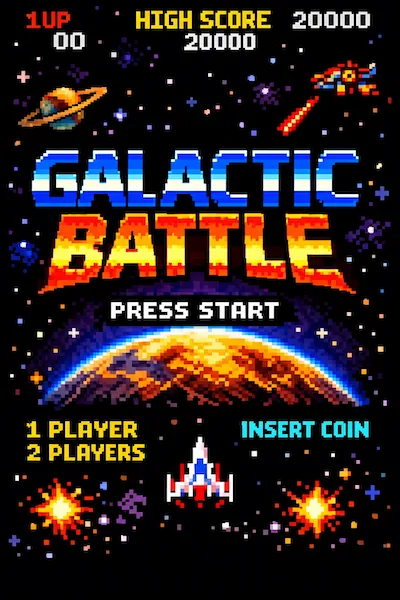
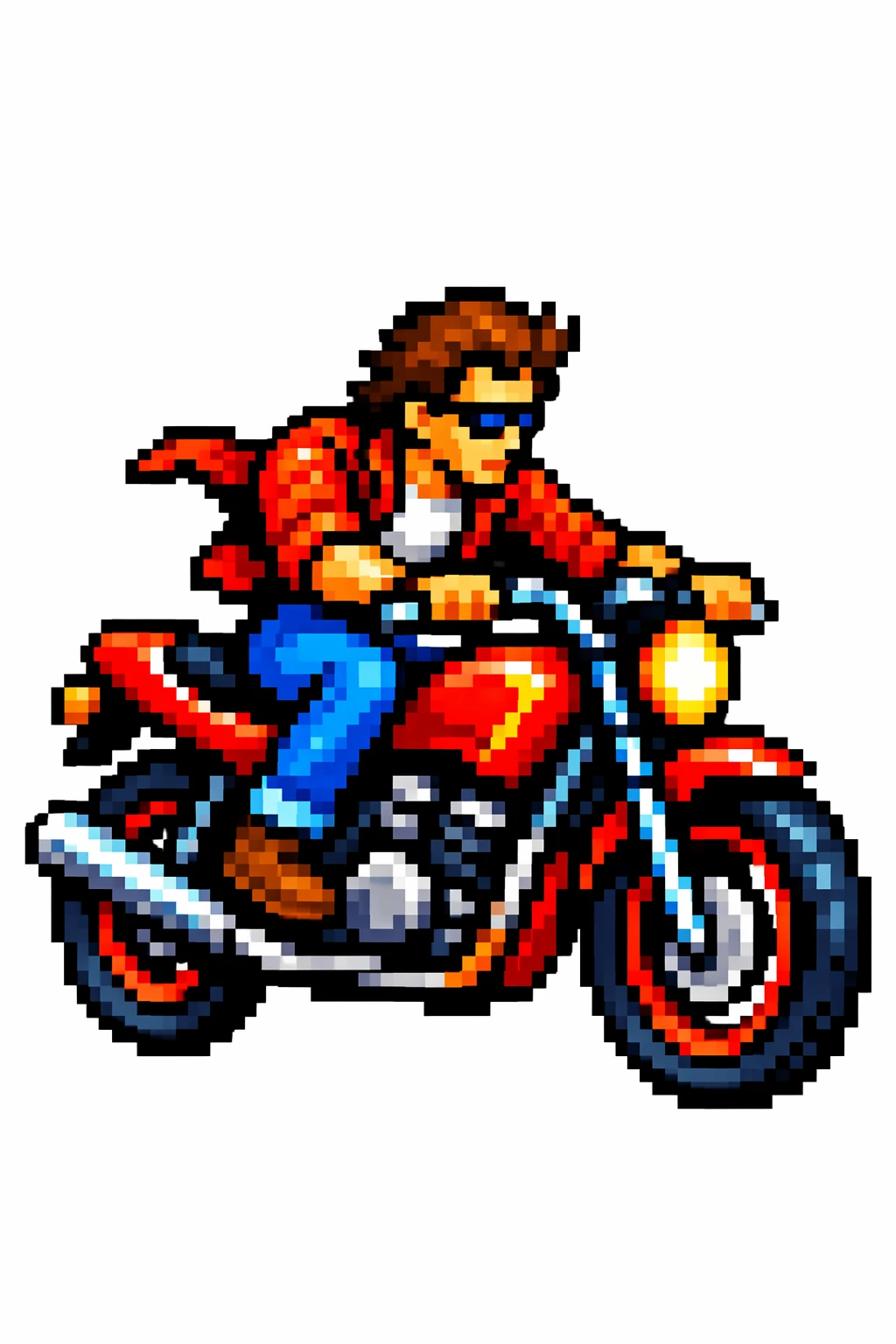
Upload a style reference and describe the new subject. The rider takes on the arcade artwork’s hard pixel edges and bright colors.
Color blocking and stepped outlines carry from a space-game screen to a new rider and motorcycle.
Example prompt
“Use the supplied arcade image as a style reference. Draw a motorcycle rider with chunky pixel outlines and a bright retro palette on a plain white background.”
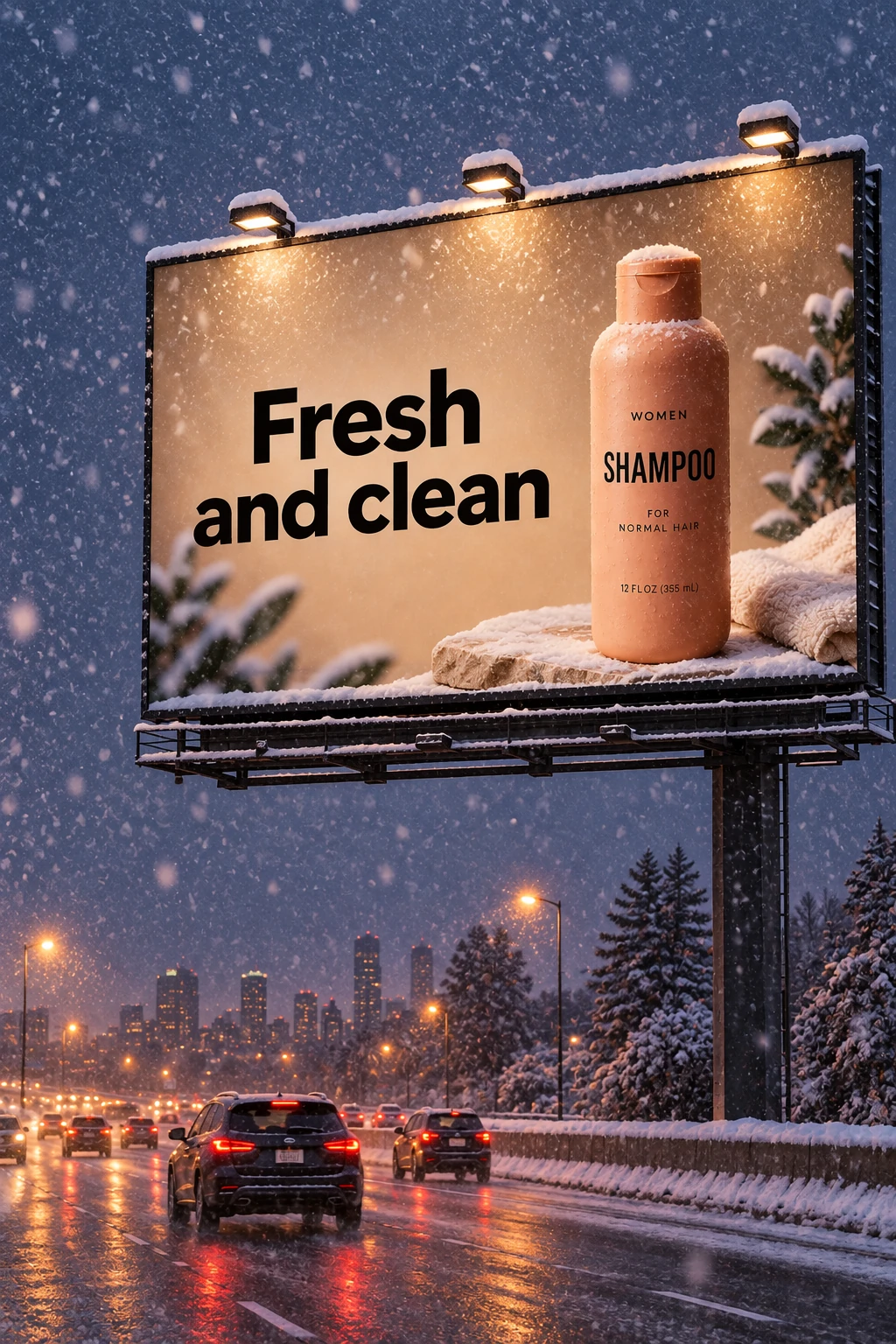
The product photo first becomes a sunset billboard. For the next edit, upload the sunset result as the reference and ask for a winter evening.
The final image changes light and weather while retaining the bottle, billboard framing and “Fresh and clean” headline.
Example prompt
“Make it look like a winter evening with snowfall.”


Compare Wizmade settings and see how people voted in Arena’s November 16, 2026 text-to-image benchmark.
Scroll sideways to see all models.
| Compare | Sunburst | Flare | GPT-Image 2 |
|---|---|---|---|
| Positioning | Precision and fine detail | Speed and everyday iteration | Previous-generation GPT Image model |
| Arena score | 1428 ± 5 (preliminary) | 1400 ± 5 (preliminary) | 1382 ± 4 (Medium) |
| Resolution | 1K, 2K, 4K | 1K, 2K, 4K | 1K, 2K, 4K |
| Aspect ratios | 10 presets + Auto | 10 presets + Auto | 15 presets + Auto |
| Outputs | 1–4 | 1–4 | 1 |
| Reference images | Up to 8 | Up to 8 | Up to 8 |
Sources: OpenAI’s GPT Image 2.5 announcement · Arena Text-to-Image leaderboard
Generate or refine GPT Image 2.5 Sunburst images in three steps inside the workbench above.
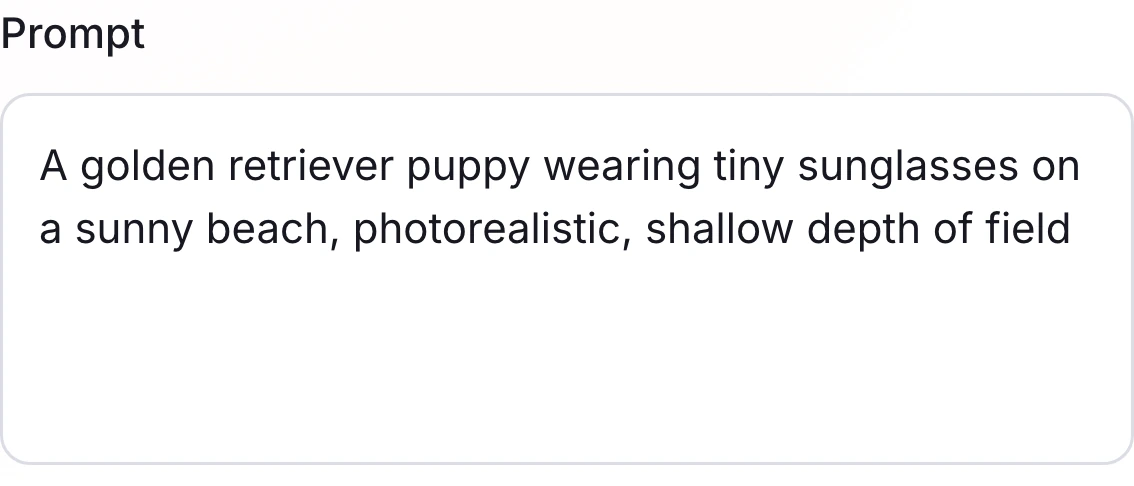
Write your brief in Text to Image. To change an existing image, switch to Image to Image and upload the reference before describing the edit.
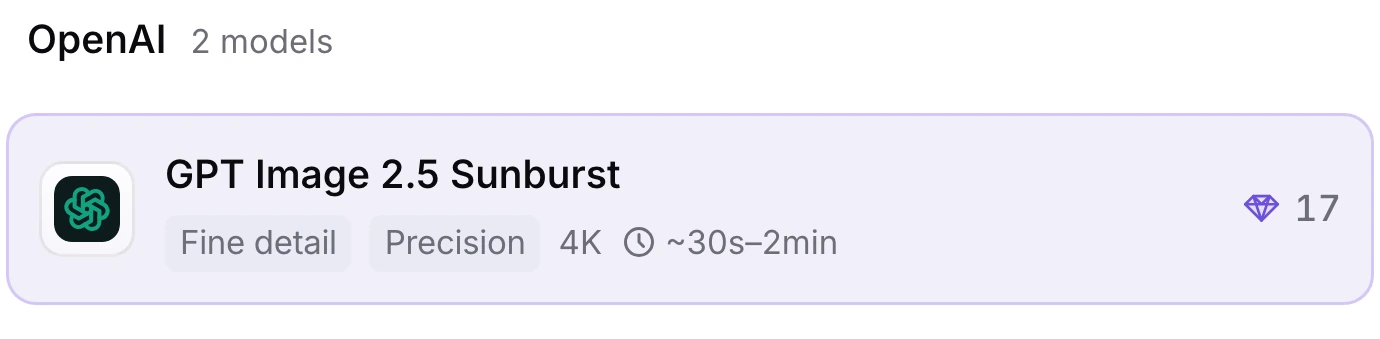
Check that GPT Image 2.5 Sunburst is selected, then set the aspect ratio, resolution and number of images.
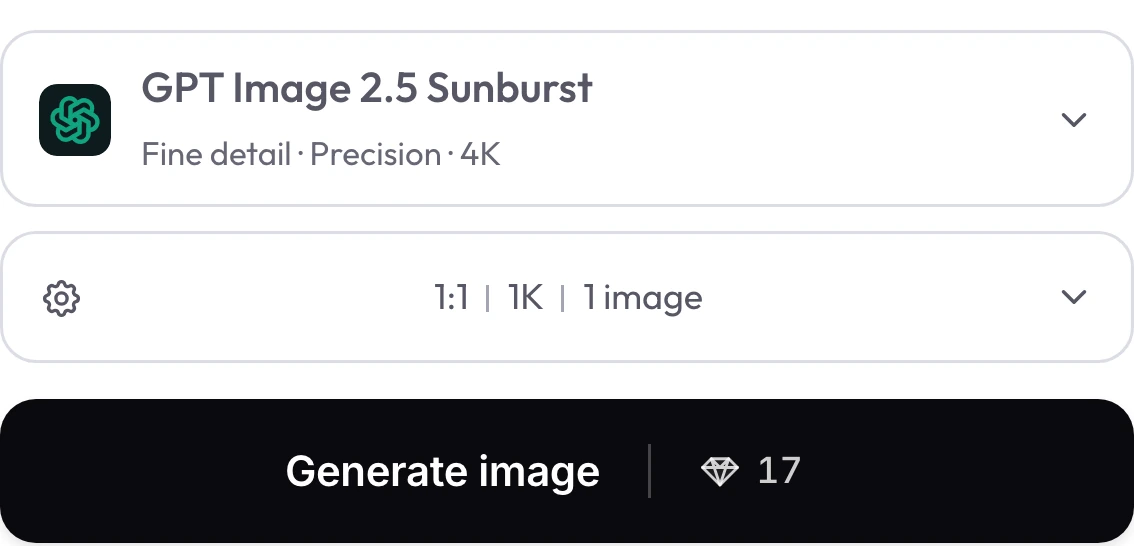
Review the live diamond quote beside Generate image. Select Generate image when you are ready, then open Results to view your images.
Review the live parameters exposed by the GPT Image 2.5 Sunburst configuration in the Wizmade workbench.
| Setting | Available options |
|---|---|
| Workflows | Text to Image; Image to Image (in-page workbench) |
| Resolution | 1K, 2K, 4K |
| Aspect ratios | 1:1, 9:16, 16:9, 3:2, 2:3, 4:3, 3:4, 5:4, 4:5, 21:9, auto |
| Outputs | Up to 4 per request |
| Reference images | Up to 8 reference images in Image to Image mode |
| Credits | Review the live 💎 quote inside the workbench before generating. |
See Sunburst, Flare and GPT-Image 2 compared across 15 generations.
Arena covers how the two variants performed in text-to-image, image editing and multi-image editing at launch.
A creator shares results from GPT-Image 2, Flare and Sunburst on the same UI design briefs.
The faster 2.6 variant for quick iterations on image concepts and edits.
The 2.6 variant for detailed image generation and reference-guided revisions.
Generate or edit images from detailed prompts and high-fidelity image references.
Choose the faster GPT Image 2.5 option for everyday image creation and iteration.
Choose GPT Image 2.5 when a task calls for more precise control and detailed edits.
Answers about GPT Image 2.5 Sunburst capabilities, settings, reference uploads and credits in Wizmade.
Sunburst is the precision-focused variant of GPT Image 2.5. The 2.5 generation follows edit instructions more closely, preserves more details from references, and renders more natural-looking lighting and textures.
Choose Sunburst when the brief calls for fine texture or a focused edit. Choose Flare when you want to iterate quickly. Both offer 1K, 2K and 4K and up to four outputs per request in Wizmade.
Sunburst can return up to four images per request. GPT-Image 2 returns one and offers a different set of aspect-ratio presets. Both offer up to 4K resolution and accept up to eight references in Image to Image.
Yes. Upload the reference in Image to Image and describe the change and the details to keep. For a wardrobe edit, specify the new clothing and ask to retain the pose and framing.
You can attach up to eight reference images per request in Image to Image. Explain what each reference contributes, such as the subject or the desired style.
Choose 1K, 2K or 4K. The aspect-ratio menu offers Auto and ten presets, including 1:1, 16:9, 9:16 and 21:9.
The diamond quote beside Generate image shows the current credit cost for your settings. Review it after changing the resolution or output count.
Try loads the case prompt into the workbench. Edit cases open Image to Image, and Try keeps your attached references and any model you selected. You can revise the prompt before choosing Generate image.
Yes. Save a result and upload it as an Image to Image reference. Describe the next change and the details to keep, such as the layout or headline.
Write your prompt, adjust aspect ratio and resolution, or switch to Image to Image with your own references in the workbench above. New accounts include 60 free starter credits with live 💎 quotes before every generation.
We use essential cookies and analytics to understand site usage and improve your experience on Wizmade. Read our Privacy Policy for details.
