
Local edits
Describe a specific object or detail and the replacement you want.
Wizmade’s Image Editor provides a canvas with Edit, Background, and Watermark modes for a supplied image. Choose the mode that matches your task and describe or mark the area to change. Canvas previews and example media are distinct from completed image-processing results.
Wizmade’s Image Editor provides a canvas with Edit, Background, and Watermark modes for a supplied image. Choose the mode that matches your task and describe or mark the area to change. Canvas previews and example media are distinct from completed image-processing results.
Describe a specific object or detail and the replacement you want.
Explain the new scene and light direction so the subject can fit the setting.
Check edges, fine textures, and retained content at full size.
Follow the steps in the workbench above. Each screenshot shows the complete interface for that step.
Add the photo you want to edit and inspect it at a useful zoom before choosing a tool.
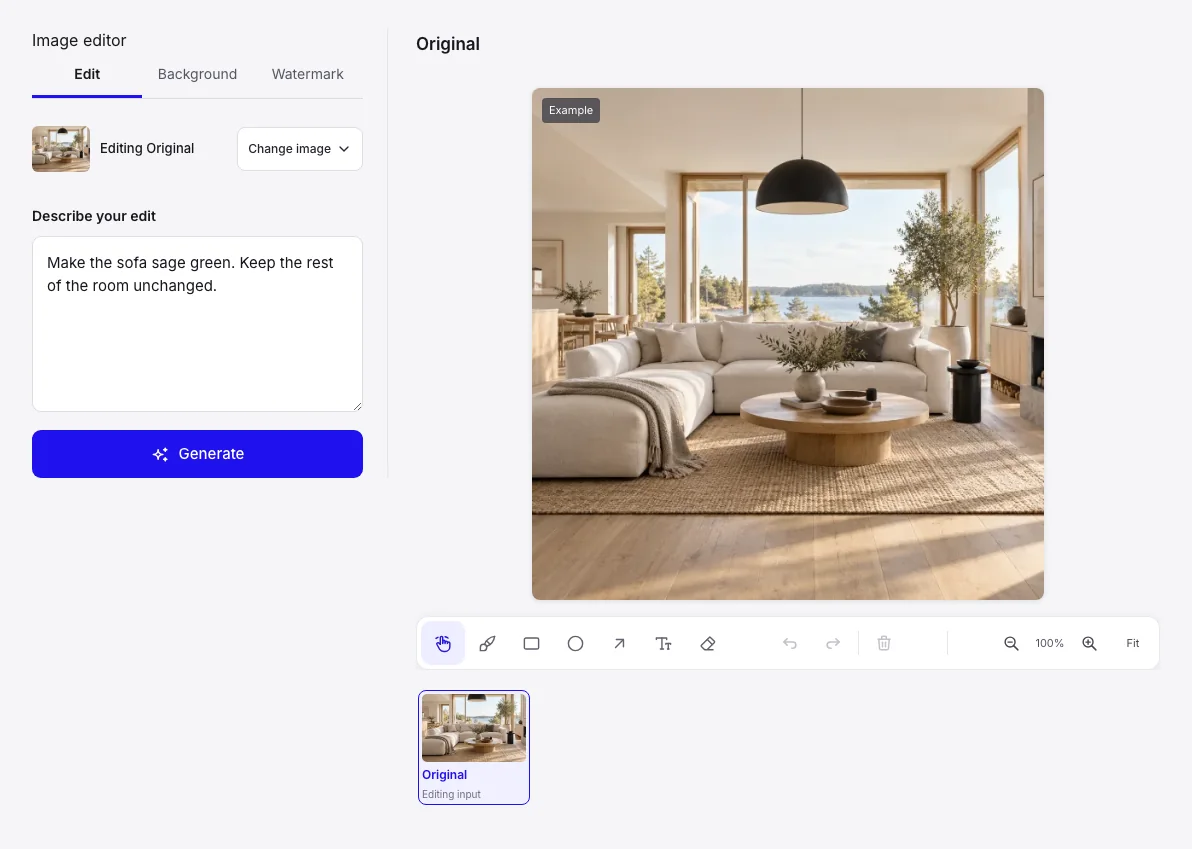
Use Edit for an instruction-led change, Background for background work, or Watermark for the corresponding removal workflow. Use selection controls when the active mode offers them.
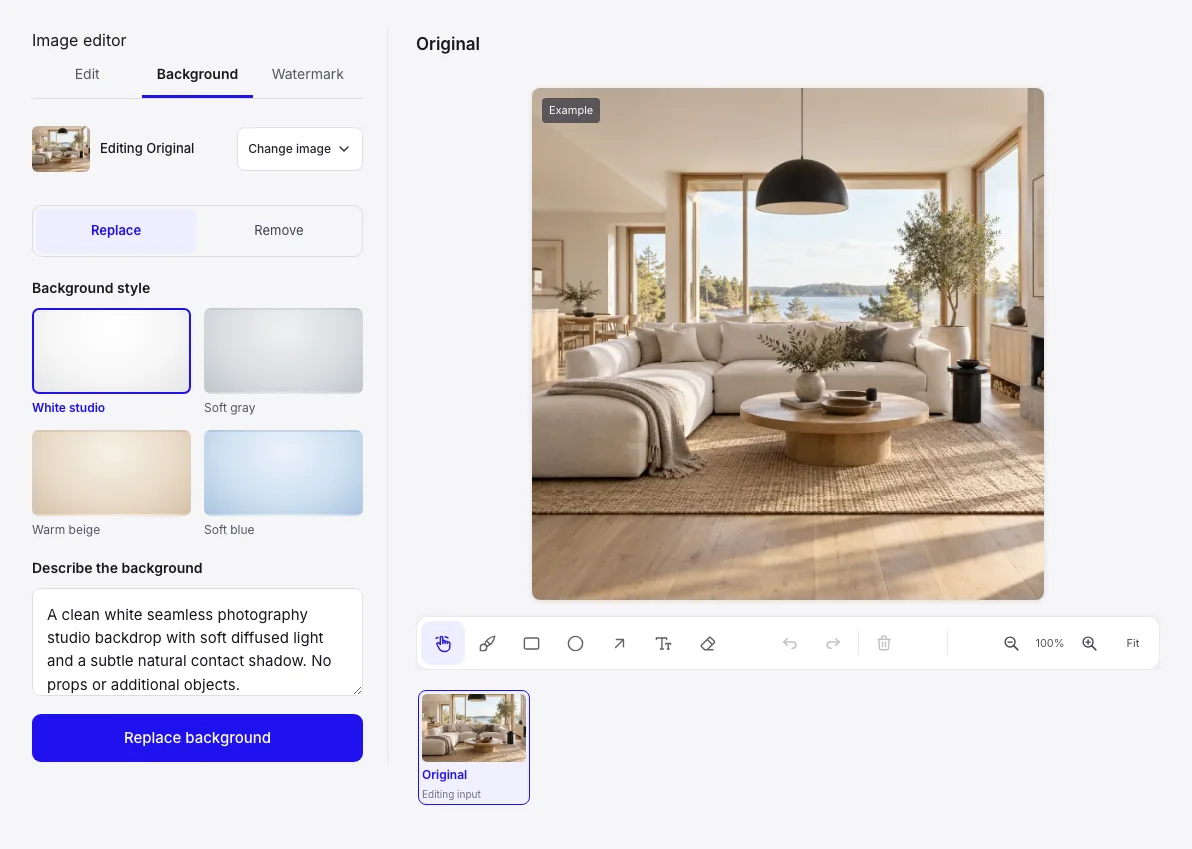
Review the instruction and selected area in Edit, inspect Background controls for background work, or choose a Watermark removal method. Check the source and active mode before submitting.
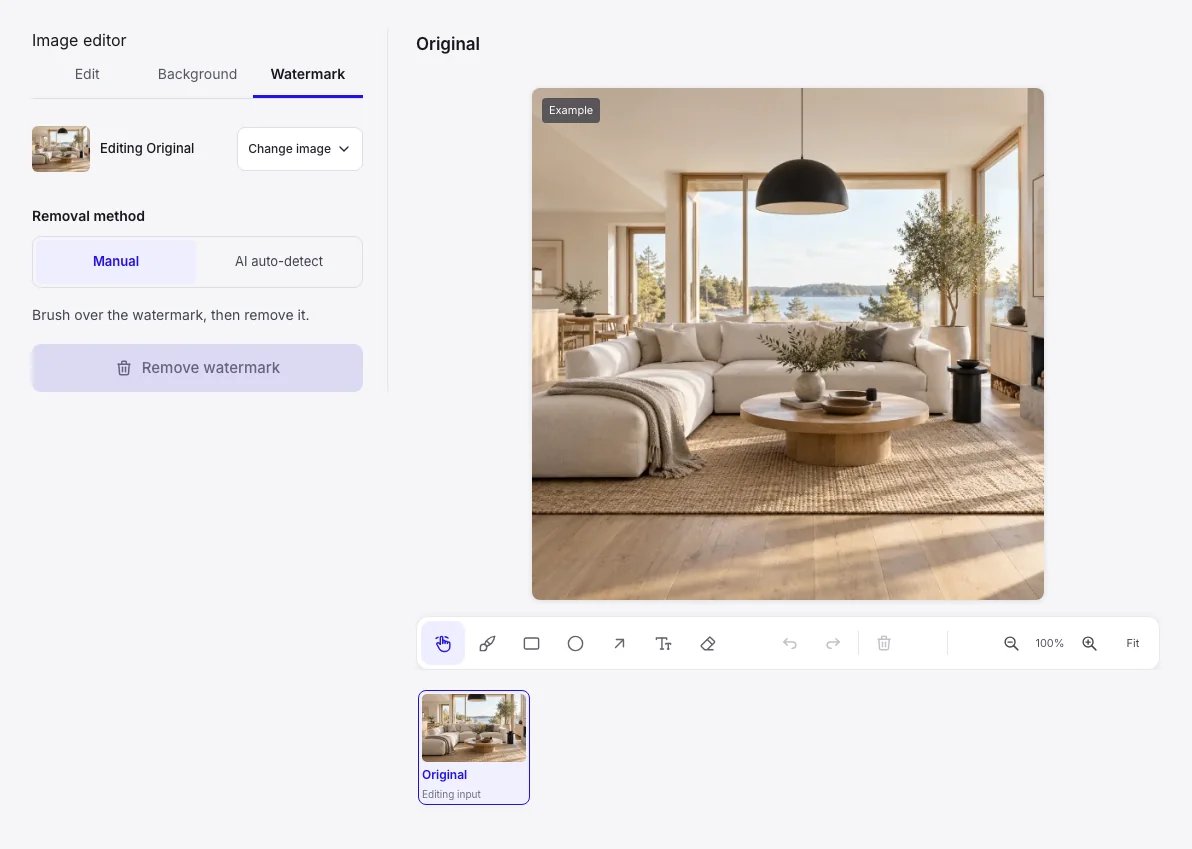
An edit can change nearby detail and may need another pass. Use removal tools only on material you are entitled to modify; a preview does not establish a completed edit.
Wizmade’s Image Editor provides a canvas with Edit, Background, and Watermark modes for a supplied image. Choose the mode that matches your task and describe or mark the area to change. Canvas previews and example media are distinct from completed image-processing results.
No. Start by selecting Edit, Background, or Watermark. The controls depend on the active editing workflow; follow the options shown on the canvas.
Credit requirements depend on the operation and configuration. Preparing inputs does not create an output. Check the current plan and any creation quote before confirming a task.
You can prepare the available inputs in the public workbench. Complete sign-in when requested, and review the available settings before submitting.
An edit can change nearby detail and may need another pass. Use removal tools only on material you are entitled to modify; a preview does not establish a completed edit.
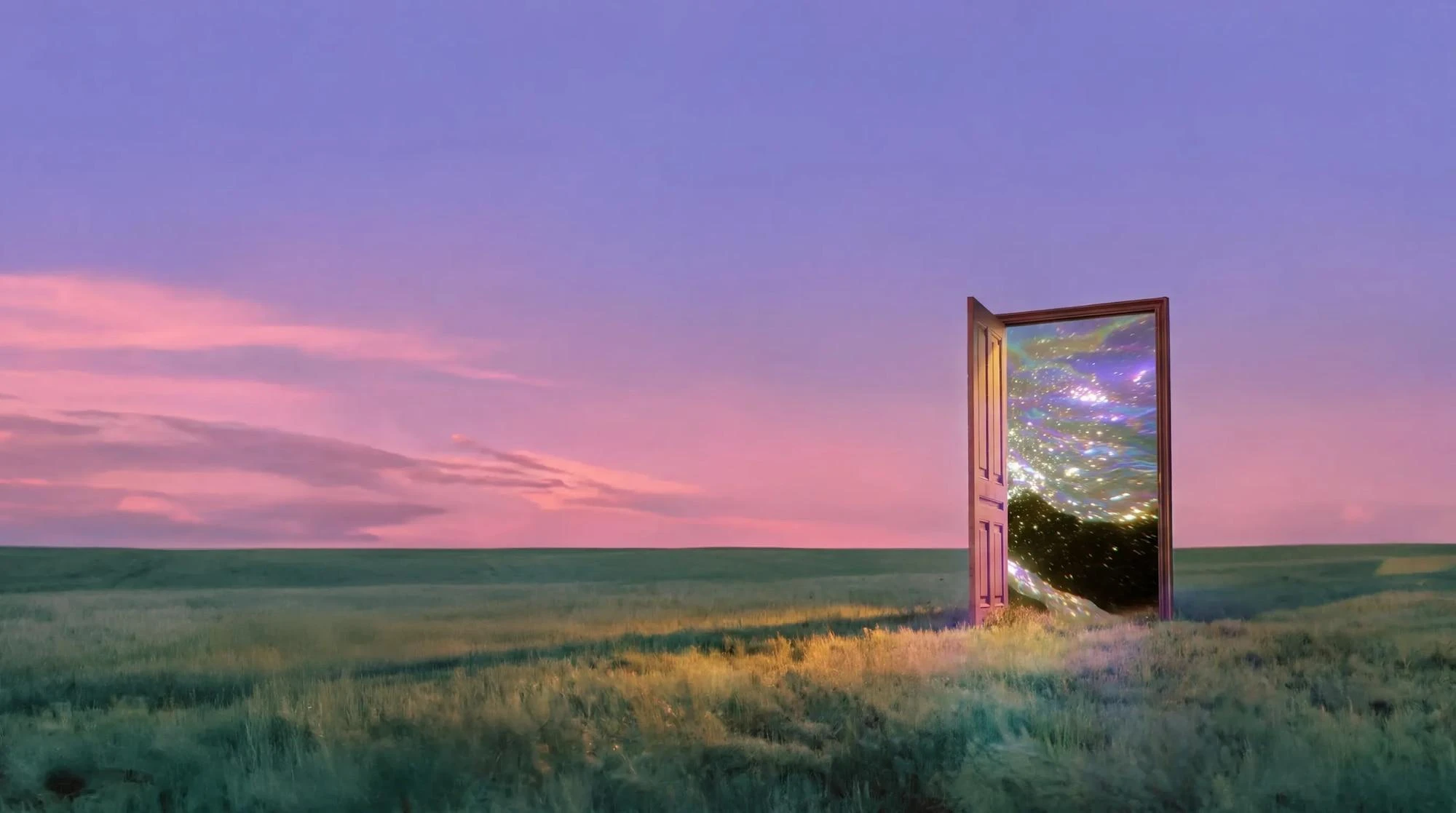
Wizmade’s AI Image Generator prepares still images from text, reference images, or a template direction. Start with the input that fits the task, choose an available model, and review its supported framing and output settings. The examples below illustrate creative directions rather than verified results from a particular model.
Explore AI tool →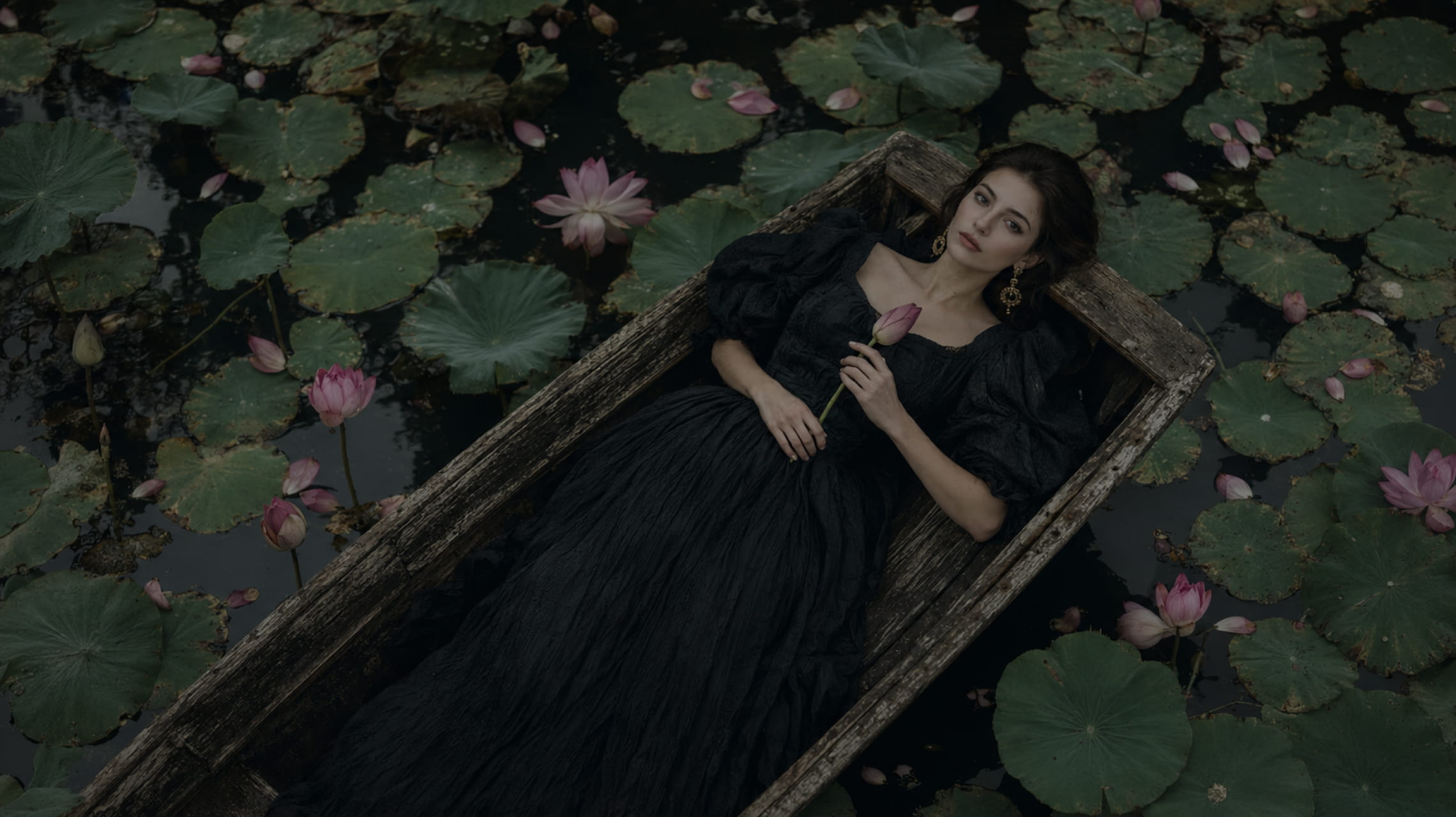
Wizmade’s Text to Image starts with your words. Describe the subject, setting, lighting, and composition, choose an available image model, then set its supported output parameters. The images below illustrate creative directions; your results will depend on the brief, selected model, and settings.
Explore AI tool →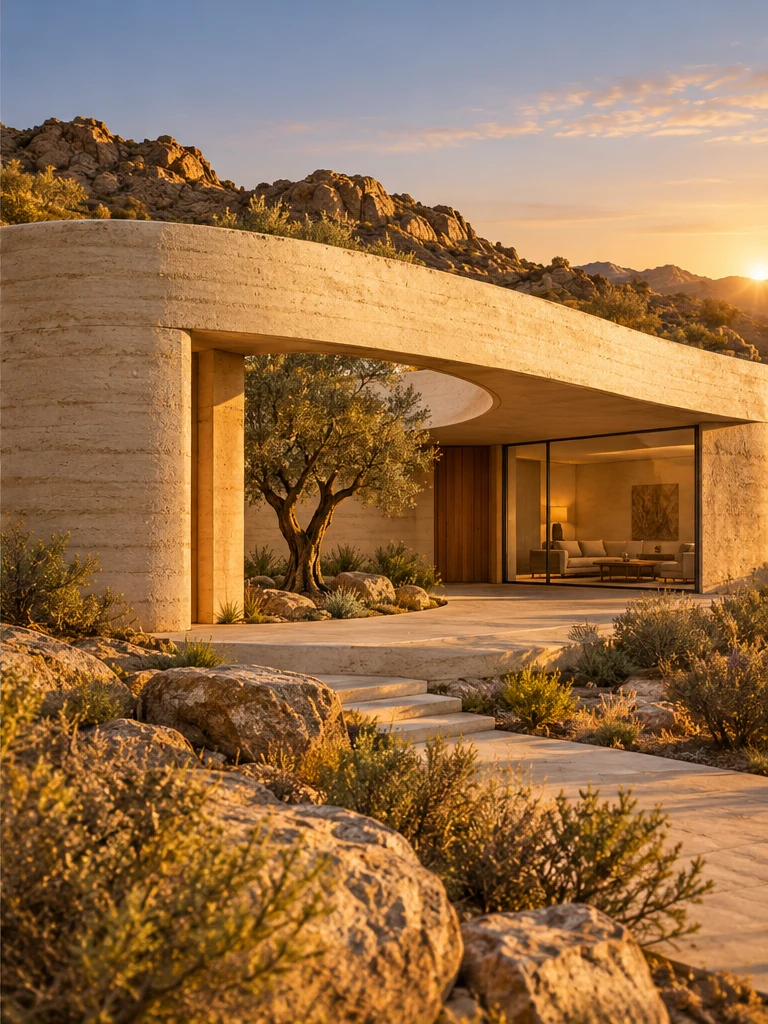
Wizmade’s Image to Image uses a reference image and an editable text instruction to prepare a new image variation. The reference supplies visual context while the prompt describes the intended change. Select the image model and supported output settings in the same image workspace.
Explore AI tool →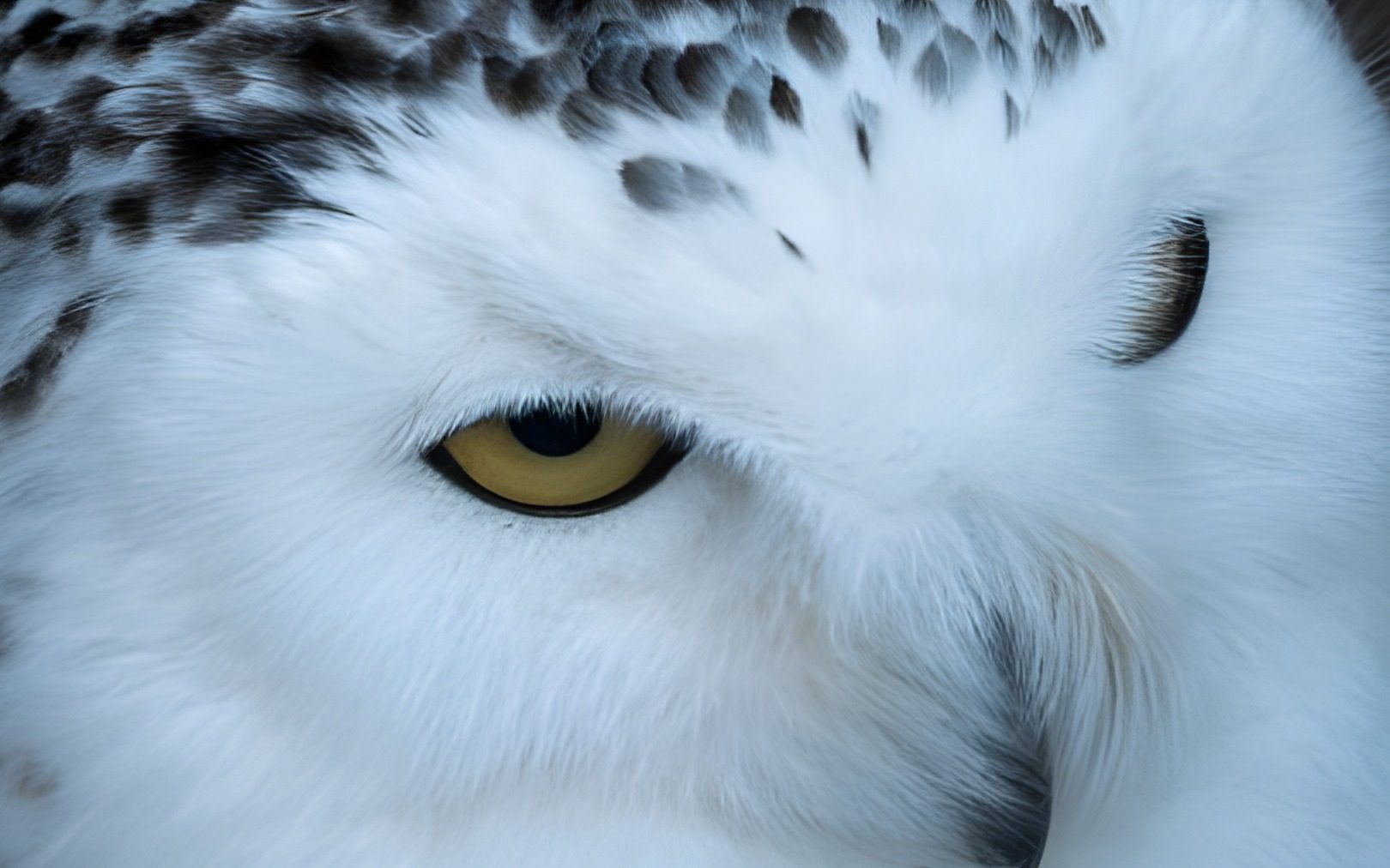
Wizmade’s Image Upscaler prepares a larger version of an uploaded image using the selected upscale factor. Add your source, choose 1×, 2×, or 4×, and compare the result with the original when processing completes. The side-by-side example is demonstration media, not your uploaded image.
Explore AI tool →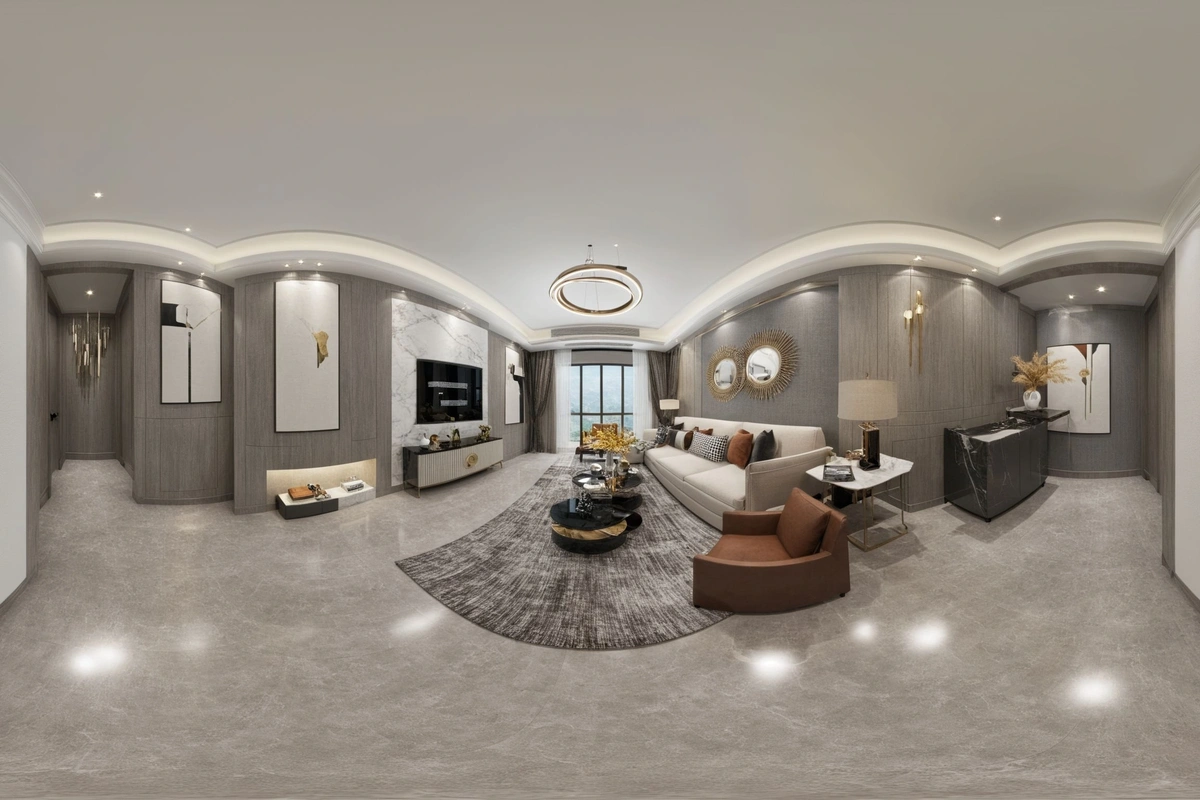
Wizmade’s Image Expander uses an image and a chosen frame to prepare an expanded composition. Upload a source or use the example, then choose the target ratio and size. The output panel stays separate from the input so you can distinguish the source from a completed expansion.
Explore AI tool →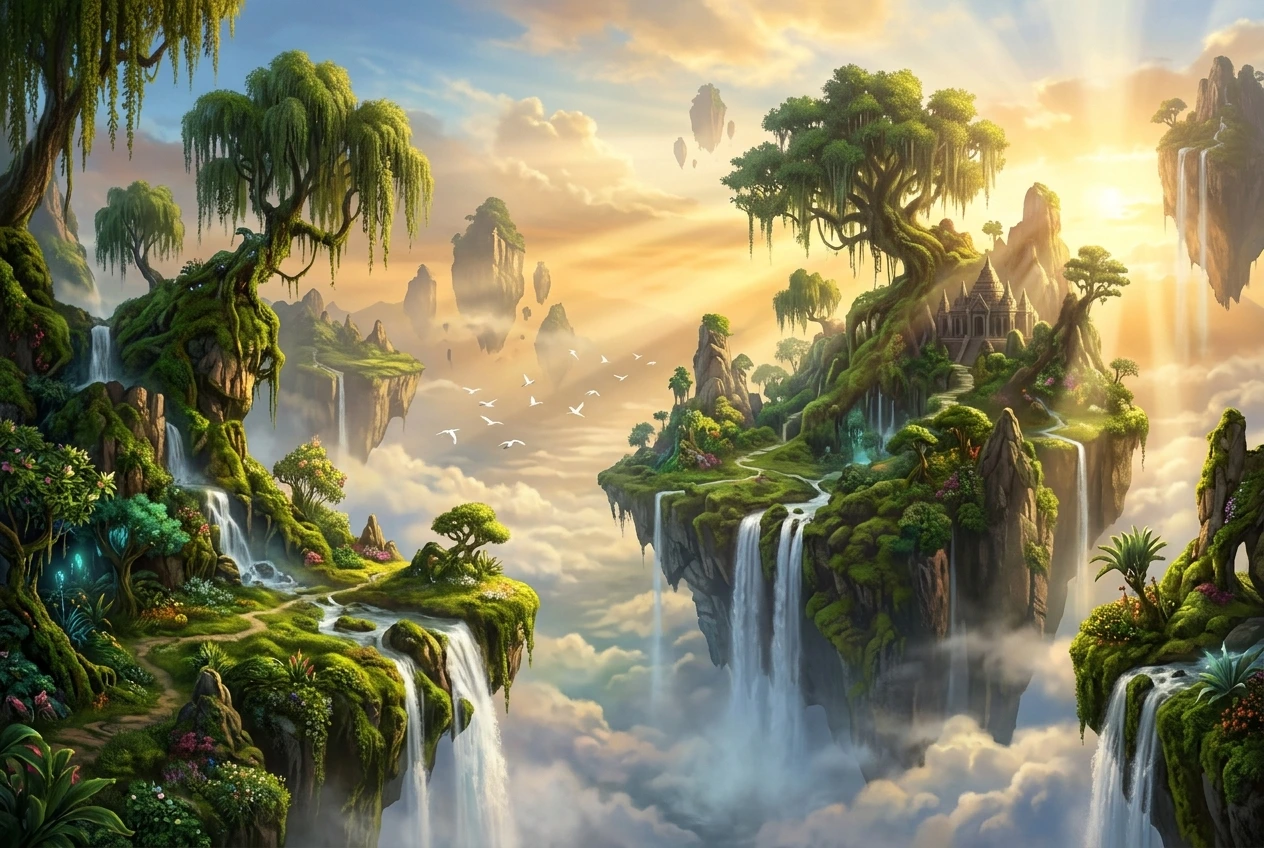
Wizmade’s Image to Prompt workspace places an image preview beside an editable prompt. Upload a reference and write a visual description of its subject, composition, colors, and lighting. Review your text, copy it, or carry it into Image Studio as the starting point for a new creation.
Explore AI tool →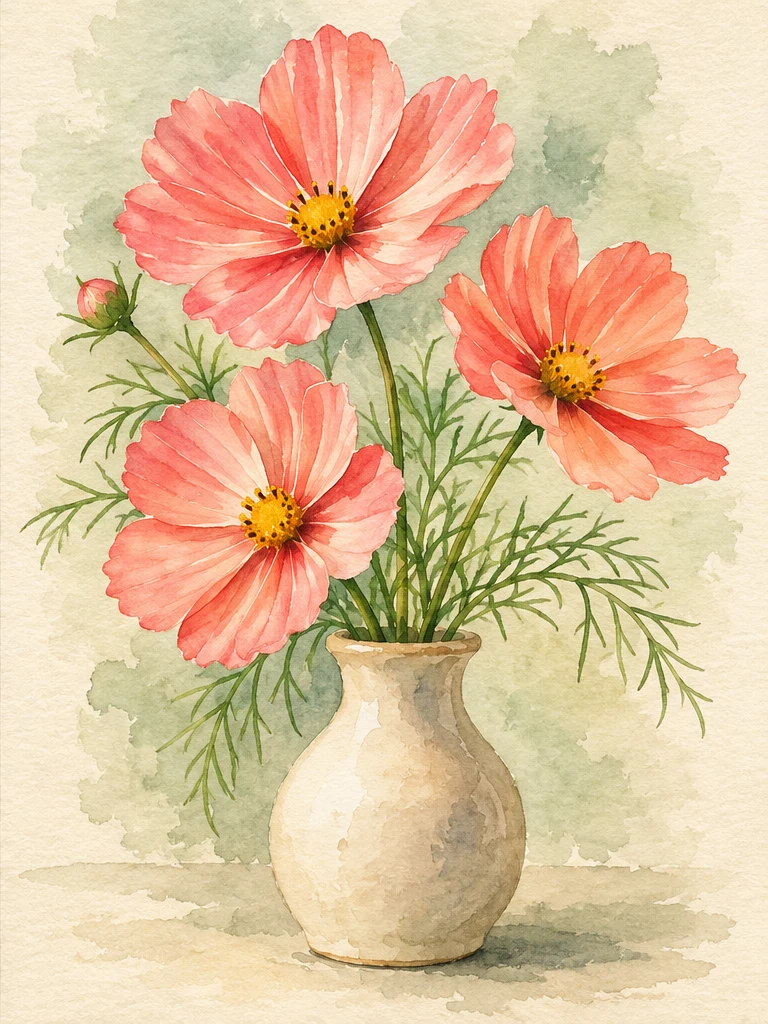
Wizmade’s Image Style Transfer opens the Templates mode of the image workspace. Select a visual preset, supply a reference image, and add optional instructions to prepare a restyled image. This shares the image creation workflow rather than offering a separate style-transfer engine.
Explore AI tool →
Wizmade’s AI Logo Generator prepares raster logo concepts from a brand brief and an optional image reference. Describe the name, mark, colors, and intended use, then review the supported canvas settings. Inspiration examples show possible design directions rather than proving a generated result.
Explore AI tool →Return to the workbench to review your inputs and available settings.