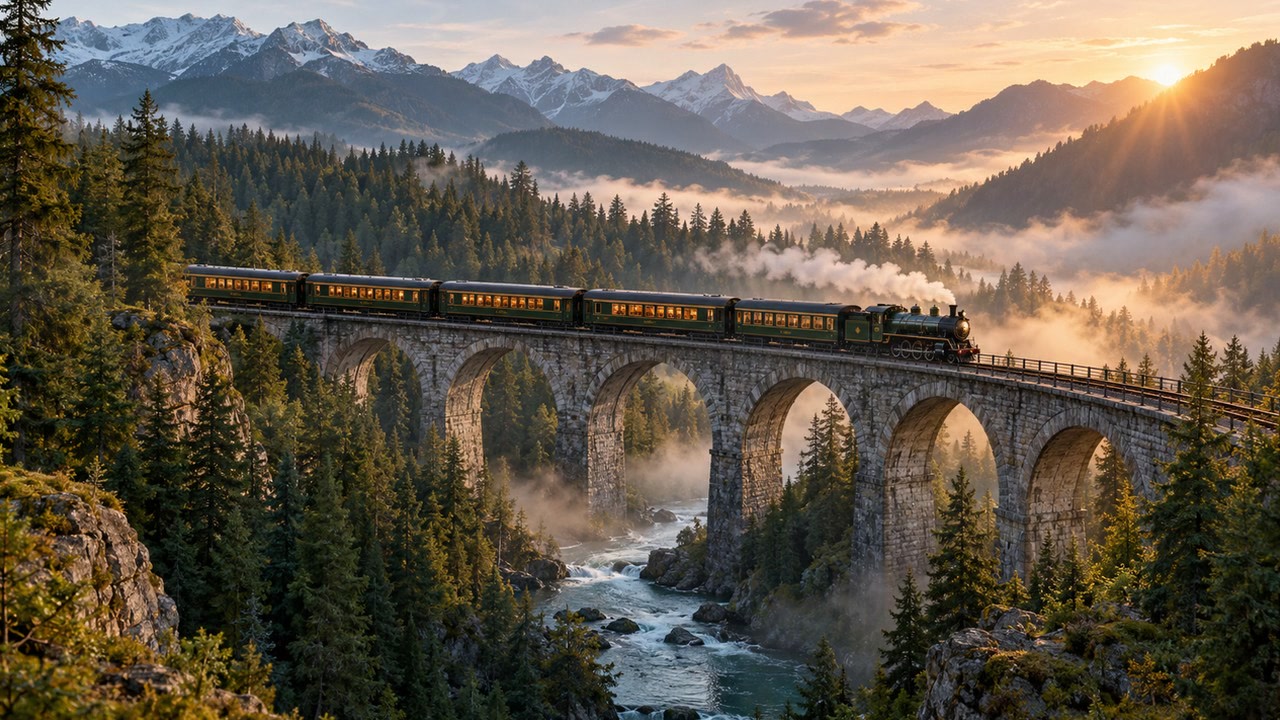
Train on a forest bridge
A passenger train emerges through morning mist on a forest bridge; slow frontal push.
Video model
Organize a single video shot with a strong subject, a defined movement, and enough framing detail to guide the next step.
This prepares a draft in your studio; generation starts when you click create.
Video draftIllustrative inspiration · Examples are not model outputs
A passenger train emerges through morning mist on a forest bridge; slow frontal push.
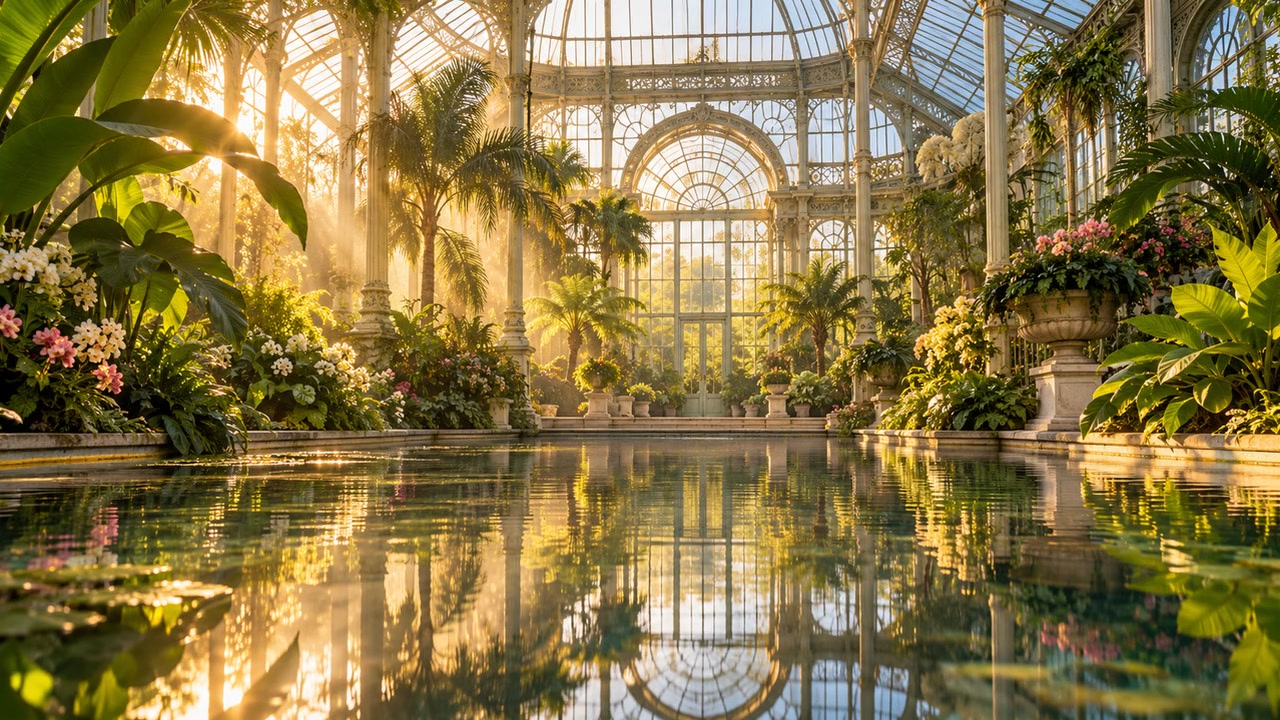
Leaves sway above a quiet conservatory pond; close shot, gentle ripples.

A notebook page lifts beside a coffee cup; static camera, afternoon light.
Model overview · Genpiko Studio
Use the prompt field to describe a direction for Kling 2.6; keep the central idea easy to review before continuing.
Browse all modelsModel overview · Genpiko Studio
The Studio draft keeps Kling 2.6 selected while you inspect the settings available for this video workflow.
Browse all modelsWrite a prompt for Kling 2.6 and make the subject and visual direction explicit.
Choose the supported duration, resolution and aspect ratio in Studio.
Open the saved draft, inspect the available parameters, and start creation there when ready.
Yes. The prompt is carried into the Studio draft and remains editable there.
A text-to-video draft with your prompt and selected model.
No. Browsing and preparing a draft do not start generation or deduct credits. Creating is a separate Studio action.
Visit Pricing for current plan information, then review applicable settings in Studio before creating.
Plan a short moving scene with a clear subject, a single action, and a camera direction before opening Genpiko Studio.
3 min read
Build a concise motion brief around a subject, one readable action, and the framing you want to carry through the shot.
3 min read
Prepare a focused video idea with a defined location, visible action, and a shot direction that is easy to review.
3 min readYour prompt and selected model will be carried into the video Studio.