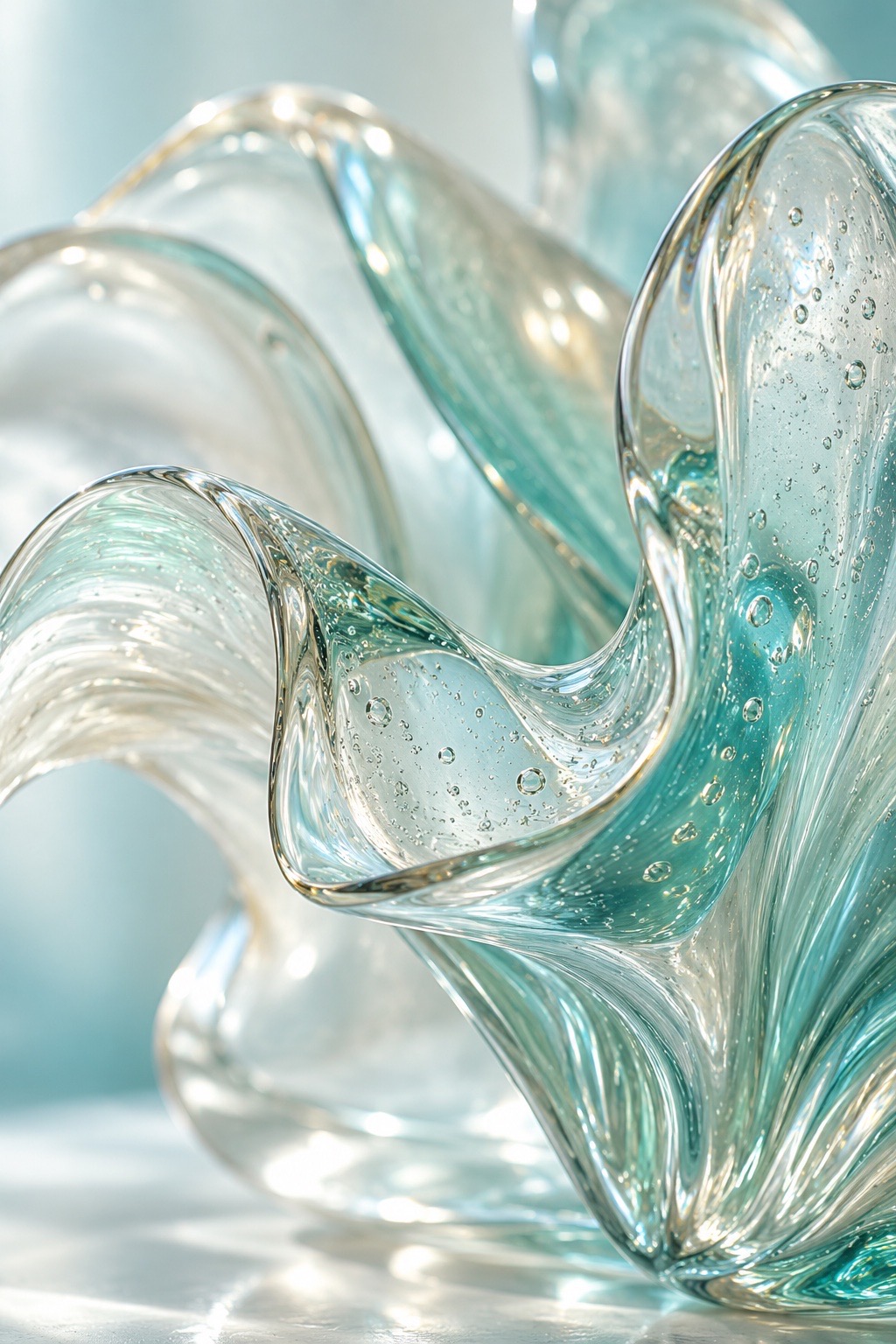
Fluid glass form
A translucent pale-blue glass sculpture with folded surfaces, crisp studio highlights.
Image model
Use this page to draft a distinct image idea with a clear subject, a considered layout, and concise style direction.
This prepares a draft in your studio; generation starts when you click create.
Image draftIllustrative inspiration · Examples are not model outputs
A translucent pale-blue glass sculpture with folded surfaces, crisp studio highlights.
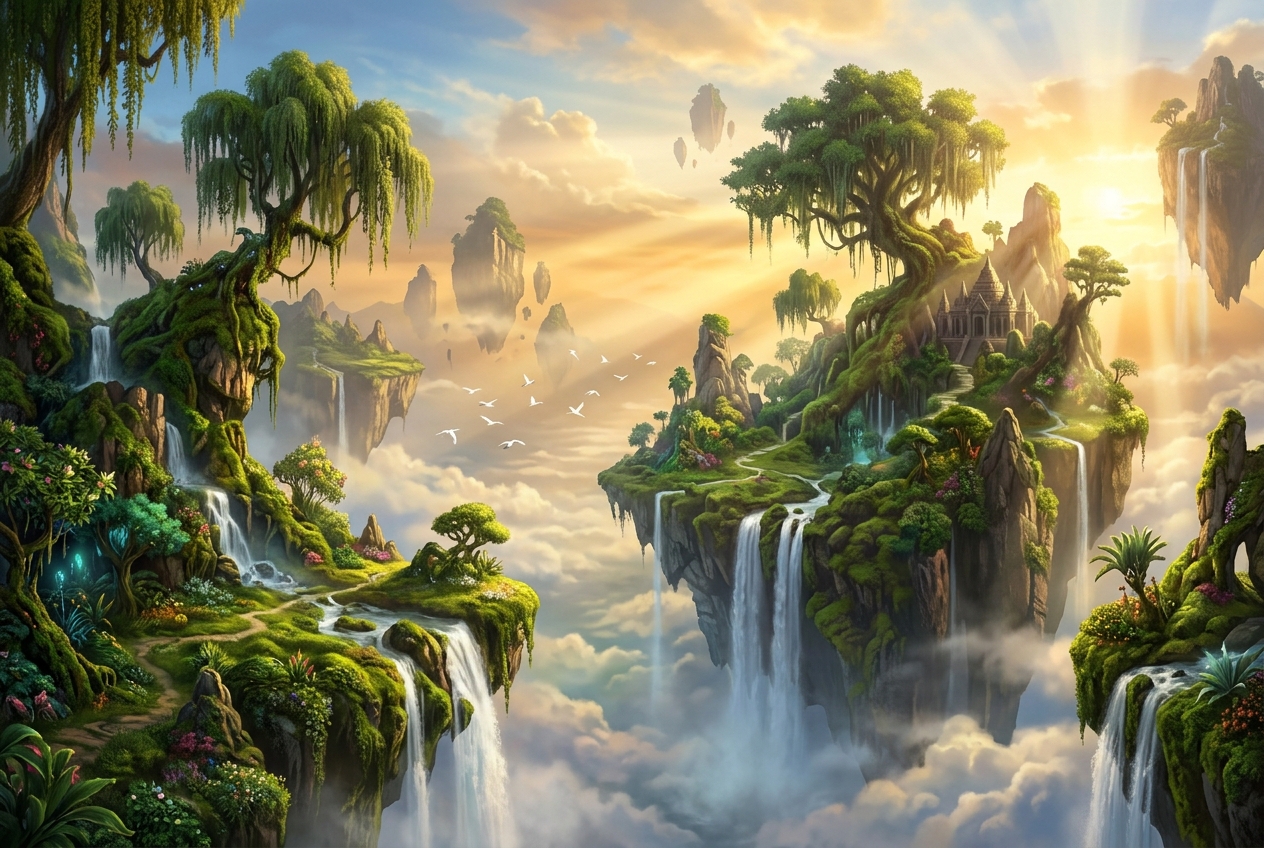
An illustrated map of mossy floating islands and waterfalls, fine green lines on warm paper.
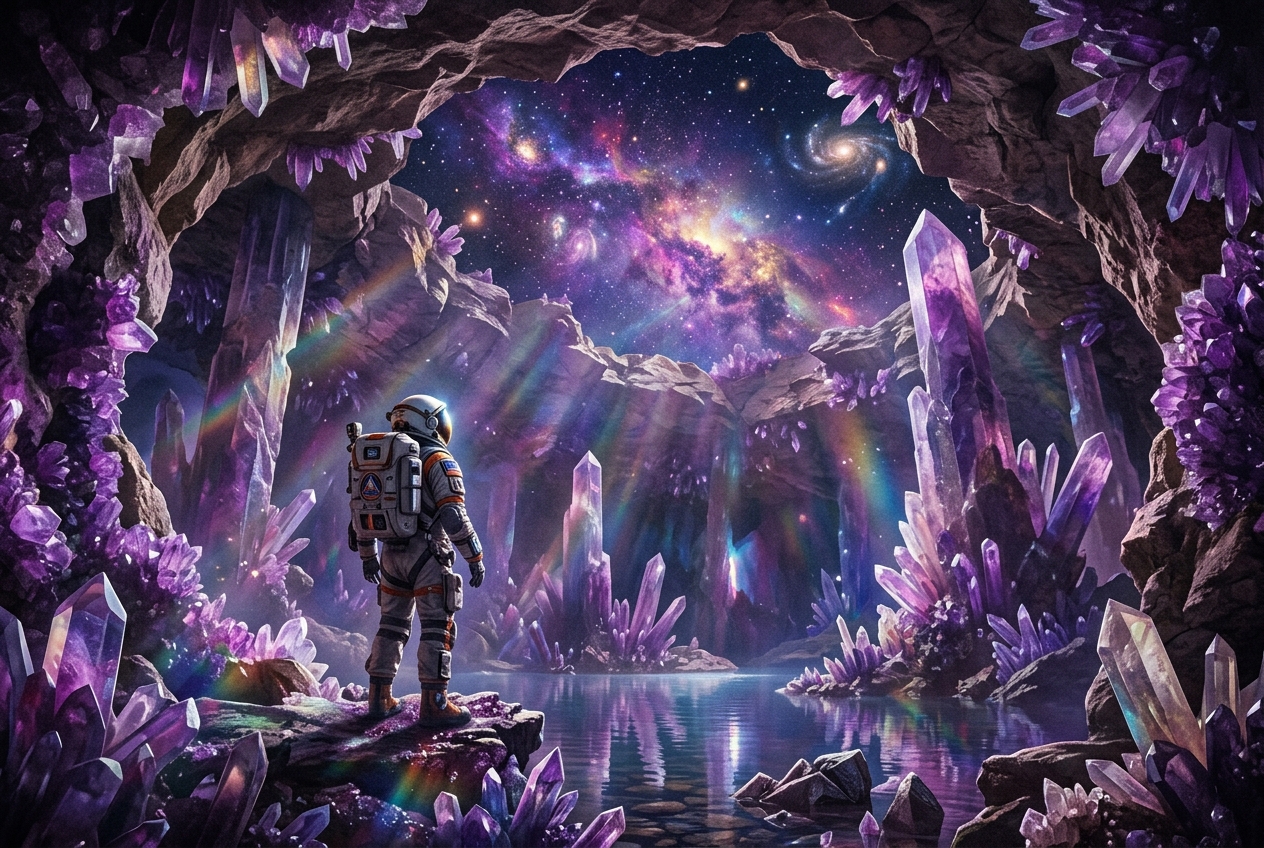
A tiny explorer beside a luminous crystal sculpture in a dark cavern, one violet spotlight.
Model overview · Genpiko Studio
Use the prompt field to describe a direction for GPT Image 2.5 Flare; keep the central idea easy to review before continuing.
Browse all modelsModel overview · Genpiko Studio
The Studio draft keeps GPT Image 2.5 Flare selected while you inspect the settings available for this image workflow.
Browse all modelsWrite a prompt for GPT Image 2.5 Flare and make the subject and visual direction explicit.
Choose one reference to prepare image-to-image, or leave it empty for the text workflow.
Open the saved draft, inspect the available parameters, and start creation there when ready.
Flare and Sunburst have separate pages and exact default model IDs. Their available Studio settings are shown after opening each draft.
Yes. Add one image and it will prepare an image-to-image draft with the Flare model selected.
No. Browsing and preparing a draft do not start generation or deduct credits. Creating is a separate Studio action.
Visit Pricing for current plan information, then review applicable settings in Studio before creating.
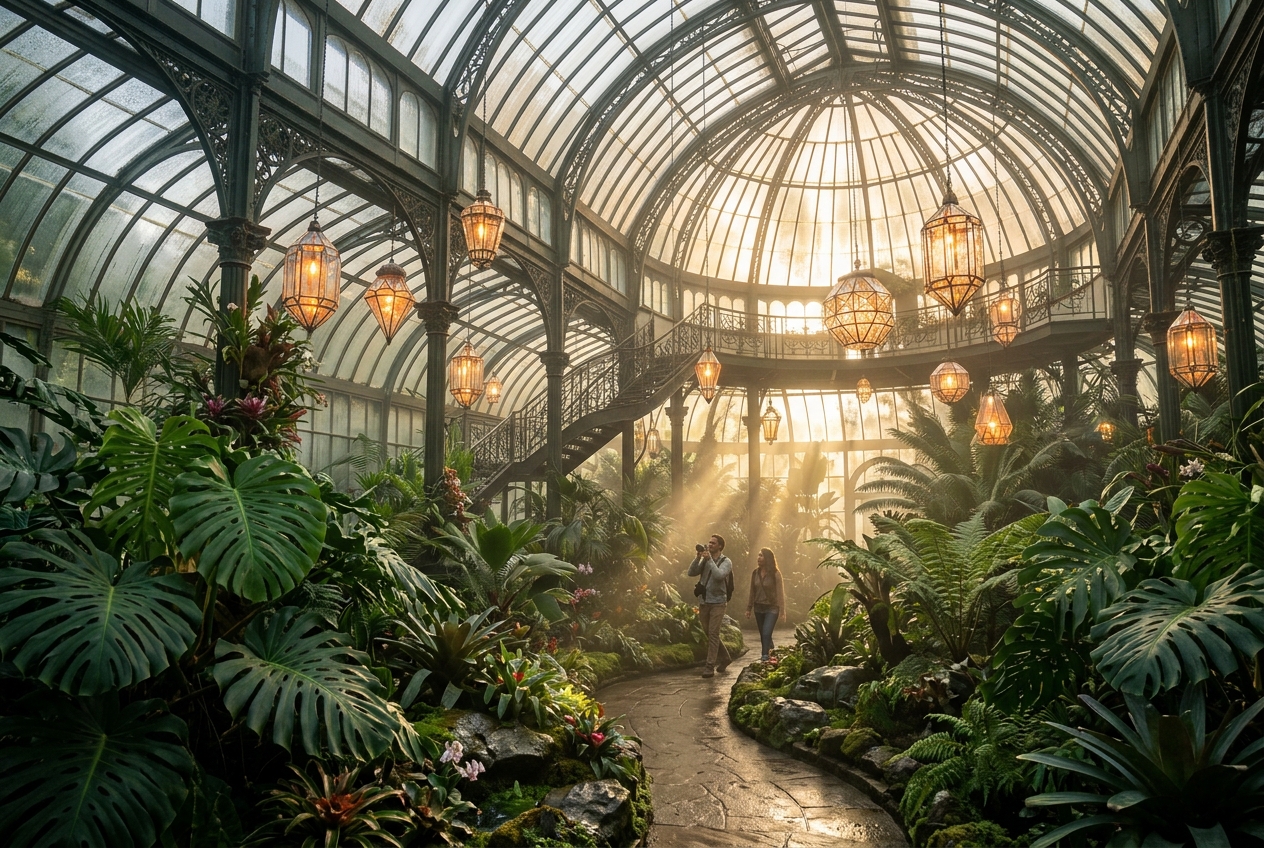
Prepare a still-image brief with a clear subject, composition, and a few details that define the visual direction.
3 min read
Build a reference-aware image brief around the details to preserve and the specific visual change you want to explore.
3 min readExplore an image concept through atmosphere, texture, and composition, then refine the prompt in the existing Studio.
3 min readYour prompt and optional reference image will be carried into the matching Genpiko Studio.