
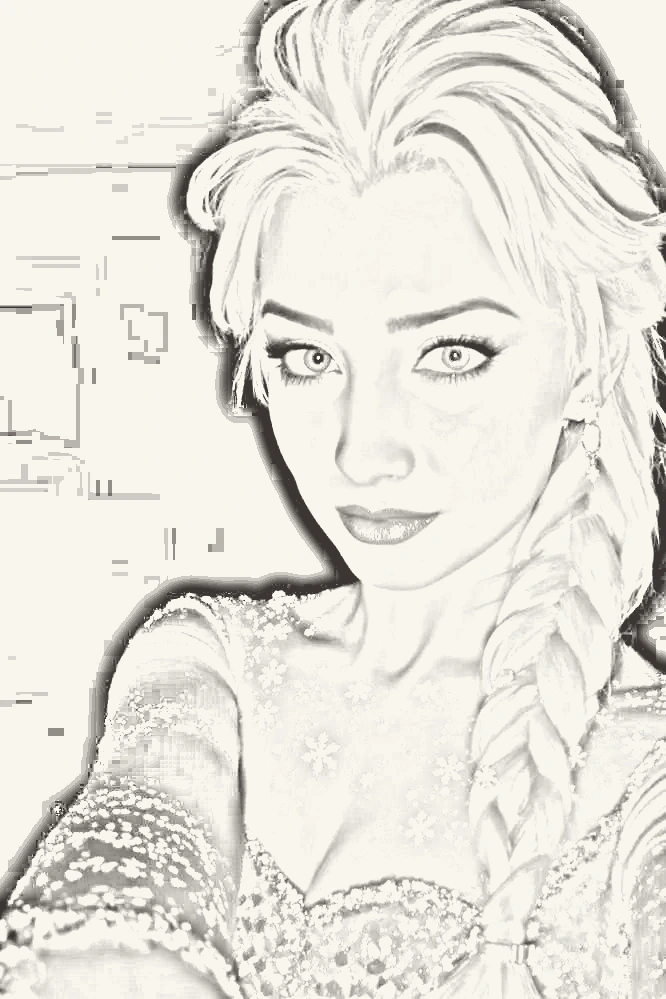
Braided Portrait Study
Prompt: A delicate black-and-white pencil portrait of a woman with a long braid, expressive eyes, fine linework, light paper texture, and a simple uncluttered background.
Wizmade’s AI Image Generator prepares still images from text, reference images, or a template direction. Start with the input that fits the task, choose an available model, and review its supported framing and output settings. The examples below illustrate creative directions rather than verified results from a particular model.
Example images and editable briefs for inspiration. Adapt a brief in the workbench to explore your own composition.
Prompt: A delicate black-and-white pencil portrait of a woman with a long braid, expressive eyes, fine linework, light paper texture, and a simple uncluttered background.
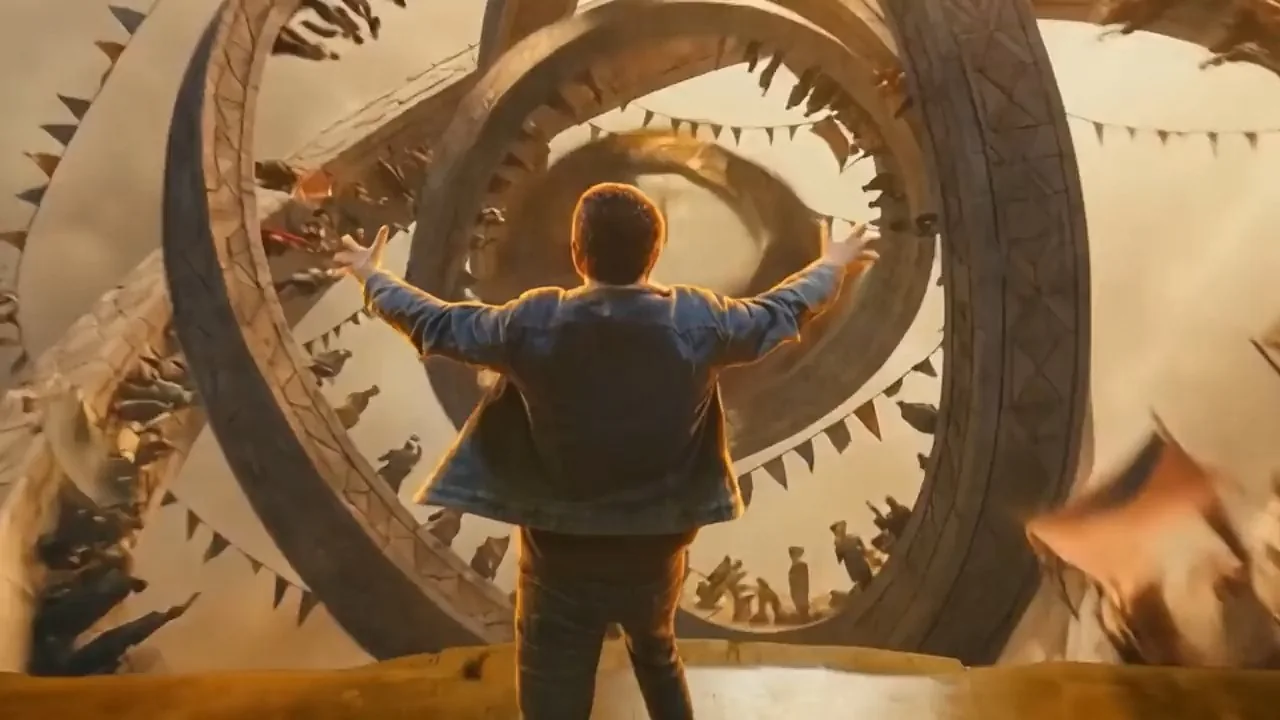
Prompt: Cinematic wide-angle aerial shot of sculpted golden sand dunes at golden hour, sharp wind ripple patterns, dramatic long shadows, crisp desert atmosphere, high dynamic range Hasselblad photography
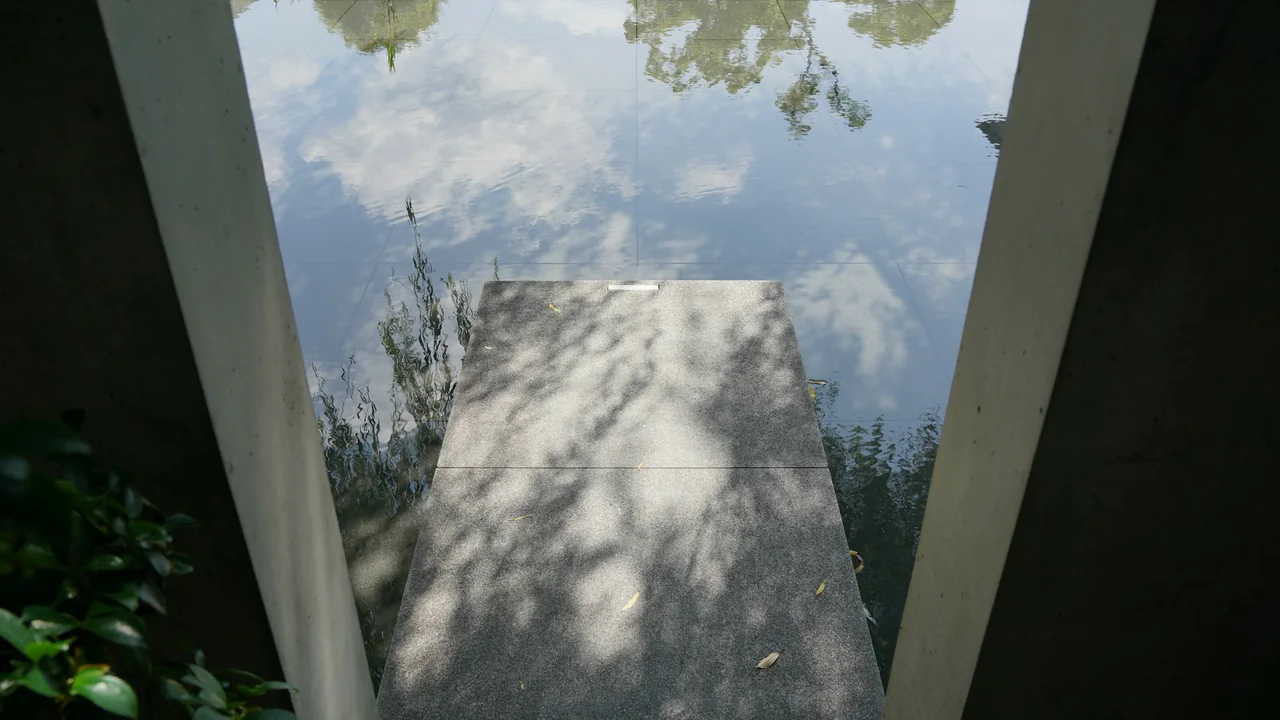
Prompt: Atmospheric architectural interior of an emerald botanical conservatory with cascading fiddle-leaf figs and monsteras, soft morning sunbeams breaking through humid mist, volumetric god rays, hyperrealistic 8K
Wizmade’s AI Image Generator prepares still images from text, reference images, or a template direction. Start with the input that fits the task, choose an available model, and review its supported framing and output settings. The examples below illustrate creative directions rather than verified results from a particular model.
Creative workflow
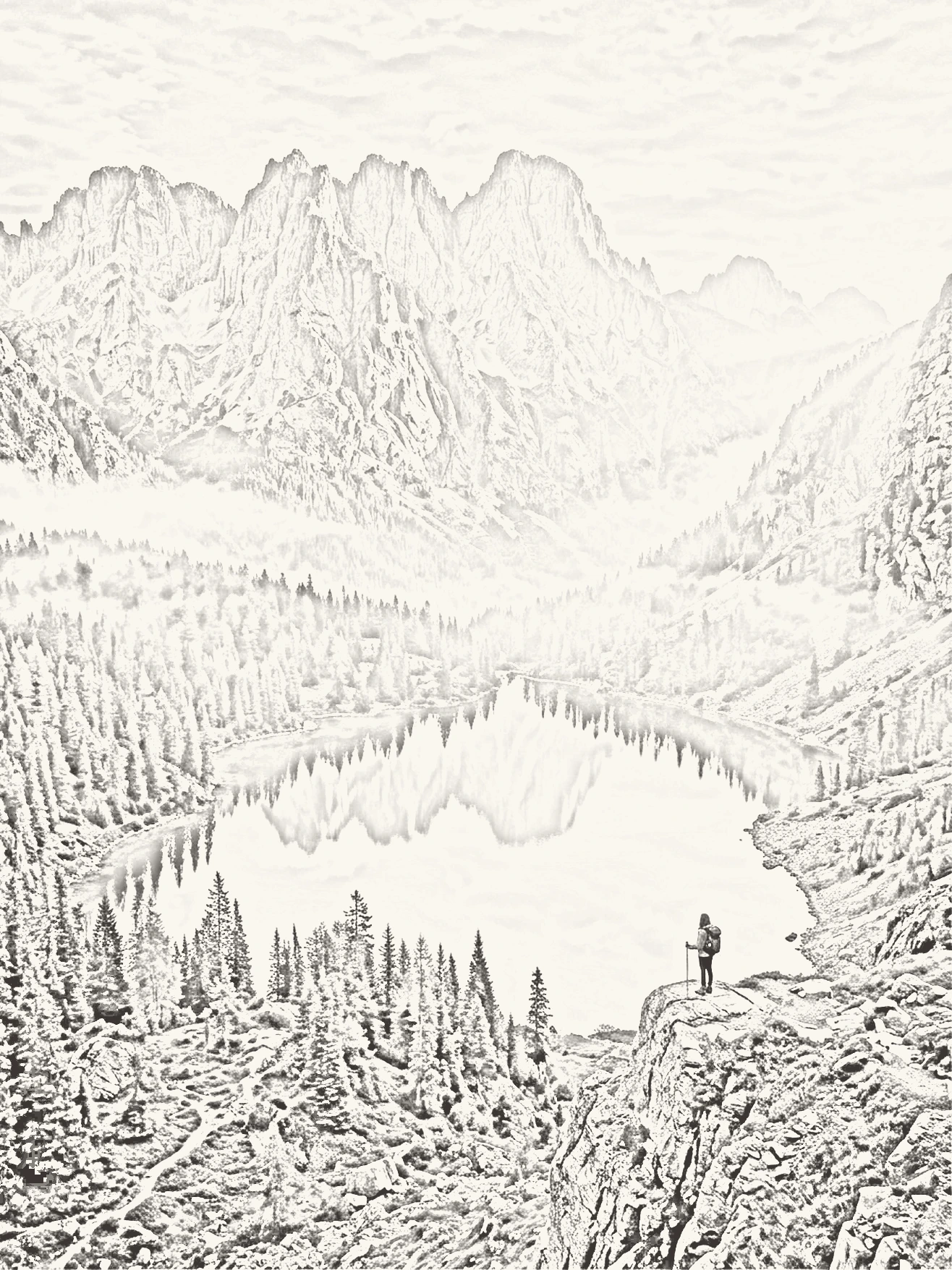
Use Text to Image when the subject and layout can be explored freely. Describe the subject, setting, lighting, medium, and composition, then choose the available model and settings that fit your brief.
Creative workflow
Use Image to Image when an existing photograph, drawing, or render should guide the request. Describe the change you want and the elements that matter. Reference guidance can reinterpret details, so inspect the result rather than assuming exact preservation.
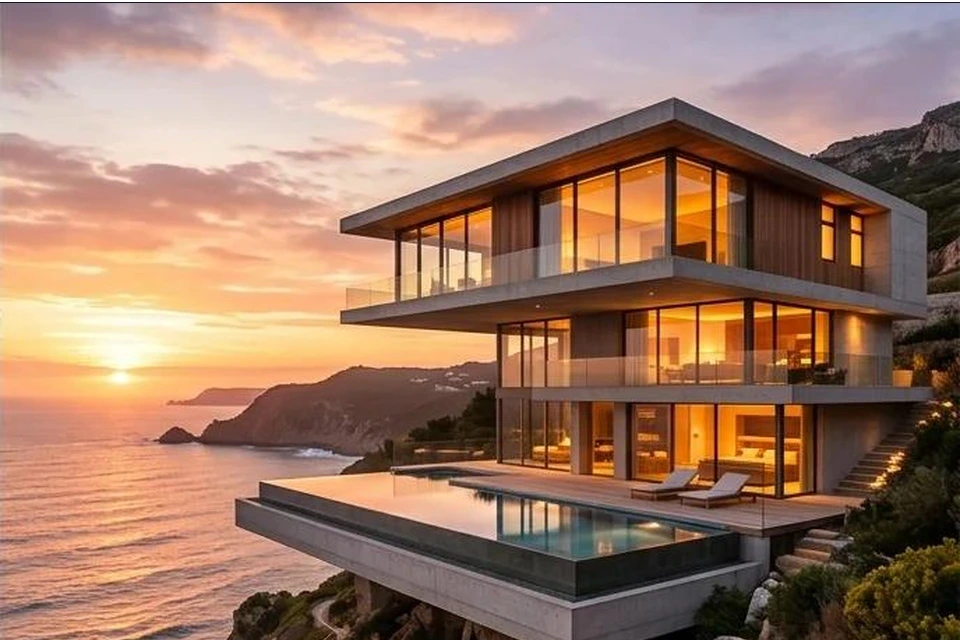
Creative workflow
Use Templates to select a supplied visual preset, add your reference, and include optional details. This is the same image workspace with a preset-led workflow; it does not add a separate layer editor or guarantee an identical match to an example.
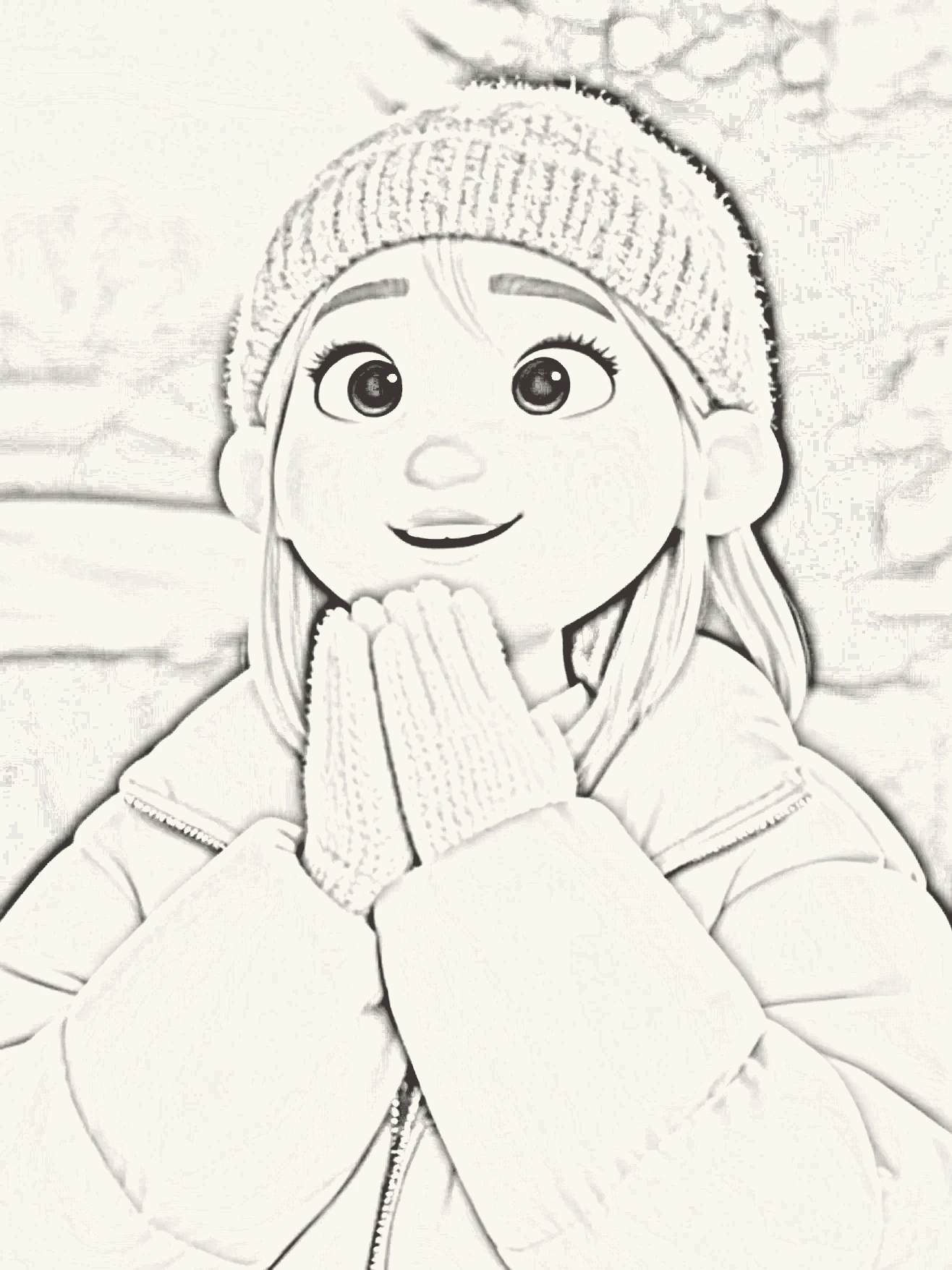
Move from a clear brief to supported settings and a result you can inspect. These references illustrate possible subjects and treatments; they are not performance benchmarks.
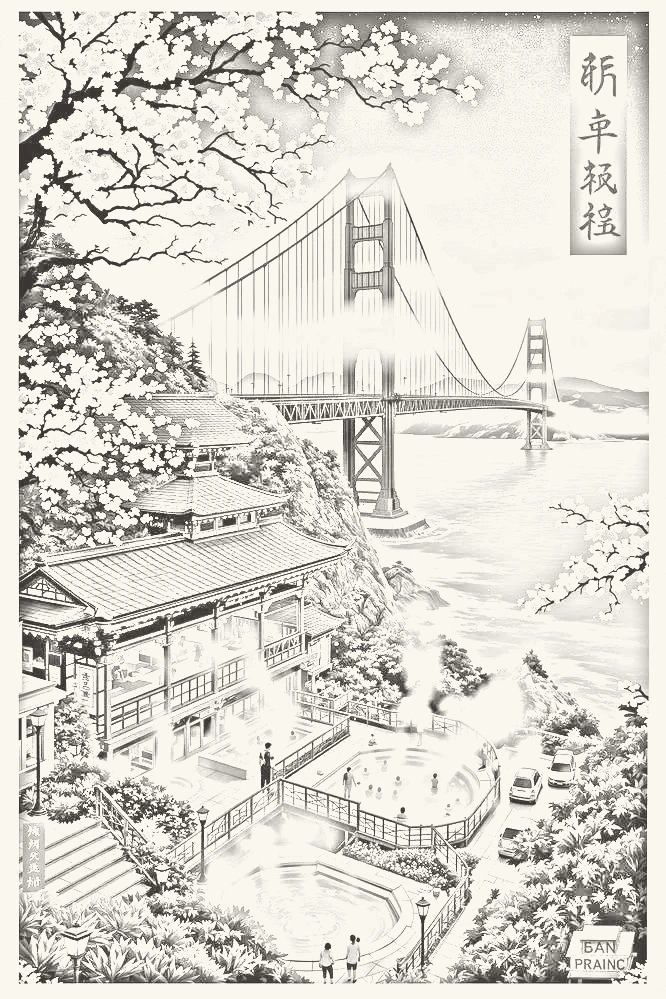
Try a different treatment while keeping the subject and framing consistent, so your review has a useful point of comparison.
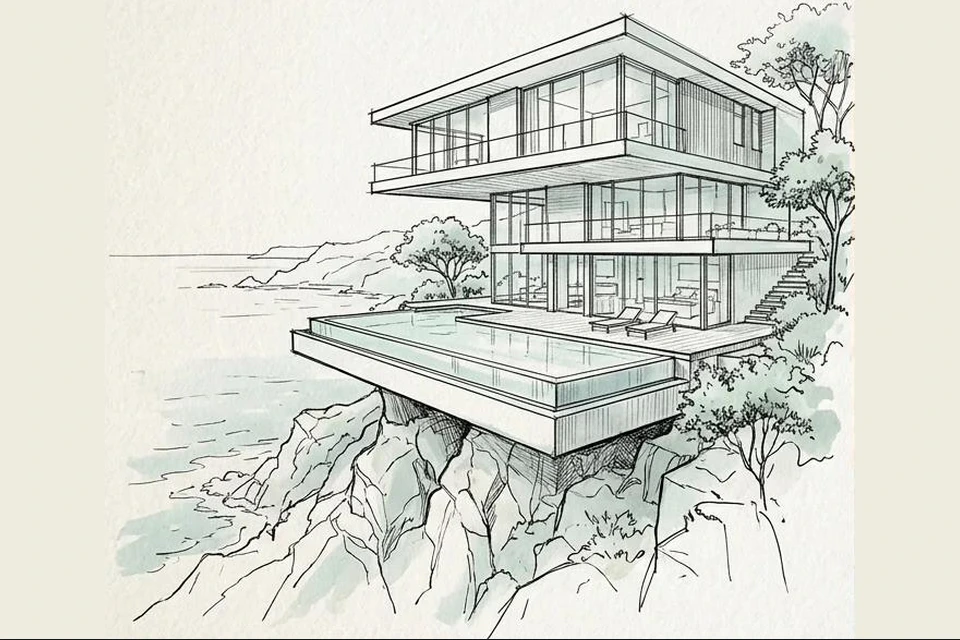
A photo or sketch can communicate the subject and composition when words alone are not enough.
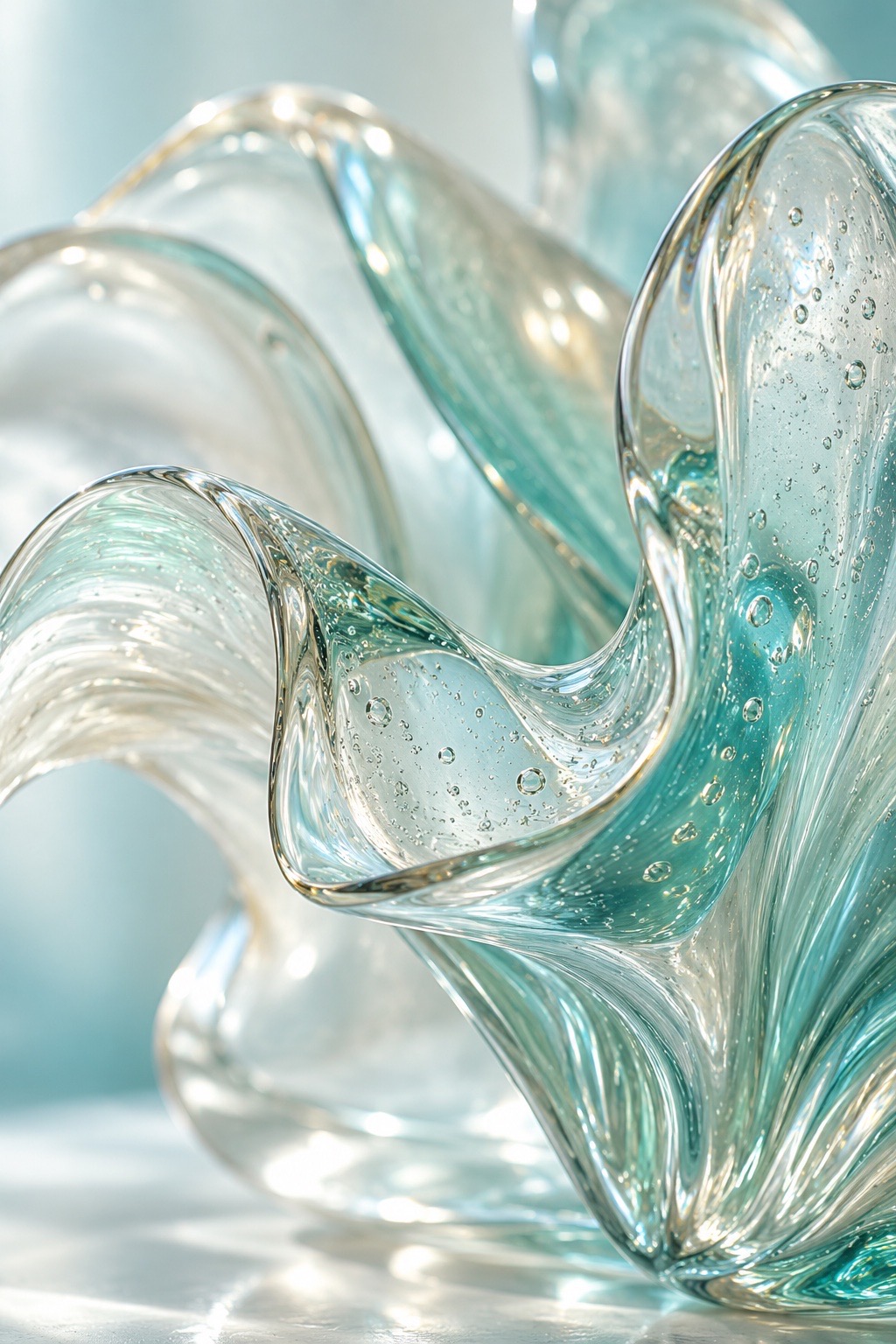
Inspect edges, text, reflections, and small objects before choosing a result for further work.
Choose a practical task and define the details you will check afterward. A generated concept still needs review before publication, production, or use as a product representation.
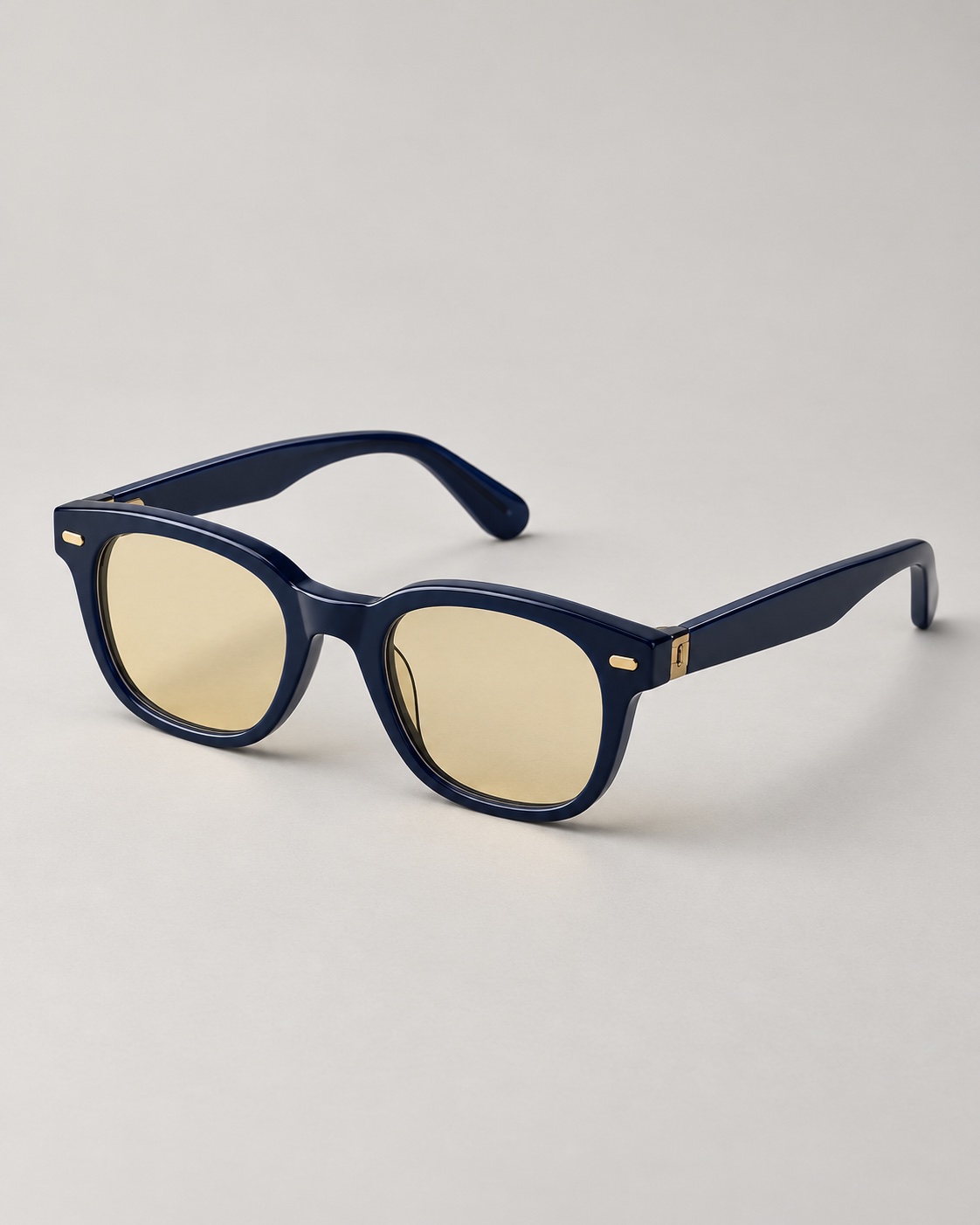
Explore lighting, background, and composition for a product idea. Check shape, labels, and materials against the real product before using the result.

Prepare a portrait mood, wardrobe idea, or lighting brief. Review facial appearance and any supplied likeness rather than assuming it stays unchanged.
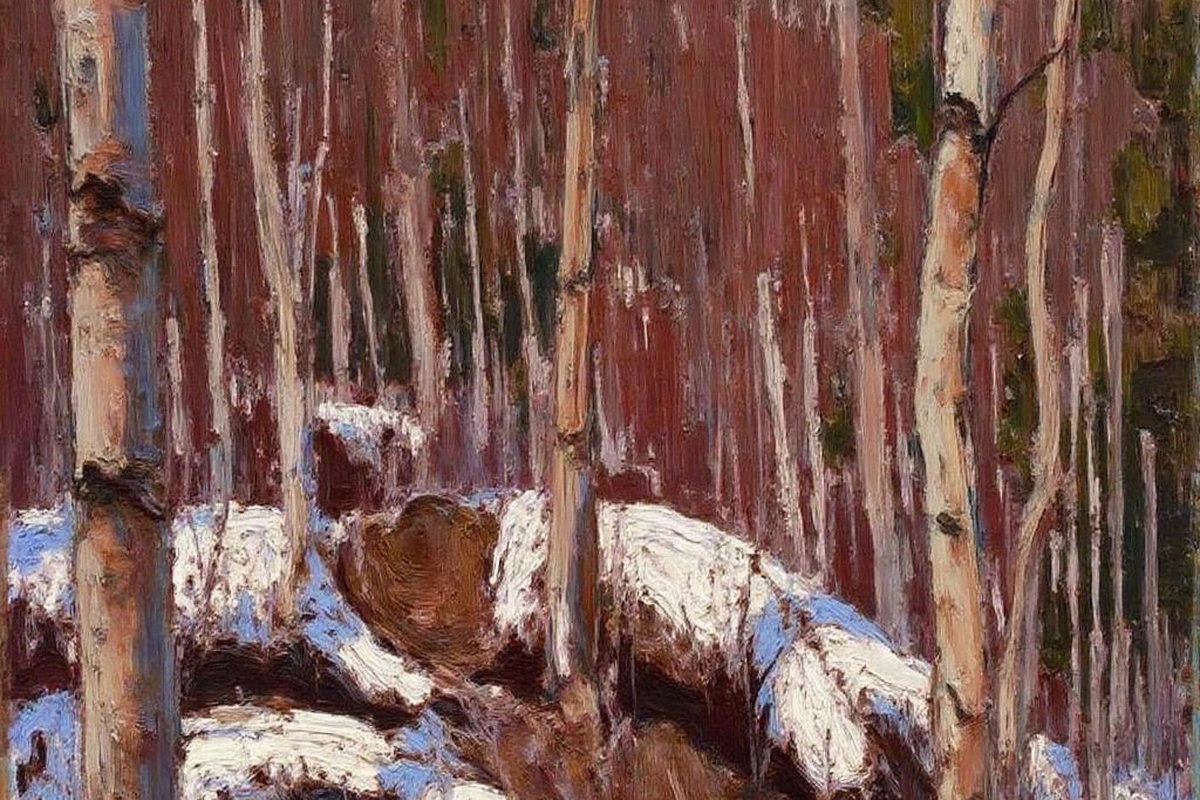
Explore an environment or mood before assembling a larger narrative. Use a consistent brief when reviewing alternate versions.
Follow these steps in the workbench above. Each screenshot shows the complete interface for its step.
In Text to Image, describe the subject, setting, lighting, and composition. To work from a reference, switch to Image to Image and add an image.
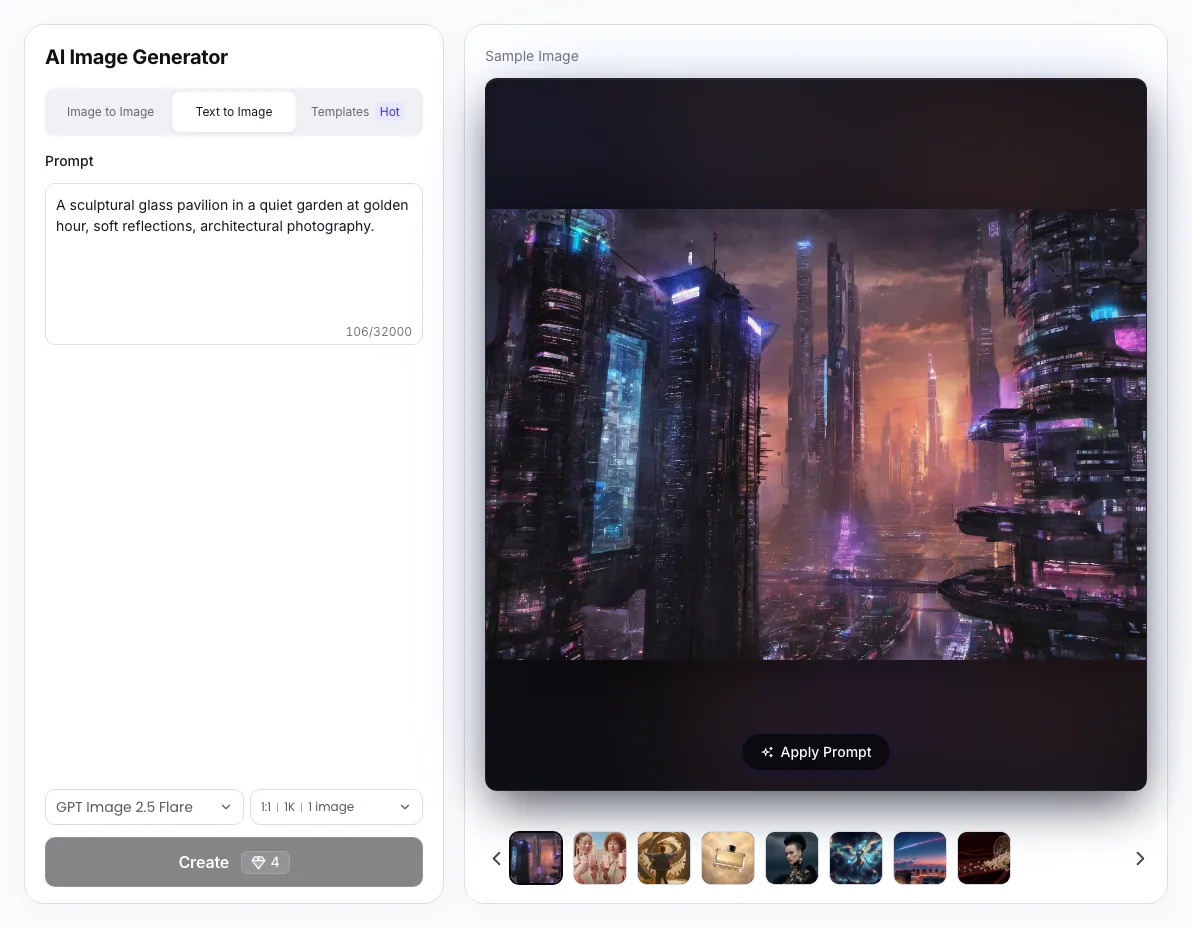
Open the model control and select a model. Use the scenario tags and supported resolution to choose a starting point.
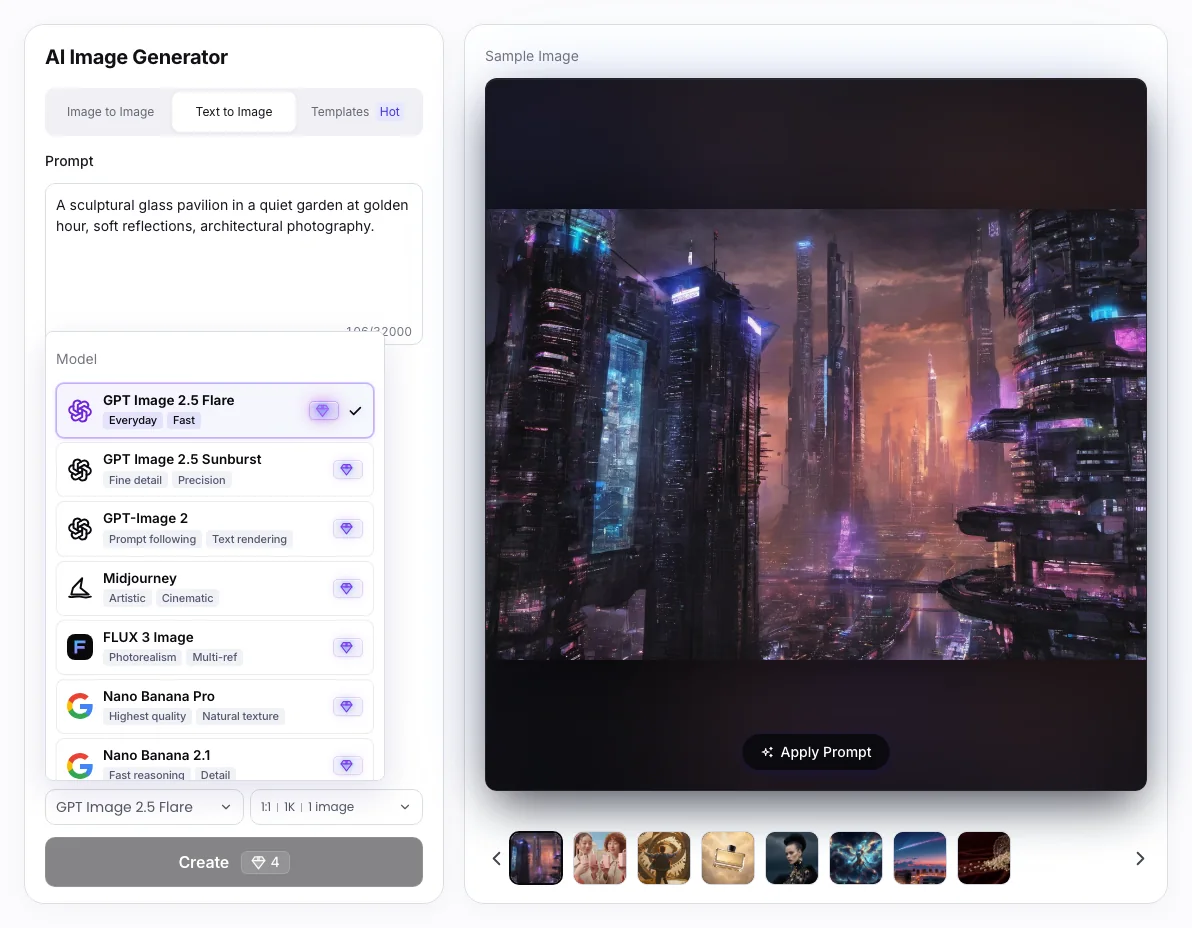
Open Parameters to choose the supported aspect ratio, resolution, and output count. Review the 💎 amount before Create; sign in when prompted.
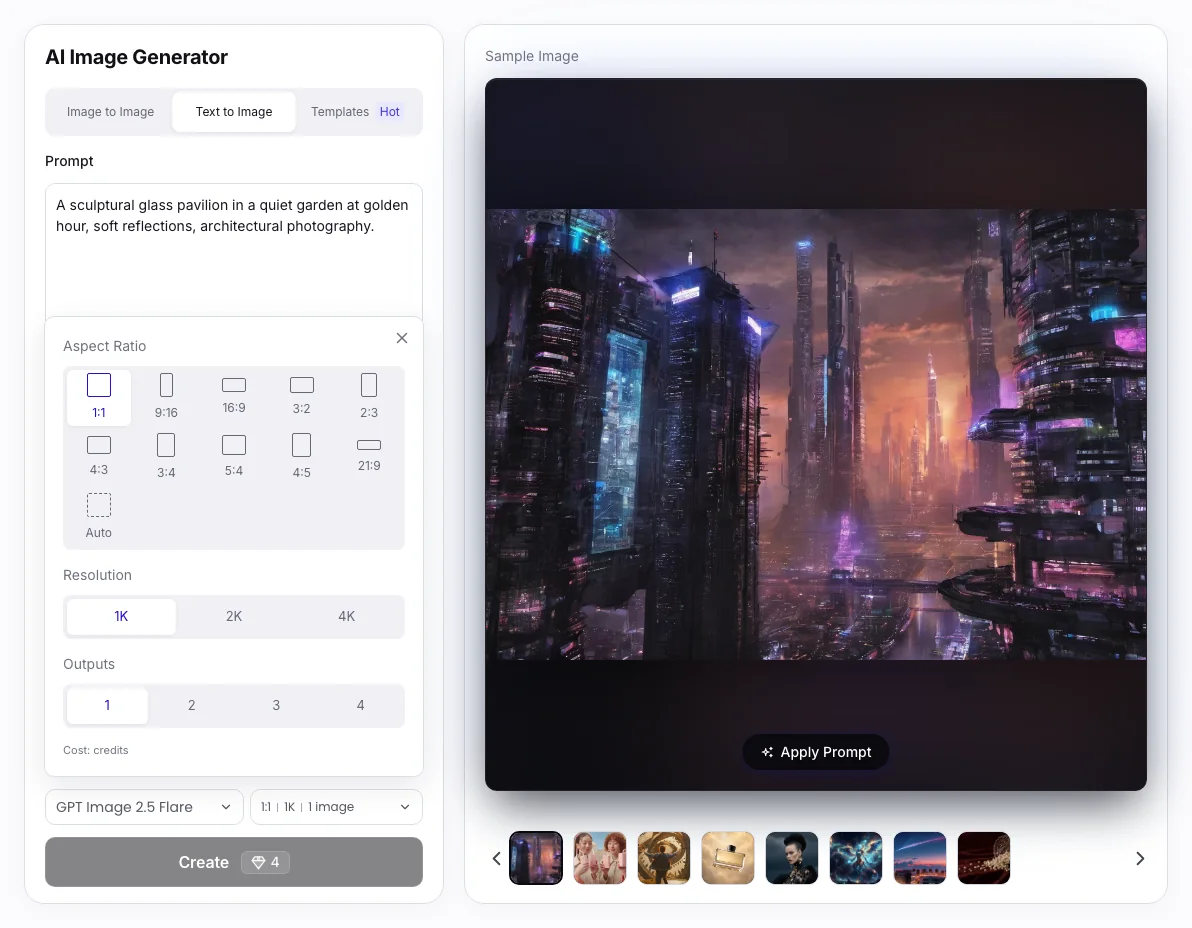
Resolution, ratios, and output count depend on the selected model. A reference guides the output but does not guarantee exact geometry, identity, lettering, or color.
Wizmade plans
The workbench displays a 💎 amount based on the selected model and supported settings. Review it before creating, and visit Pricing for the current plans and credit options.
These workflows have different inputs and controls. Open the one that matches the change you want to make.

Guide a variation with your own reference and a written change.

Choose a template direction for a reference-guided restyle.

Open the canvas for an edit, background change, or removal task.

Prepare a larger image and compare it with the source.

Choose a new frame and prepare additional surrounding content.

Prepare an image concept from a brand brief.
Prepare still-image requests from text, image references, or template directions. The workspace offers Text to Image, Image to Image, and Templates, with controls that depend on the active workflow and selected model.
Choose Text to Image for a new composition from words. Choose Image to Image when a reference should guide the result. Choose Templates for a supplied visual preset and optional extra details.
Use the live model menu and the image-model overview links below. Available inputs, resolution choices, ratios, and other parameters can differ by model; a name or example image alone does not establish a supported setting.
Describe subject + setting + visual treatment + composition. State which details matter most, then add light, palette, or material cues. If a reference is important, use Image to Image and explain what should change.
Open the parameters control and use the settings offered by the active model and workflow. Text to Image and Image to Image expose supported output choices. Templates currently prepares one 1K image with an aspect-ratio choice.
No. Reference-guided generation can alter faces, objects, lettering, geometry, or color. Treat it as a visual variation and inspect the details that matter for your task.
You can revise the prompt for another generation or use a reference-guided variation. The separate Image Editor, Image Expander, and Image Upscaler have their own inputs and controls; use the workflow that matches the intended change.
Prepare the available inputs in the public workbench, then sign in when requested before creating. Review the 💎 amount displayed for your selected model and supported settings. Visit Pricing for current plans and credit options.
No. Processing time can vary by model, output settings, queue, and service availability. Follow task status in the workspace rather than assuming that every image will finish within a fixed number of seconds.
Inspect the completed image at an appropriate size. Check lettering, faces, product details, factual information, and composition. A generated image does not establish ownership, exclusivity, or permission to reuse third-party material.
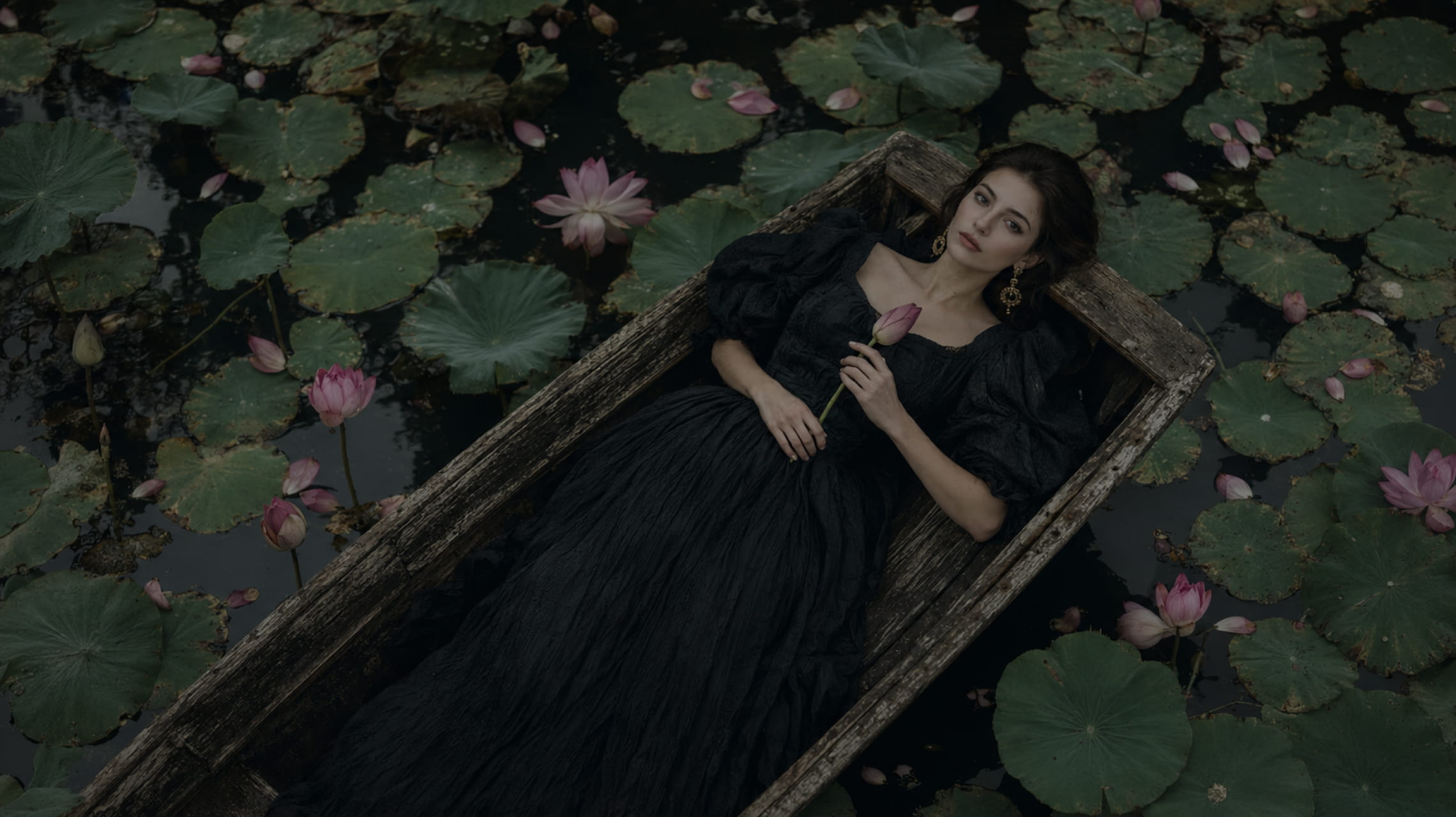
Wizmade’s Text to Image starts with your words. Describe the subject, setting, lighting, and composition, choose an available image model, then set its supported output parameters. The images below illustrate creative directions; your results will depend on the brief, selected model, and settings.
Explore AI tool →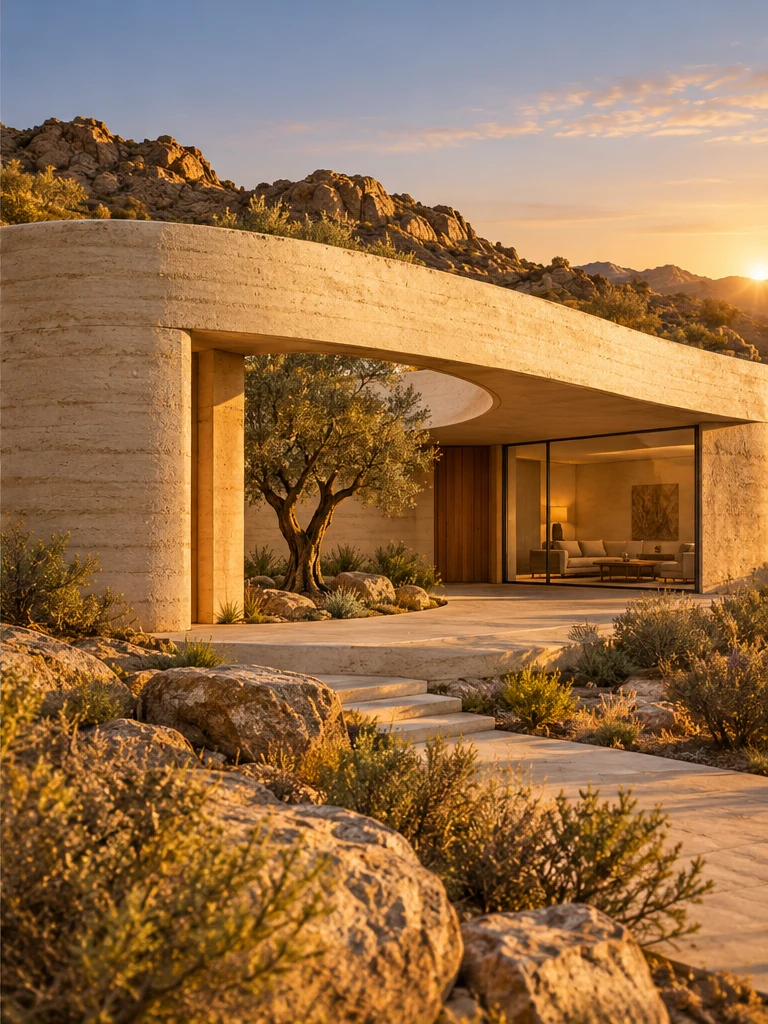
Wizmade’s Image to Image uses a reference image and an editable text instruction to prepare a new image variation. The reference supplies visual context while the prompt describes the intended change. Select the image model and supported output settings in the same image workspace.
Explore AI tool →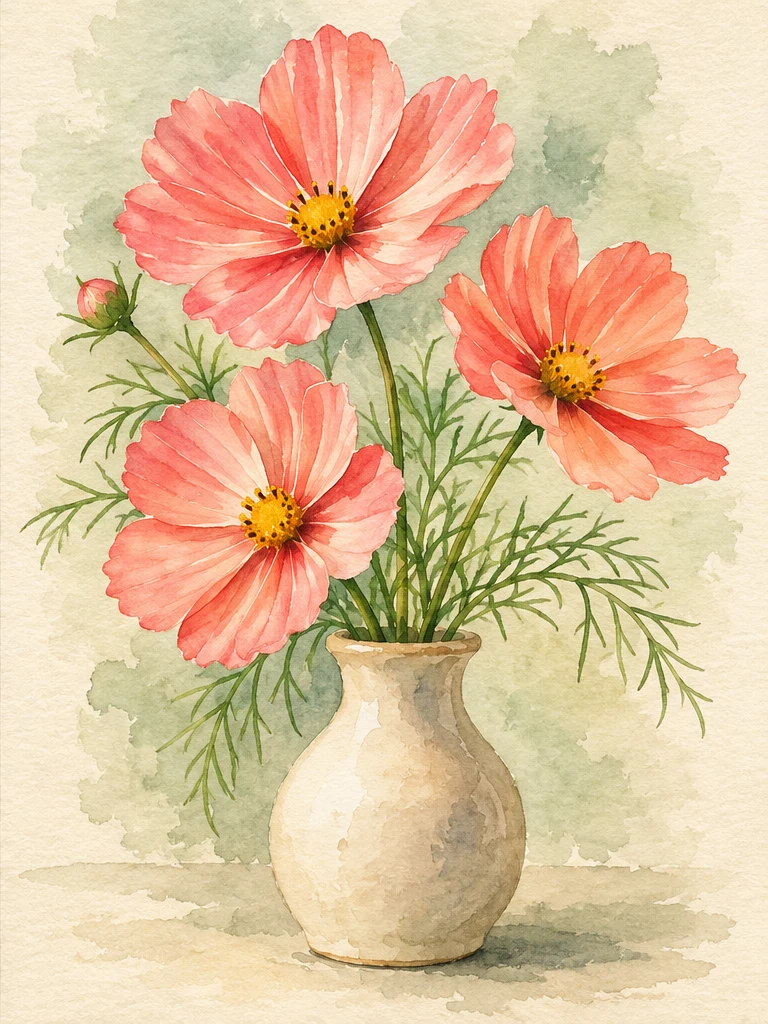
Wizmade’s Image Style Transfer opens the Templates mode of the image workspace. Select a visual preset, supply a reference image, and add optional instructions to prepare a restyled image. This shares the image creation workflow rather than offering a separate style-transfer engine.
Explore AI tool →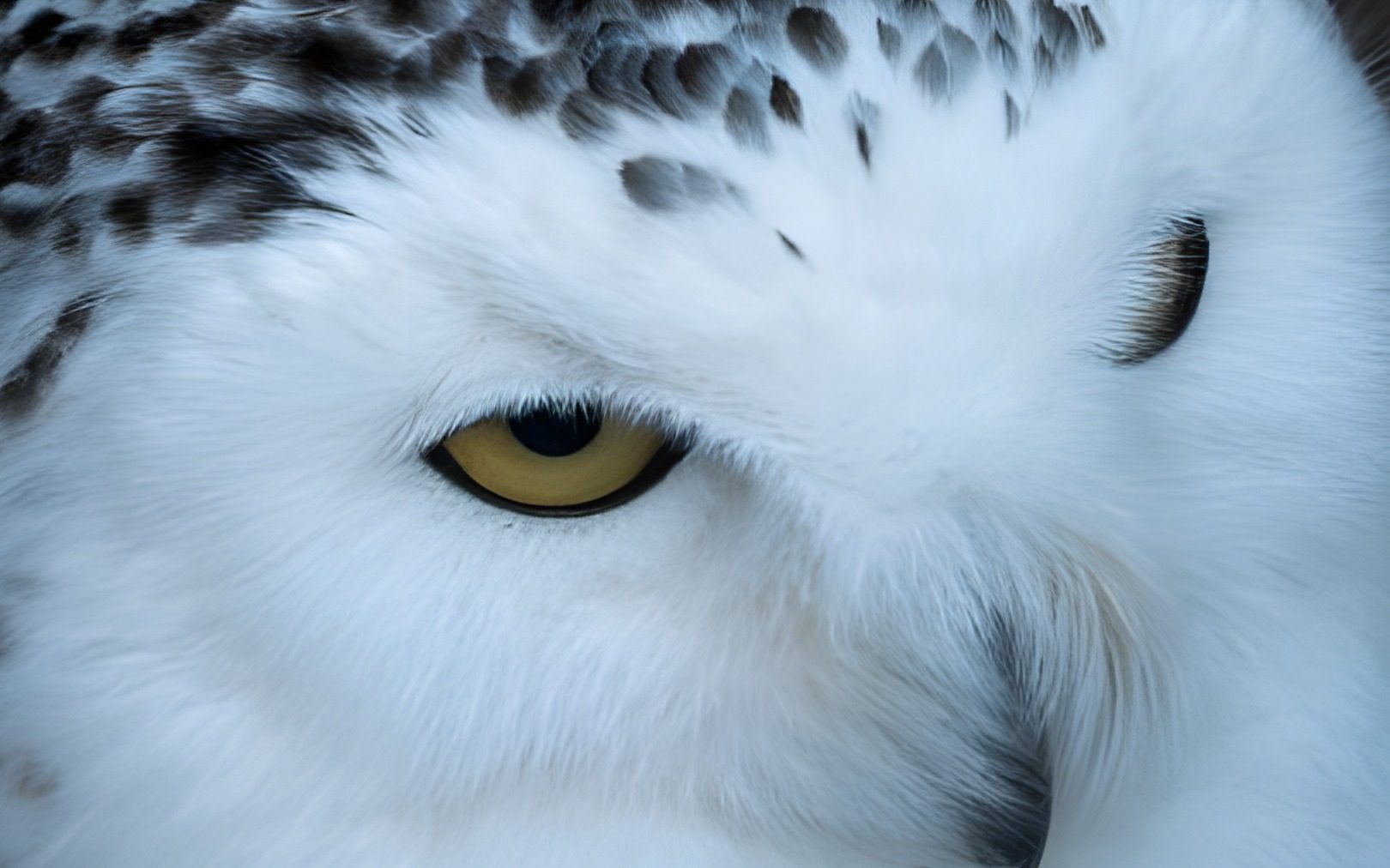
Wizmade’s Image Upscaler prepares a larger version of an uploaded image using the selected upscale factor. Add your source, choose 1×, 2×, or 4×, and compare the result with the original when processing completes. The side-by-side example is demonstration media, not your uploaded image.
Explore AI tool →
Wizmade’s AI Logo Generator prepares raster logo concepts from a brand brief and an optional image reference. Describe the name, mark, colors, and intended use, then review the supported canvas settings. Inspiration examples show possible design directions rather than proving a generated result.
Explore AI tool →
Wizmade’s Image Editor provides a canvas with Edit, Background, and Watermark modes for a supplied image. Choose the mode that matches your task and describe or mark the area to change. Canvas previews and example media are distinct from completed image-processing results.
Explore AI tool →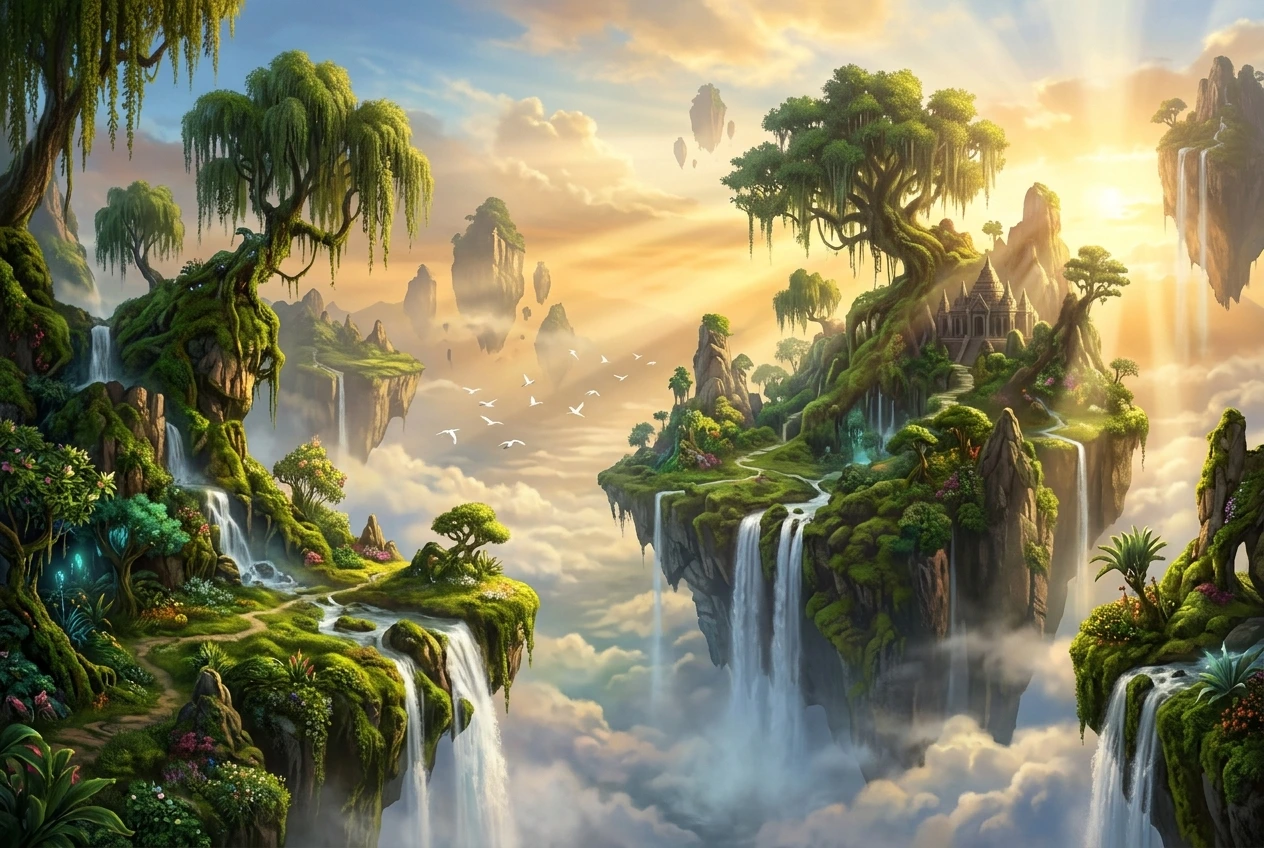
Wizmade’s Image to Prompt workspace places an image preview beside an editable prompt. Upload a reference and write a visual description of its subject, composition, colors, and lighting. Review your text, copy it, or carry it into Image Studio as the starting point for a new creation.
Explore AI tool →
Wizmade’s Image Expander uses an image and a chosen frame to prepare an expanded composition. Upload a source or use the example, then choose the target ratio and size. The output panel stays separate from the input so you can distinguish the source from a completed expansion.
Explore AI tool →Return to the workbench to review your inputs and available settings.