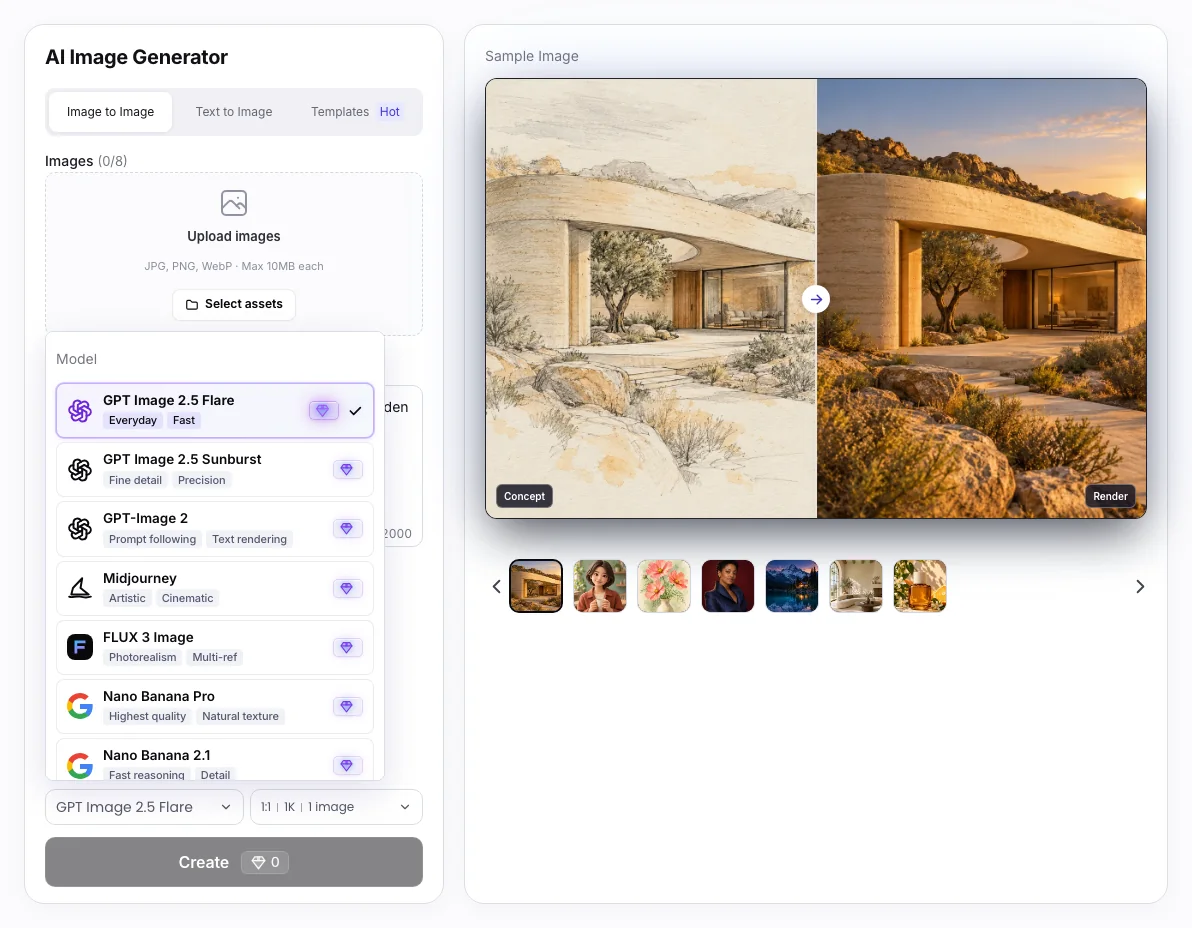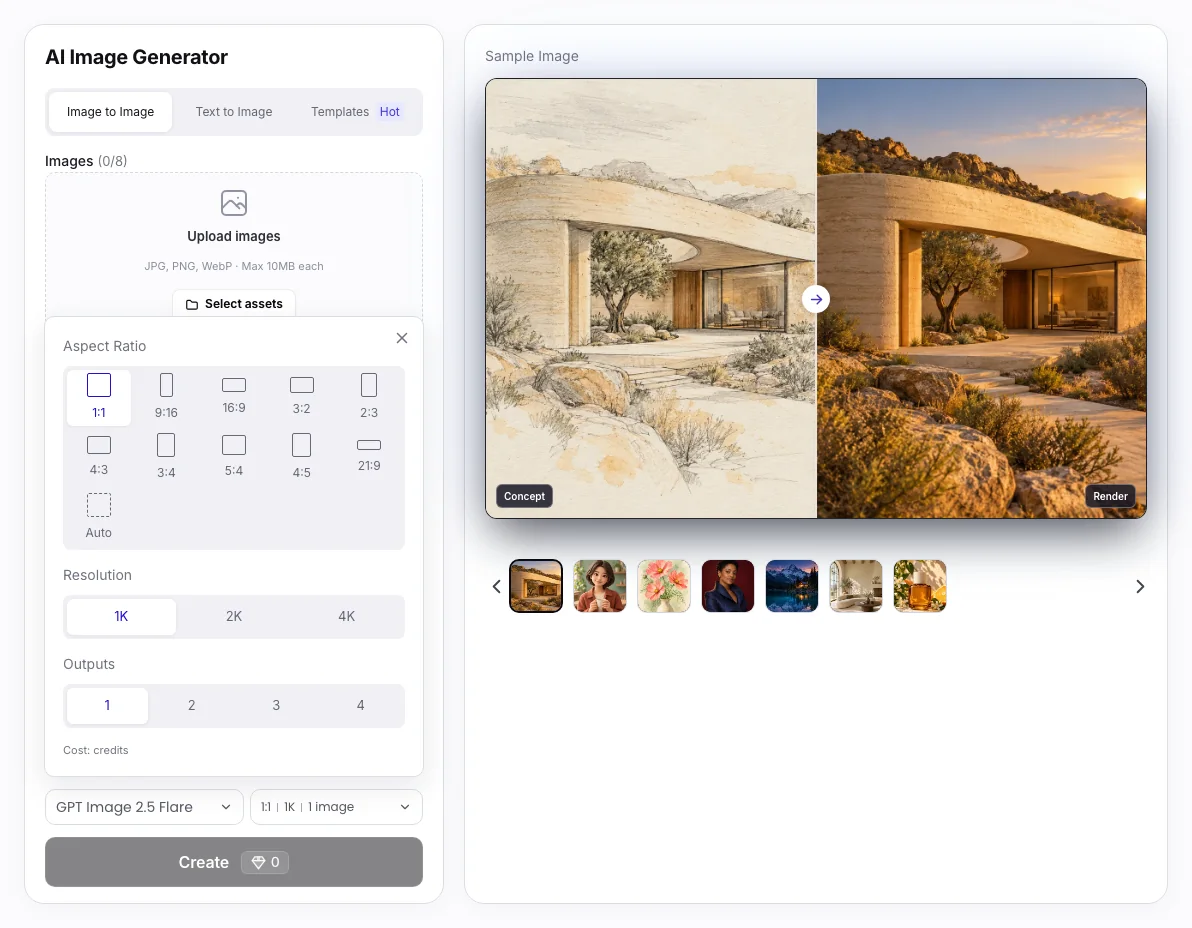
AI Image Generator
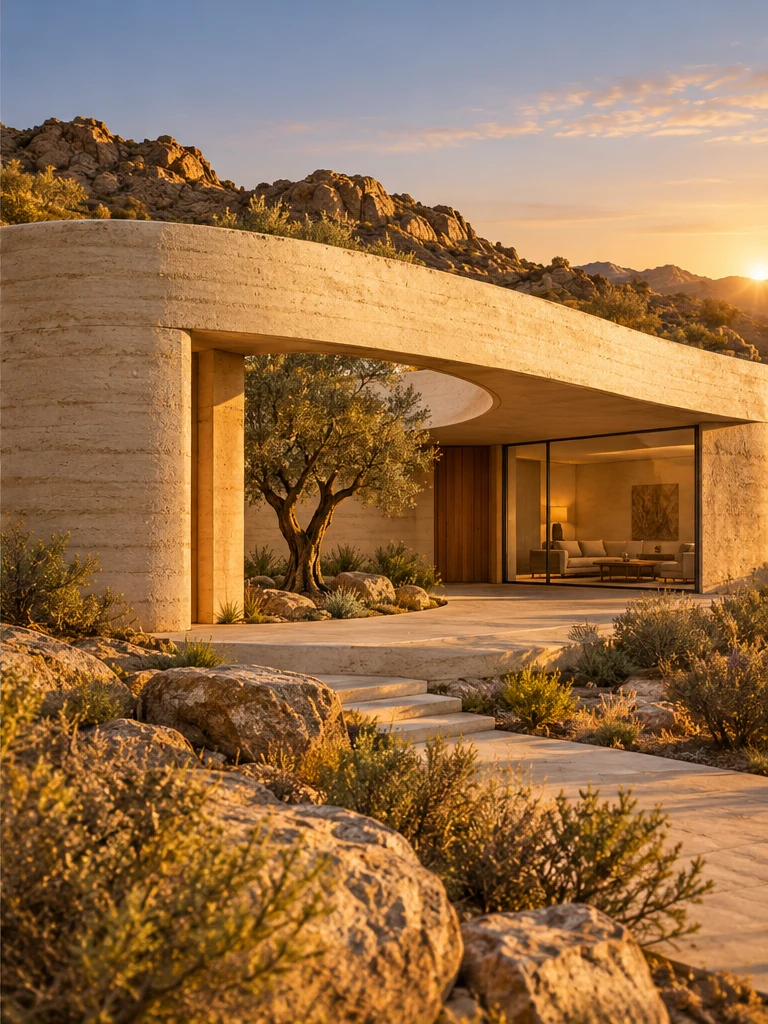
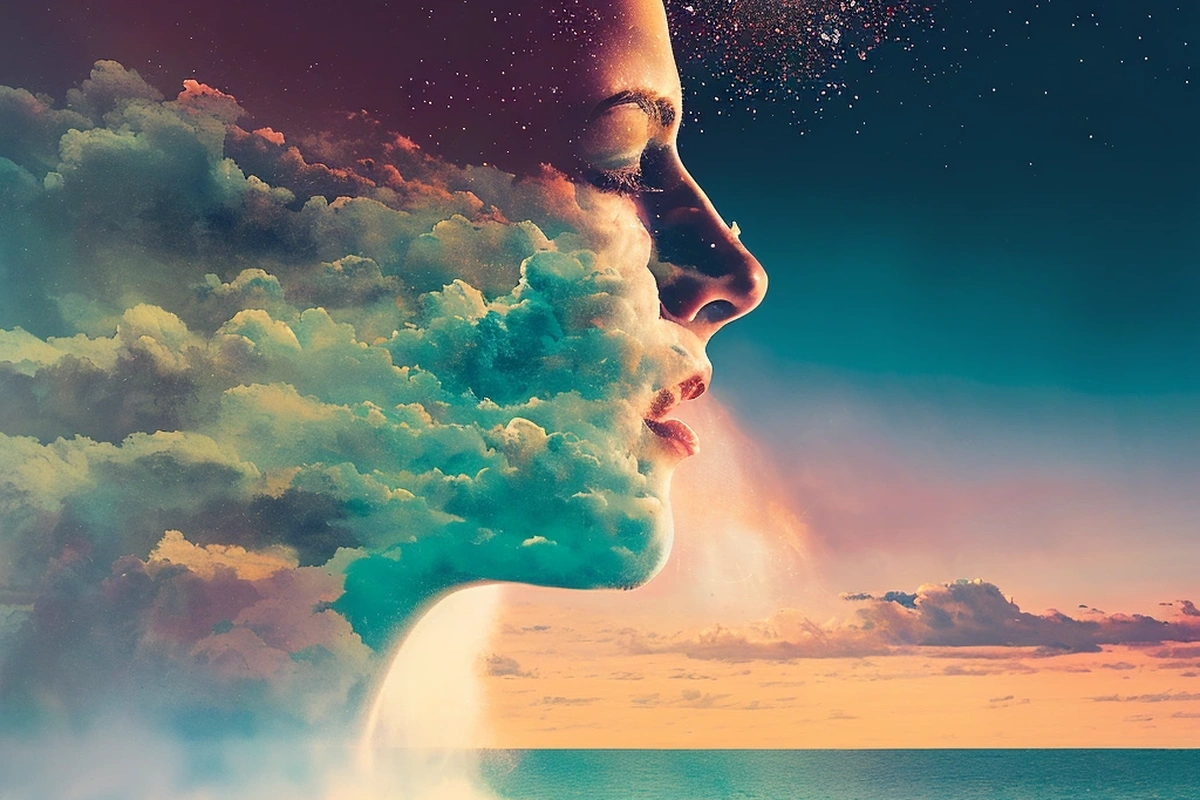
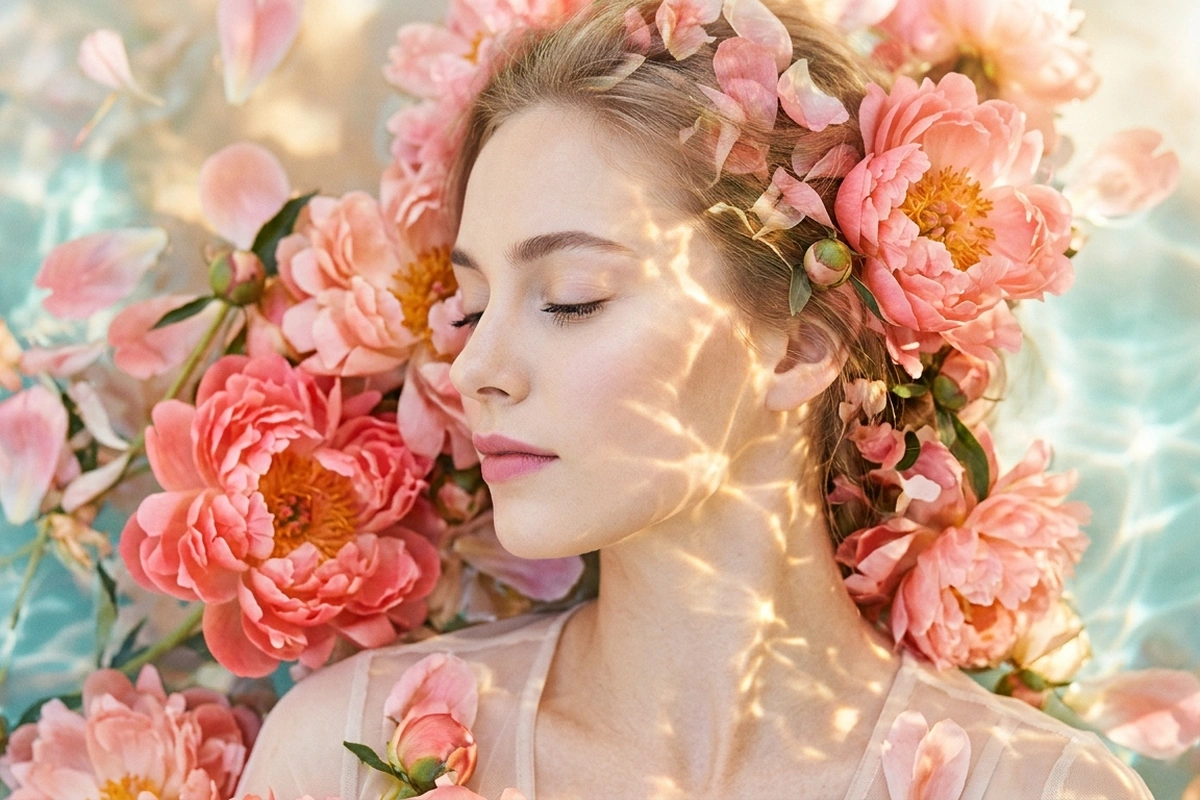
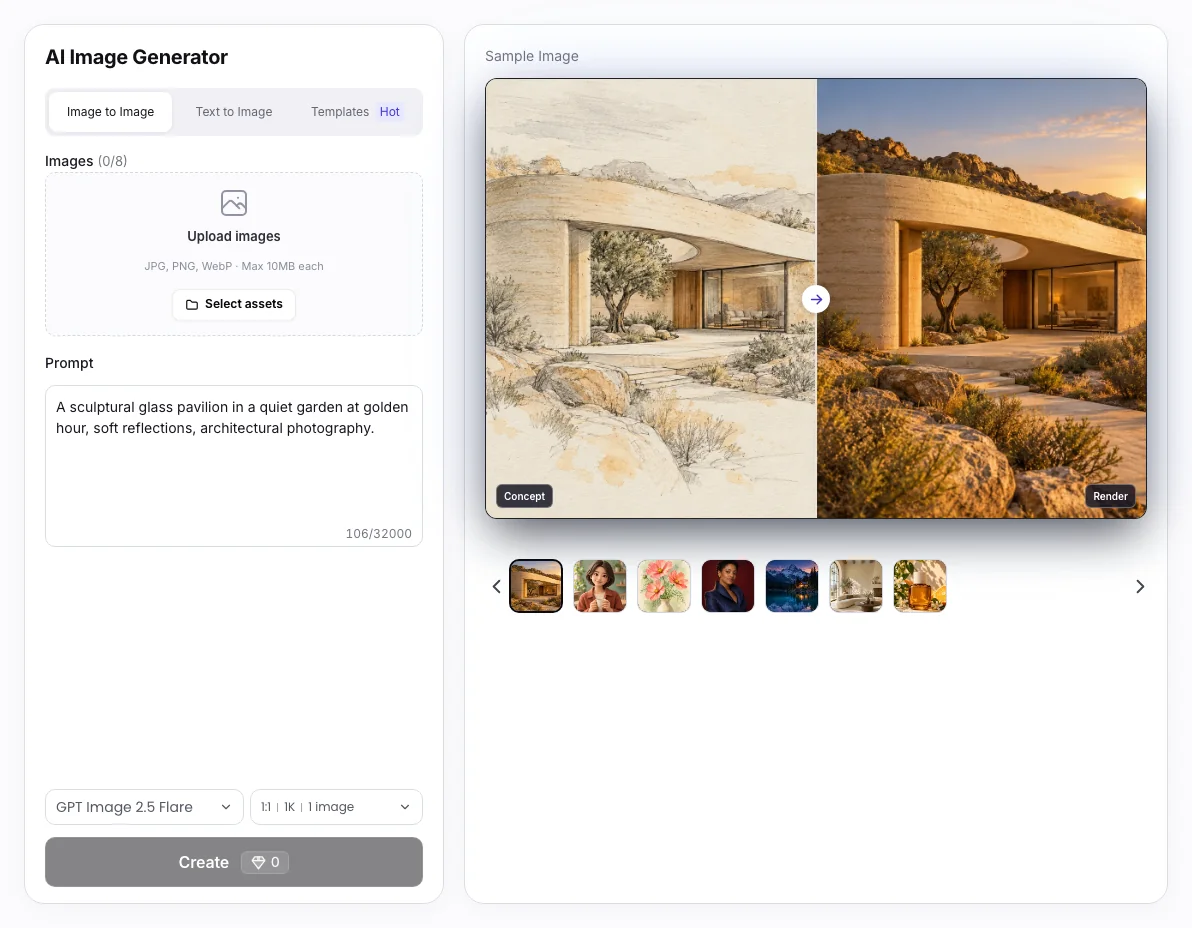
Wizmade’s AI Image Generator prepares still images from text, reference images, or a template direction. Start with the input that fits the task, choose an available model, and review its supported framing and output settings. The examples below illustrate creative directions rather than verified results from a particular model.
Explore AI tool →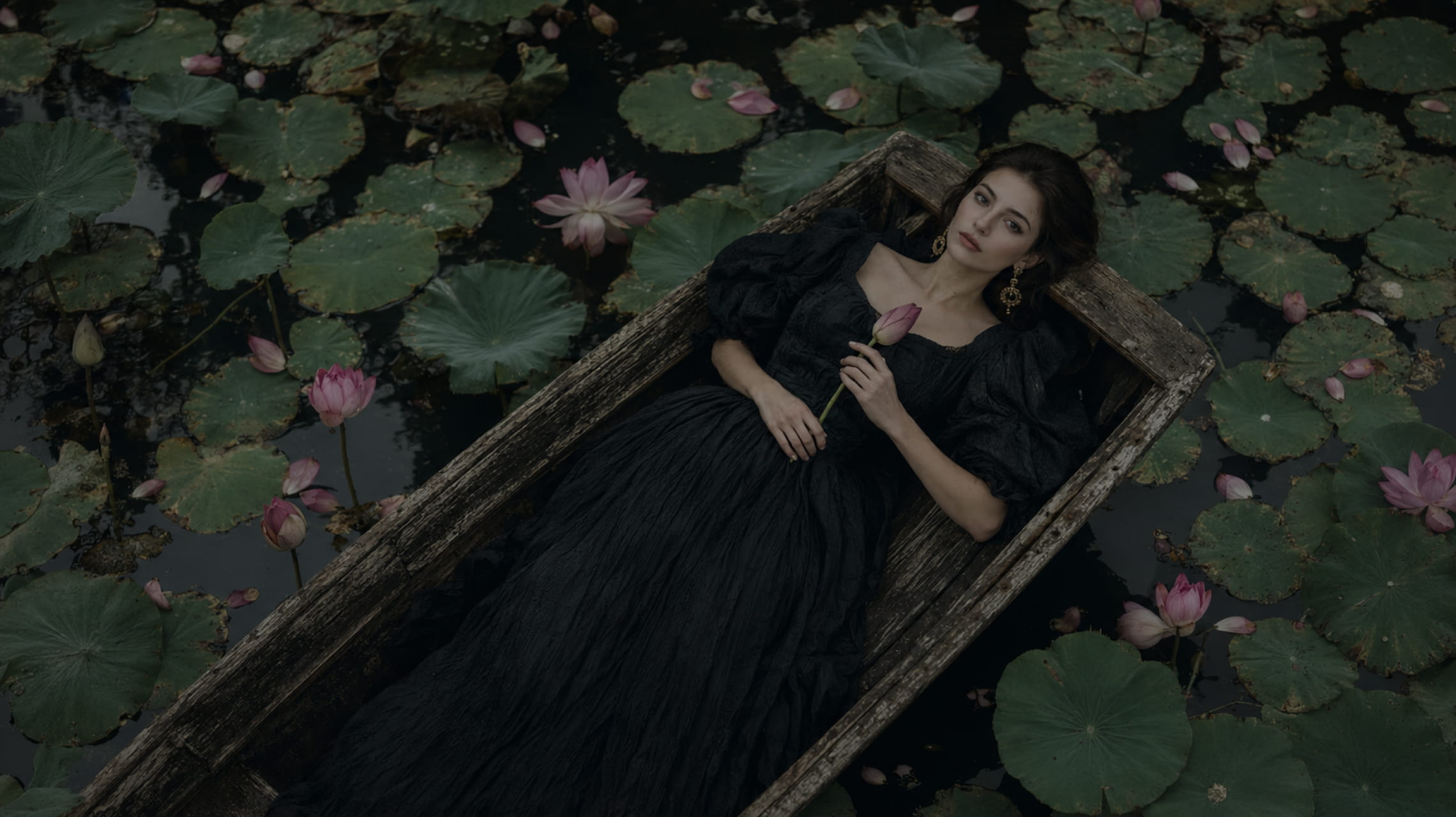
AI Text to Image
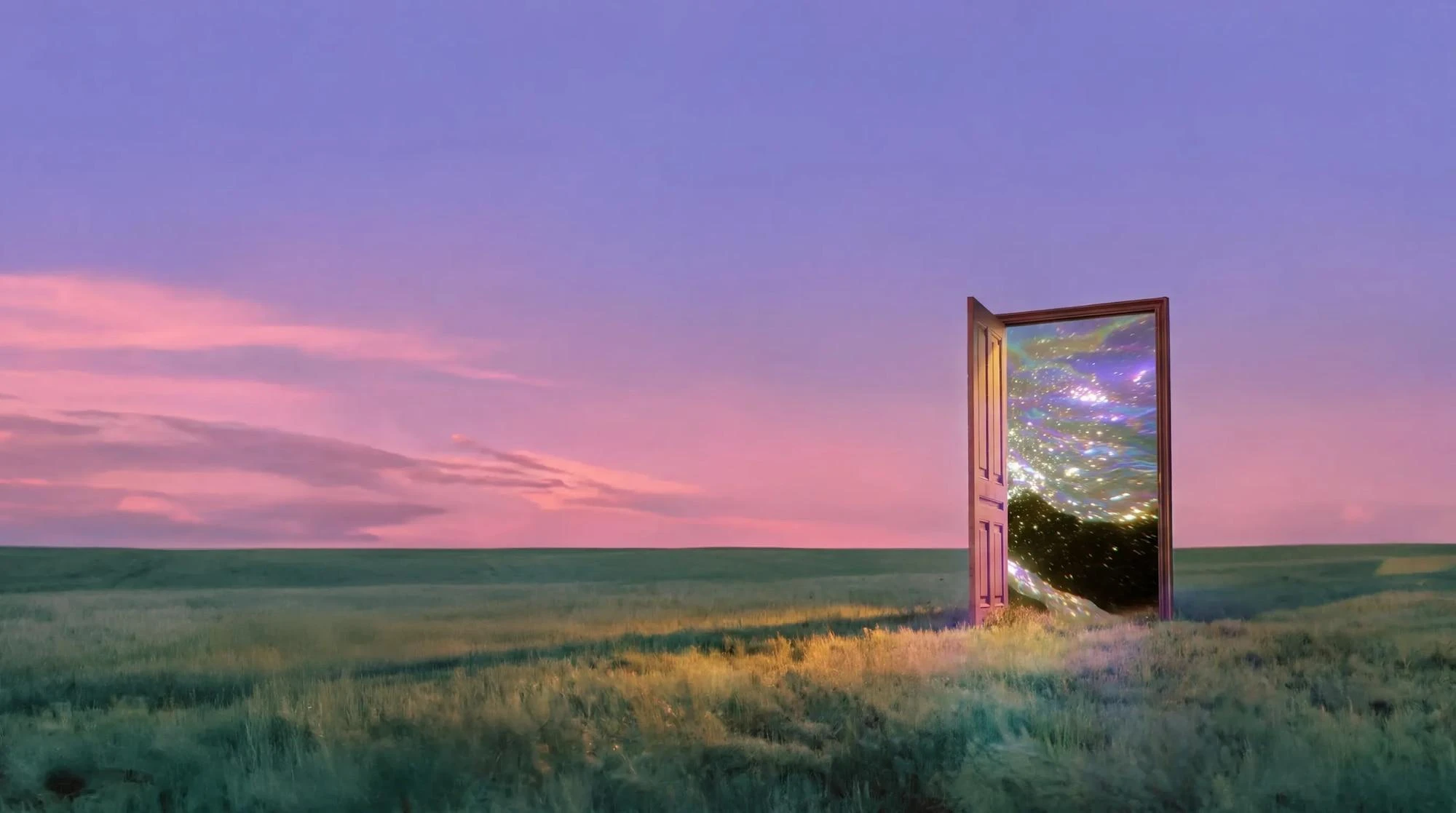
Wizmade’s Text to Image starts with your words. Describe the subject, setting, lighting, and composition, choose an available image model, then set its supported output parameters. The images below illustrate creative directions; your results will depend on the brief, selected model, and settings.
Explore AI tool →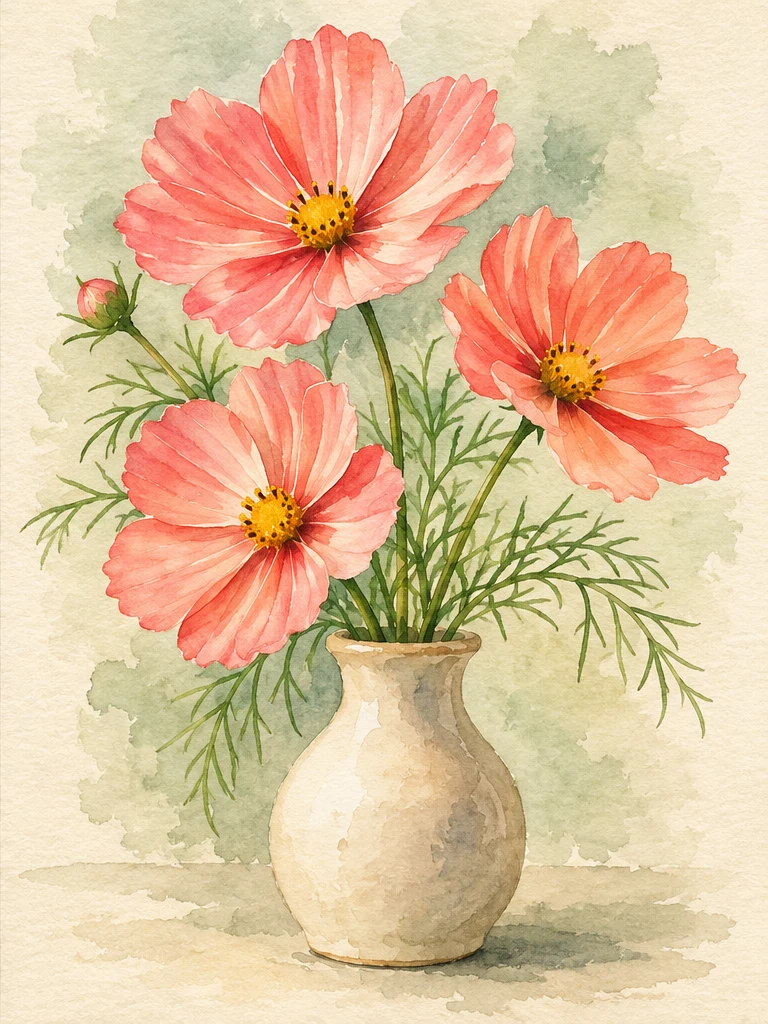
Image Style Transfer
Wizmade’s Image Style Transfer opens the Templates mode of the image workspace. Select a visual preset, supply a reference image, and add optional instructions to prepare a restyled image. This shares the image creation workflow rather than offering a separate style-transfer engine.
Explore AI tool →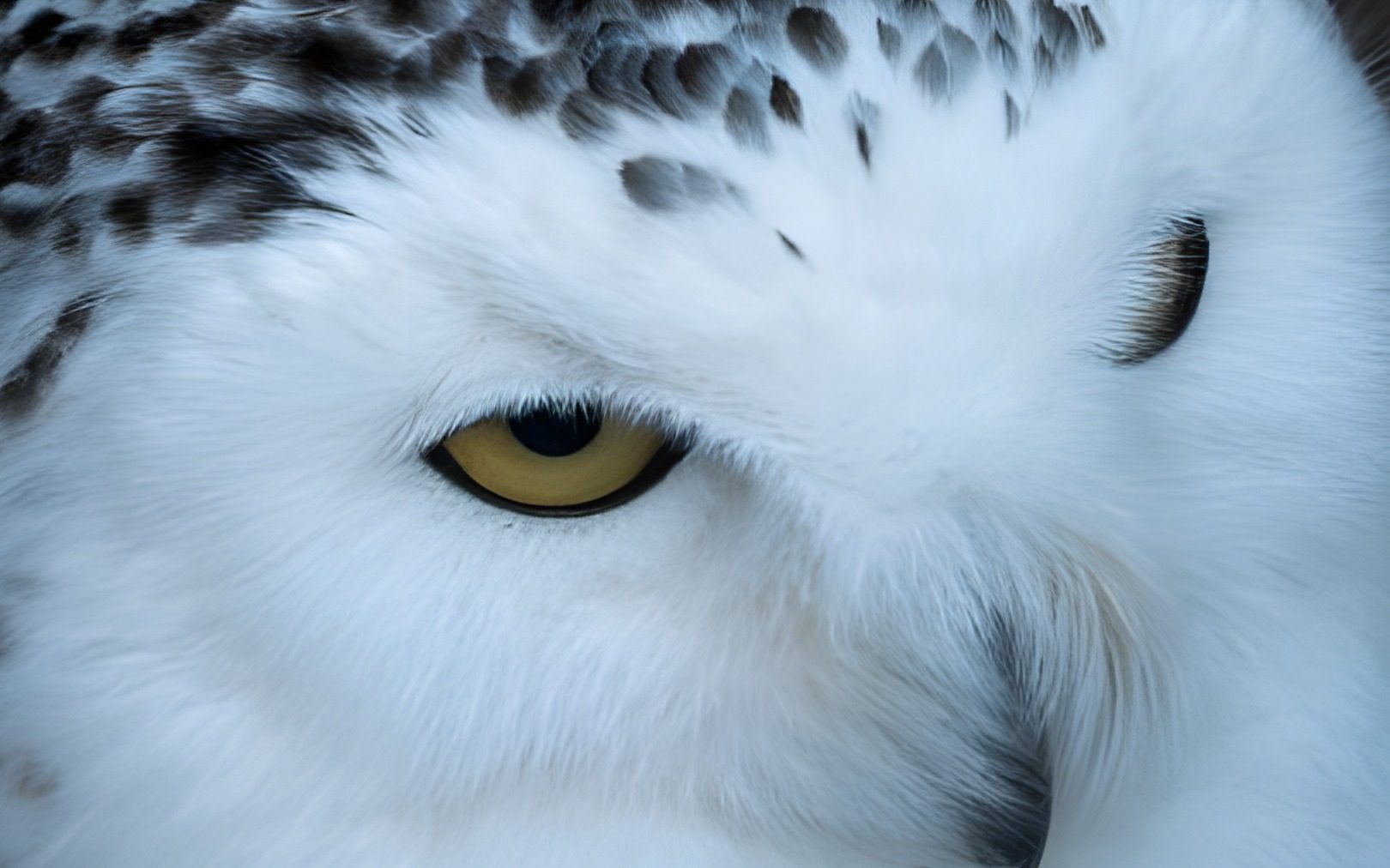
AI Image Upscaler
Wizmade’s Image Upscaler prepares a larger version of an uploaded image using the selected upscale factor. Add your source, choose 1×, 2×, or 4×, and compare the result with the original when processing completes. The side-by-side example is demonstration media, not your uploaded image.
Explore AI tool →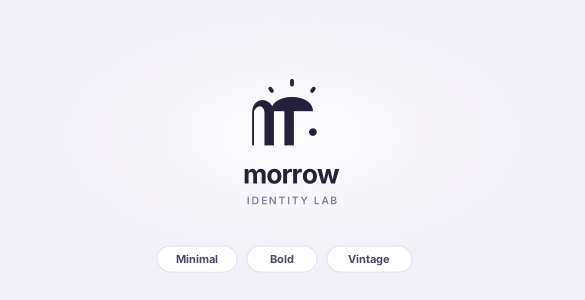
AI Logo Generator
Wizmade’s AI Logo Generator prepares raster logo concepts from a brand brief and an optional image reference. Describe the name, mark, colors, and intended use, then review the supported canvas settings. Inspiration examples show possible design directions rather than proving a generated result.
Explore AI tool →
AI Image Editor
Wizmade’s Image Editor provides a canvas with Edit, Background, and Watermark modes for a supplied image. Choose the mode that matches your task and describe or mark the area to change. Canvas previews and example media are distinct from completed image-processing results.
Explore AI tool →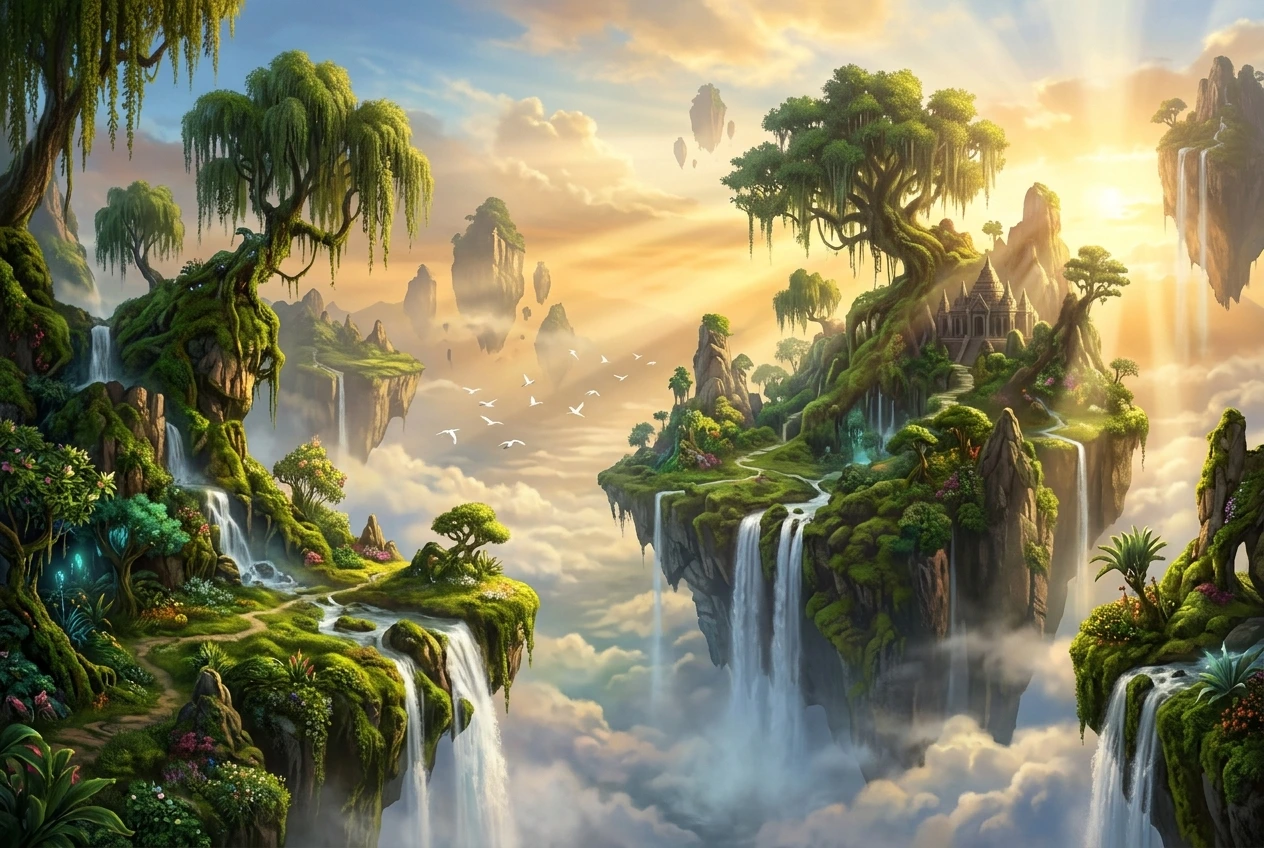
Image to Prompt
Wizmade’s Image to Prompt workspace places an image preview beside an editable prompt. Upload a reference and write a visual description of its subject, composition, colors, and lighting. Review your text, copy it, or carry it into Image Studio as the starting point for a new creation.
Explore AI tool →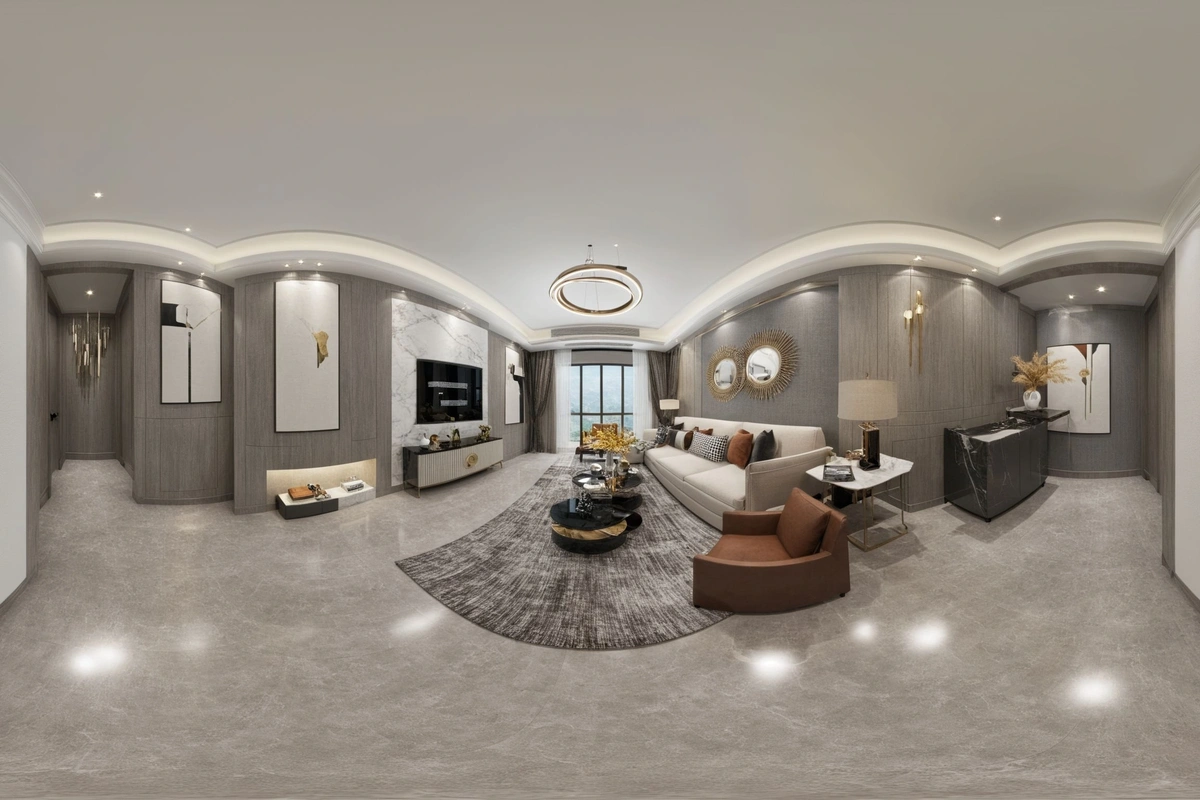
AI Image Expander
Wizmade’s Image Expander uses an image and a chosen frame to prepare an expanded composition. Upload a source or use the example, then choose the target ratio and size. The output panel stays separate from the input so you can distinguish the source from a completed expansion.
Explore AI tool →