
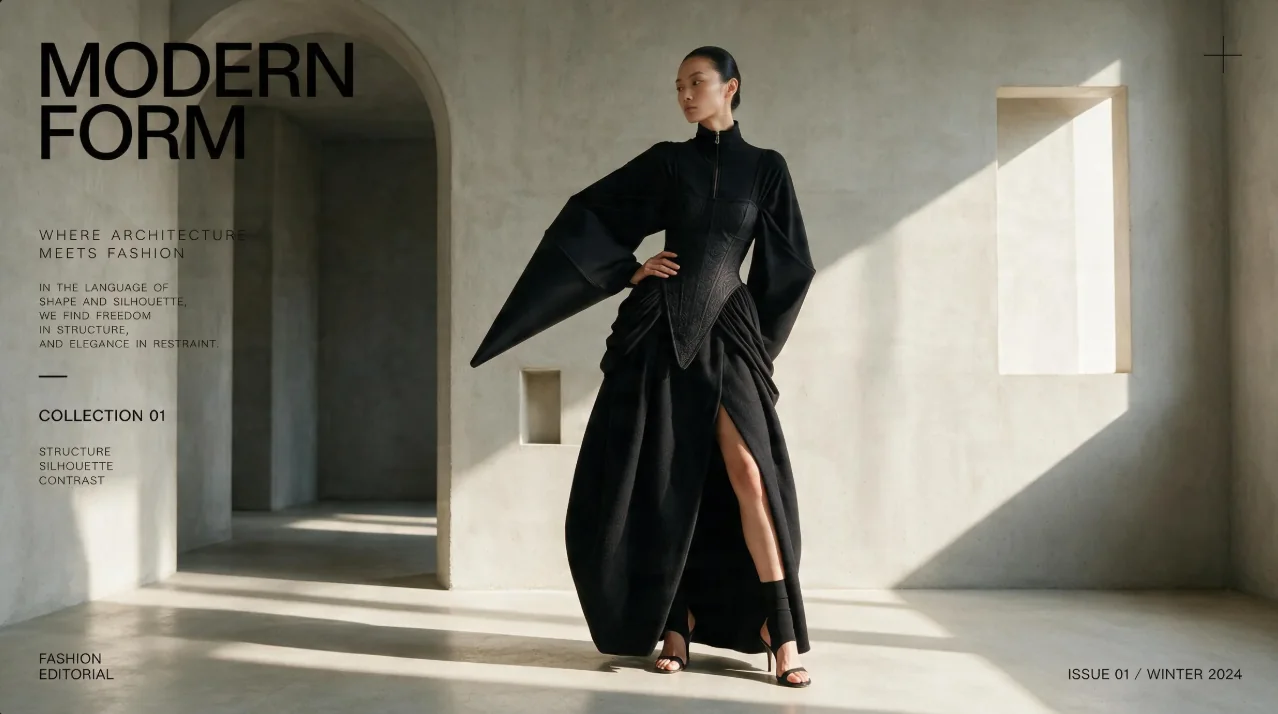
Architectural fashion editorial
Prompt: An editorial fashion image of an adult model wearing sculptural black clothing in a pale stone architectural interior, strong diagonal sunlight, restrained typography and generous negative space.
Wizmade’s Text to Image starts with your words. Describe the subject, setting, lighting, and composition, choose an available image model, then set its supported output parameters. The images below illustrate creative directions; your results will depend on the brief, selected model, and settings.
Example images and editable briefs for inspiration. Adapt a brief in the workbench to explore your own composition.
Prompt: An editorial fashion image of an adult model wearing sculptural black clothing in a pale stone architectural interior, strong diagonal sunlight, restrained typography and generous negative space.
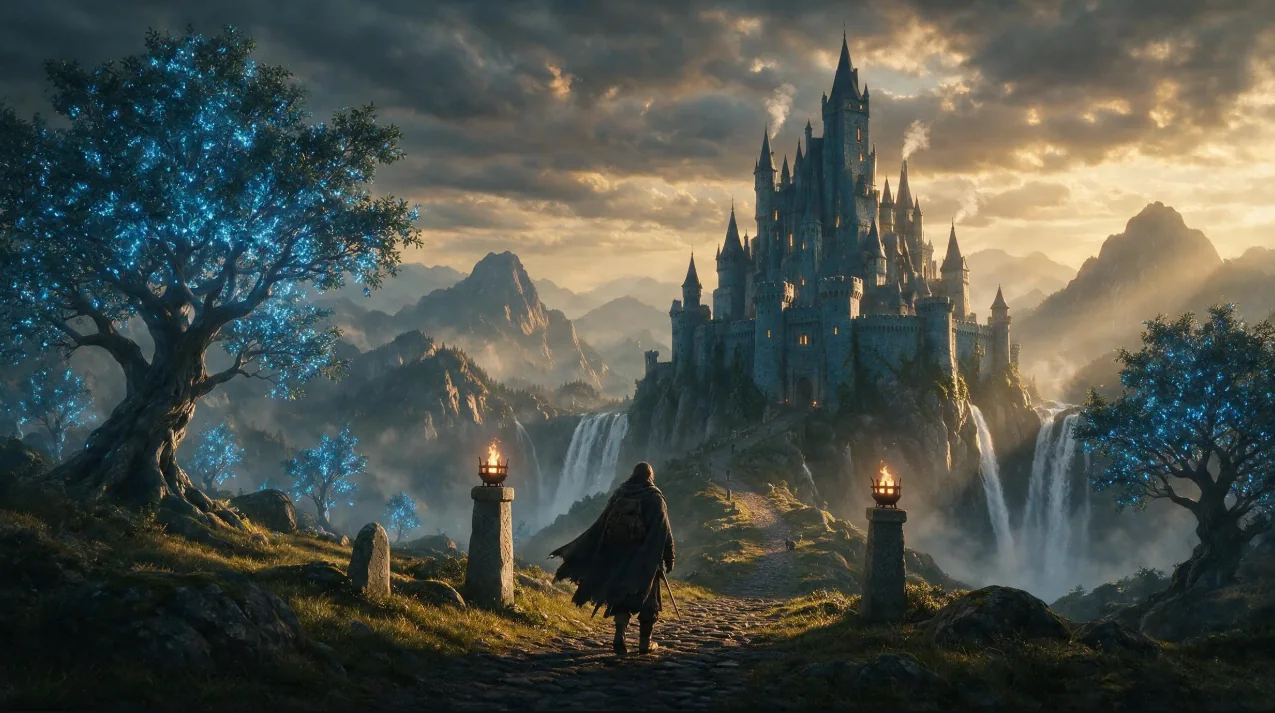
Prompt: A cloaked traveler approaches a mountain castle across a stone bridge, waterfalls below, luminous blue trees, storm clouds opening to warm sunset light, richly detailed fantasy illustration.
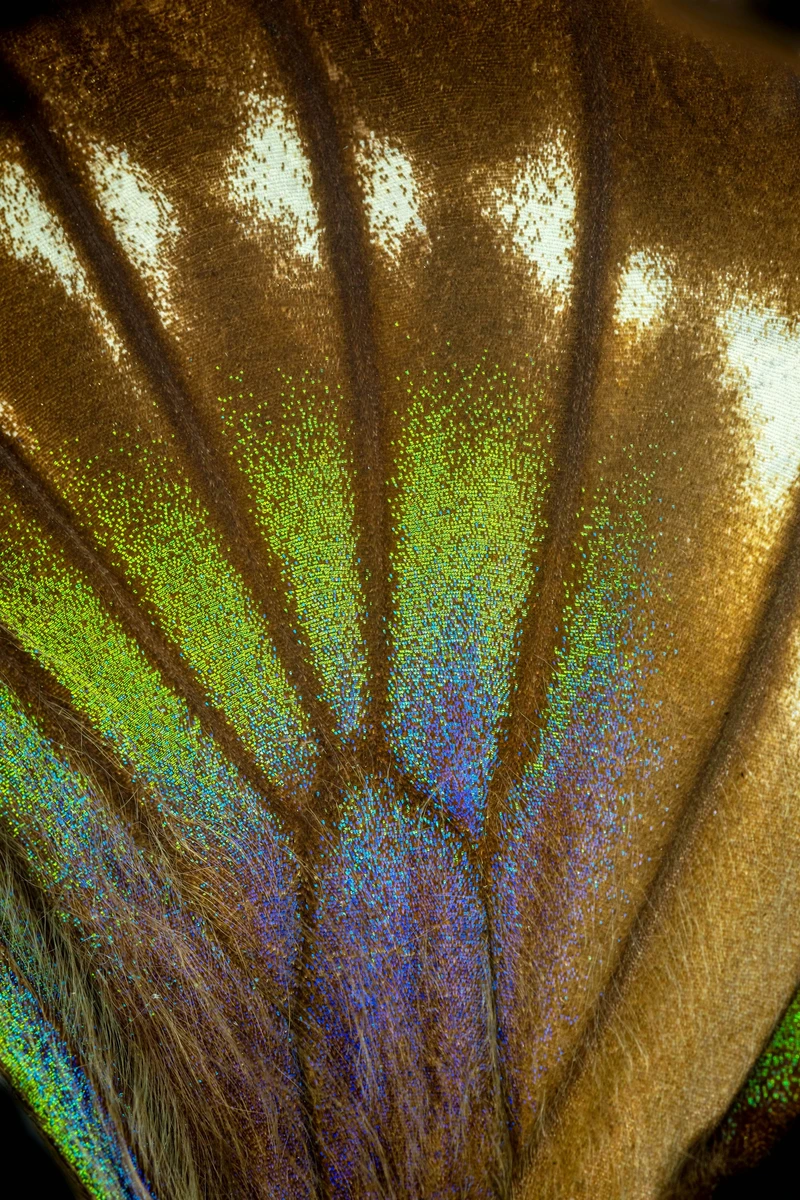
Prompt: An extreme macro study of iridescent butterfly wings, delicate repeating scales, jewel-like reflections, soft directional light and shallow depth of field.
Wizmade’s Text to Image starts with your words. Describe the subject, setting, lighting, and composition, choose an available image model, then set its supported output parameters. The images below illustrate creative directions; your results will depend on the brief, selected model, and settings.
Creative workflow
Begin with a clear subject, then add the setting, medium, lighting, and camera or illustration viewpoint. State the most important visual detail first. A focused brief is easier to refine than a long list of conflicting directions.
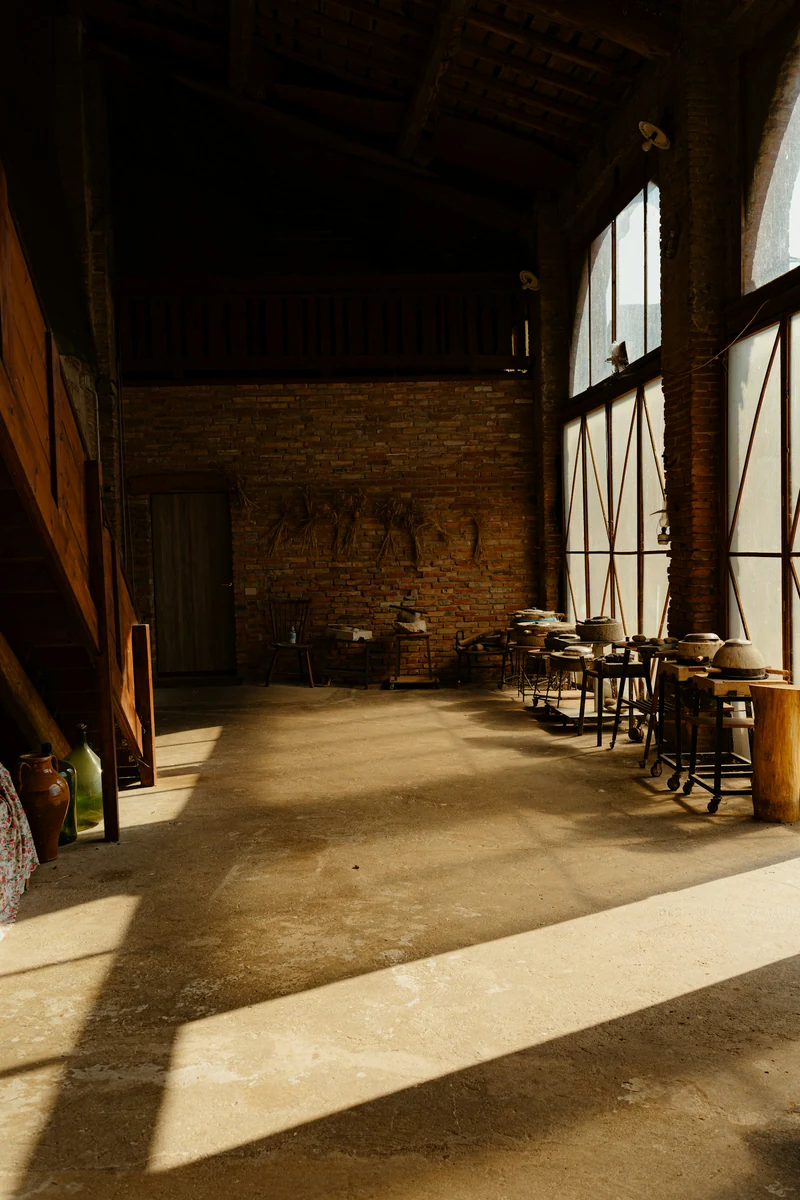
Creative workflow
Use the available aspect ratios to prepare a square, portrait, or landscape composition. Select resolution and output count from the current model’s controls. Describe where the subject should sit and where you need space for a caption or layout.
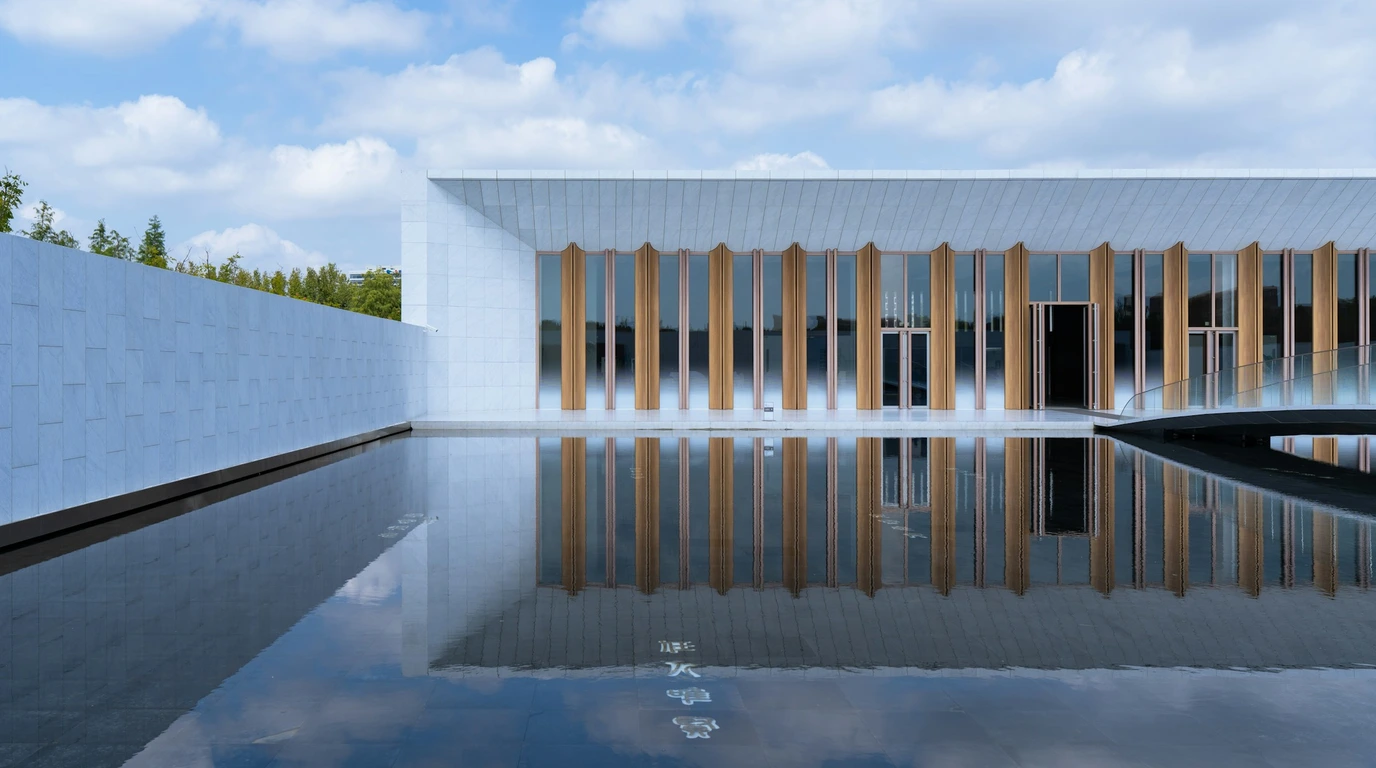
Creative workflow
Keep the subject fixed while changing a material, palette, lighting direction, or viewpoint. To guide a variation with an existing picture, switch to Image to Image. For an area-specific change, open the separate Image Editor rather than expecting layers in a generated image.
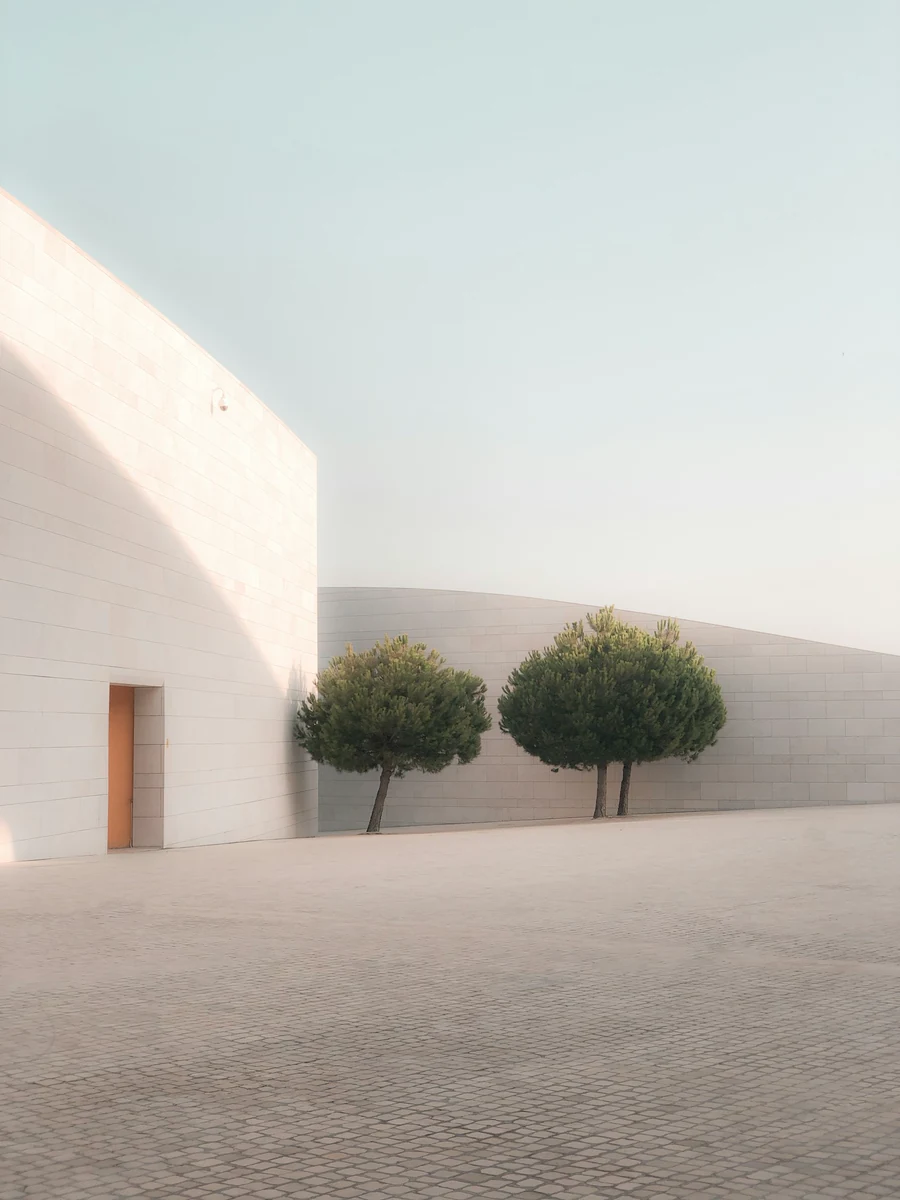
Use image generation to explore a concept and decide what deserves further design work. These illustrative references show possible directions rather than a promised output or measured time saving.
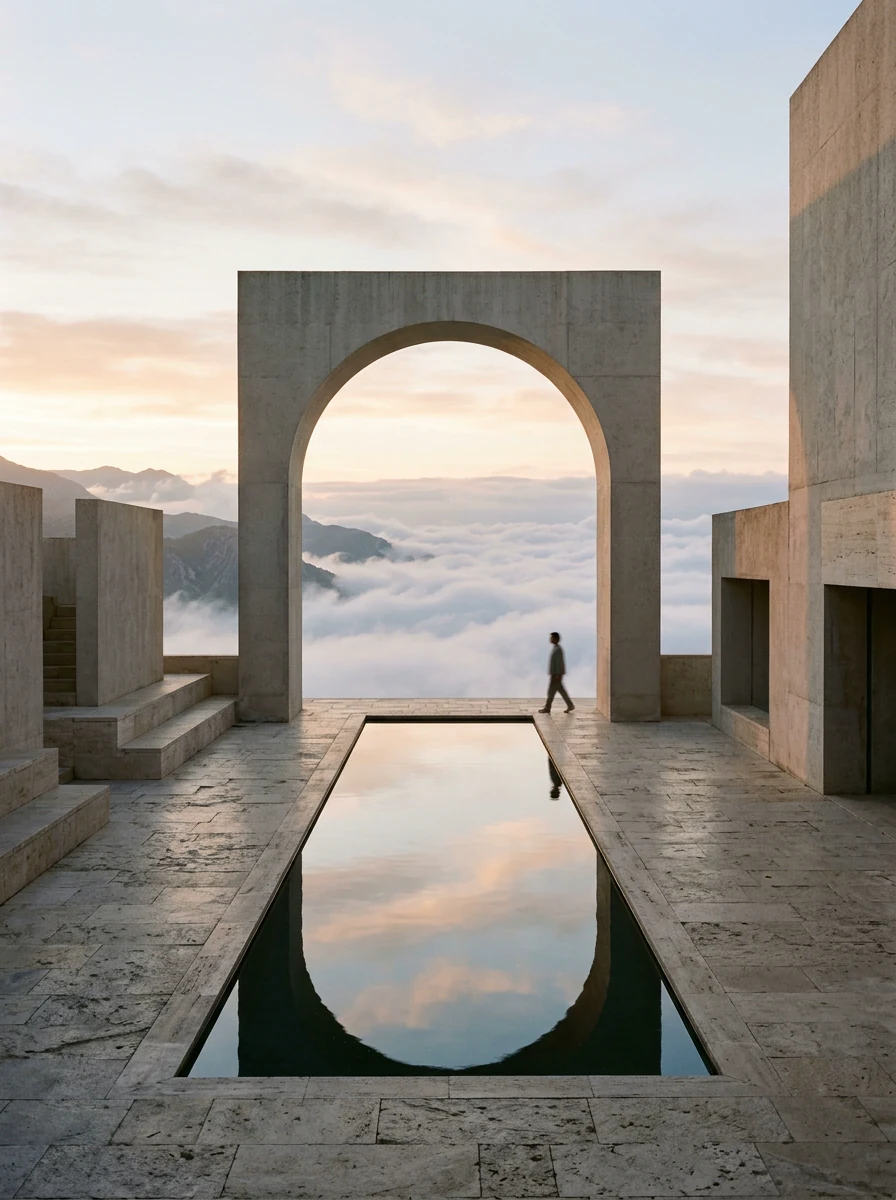
Turn a mood, setting, or material idea into a concrete visual brief that you can review and revise.
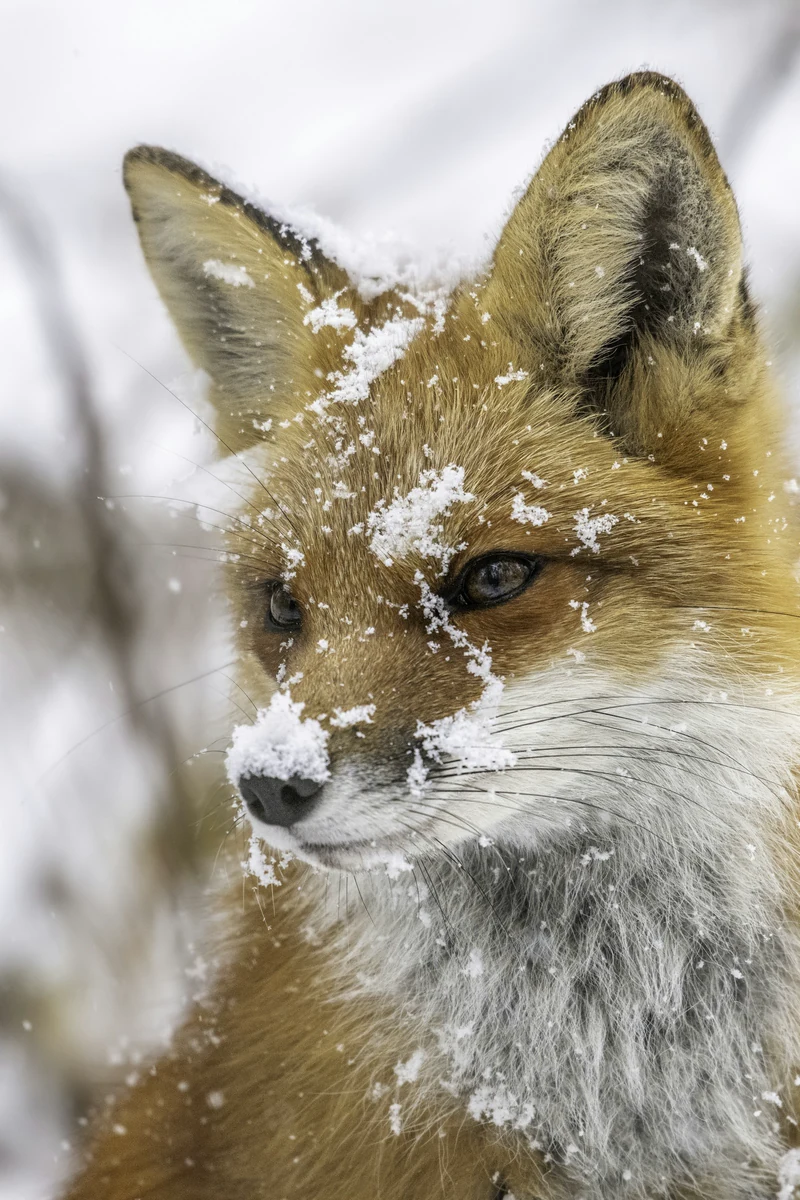
Describe photography, illustration, or a more imaginative treatment, then compare how well each direction serves the subject.
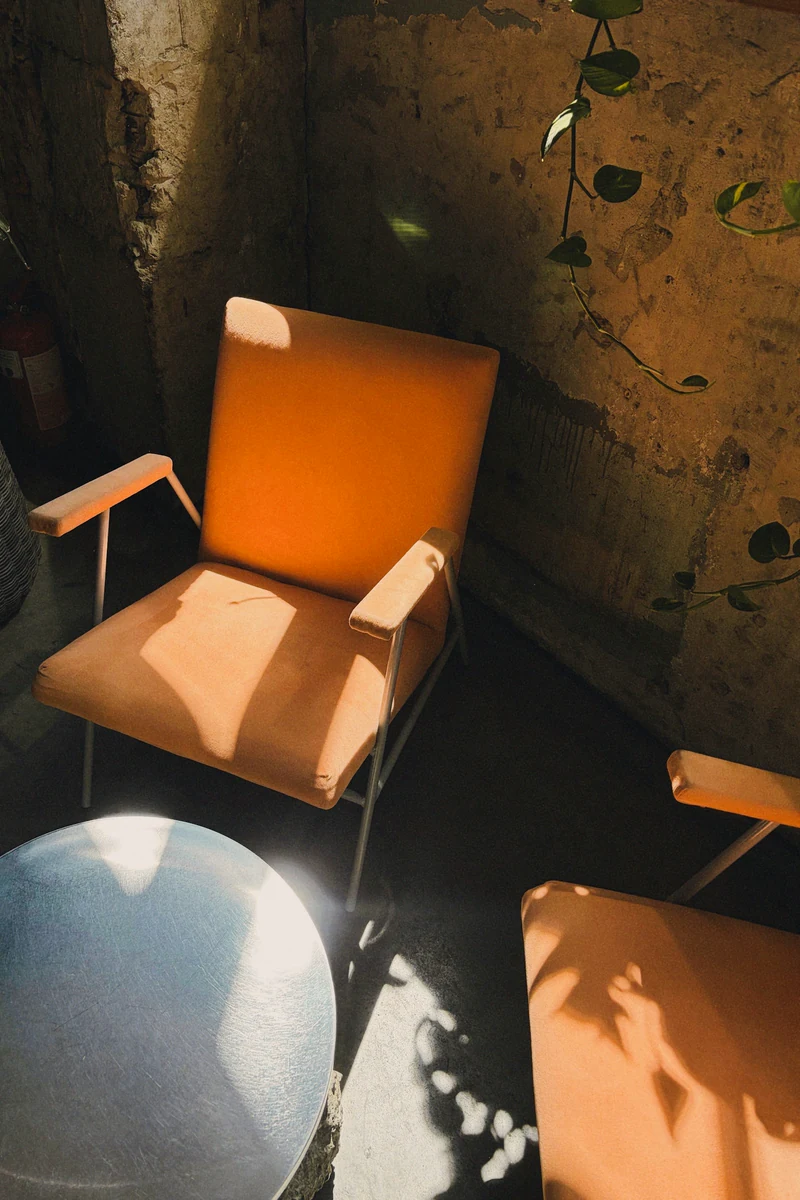
Decide on framing, subject placement, and negative space before adding final text or assembling a campaign layout.
Start with the intended destination. Specify framing and design constraints in the brief, then inspect the image before publishing or handing it to a designer.
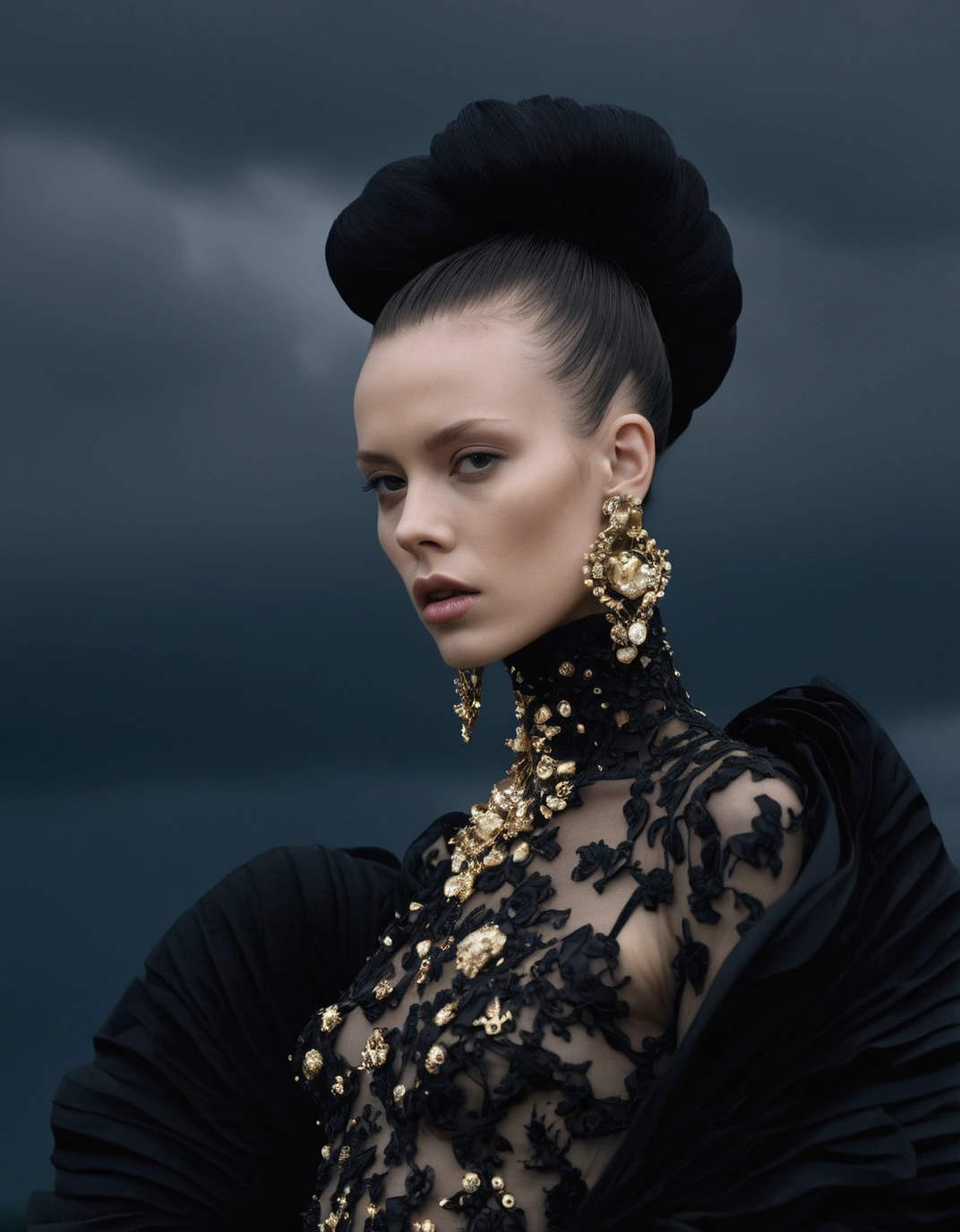
Develop an editorial mood or social-post background. Leave room for readable captions and check the final crop for each destination.

Explore a product setting, palette, or material direction. Treat generated packaging, labels, and brand details as concepts that need independent review.
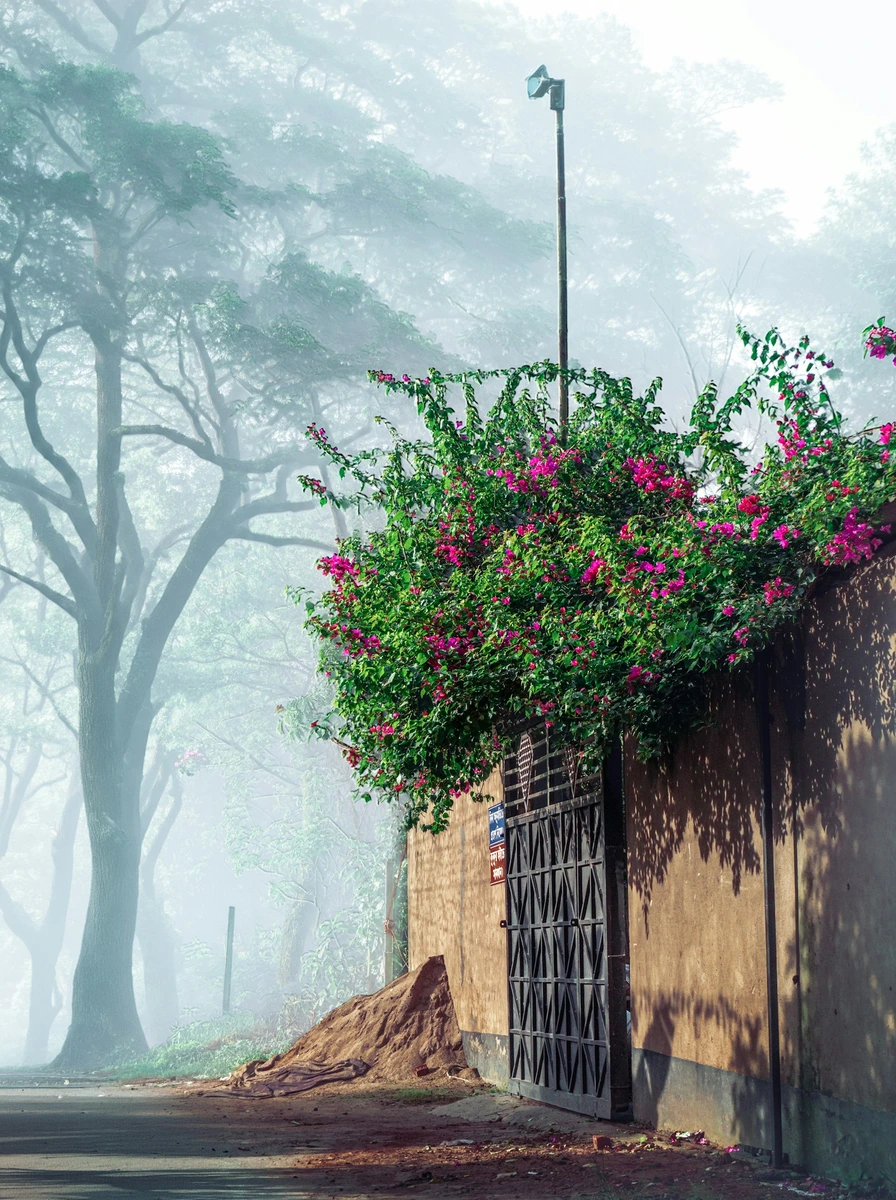
Describe an atmosphere, location, or visual world for a story. Keep the main subject and viewpoint consistent when comparing alternate directions.
Follow these steps in the workbench above. Each screenshot shows the complete interface for its step.
In Text to Image, write the subject, setting, lighting, and framing. Include any text that should appear and where it belongs.
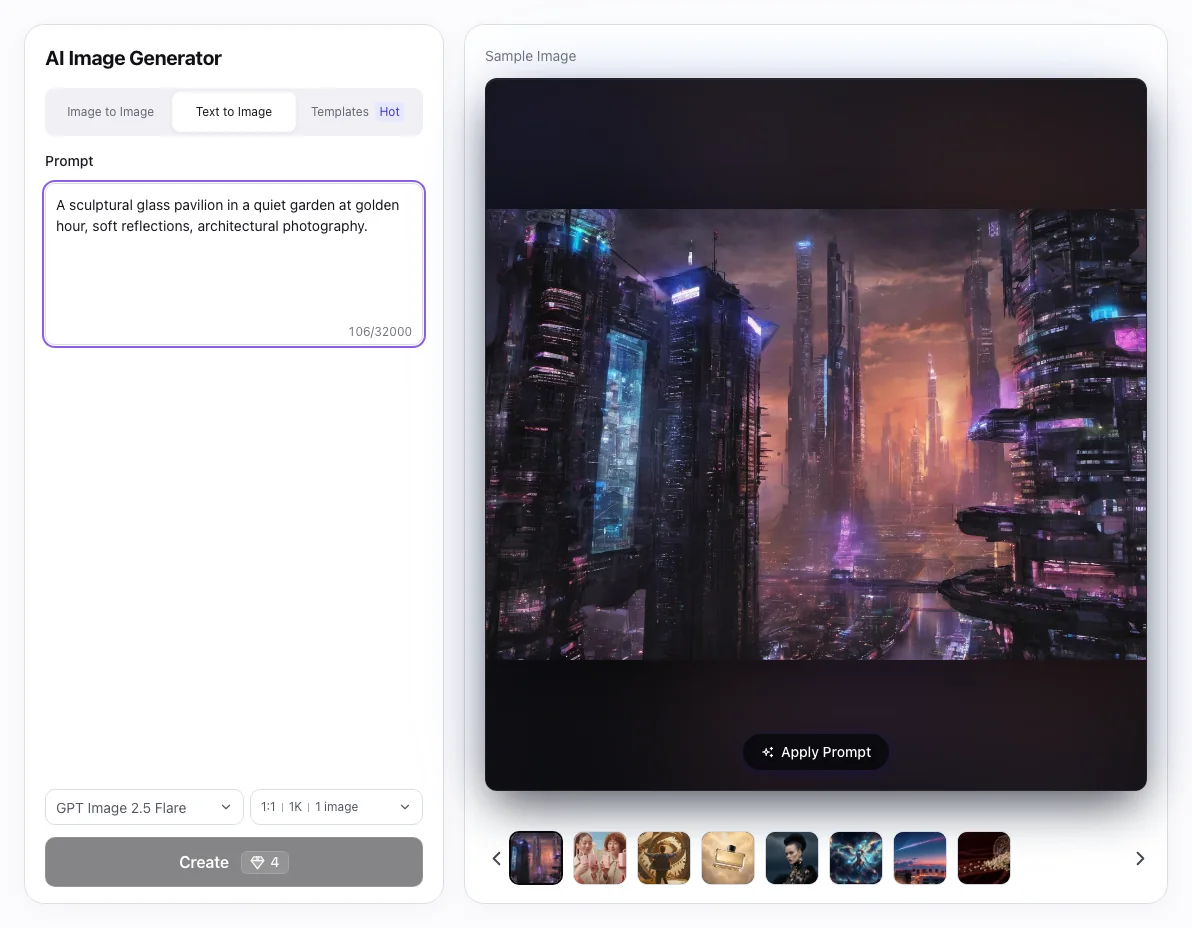
Open the model menu and compare the displayed scenario tags and supported resolution.
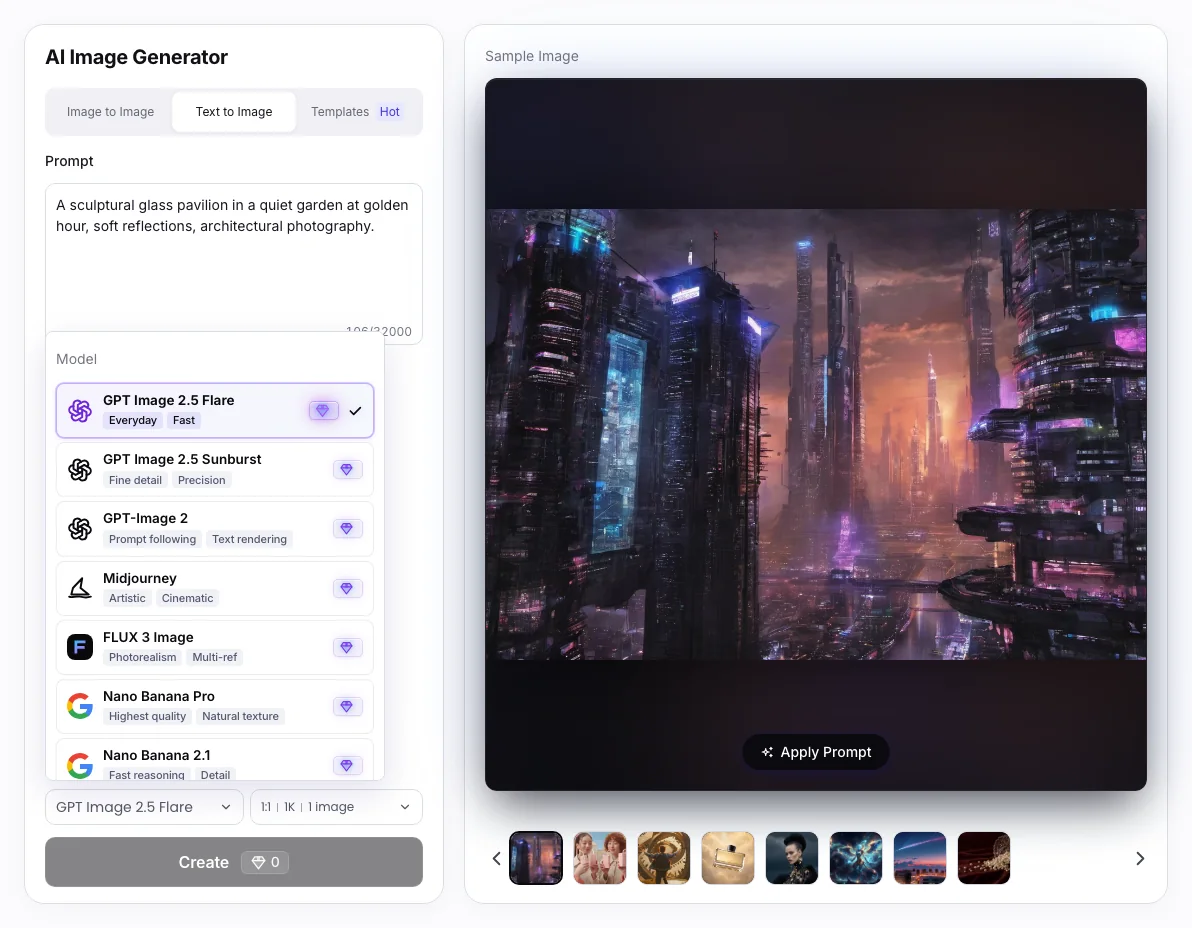
Open Parameters to set aspect ratio, resolution, and outputs. Check the 💎 amount before Create and complete sign-in if requested.
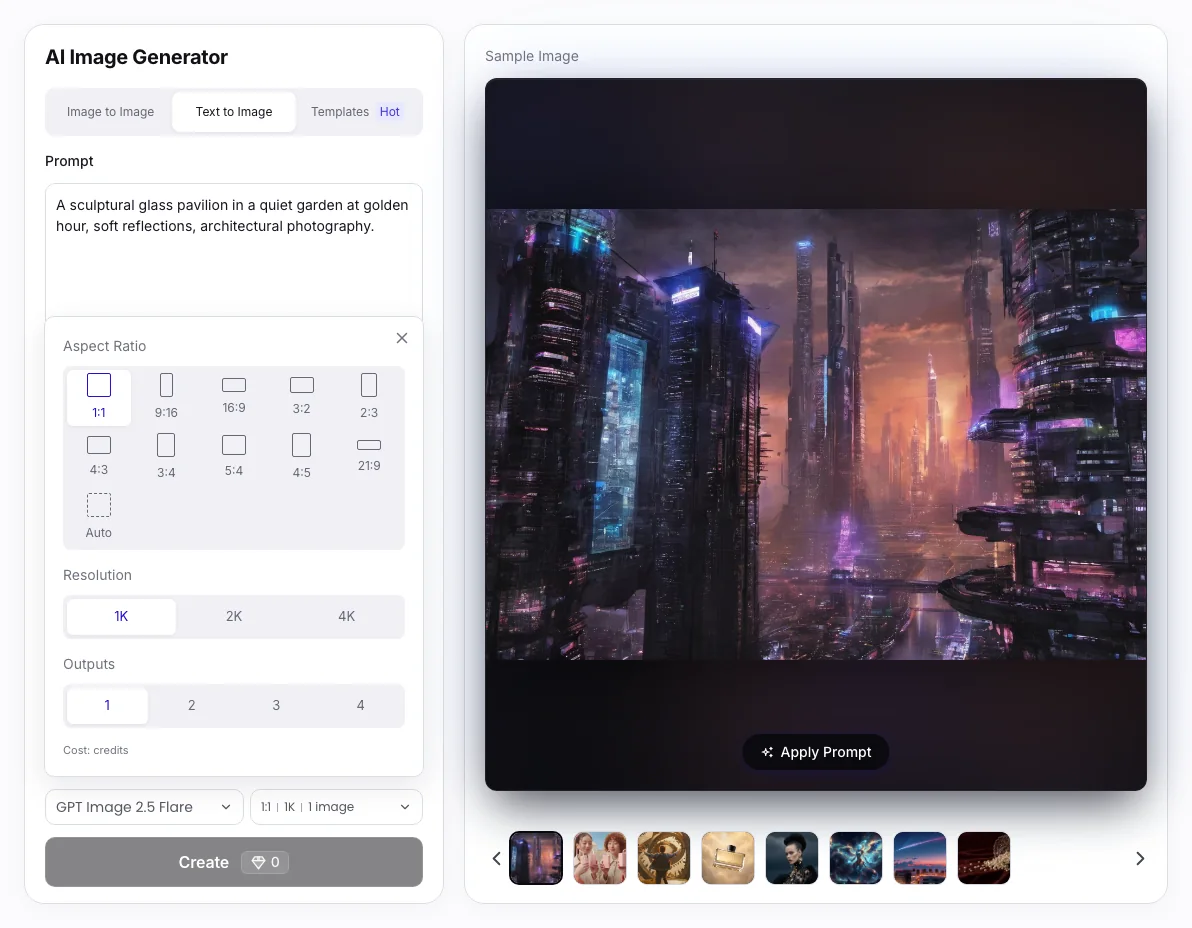
Generated text and fine details may need correction. Output size and available ratios vary by model; prompt terms such as “8K” do not override those settings.
Wizmade plans
The workbench displays a 💎 amount based on the selected model and supported settings. Review it before creating, and visit Pricing for the current plans and credit options.
These workflows have different inputs and controls. Open the one that matches the change you want to make.

Guide a variation with your own reference and a written change.

Choose a template direction for a reference-guided restyle.

Open the canvas for an edit, background change, or removal task.

Prepare a larger image and compare it with the source.

Choose a new frame and prepare additional surrounding content.

Prepare an image concept from a brand brief.
Text-to-image generation turns a written description into a still-image request. In Wizmade, enter a prompt, choose an available image model, and review its supported settings before Create. No source photo is required.
Use subject + setting + visual treatment + composition. For example: a ceramic teapot on a wooden table, morning window light, muted editorial photography, wide framing with space on the left. Name the detail that matters most before adding secondary cues.
Open the model menu to compare the current scenario tags and supported settings. Model overview links below provide more context. Keep the brief and framing consistent when comparing models; their outputs and available controls can differ.
Yes, where the selected model supports those controls. Open the parameters panel to see the available ratios, resolution or model-specific options, and output count. A request such as “8K” in the prompt does not override the actual output settings.
No. Text to Image begins with a written brief. Use Image to Image when a reference should guide the subject or composition, or Templates when you want to start from a preset visual direction.
You can request a poster-like composition and specify the intended lettering, but spelling, typography, alignment, and factual information can be wrong. Review every word, and use a design editor for final text and production layouts.
Review completed images in the workspace and use the available download action to save a result. You can prepare another image variation with a revised prompt or open a separate editing workflow. Generated files are images, not a guarantee of editable layers or vector paths.
Check the 💎 amount shown by the creation action after selecting the model and supported settings. Different requests can have different costs. The Pricing page describes the current plan and credit options; this page does not promise unlimited or daily free generation.
You can prepare a brief in the public workbench. Complete sign-in when requested before submitting a task. Review the prompt, model, settings, and displayed credits before Create.
Processing time varies with the model, selected output settings, service availability, and queue. Follow the task status in the workspace. There is no fixed completion-time promise on this page.
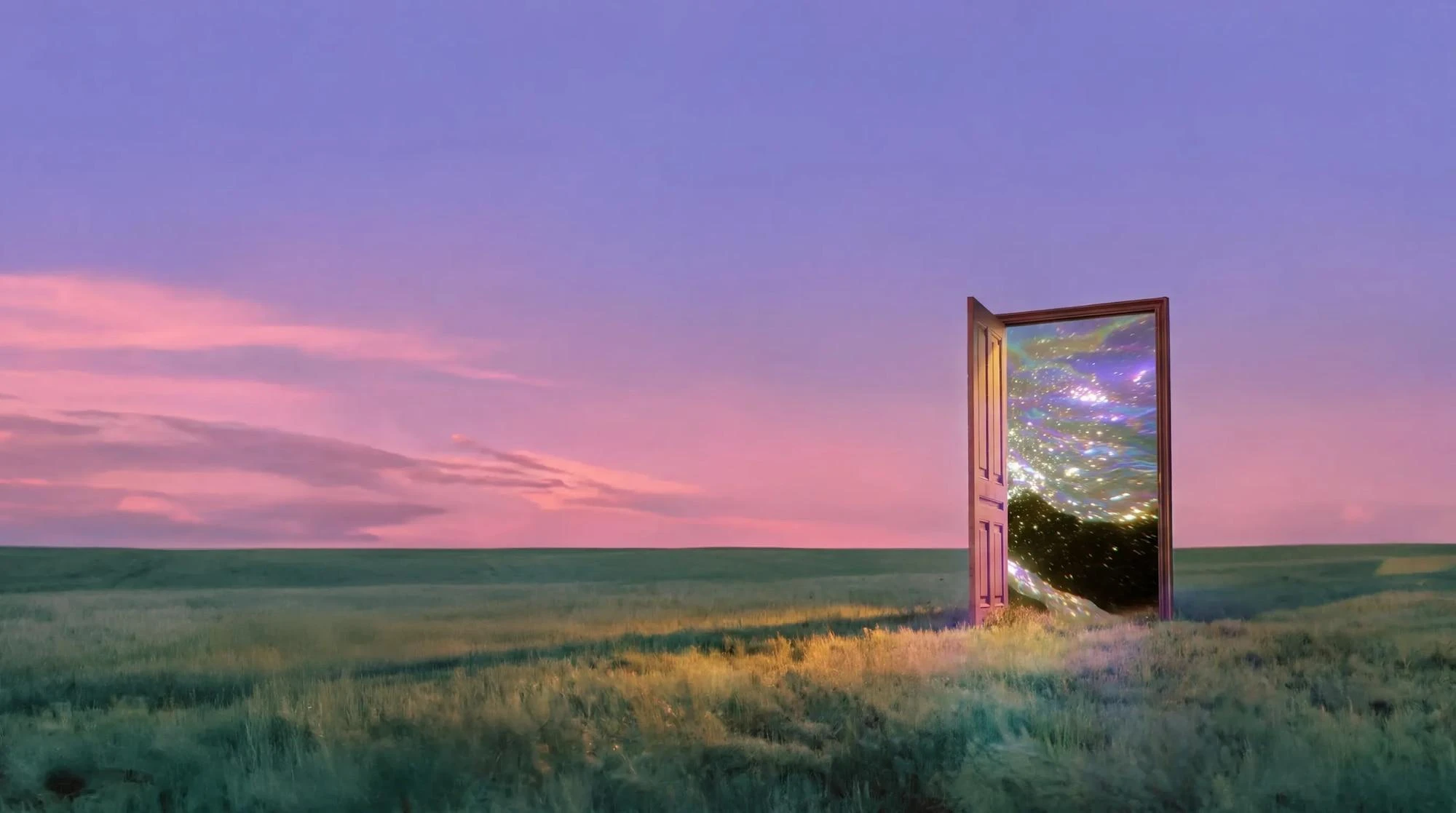
Wizmade’s AI Image Generator prepares still images from text, reference images, or a template direction. Start with the input that fits the task, choose an available model, and review its supported framing and output settings. The examples below illustrate creative directions rather than verified results from a particular model.
Explore AI tool →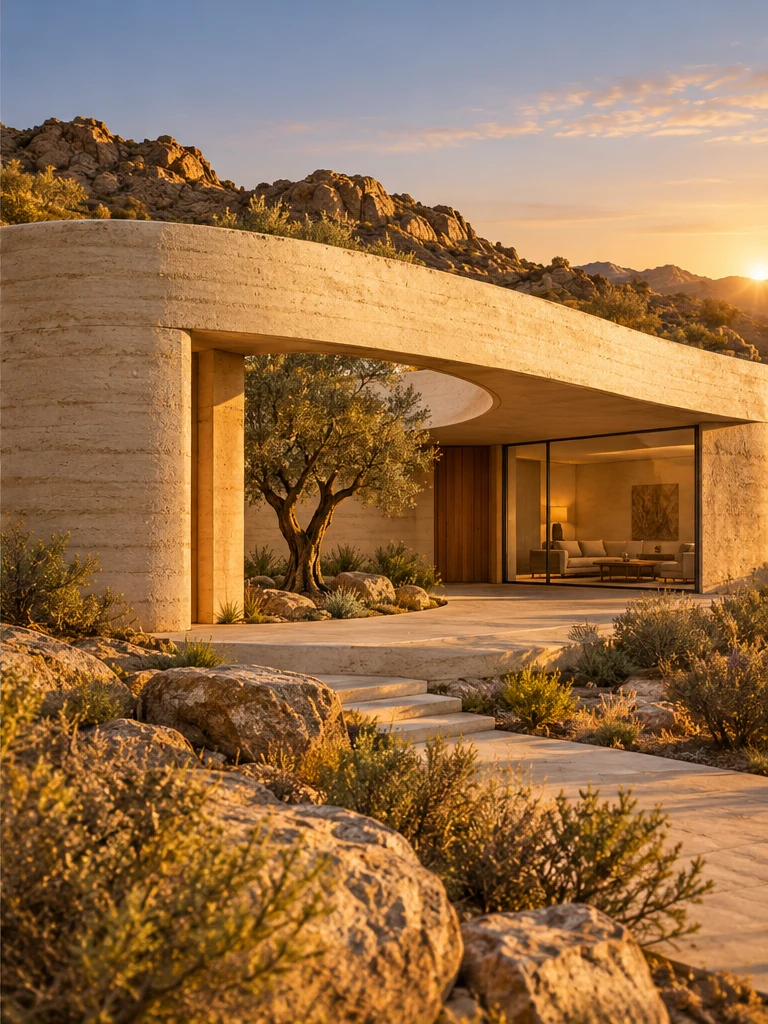
Wizmade’s Image to Image uses a reference image and an editable text instruction to prepare a new image variation. The reference supplies visual context while the prompt describes the intended change. Select the image model and supported output settings in the same image workspace.
Explore AI tool →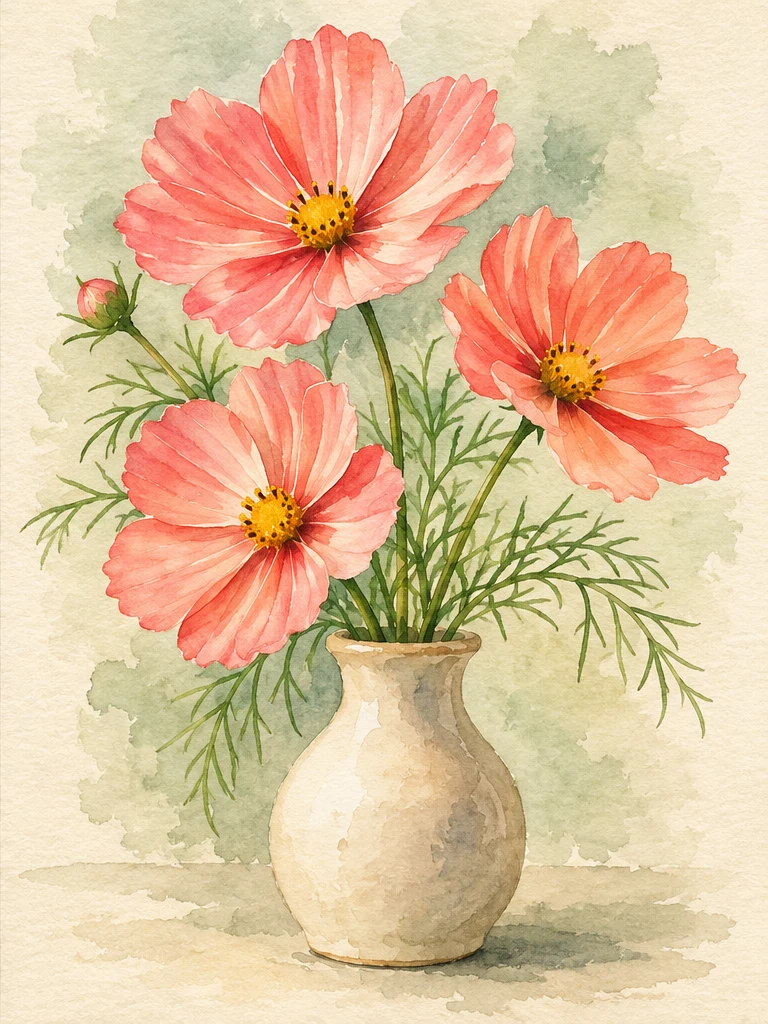
Wizmade’s Image Style Transfer opens the Templates mode of the image workspace. Select a visual preset, supply a reference image, and add optional instructions to prepare a restyled image. This shares the image creation workflow rather than offering a separate style-transfer engine.
Explore AI tool →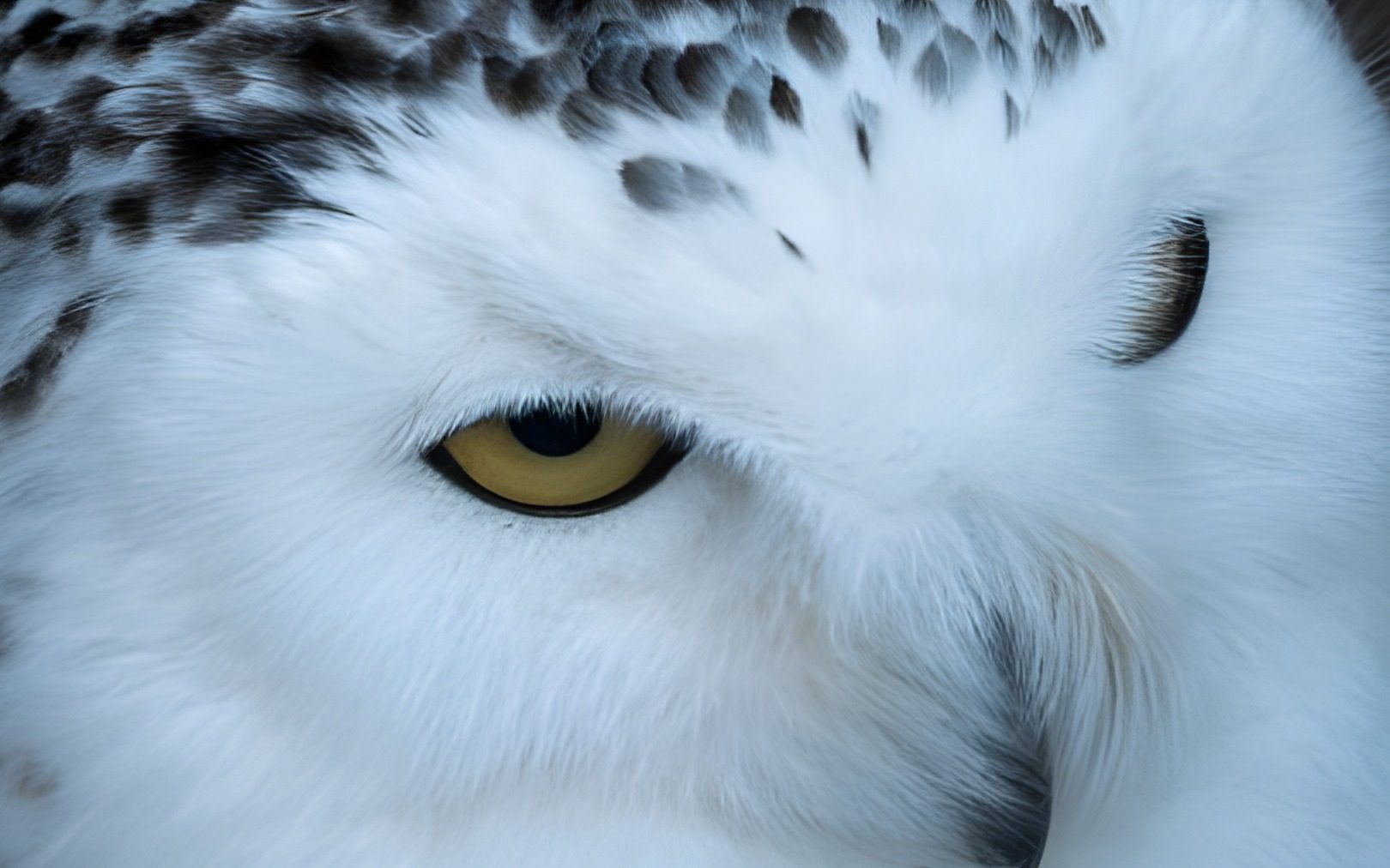
Wizmade’s Image Upscaler prepares a larger version of an uploaded image using the selected upscale factor. Add your source, choose 1×, 2×, or 4×, and compare the result with the original when processing completes. The side-by-side example is demonstration media, not your uploaded image.
Explore AI tool →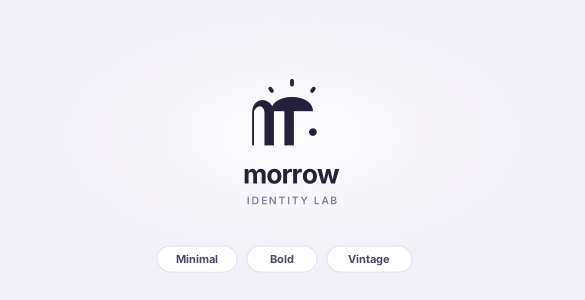
Wizmade’s AI Logo Generator prepares raster logo concepts from a brand brief and an optional image reference. Describe the name, mark, colors, and intended use, then review the supported canvas settings. Inspiration examples show possible design directions rather than proving a generated result.
Explore AI tool →
Wizmade’s AI Video Generator prepares short clips from a written scene or image references. Choose Text to Video to invent the scene or Image to Video to guide its appearance. Model capabilities determine the available reference methods, duration, resolution, ratio, and outputs.
Explore AI tool →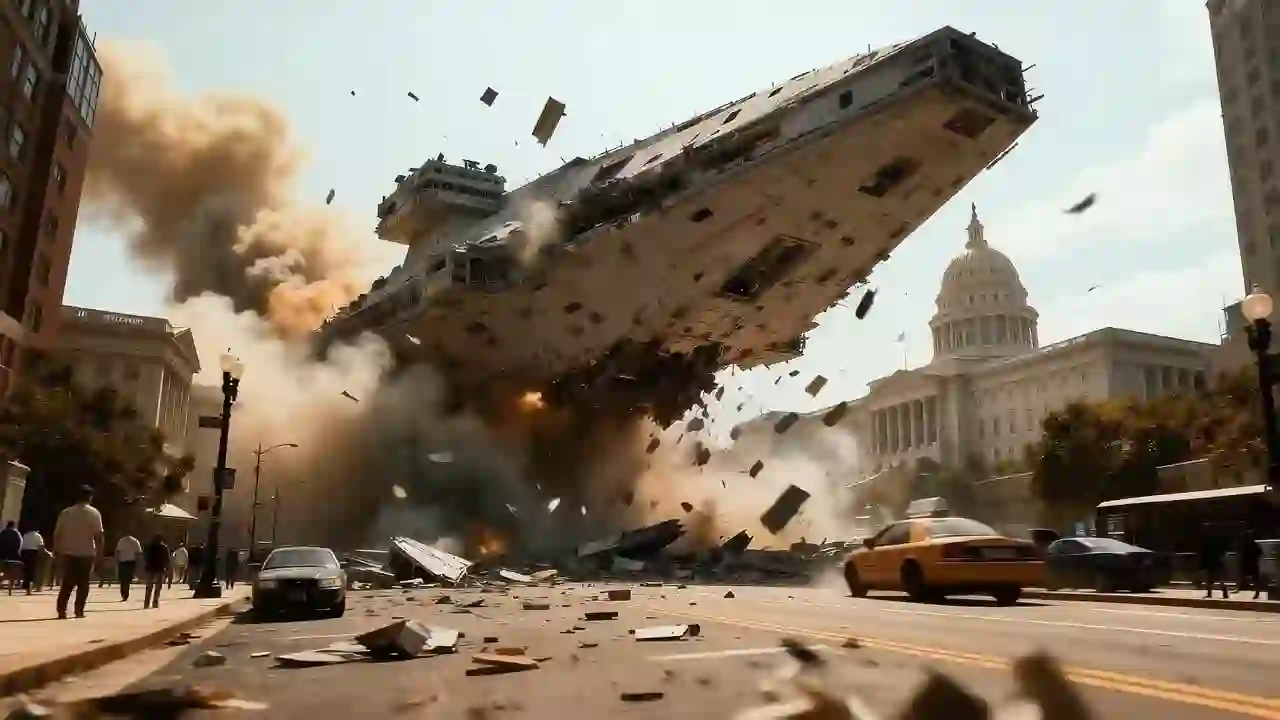
Wizmade’s Text to Video creates a video request from a written scene without requiring an image. Describe who or what moves, where it happens, and how the camera sees the action. Select a video model and the parameters it supports before reviewing the credit amount.
Explore AI tool →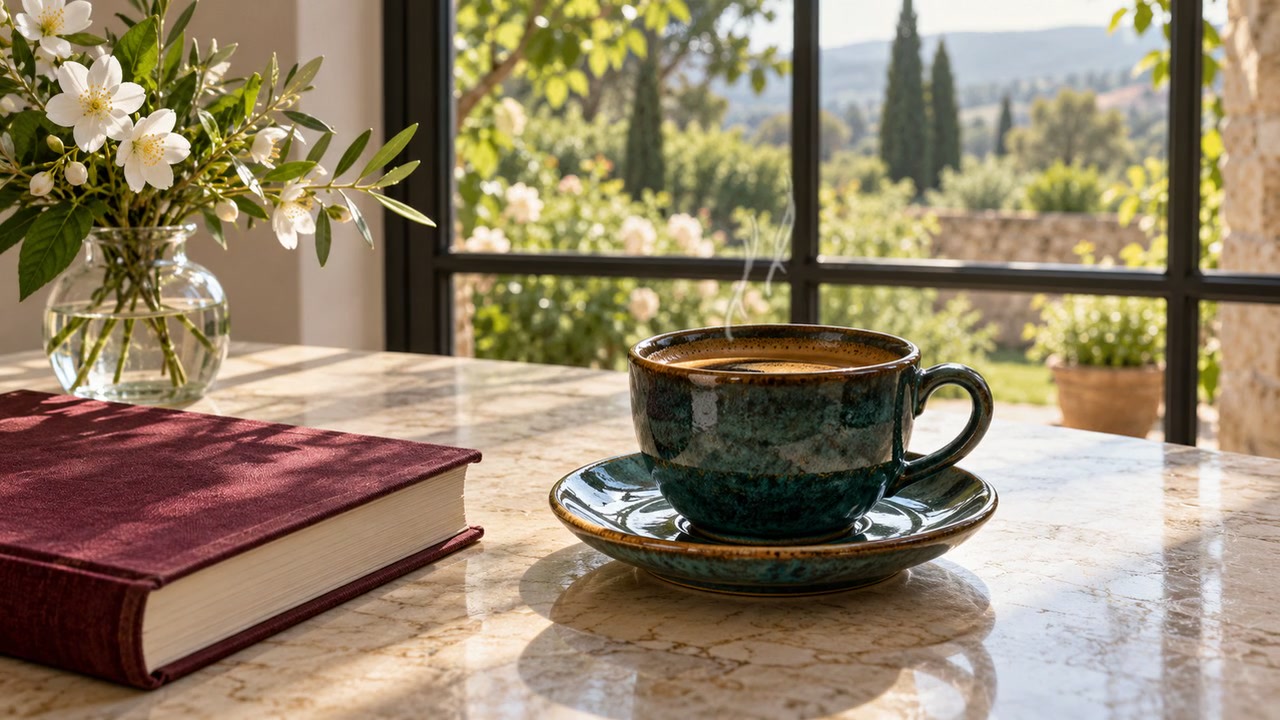
Wizmade’s Image to Video uses visual references and a motion brief to prepare a clip. The workbench offers Start Image, Between Images, and Reference Images. The selected model determines which methods are available and which duration, resolution, and output settings you can use.
Explore AI tool →Return to the workbench to review your inputs and available settings.