
A motion clip for movement
Upload the movement you want to use, or inspect a supplied motion example before choosing your own source.
Wizmade’s Video to Video uses a motion clip and a reference image to prepare a new video. The clip supplies movement while the image guides the visual subject. Add an optional prompt, compare available Kling models, and choose a supported resolution before reviewing the credit cost.
Wizmade’s Video to Video uses a motion clip and a reference image to prepare a new video. The clip supplies movement while the image guides the visual subject. Add an optional prompt, compare available Kling models, and choose a supported resolution before reviewing the credit cost.
Upload the movement you want to use, or inspect a supplied motion example before choosing your own source.
Add an image of the subject that should follow the motion. Keep the pose, framing, and visible body area suitable for the source action.
Watch the full result for flicker, changed subjects, and jumps between frames.
Follow the steps in the workbench above. Each screenshot shows the complete interface for that step.
Upload a motion video and a reference image. Add an optional instruction to describe the visual treatment; inspect the source previews before continuing.
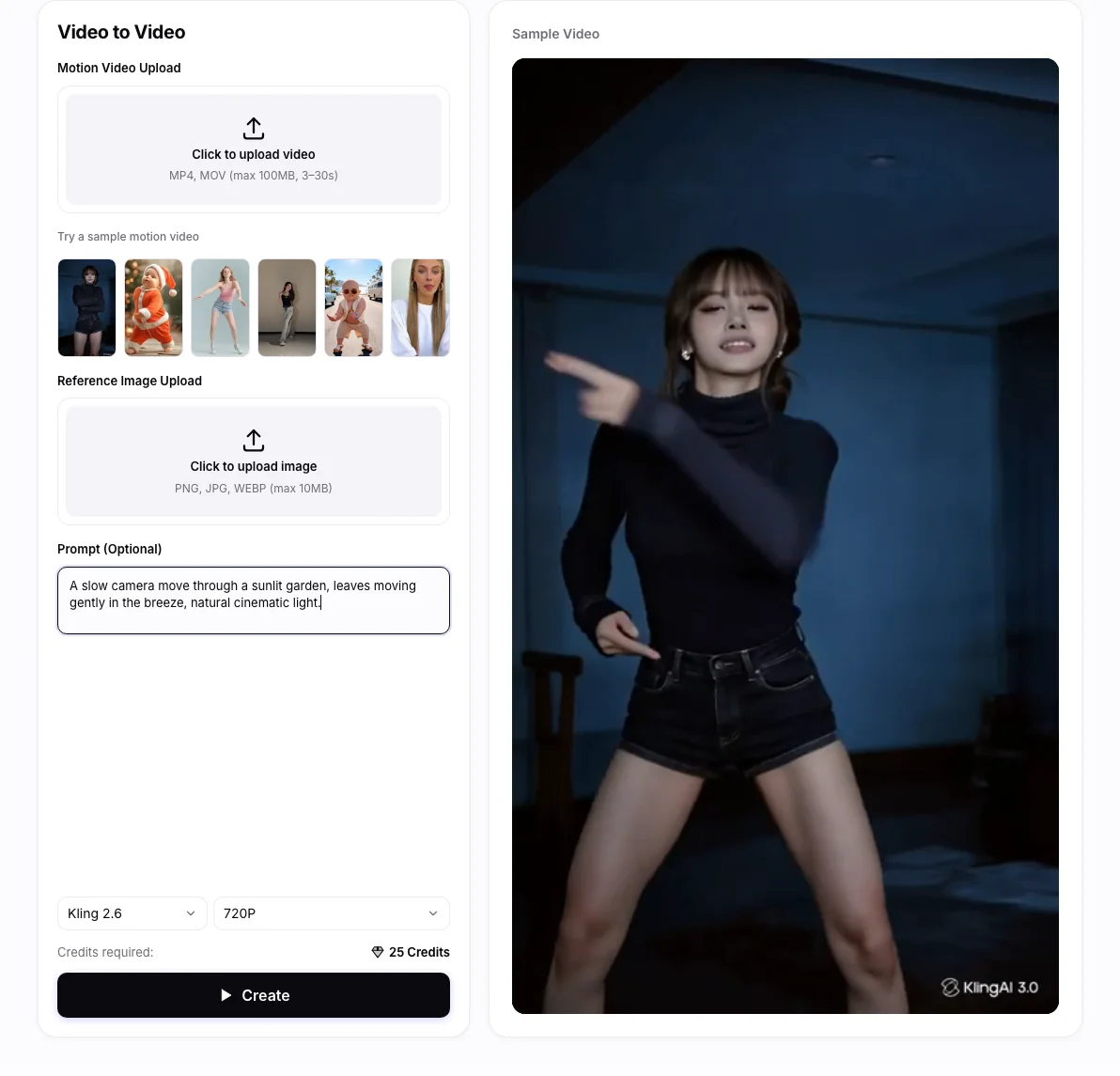
Open Model and choose an available Kling model. Review its listed capabilities and supported source length before preparing the request.
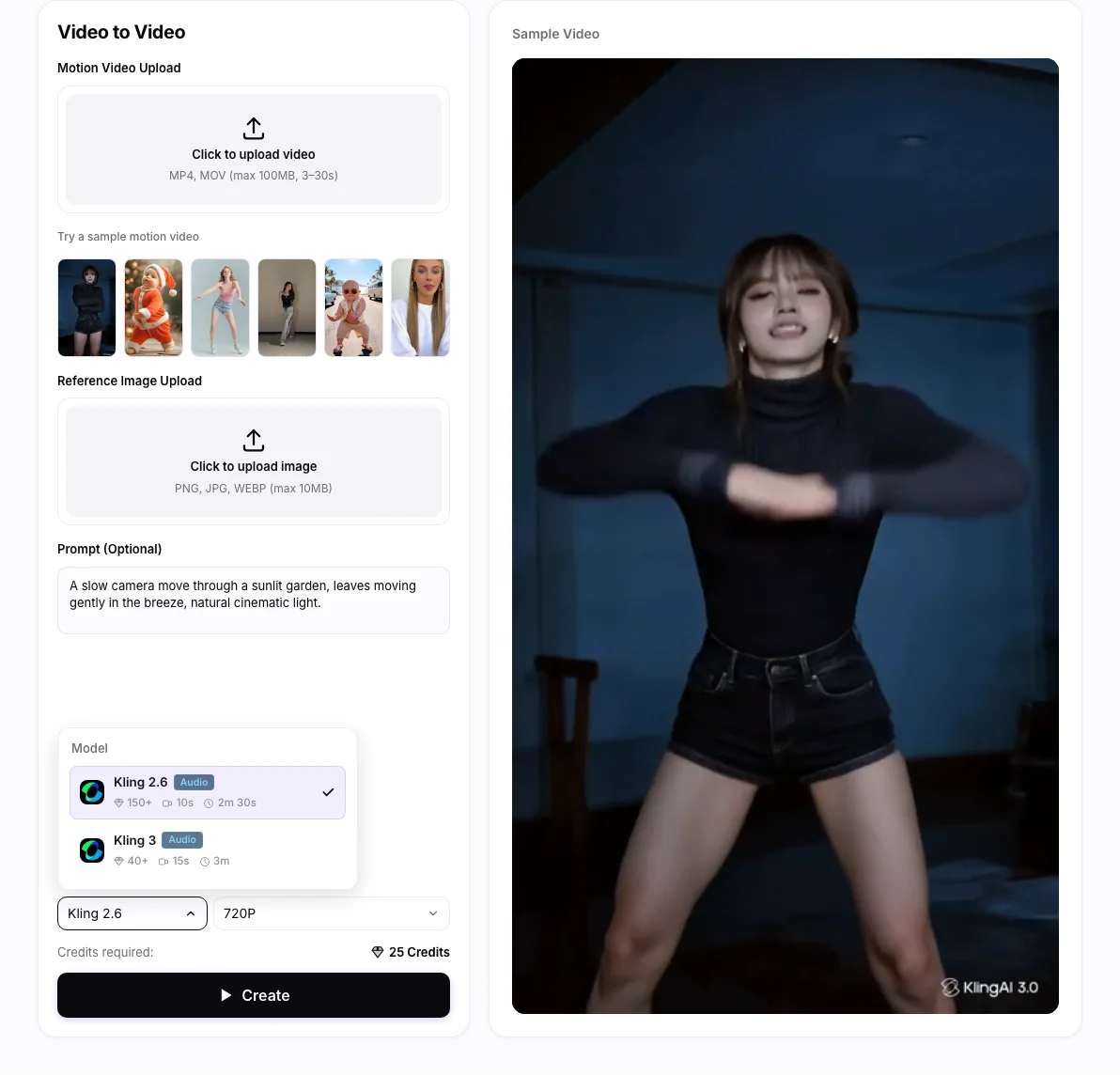
Open Resolution and choose an available output size. Check the motion clip, reference image, prompt, and displayed 💎 amount before Create.
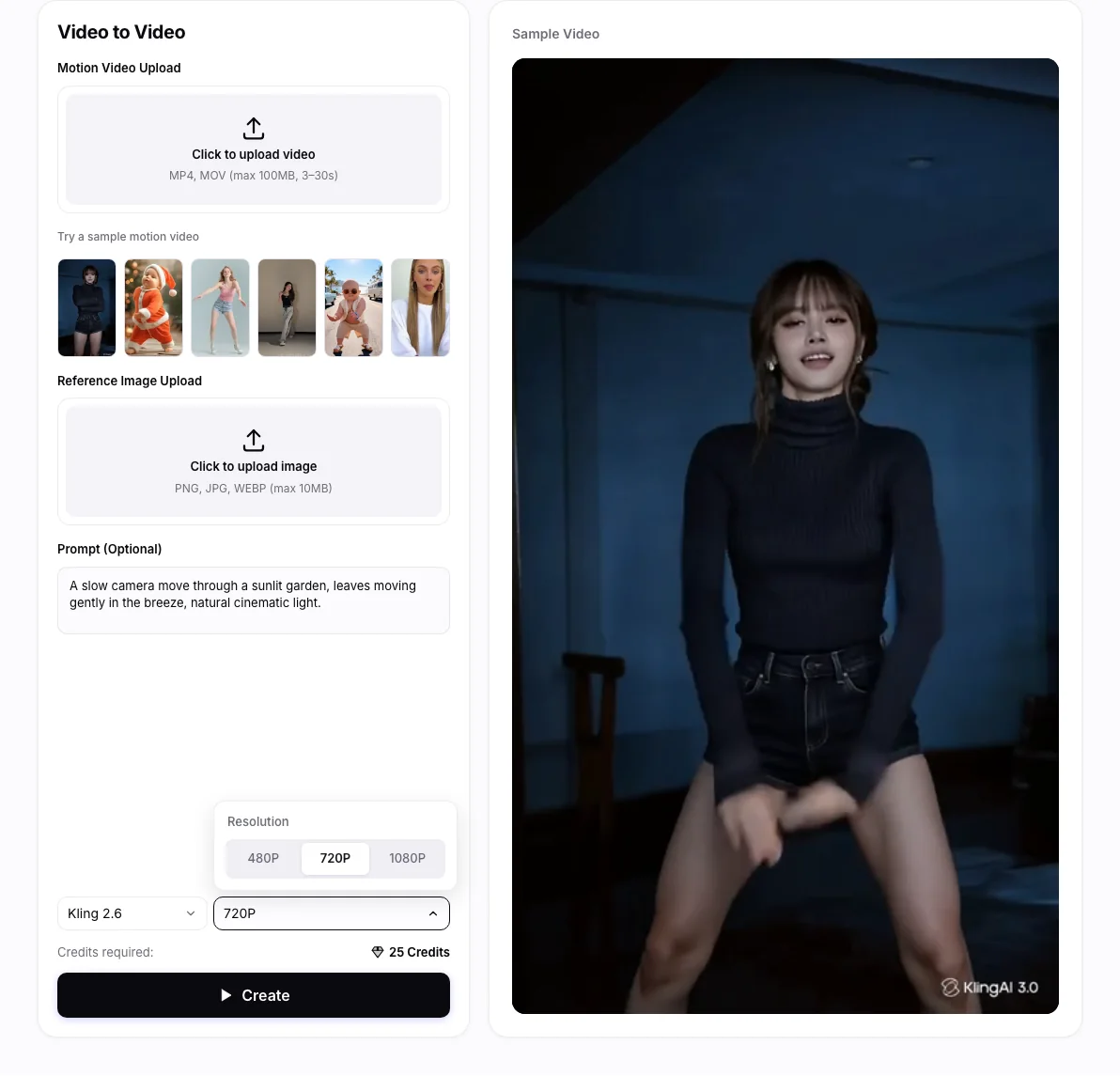
Motion transfer depends on the compatibility of the source action and reference subject. Inspect the result for pose changes, identity drift, occlusion errors, and frame-to-frame consistency.
Wizmade’s Video to Video uses a motion clip and a reference image to prepare a new video. The clip supplies movement while the image guides the visual subject. Add an optional prompt, compare available Kling models, and choose a supported resolution before reviewing the credit cost.
Use a source motion video together with a reference image. The optional prompt adds visual direction; Model and Resolution configure the available output. The reference image does not replace the required motion clip.
Check the 💎 amount displayed beside the creation action after selecting your inputs and settings. Do not assume that another tool or model has the same cost.
You can prepare the available inputs in the public workbench. Complete sign-in when requested before starting a task, and review the displayed credit cost before submitting.
Motion transfer depends on the compatibility of the source action and reference subject. Inspect the result for pose changes, identity drift, occlusion errors, and frame-to-frame consistency.
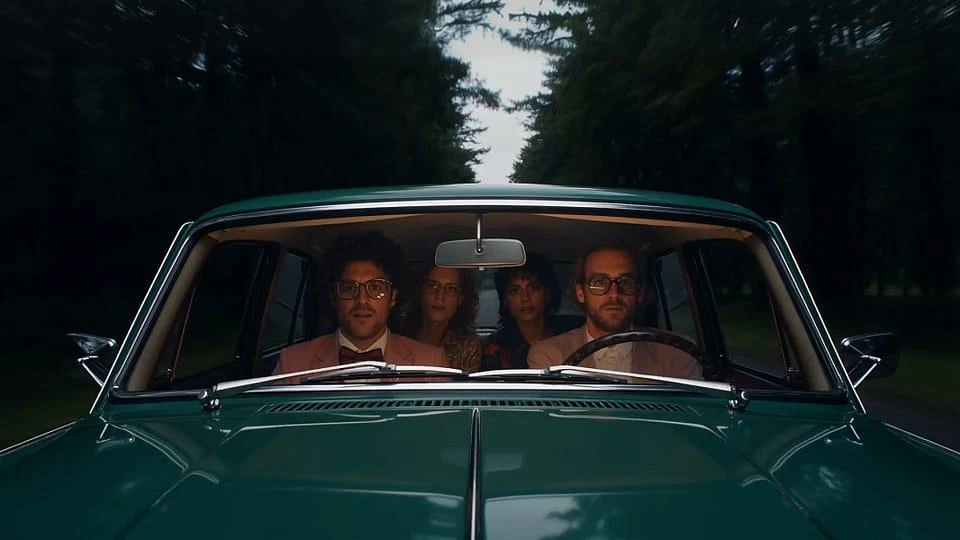
Wizmade’s AI Video Generator prepares short clips from a written scene or image references. Choose Text to Video to invent the scene or Image to Video to guide its appearance. Model capabilities determine the available reference methods, duration, resolution, ratio, and outputs.
Explore AI tool →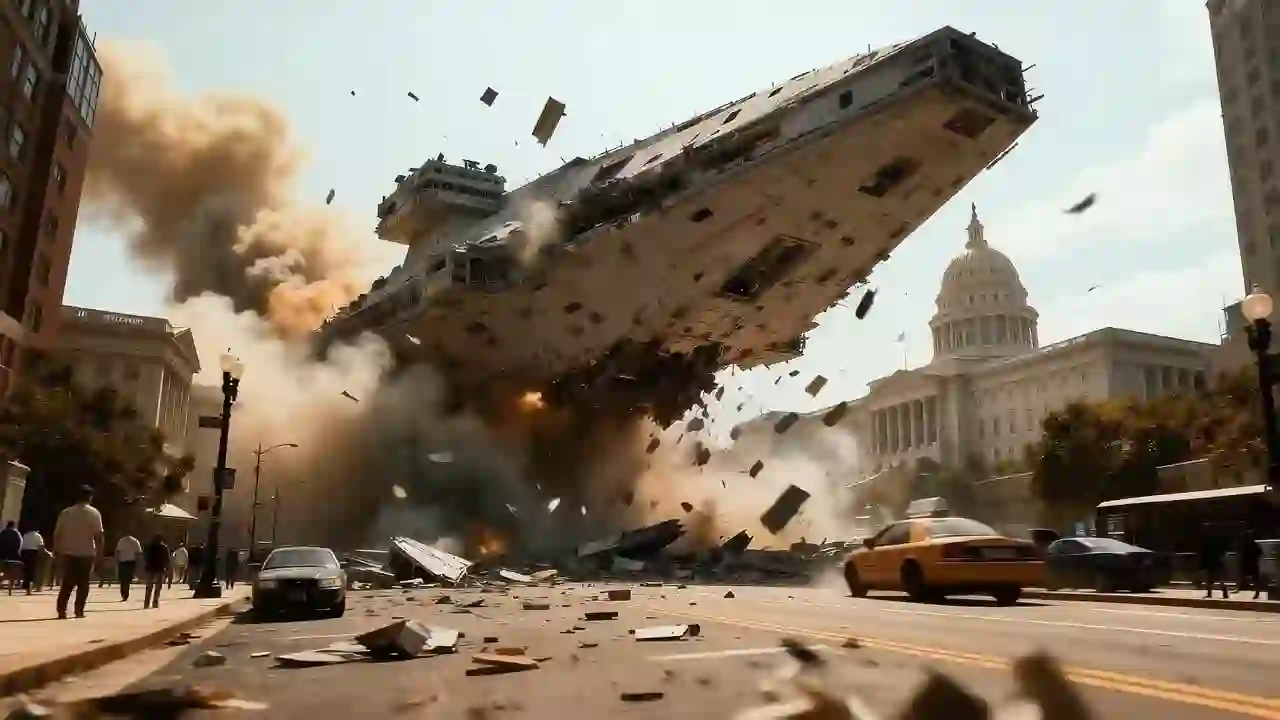
Wizmade’s Text to Video creates a video request from a written scene without requiring an image. Describe who or what moves, where it happens, and how the camera sees the action. Select a video model and the parameters it supports before reviewing the credit amount.
Explore AI tool →
Wizmade’s Image to Video uses visual references and a motion brief to prepare a clip. The workbench offers Start Image, Between Images, and Reference Images. The selected model determines which methods are available and which duration, resolution, and output settings you can use.
Explore AI tool →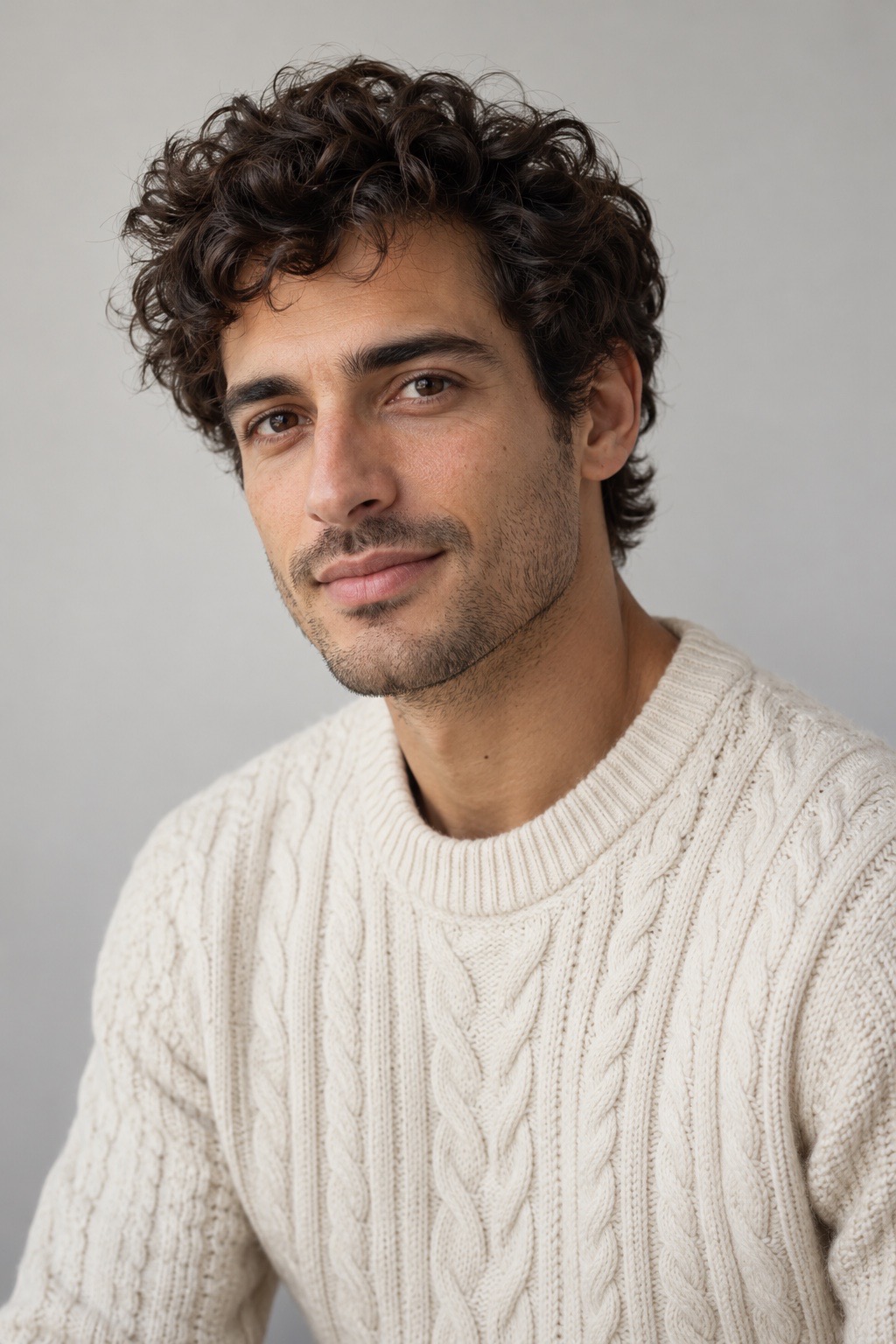
Wizmade’s Lip Sync AI prepares a speaking-video request from a visual source and speech. Supply a portrait or video as supported, then provide speech through uploaded audio or text-to-speech. Review voice, script, and displayed credits before requesting synchronized mouth movement.
Explore AI tool →Wizmade’s AI Video Translator prepares translated speech for an uploaded video. Select a target language, translation engine, translation mode, and subtitle handling. Available languages and processing modes depend on the engine. Review the duration-based credit amount before submitting the translation.
Explore AI tool →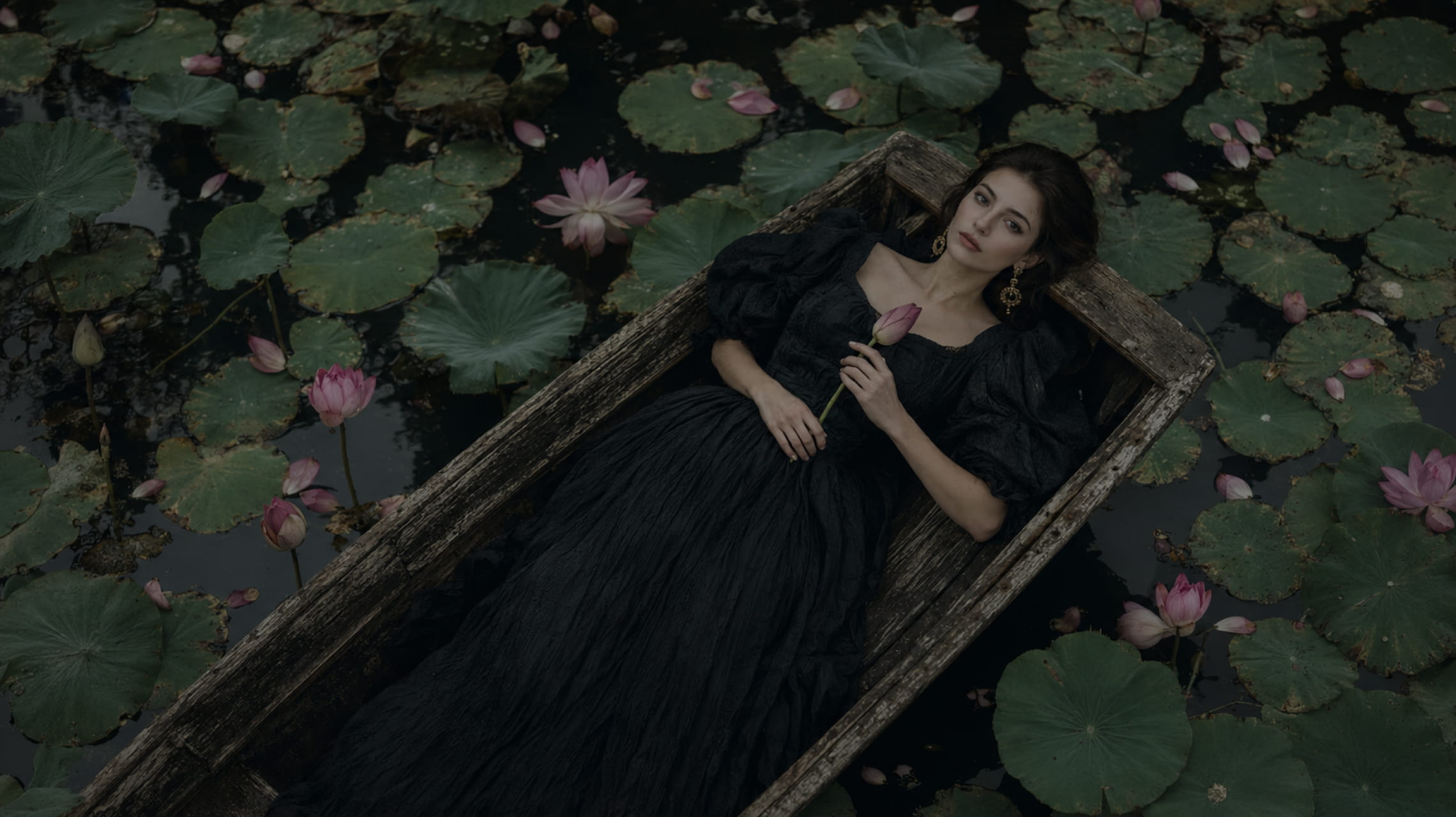
Wizmade’s Text to Image starts with your words. Describe the subject, setting, lighting, and composition, choose an available image model, then set its supported output parameters. The images below illustrate creative directions; your results will depend on the brief, selected model, and settings.
Explore AI tool →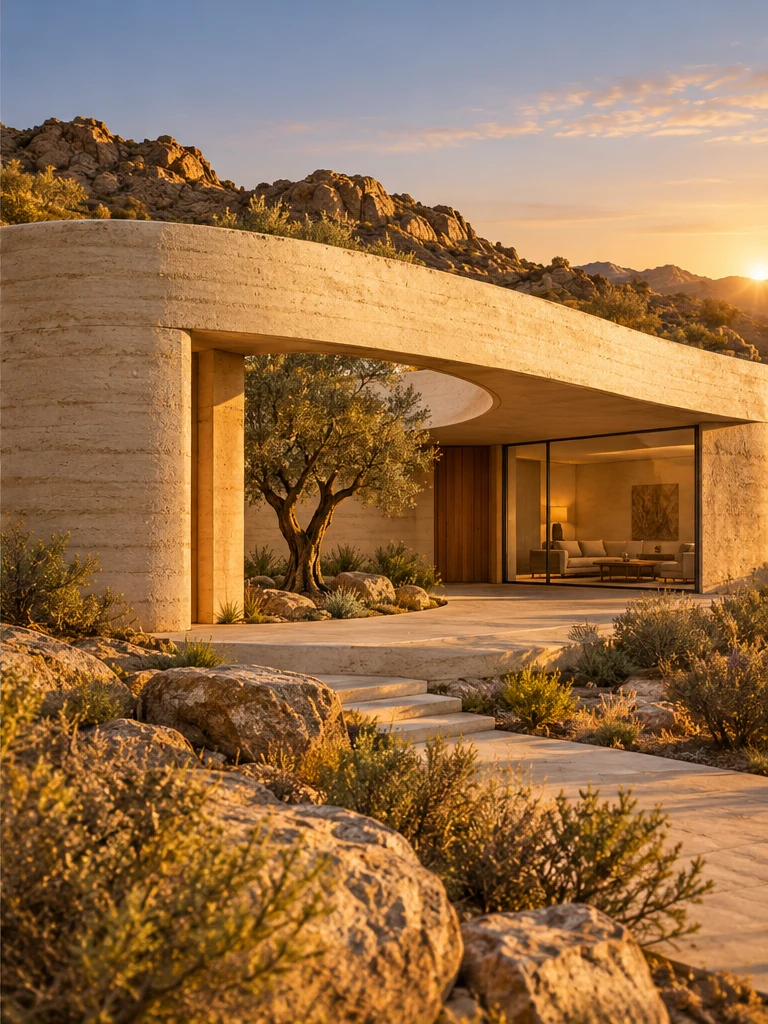
Wizmade’s Image to Image uses a reference image and an editable text instruction to prepare a new image variation. The reference supplies visual context while the prompt describes the intended change. Select the image model and supported output settings in the same image workspace.
Explore AI tool →
Wizmade’s AI Image Generator prepares still images from text, reference images, or a template direction. Start with the input that fits the task, choose an available model, and review its supported framing and output settings. The examples below illustrate creative directions rather than verified results from a particular model.
Explore AI tool →Return to the workbench to review your inputs and available settings.