GPT Image 2.6 Sunburst Image Generator

Released by OpenAI on November 4, 2026, GPT Image 2.6 Sunburst is built for fine detail and more consistent edits. Refine a product scene or carry a character into a new illustration while keeping the details that tie your work together.

Create and refine with GPT Image 2.6 Sunburst in Wizmade.

GPT Image 2.6 Sunburst Key Features

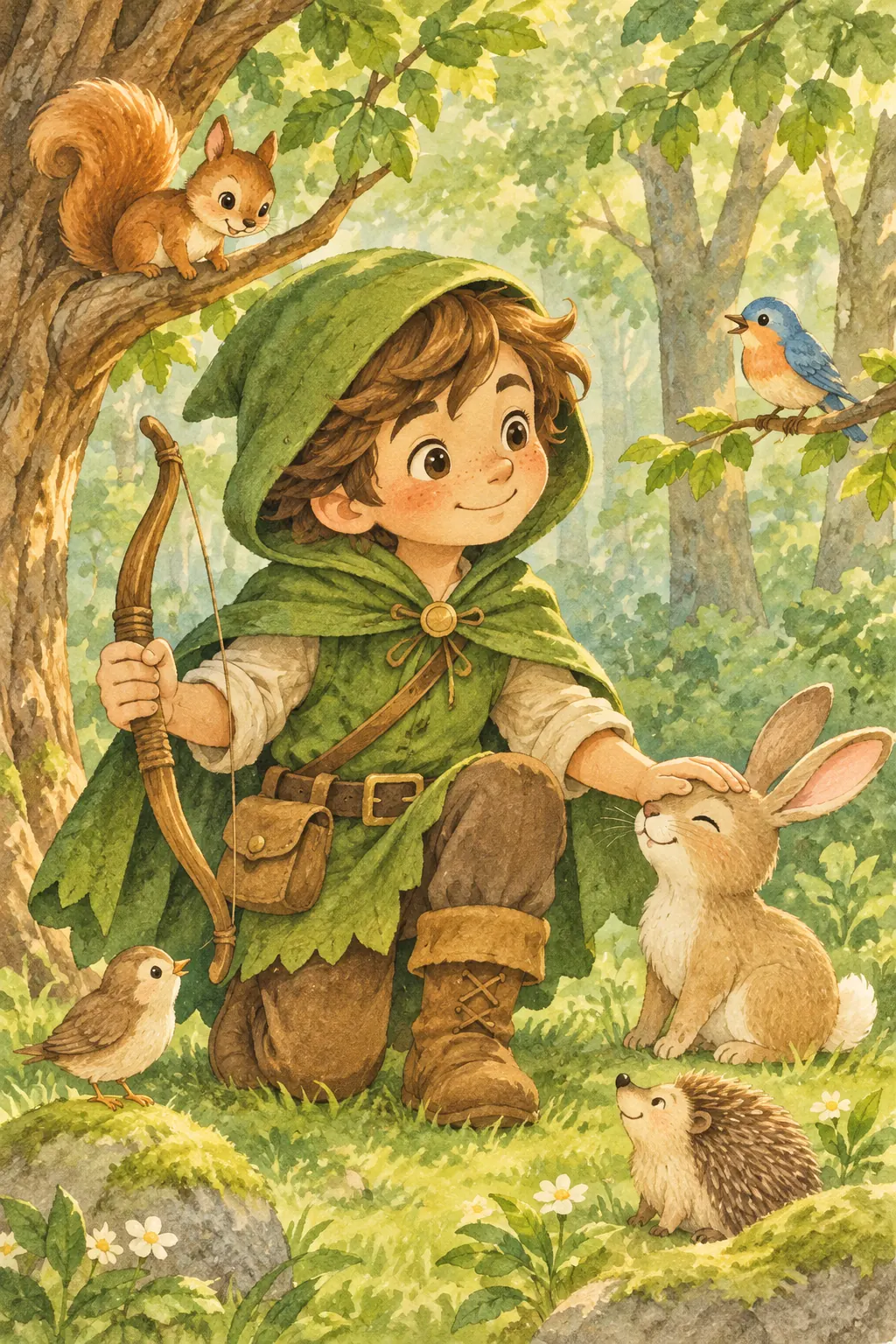
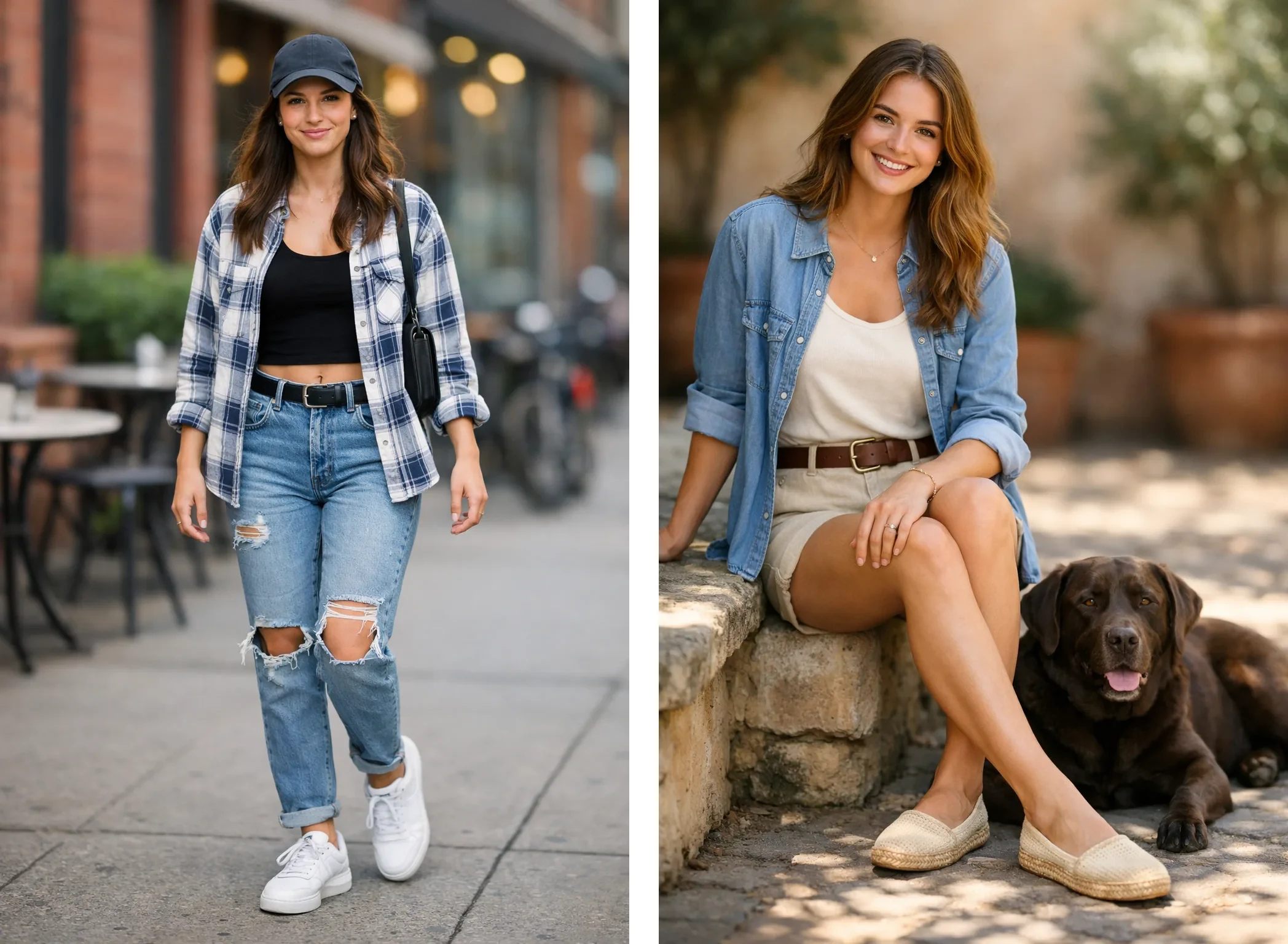
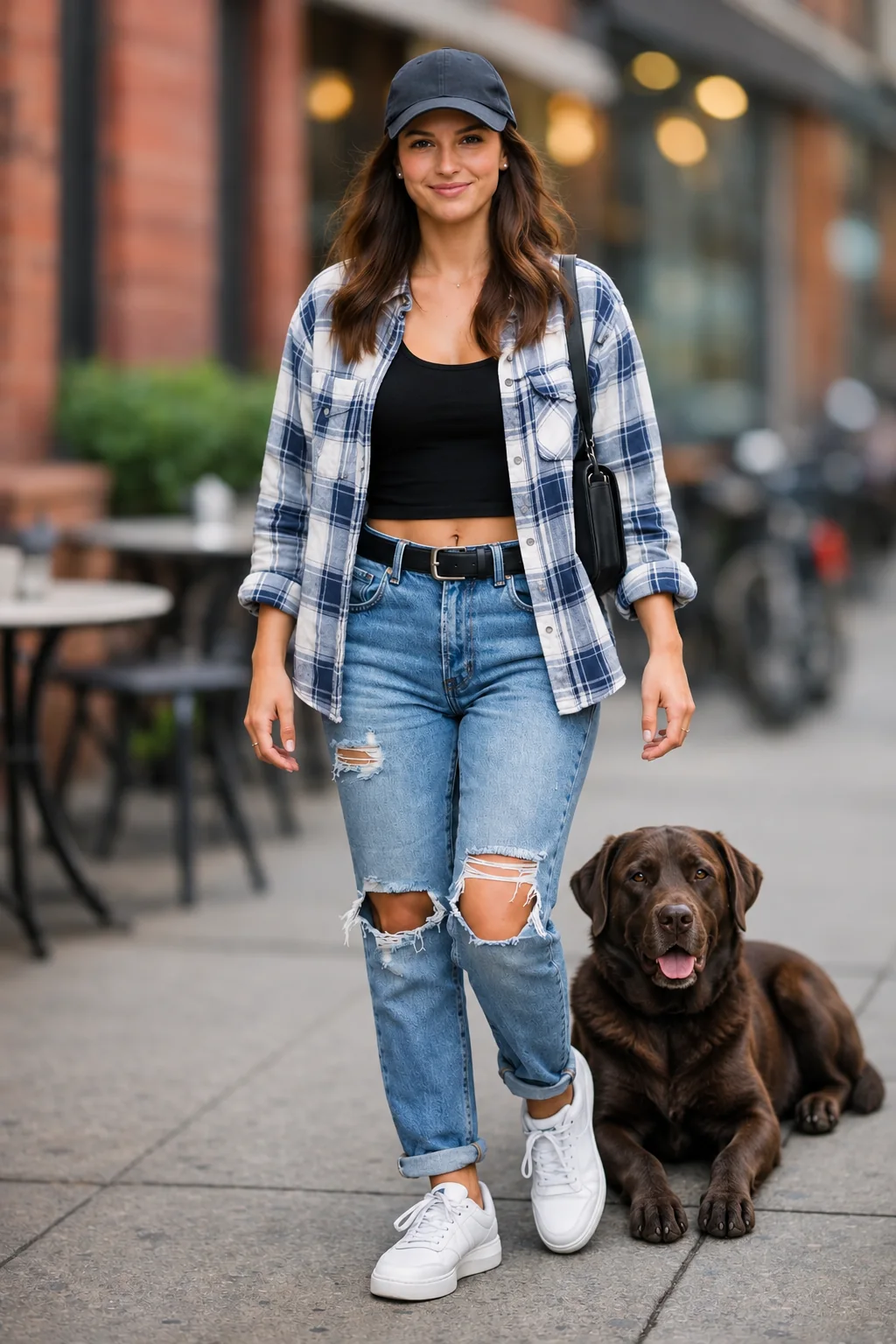
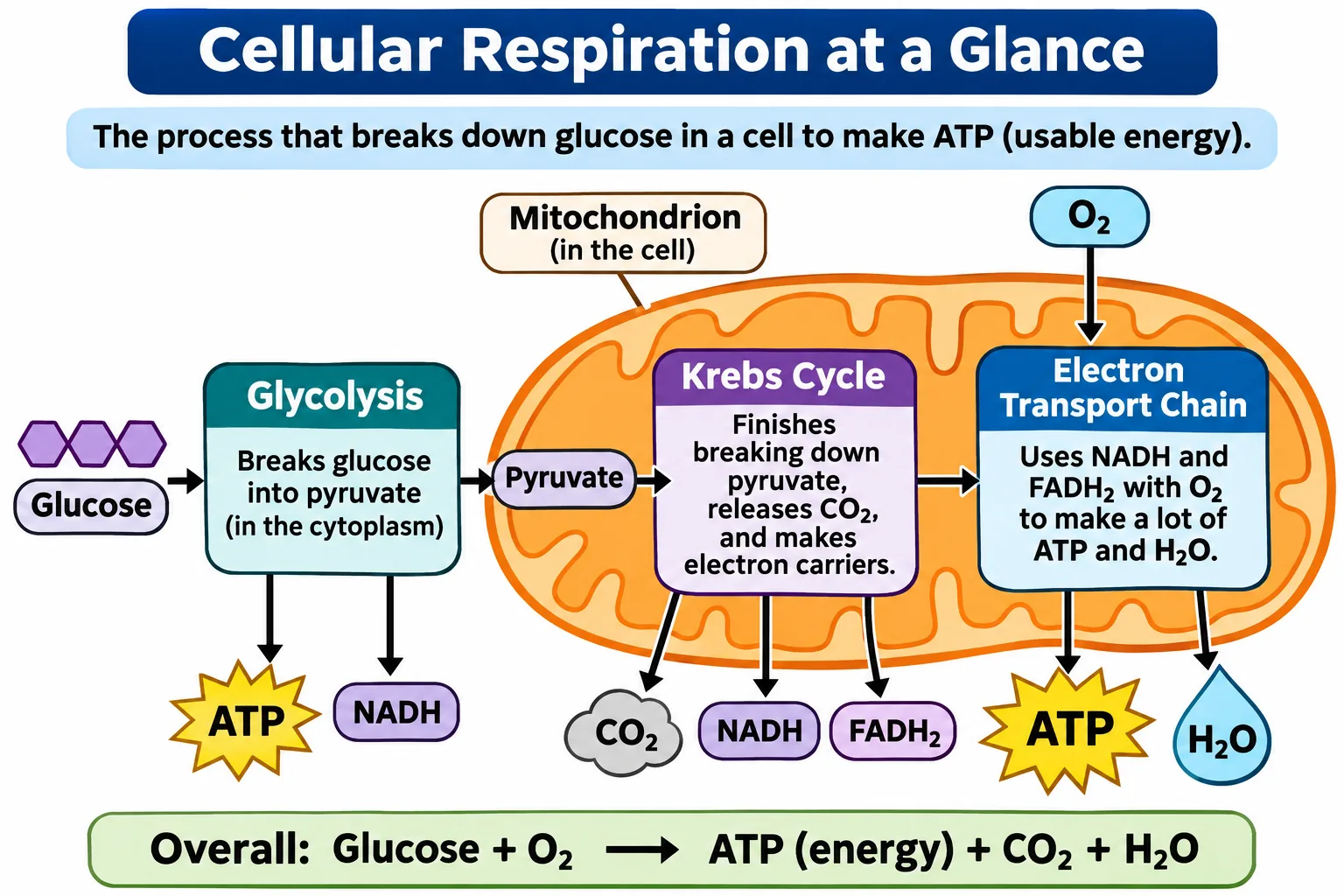
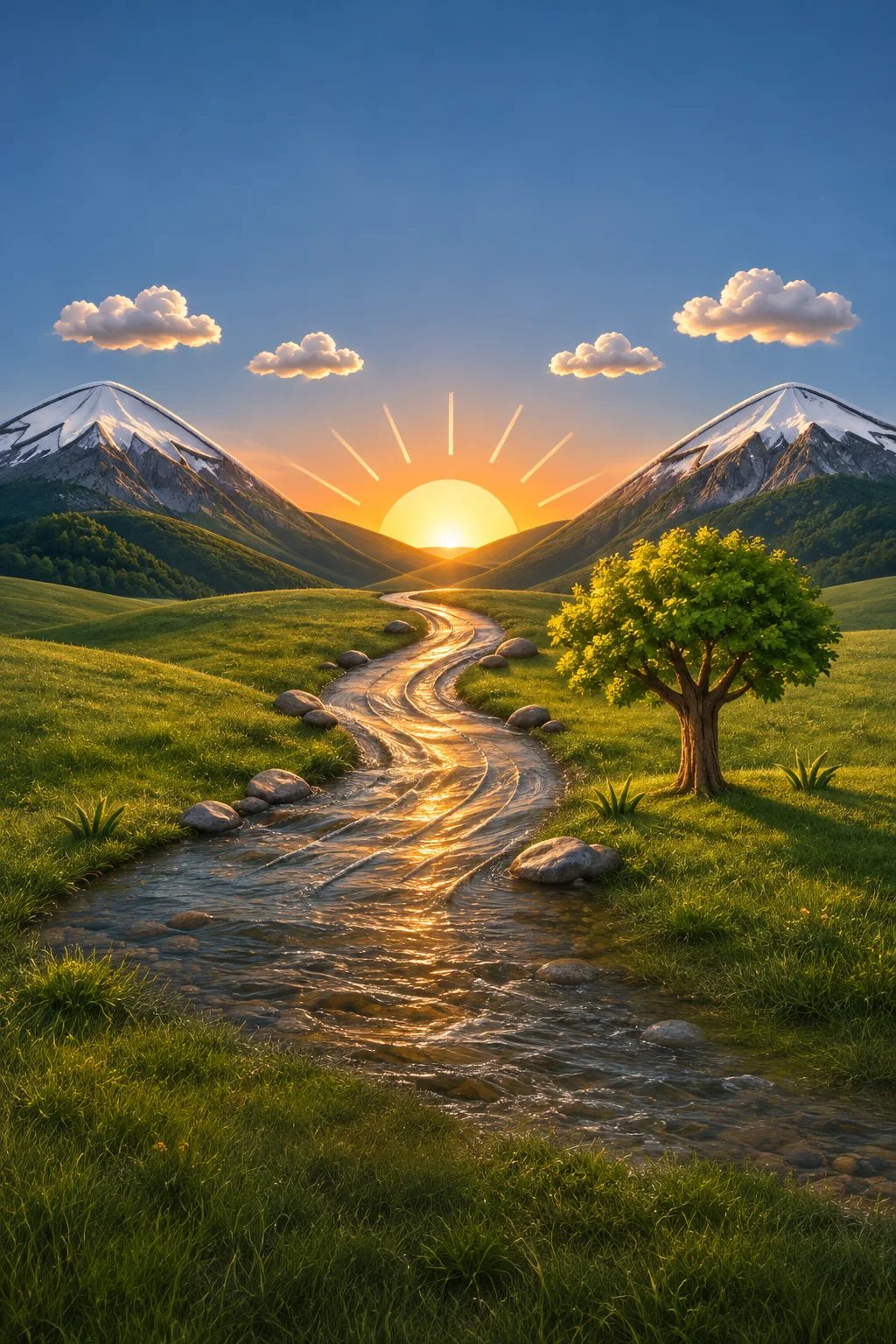
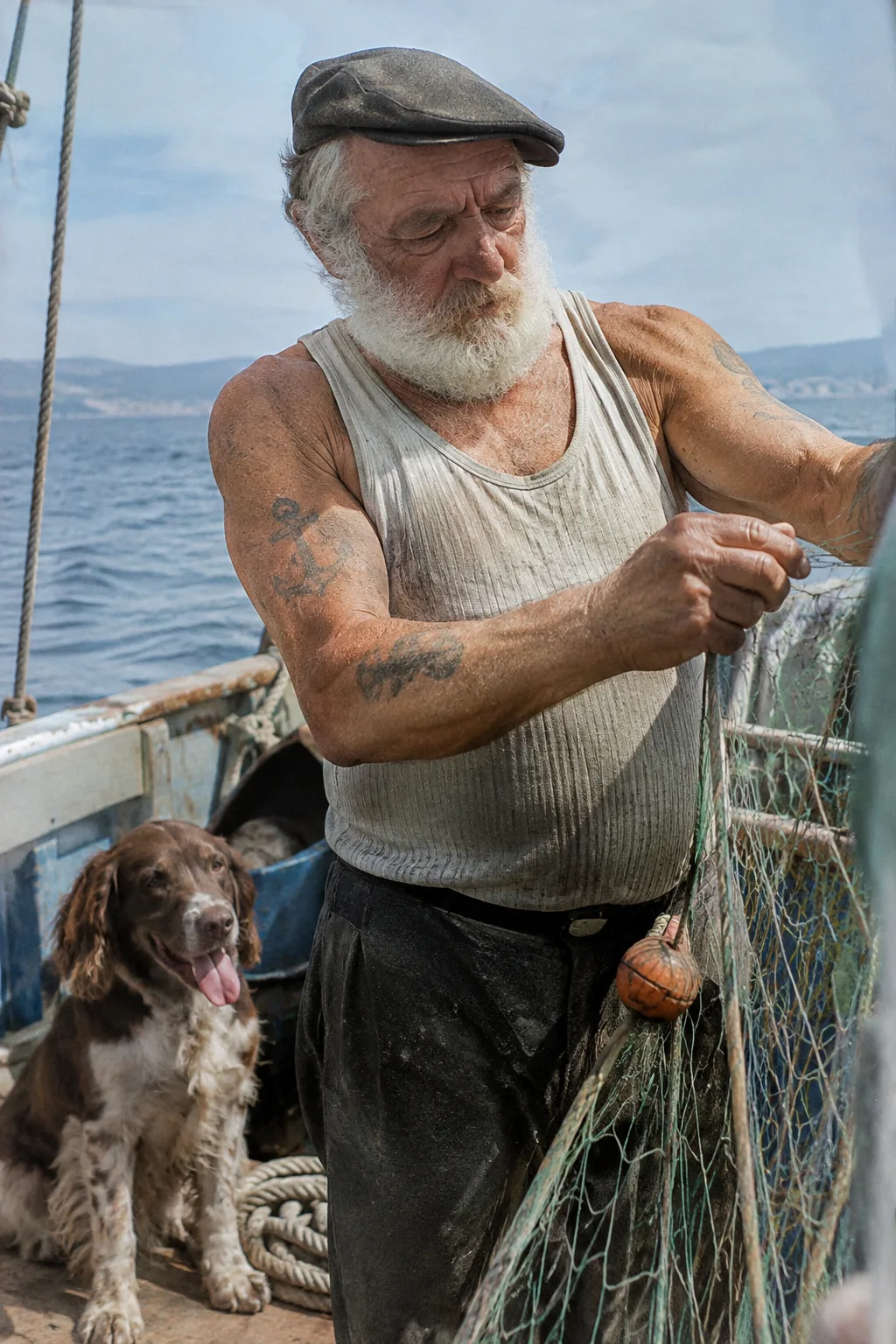
Explore how Sunburst handles precise reference edits, detailed compositions and visual continuity from one image to the next.

Compare Sunburst, Flare and GPT Image 2.5

Compare the models’ roles and available settings in Wizmade. Arena scores are preliminary single-image edit preferences for the two Medium entries on November 16, 2026.

Scroll sideways to compare every model.

In WizmadeGPT Image 2.6 SunburstGPT Image 2.6 FlareGPT Image 2.5 Sunburst
Best fitDetail and successive editsFast visual draftsExisting 2.5 workflows and multi-output requests
Arena Single Image Edit, Medium1481 ± 71461 ± 7Quality unlisted
Resolution1K, 2K, 4K1K, 2K, 4K1K, 2K, 4K
Aspect ratios10 presets + Auto10 presets + Auto10 presets + Auto
Outputs per request111–4
Reference imagesUp to 8Up to 8Up to 8

Sources: OpenAI Images 2.6 release · OpenAI model selection and migration guide · Arena single-image edit leaderboard

How to use GPT Image 2.6 Sunburst

Generate or refine GPT Image 2.6 Sunburst images in three steps inside the workbench above.

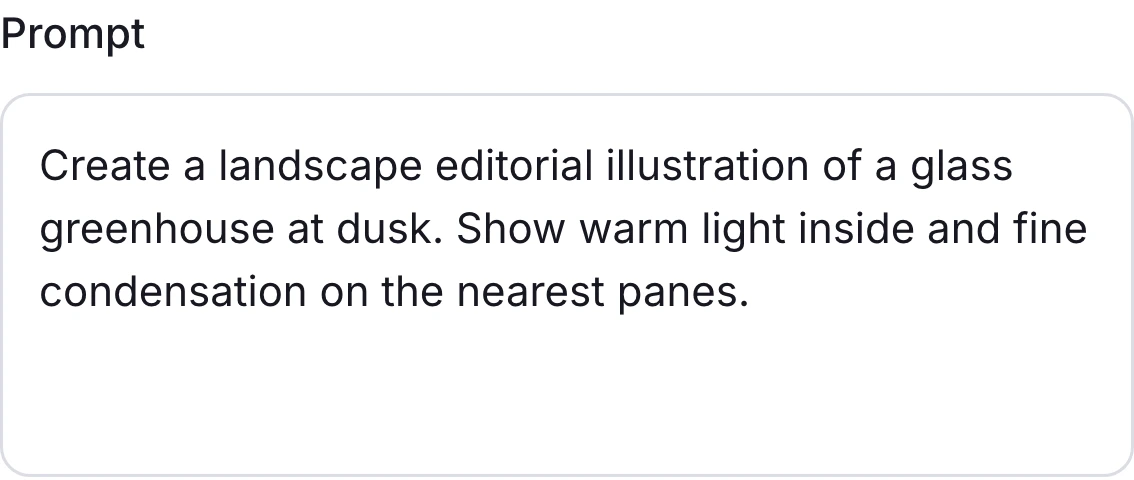
Wizmade Sunburst workbench with a greenhouse illustration prompt in Text to Image
1

Describe the image or upload a reference

Write your brief in Text to Image. For an edit, switch to Image to Image, upload the reference and describe what to change and keep.

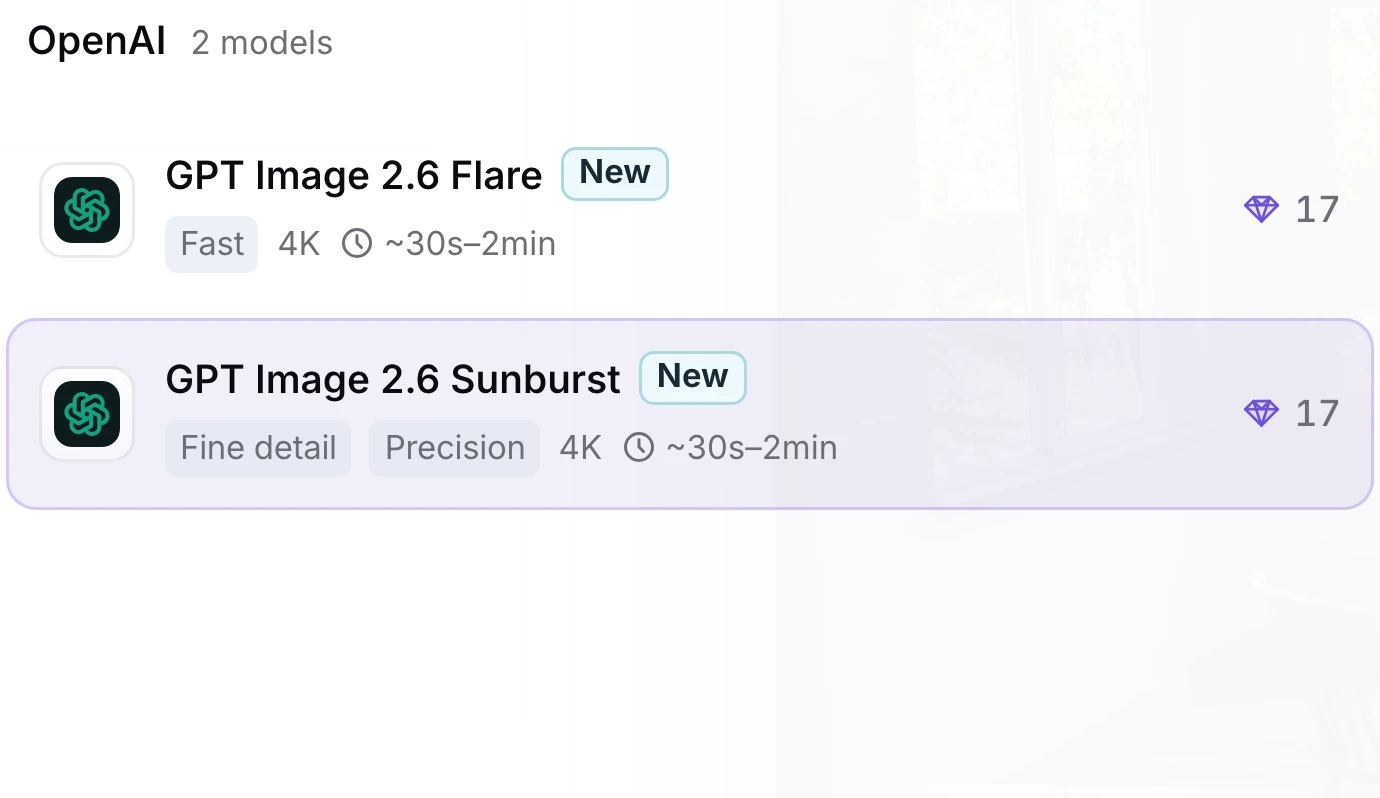
Wizmade model picker showing GPT Image 2.6 Sunburst selected
2

Confirm Sunburst and set the canvas

Check that GPT Image 2.6 Sunburst is selected. Pick an aspect ratio and a resolution. Sunburst returns one image per generation.

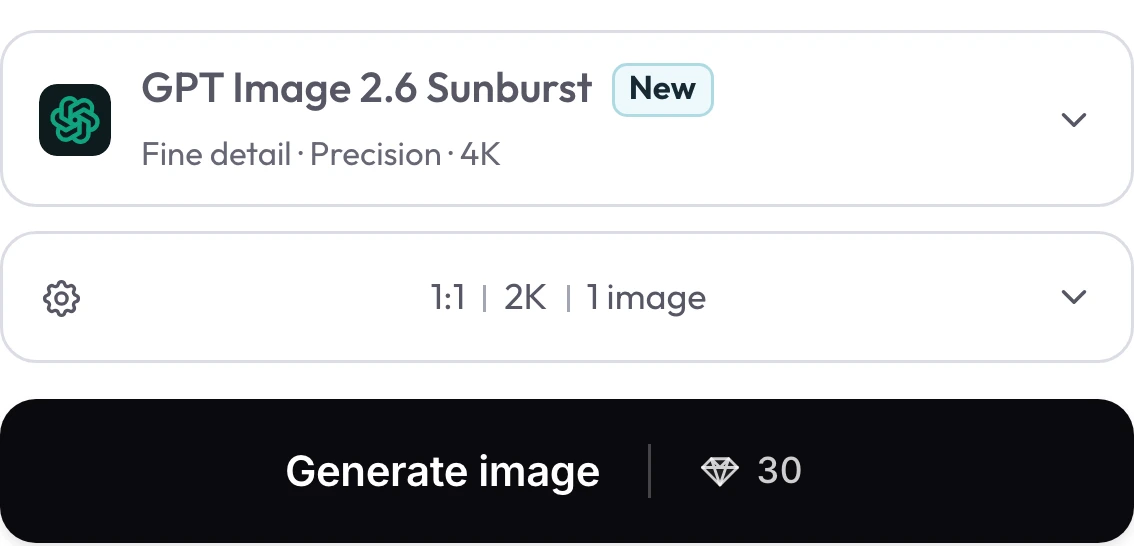
Wizmade Sunburst controls showing Generate image and a 30-credit quote for 2K
3

Review the quote and generate

Check the diamond credit quote beside Generate image. When ready, generate and open Results to view the image.

GPT Image 2.6 Sunburst settings in Wizmade

Review the live parameters exposed by the GPT Image 2.6 Sunburst configuration in the Wizmade workbench.

SettingAvailable options
WorkflowsText to Image; Image to Image (in-page workbench)
Resolution1K, 2K, 4K
Aspect ratios1:1, 9:16, 16:9, 3:2, 2:3, 4:3, 3:4, 5:4, 4:5, 21:9, auto
Outputs1 per request
Reference imagesUp to 8 reference images in Image to Image mode
CreditsReview the live 💎 quote inside the workbench before generating.

Video comparison on YouTube

OpenAI introduces Flare for fast iterations and Sunburst for detailed visual work.

Model news on X

OpenAI’s November 4 announcement introduces its new image models and the Images 2.6 update.

Community discussion on Reddit

A creator compares prompt lettering and follows a product image through two rounds of edits.

GPT Image 2.6 Sunburst FAQs

Answers about GPT Image 2.6 Sunburst capabilities, settings, reference uploads and credits in Wizmade.

What changed in GPT Image 2.6 Sunburst?

OpenAI designed Sunburst 2.6 for more detailed images and more consistent edits at medium and high quality. The update helps when a product, character or visual layout needs to carry through several revisions.

When should I choose Sunburst over Flare?

Choose Sunburst for precise edits, fine texture or demanding layouts. Choose Flare for quick visual drafts and exploration. Both variants offer 1K, 2K and 4K and one output per request in Wizmade.

Can I change one part of a photo?

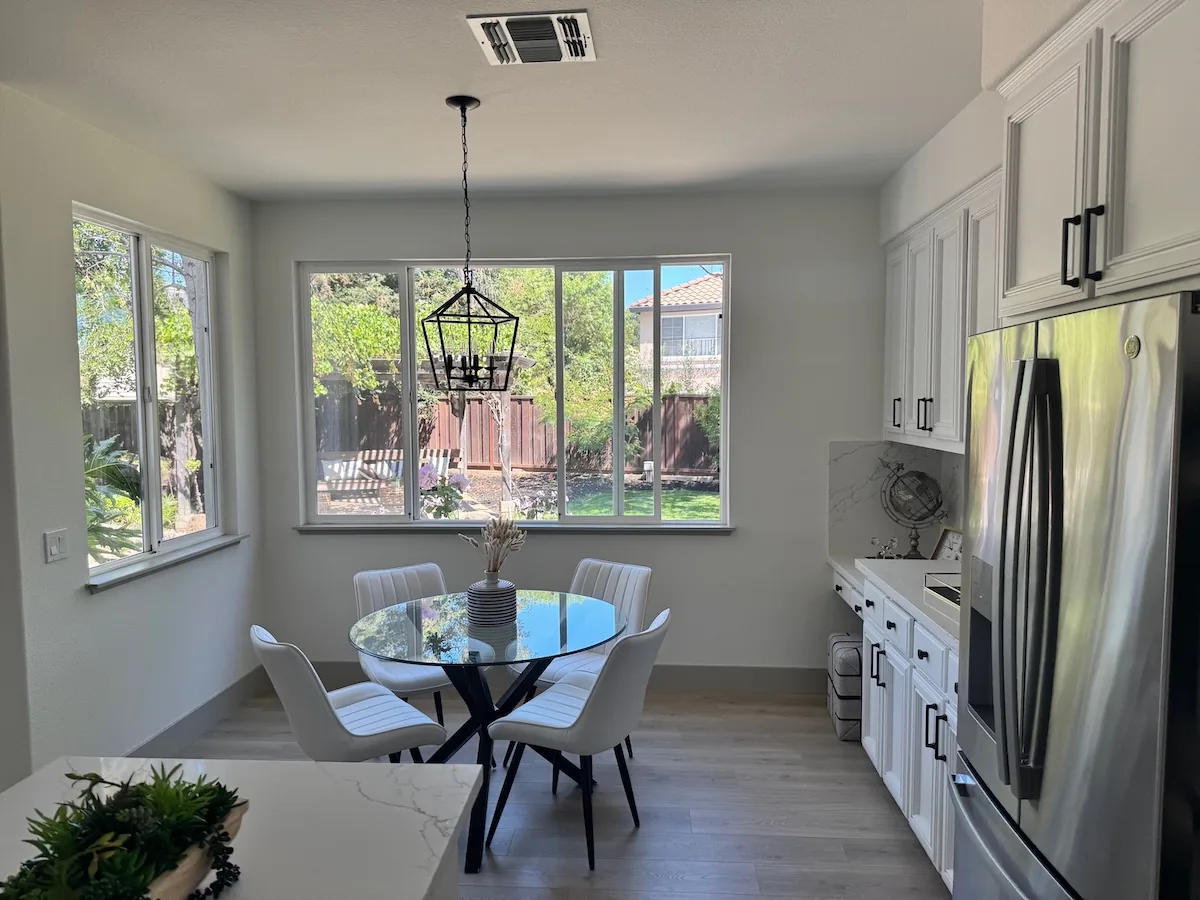
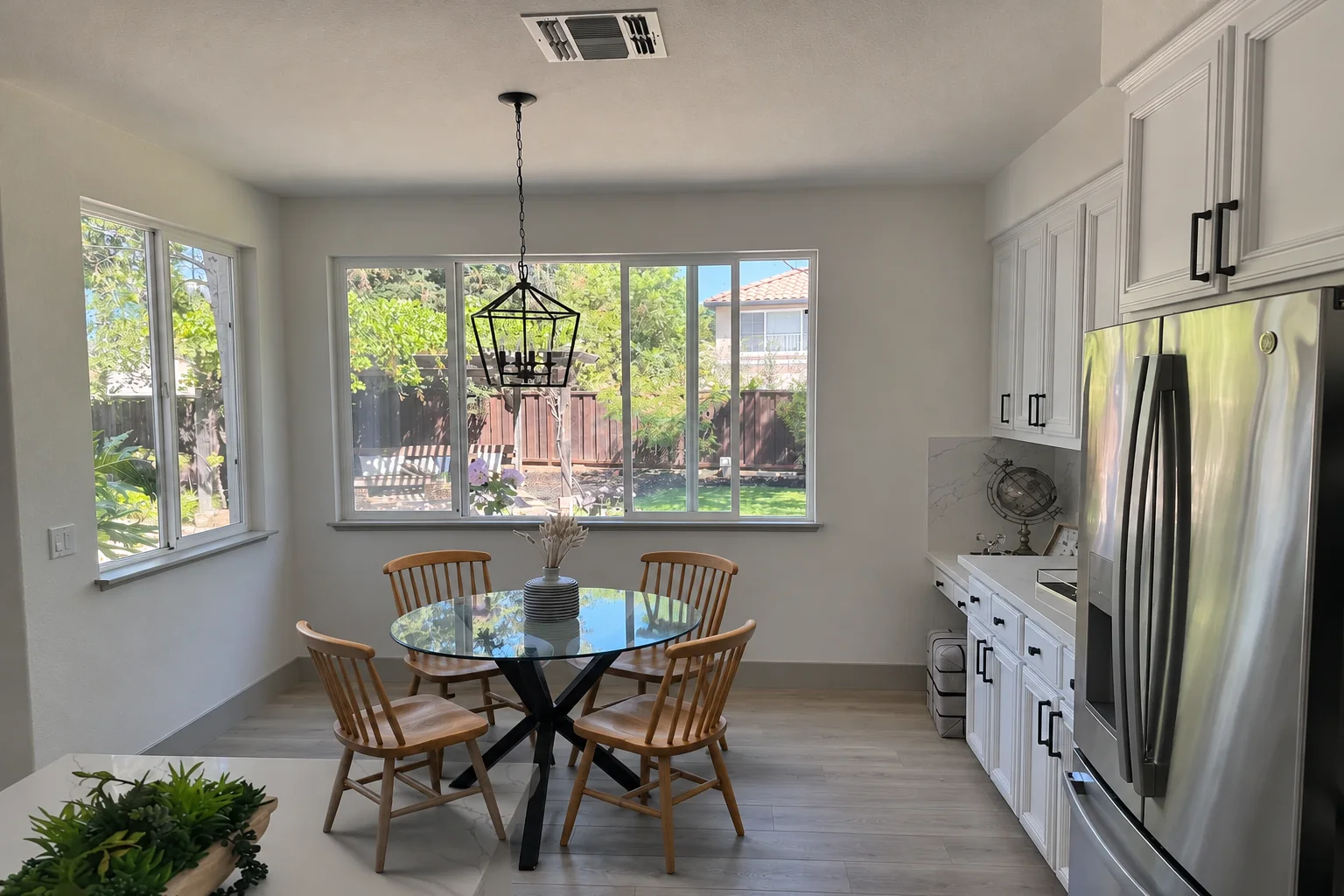
Yes. Add your photo in Image to Image, describe the change and name the details you want to keep. For a furniture swap, specify the item and keep the original viewpoint and lighting in the brief.

How do I continue editing an image in another round?

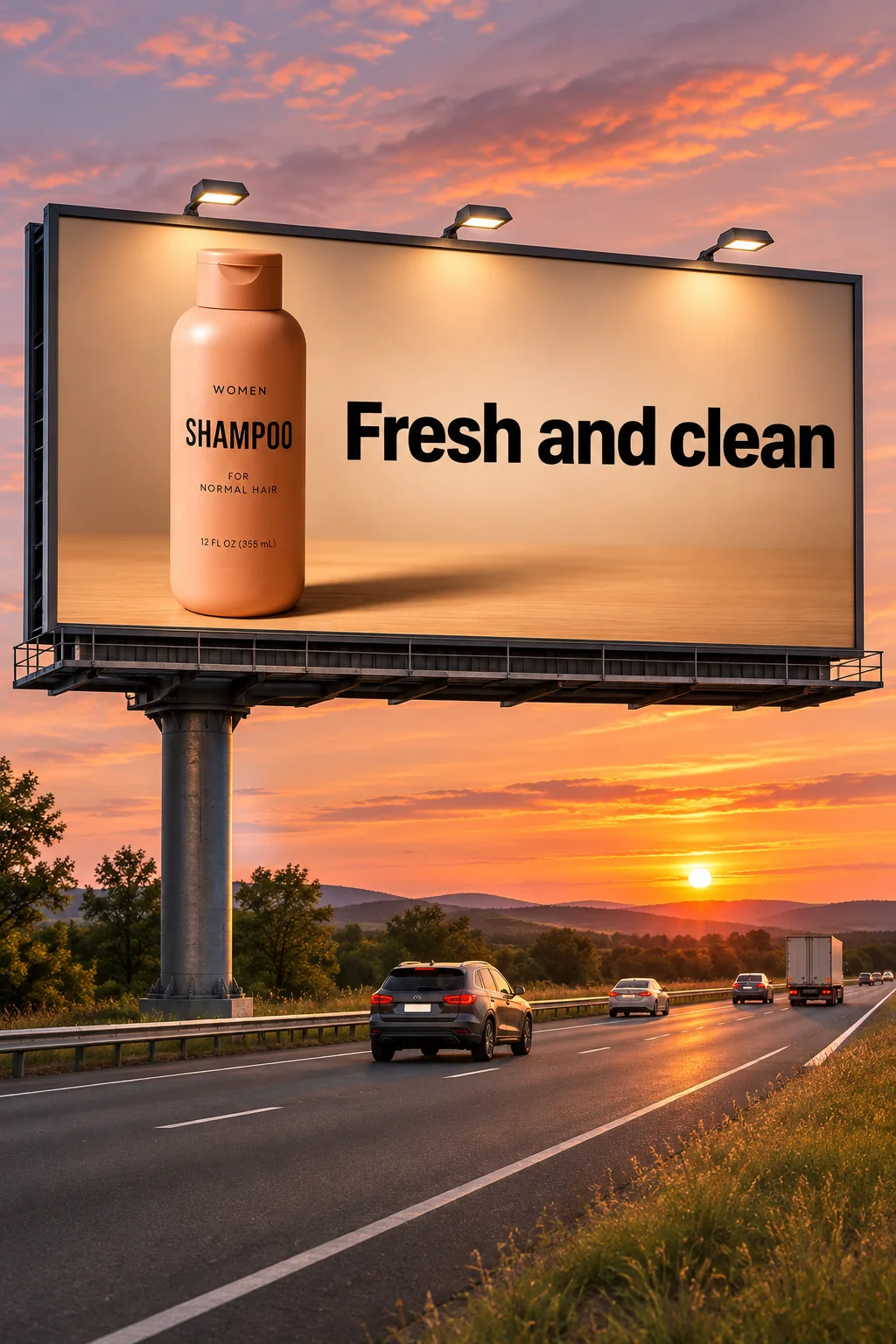
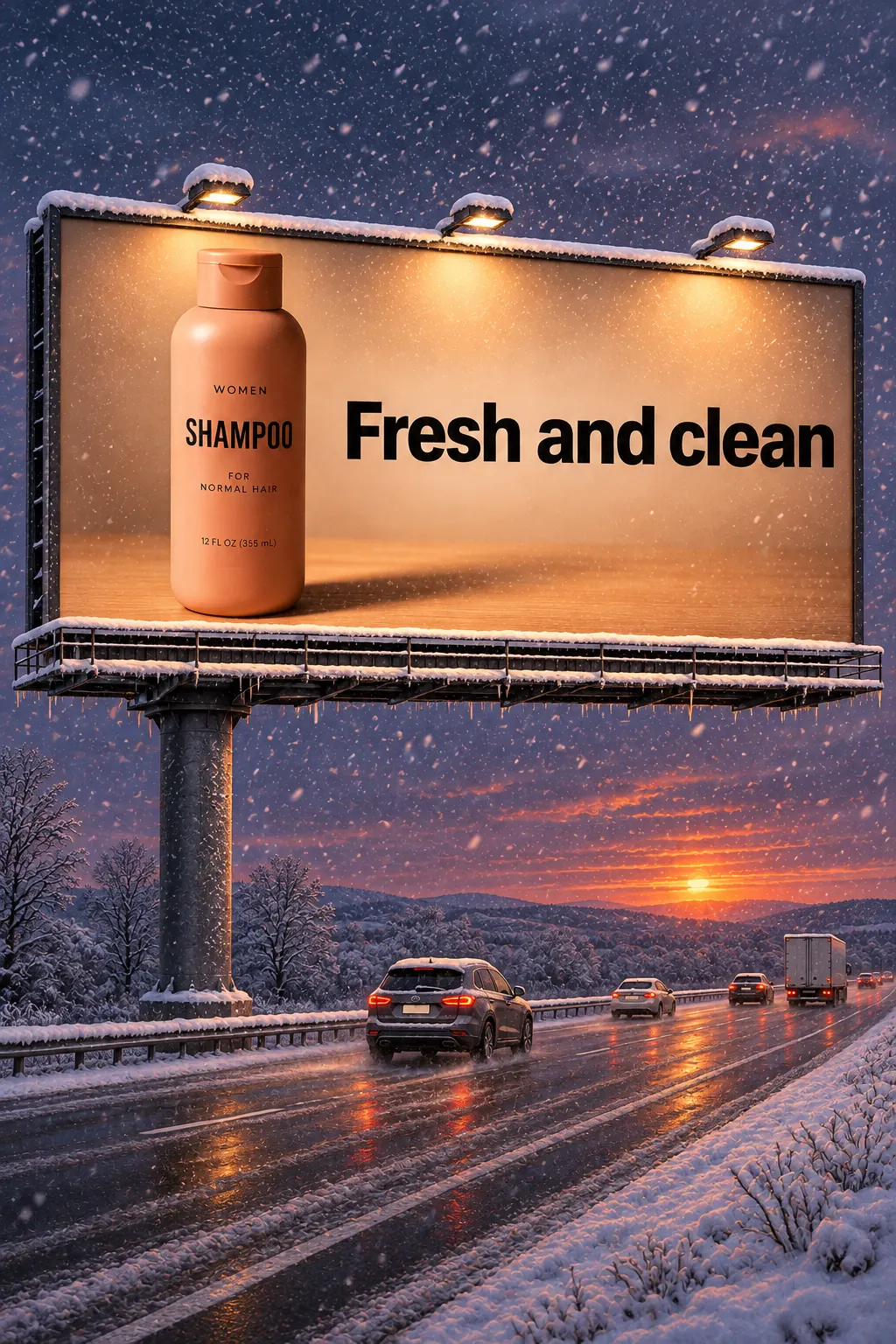
Download the result and upload it as your next Image to Image reference. Ask for one change at a time and repeat details that should remain, such as the headline, pose or product placement.

How many references can I add to Sunburst?

Add up to eight PNG or JPEG images in Image to Image. Refer to their order in the prompt and specify what each image provides.

How do I keep diagram labels readable?

Give Sunburst the exact labels and the order they should appear in. Describe how the stages connect, leave space around the arrows and review the lettering at full size.

What resolutions and aspect ratios can I choose?

Sunburst offers 1K, 2K and 4K with Auto and ten aspect-ratio presets. Choose square for a product tile, 9:16 for a portrait format or 21:9 for a wide canvas.

Which output formats are available in Wizmade?

The workbench delivers one static PNG per request. Use Text to Image for a new image or Image to Image for editing a reference.

How much does a Sunburst image cost?

The resolution controls the credit cost. Check the live diamond quote beside Generate image after selecting your settings.

Give your next image the details that matter

Start with a brief or a reference and create with GPT Image 2.6 Sunburst in Wizmade.

See community-voted image edits on Arena