
Queue Up to 20 Images
Add up to 20 images at once. Each image has its own processing status and result; inference is queued through one local browser model.
Bulk convert up to 20 images to AI prompts with automatic WebP compression, on-device image analysis, and CSV/TXT exports.
Queue images for free local recognition, review each result and export the completed prompts. The shared browser model processes images in sequence to limit memory use.
Add up to 20 images at once. Each image has its own processing status and result; inference is queued through one local browser model.
Images are resized and compressed in your browser before local recognition. They are not transferred to an inference server, and processing still requires sufficient device memory.
The batch reuses one local model and serializes inference so multiple images do not load separate model copies. No paid API requests are made.
Download completed prompt results as CSV or TXT. Review captions and adapt the exported text to the naming and formatting requirements of any later dataset workflow.
Prepare images, run local recognition, then review and export the English results.
Drag and drop up to 20 JPG, PNG or WebP files. Review the previews and file sizes before processing; large collections need more browser memory.
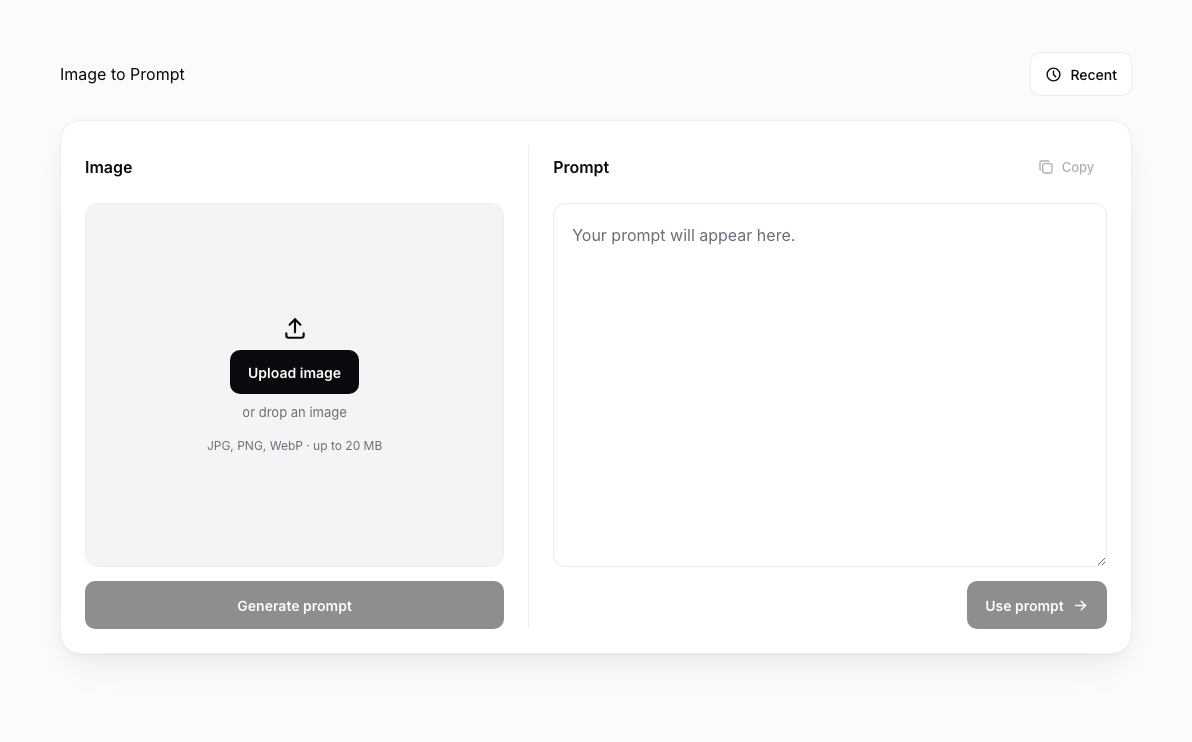
Choose General, FLUX, Stable Diffusion or Midjourney, then start the free local queue. The first run downloads approximately 380–530 MB of model files. Images are recognized in sequence, with per-image status and errors; speed depends on your device.
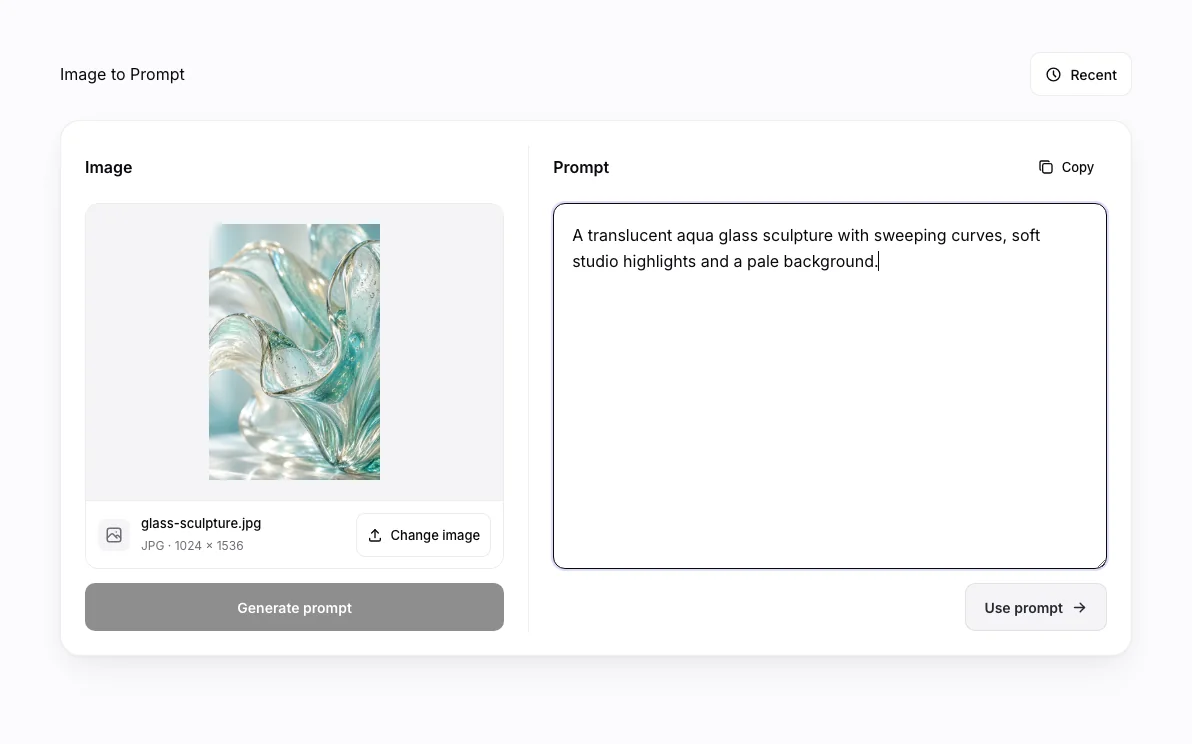
Check each completed prompt, copy individual results, or download a CSV or TXT export. Failed images can be retried separately. Check and reshape the captions before importing them into another dataset or training tool.
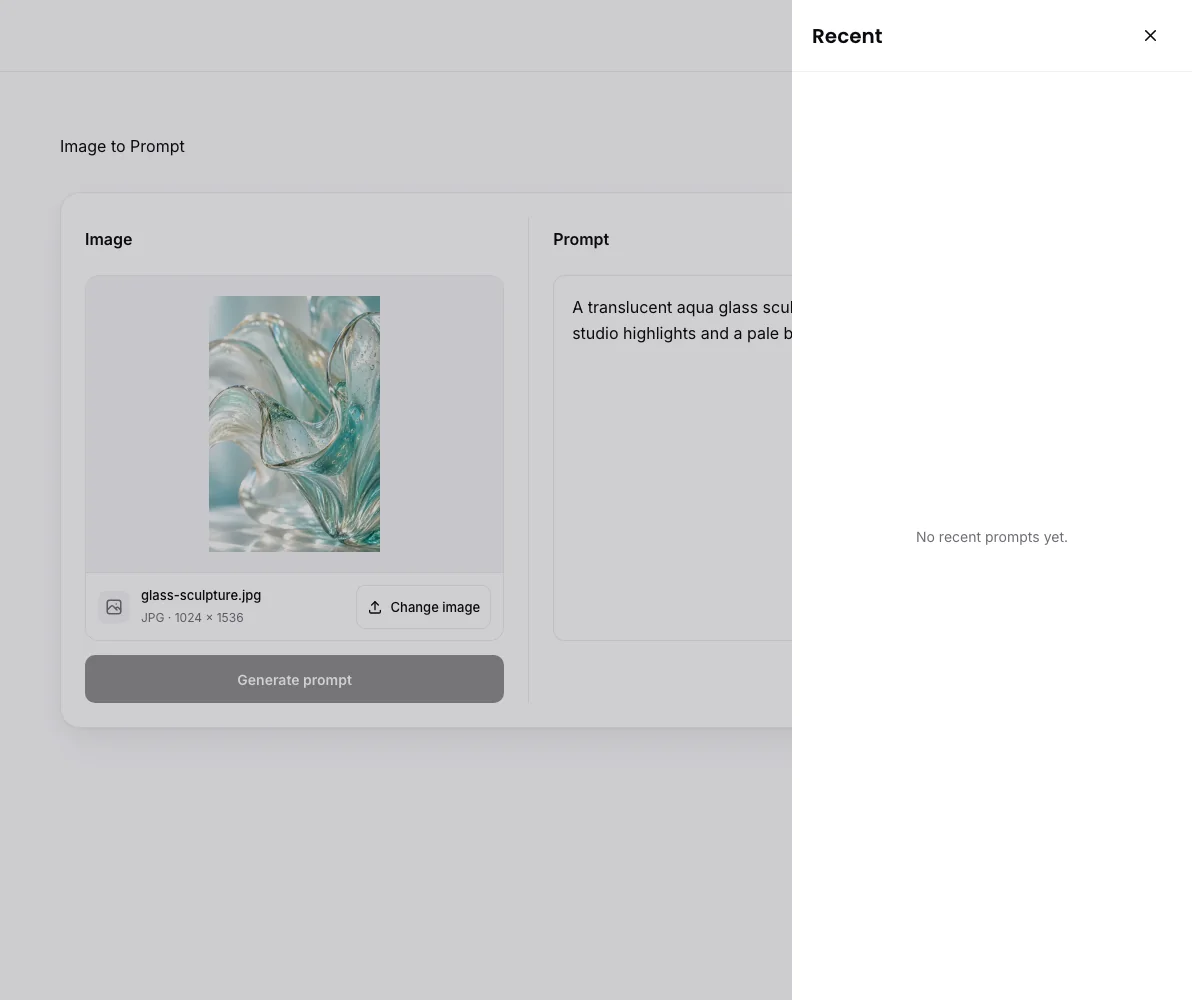
The queue accepts up to 20 files, but practical capacity and processing time depend on available device memory. Start with a small batch, especially on mobile devices. The shared local model processes one image at a time.
Local captions can omit or misidentify content. Review every result used for dataset labeling; export does not guarantee compatibility with a particular training framework.
You can add up to 20 images to a batch. The browser queues inference through one shared local model, so images are processed in sequence rather than by parallel paid API calls.
Completed results can be downloaded as CSV or TXT with prompt text and the metadata included by the export. Adapt exported text to your own file naming or dataset format as needed.
The browser resizes large images and compresses them before recognition to reduce per-image memory use. The local model itself still needs substantial memory; compression cannot guarantee that every device can process a full batch.
The generated captions can be a starting point for dataset preparation. Review their accuracy and convert the export to the exact filename, caption and directory format required by your training tool.
Pro batch extraction is unavailable. Enabled processing uses the free local model, produces English prompts and does not deduct user credits or call a paid API.
The first run must download approximately 380–530 MB of model files. Later runs may reuse the browser cache. Inference runs sequentially and speed depends on hardware, browser support, image content and available memory; no fixed completion time is guaranteed.
A completed prompt can be opened as an Image Studio draft. Opening the draft does not generate an image; later generation is a separate action with its own selected model and credit requirements.
Yes. Retry a failed image individually after checking the file or resolving a model download or browser error. Completed results do not need to be processed again.
Recognition runs on your device and does not upload image pixels to an inference server. The browser downloads and may cache model files. Batch images and results remain in the current browser session according to the existing history behavior.
Create, review and export English image prompts locally, without paid inference calls.
We use essential cookies and analytics to understand site usage and improve your experience on Wizmade. Read our Privacy Policy for details.