GPT Image 2.6 Flare AI Image Generator

OpenAI released GPT Image 2.6 Flare on November 4, 2026 with faster image generation, improved poster layouts, and better detail retention during edits. Create from a prompt or refine a reference image in Wizmade.

Create and edit still images with GPT Image 2.6 Flare in Wizmade.

GPT Image 2.6 Flare Key Features

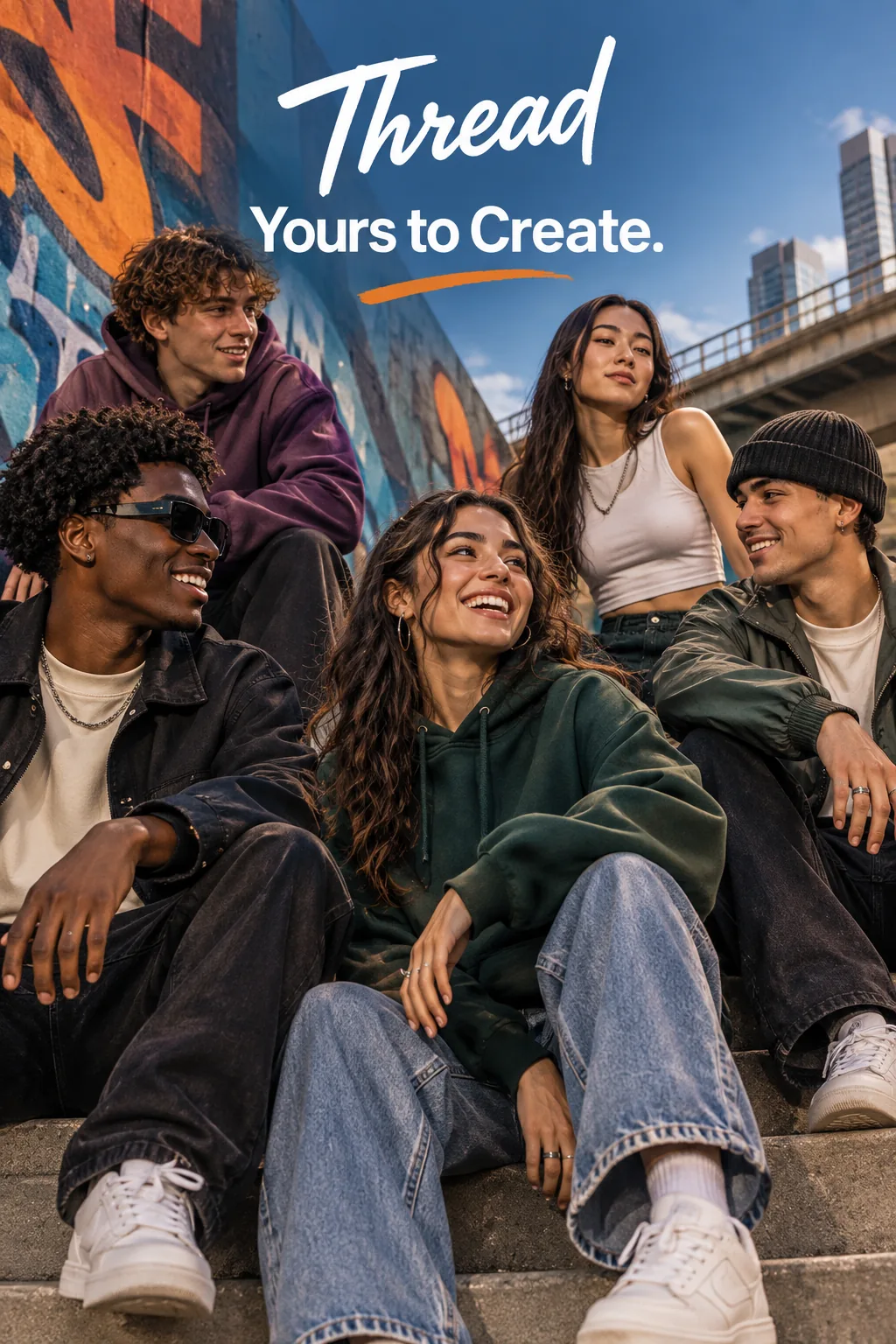
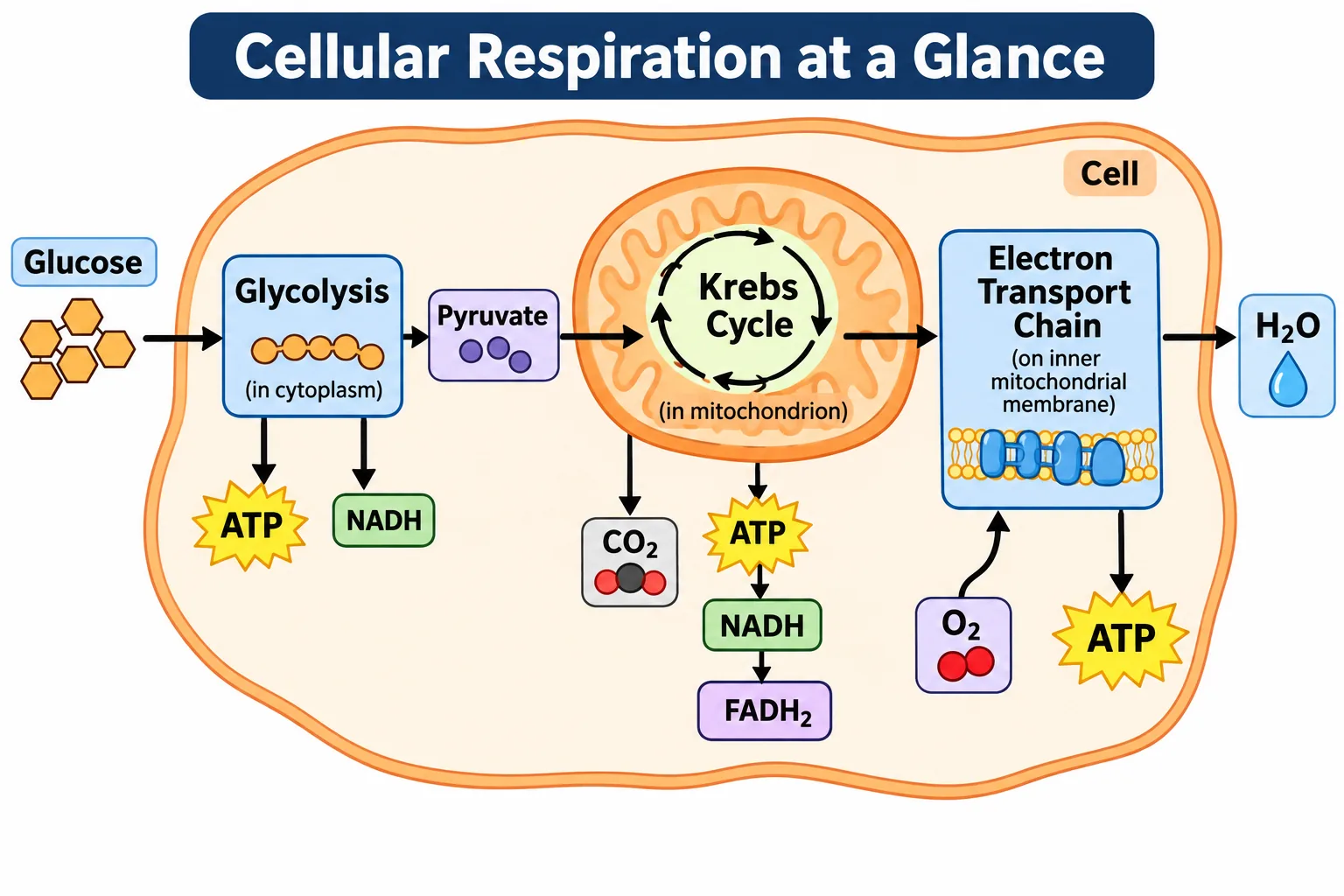
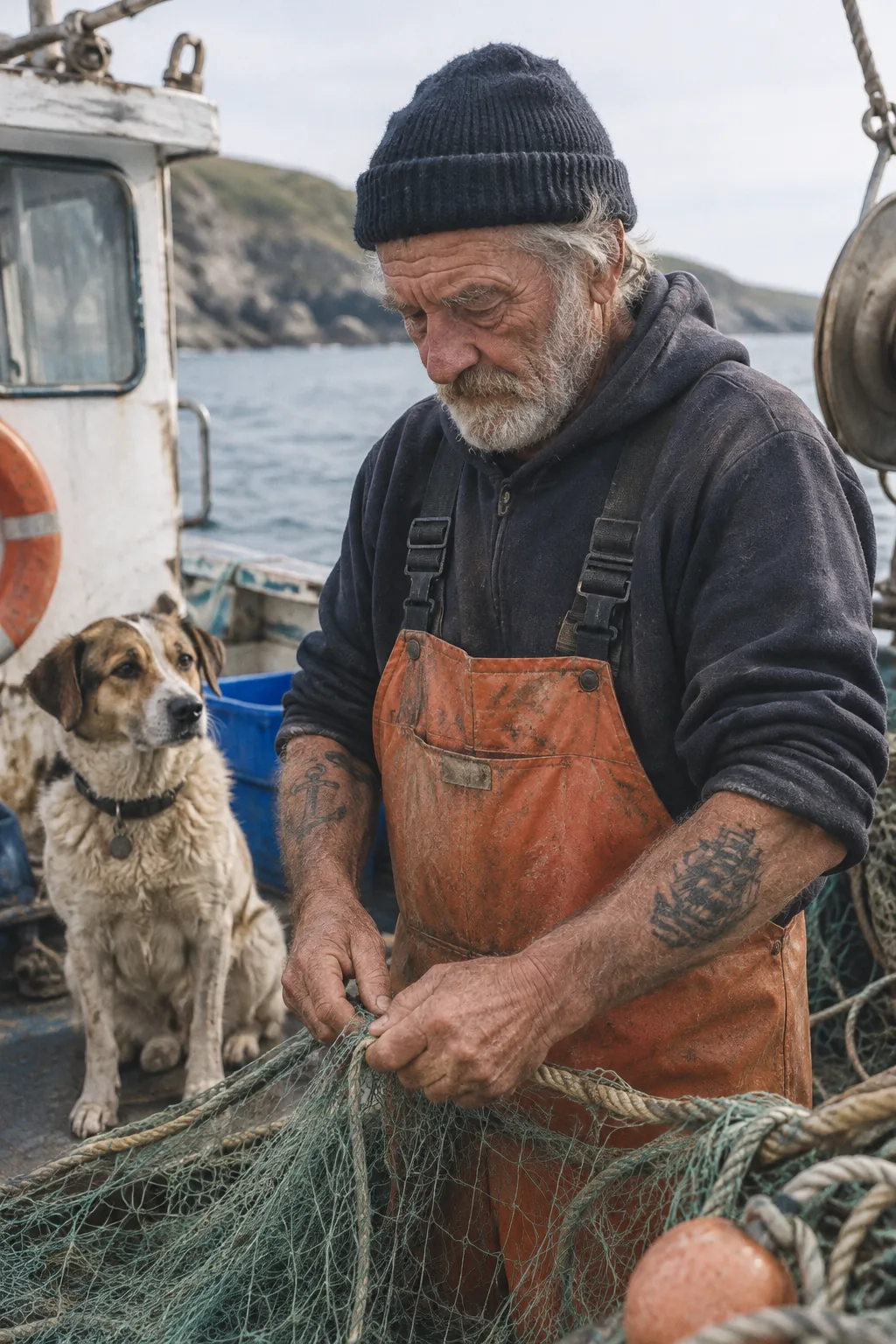
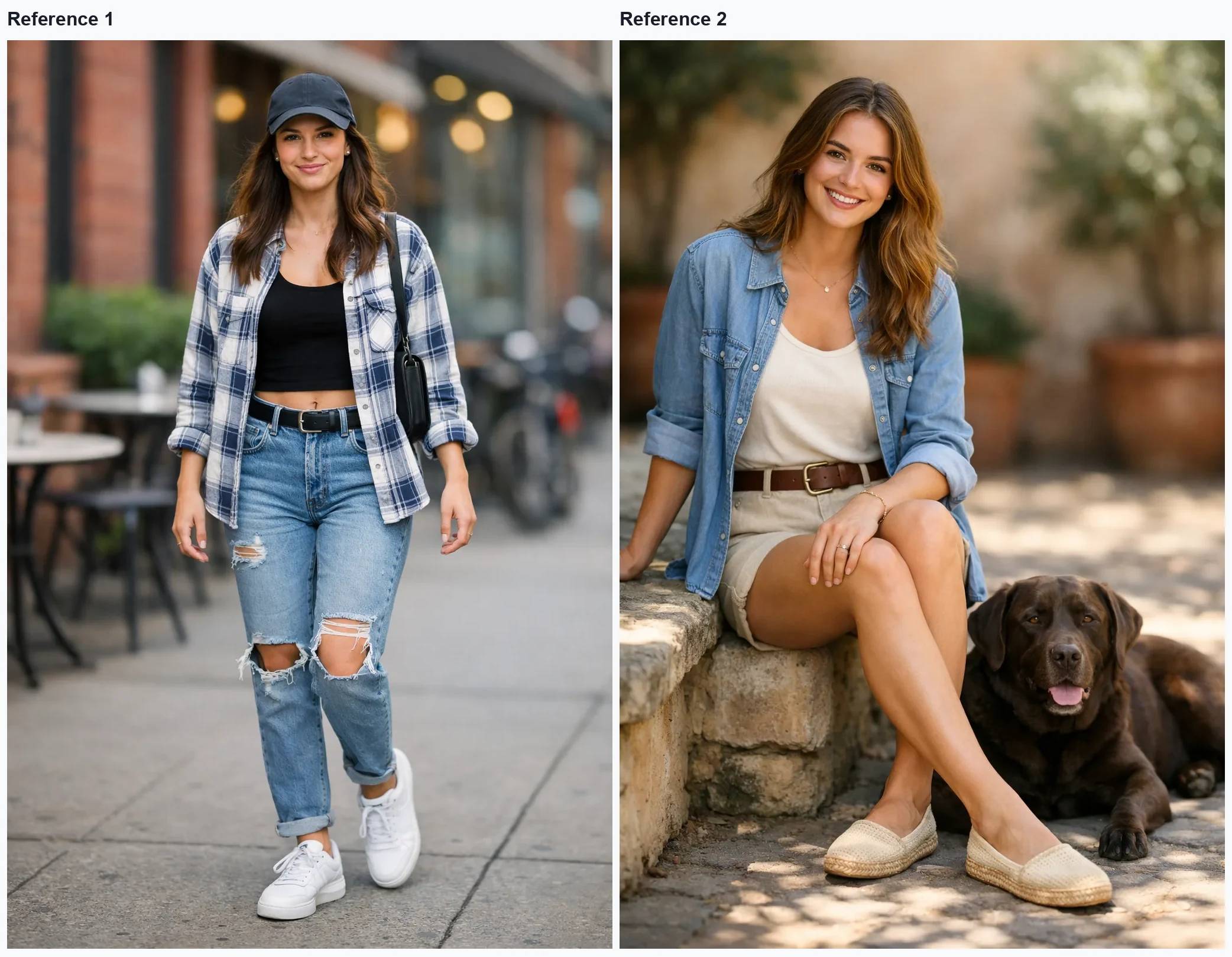
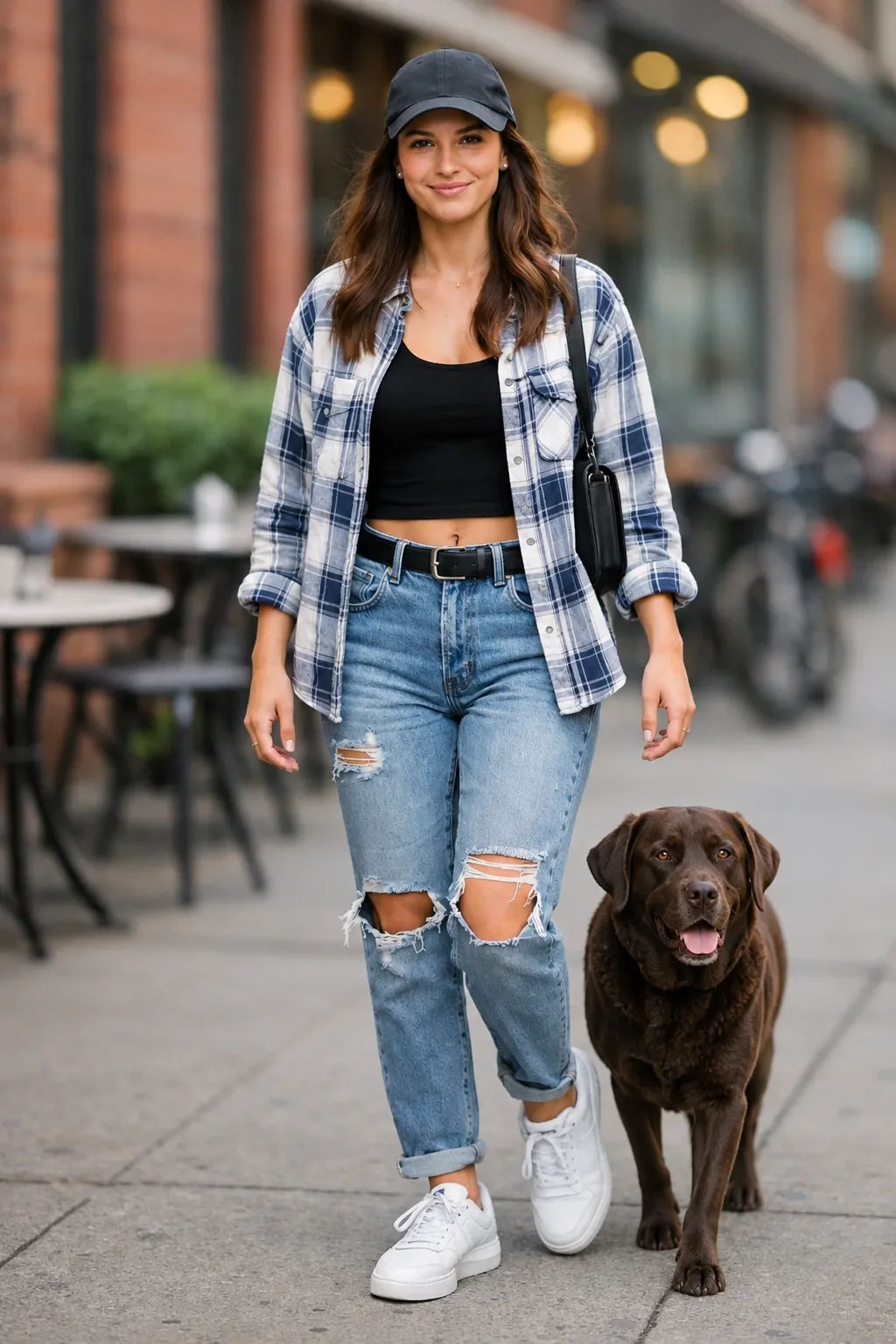
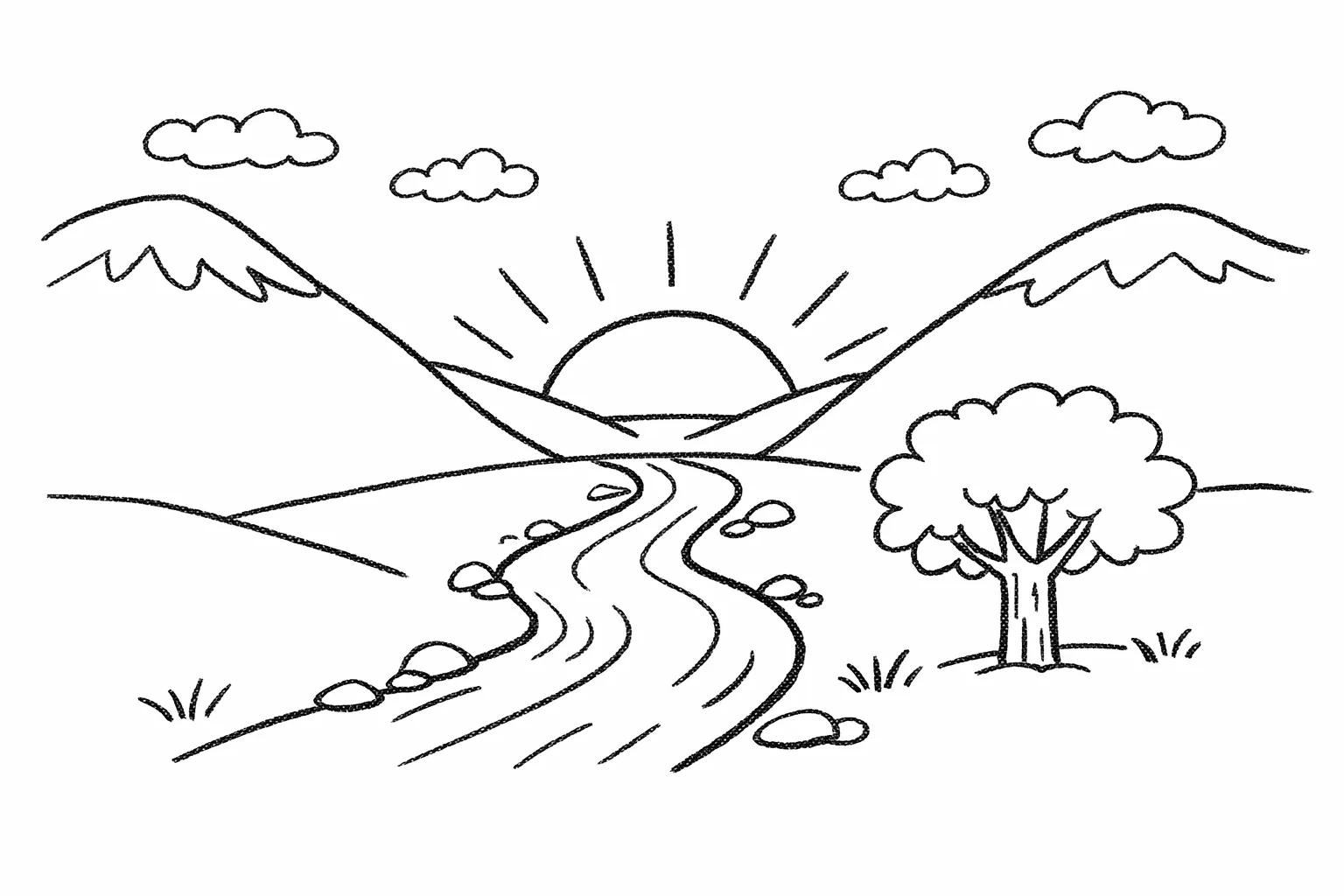
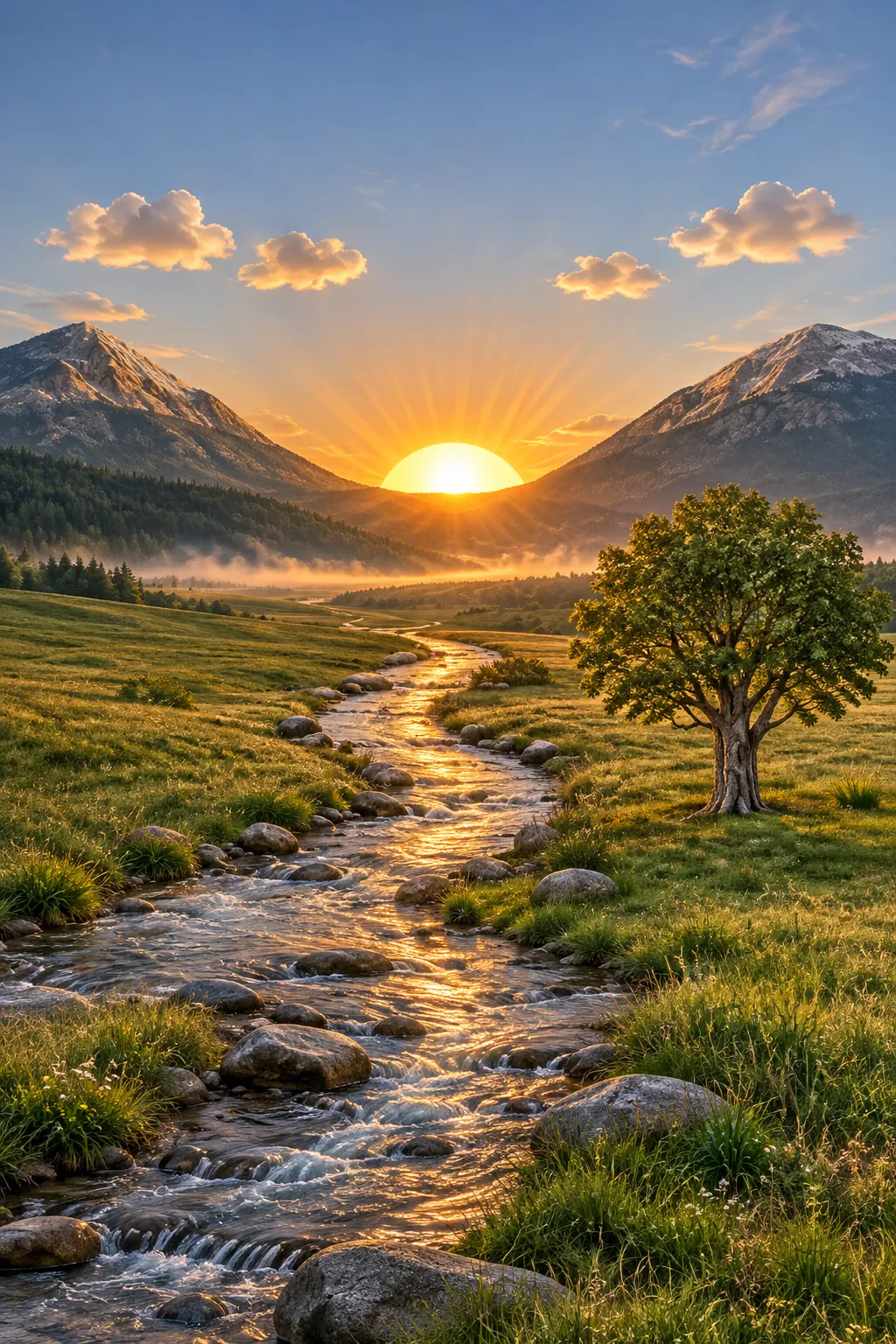
See how Flare lays out type, follows a sketch and preserves the details you want to keep when editing.

Compare GPT Image 2.6 Flare with Sunburst and 2.5 Flare

OpenAI’s release notes describe each model’s focus. The resolution, output and reference rows show what is available in Wizmade.

Scroll sideways to compare every model.

ModelGPT Image 2.6 FlareGPT Image 2.6 SunburstGPT Image 2.5 Flare
Model focusFast iteration and improved poster and product layoutsFine details and consistency across editsFast everyday drafts and edits
Resolution in Wizmade1K, 2K, 4K1K, 2K, 4K1K, 2K, 4K
Maximum images per Wizmade request114
Image to Image references in WizmadeUp to 8Up to 8Up to 8

Sources: OpenAI’s Images 2.6 release · OpenAI’s Images 2.5 release · APIMart’s GPT Image 2.6 still-image contract

How to use GPT Image 2.6 Flare

Generate or refine GPT Image 2.6 Flare images in three steps inside the workbench above.

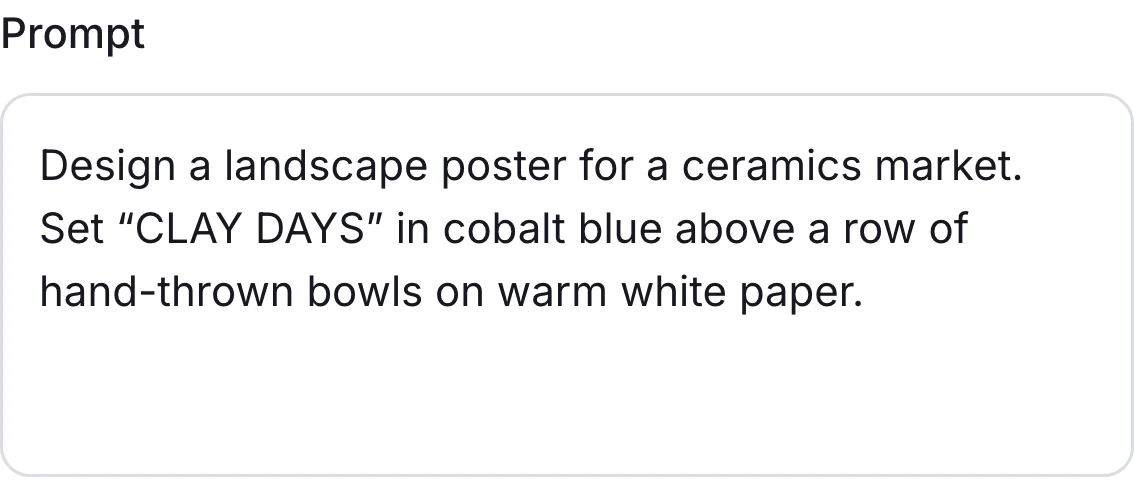
Wizmade prompt field with a ceramics market poster brief
1

Write a prompt or upload a reference

Describe the subject, layout and exact words you want. If you are changing an existing image, choose Image to Image and upload your reference.

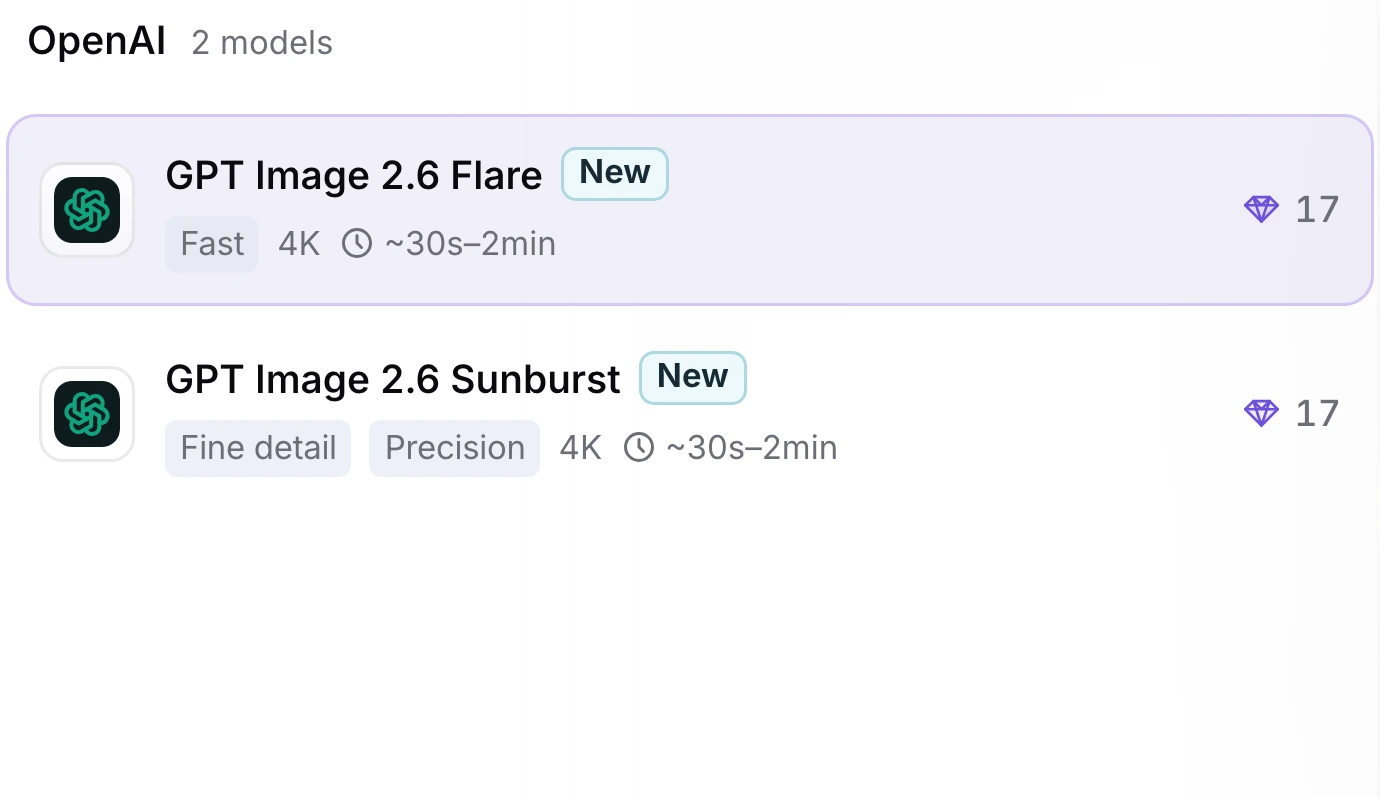
Wizmade model picker showing GPT Image 2.6 Flare selected
2

Choose Flare and your image settings

Select GPT Image 2.6 Flare. Set an aspect ratio and choose 1K, 2K or 4K for your output.

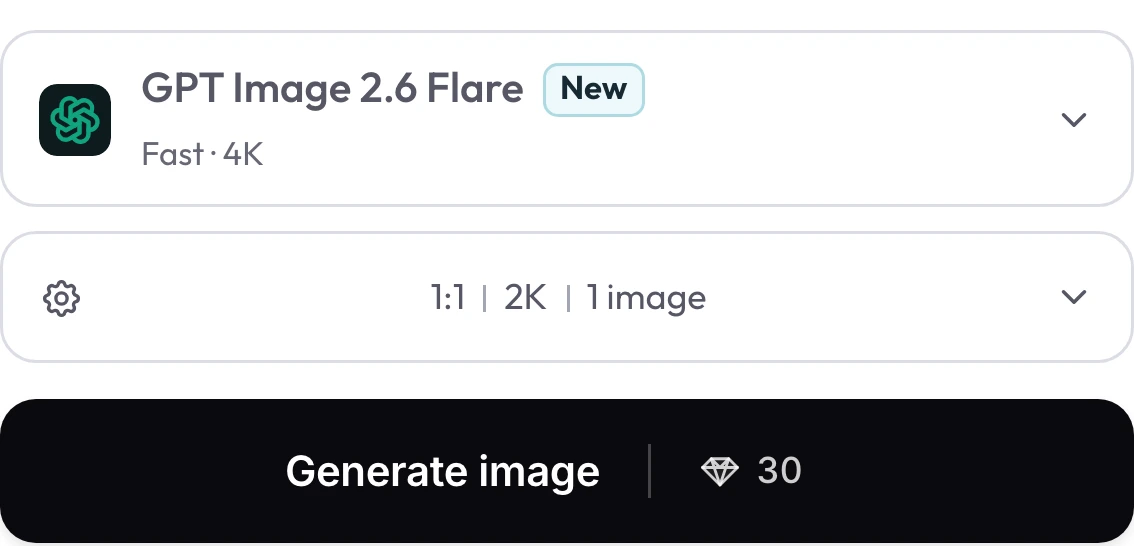
GPT Image 2.6 Flare selected above Generate image and a live quote of 30 credits
3

Check the quote and generate

Review the credit quote beside Generate image, then select Generate image. Open Results to view and download the finished image.

GPT Image 2.6 Flare settings in Wizmade

Review the live parameters exposed by the GPT Image 2.6 Flare configuration in the Wizmade workbench.

SettingAvailable options
WorkflowsText to Image; Image to Image (in-page workbench)
Resolution1K, 2K, 4K
Aspect ratios1:1, 9:16, 16:9, 3:2, 2:3, 4:3, 3:4, 5:4, 4:5, 21:9, auto
Outputs1 per request
Reference imagesUp to 8 reference images in Image to Image mode
CreditsReview the live 💎 quote inside the workbench before generating.

Video comparison on YouTube

OpenAI introduces the two models and shows how Flare can speed up image iteration.

GPT-Image-2.6: Faster image generation with Flare and Sunburst

OpenAI

Watch on YouTube ↗

Model news on X

OpenAI introduces GPT Image 2.6 Flare and Sunburst, including improvements to image generation and editing.

Community discussion on Reddit

A community member reports 28 generations using the same prompts across Flare and Sunburst, including a repeat edit of a product photo.

GPT Image 2.6 Flare FAQs

Answers about GPT Image 2.6 Flare capabilities, settings, reference uploads and credits in Wizmade.

What changed in GPT Image 2.6 Flare?

OpenAI’s November 2026 release improved generation speed, poster and product layouts, and detail retention during edits. In Wizmade, Flare is available for still image generation and reference-based editing.

When should I choose Flare or Sunburst?

Choose Flare to draft visuals and iterate quickly. Choose GPT Image 2.6 Sunburst for fine detail or a series of edits where preserving the same visual details is the priority.

How is 2.6 Flare different from 2.5 Flare in Wizmade?

Both versions offer 1K, 2K and 4K. Use 2.6 Flare for the newer model’s layout and editing improvements with one image per request. The 2.5 Flare workbench accepts up to four outputs per request.

Can GPT Image 2.6 Flare put exact words on a poster?

Yes. Put the exact text in quotation marks and tell Flare where to place it and which line should be most prominent. Check spelling before you publish.

How many reference images can I add?

Add up to eight PNG or JPEG files in Image to Image. Refer to them in upload order and say what to take or preserve from each one.

Which resolutions and aspect ratios can I use?

Choose 1K, 2K or 4K. Wizmade offers Auto and ten aspect ratios, including square, portrait, widescreen and 21:9. Each request returns one image.

What files does Flare generate in Wizmade?

The workbench generates a still PNG. Open Results to view or download it after generation.

How much does a Flare image cost?

Your credit quote depends on the selected resolution. The live quote beside Generate image shows the cost before you submit.

Can I try GPT Image 2.6 Flare for free?

Eligible new Wizmade accounts may receive 60 starter credits after verifying their Google account. Check the workbench for the quote before generating.

Create your next visual with Flare

Start with a prompt or upload a reference to make your first edit.

Read OpenAI’s release notes and partner examples