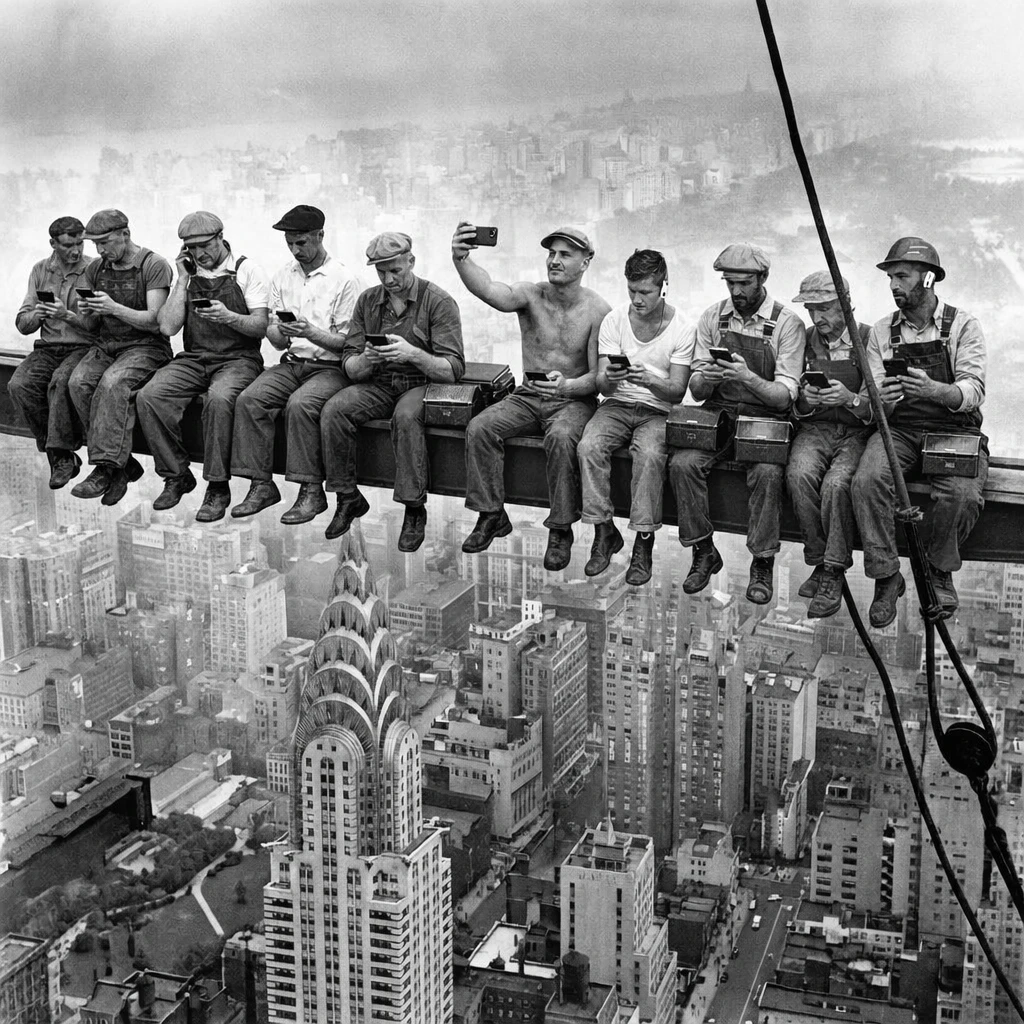
GPT Image 2.5 Flare AI Image Generator

Flare is OpenAI’s speed-focused model for image generation and editing. Render readable text, combine references, and make targeted edits in Wizmade.

New accounts get 60 free starter credits.

GPT Image 2.5 Flare Key Features

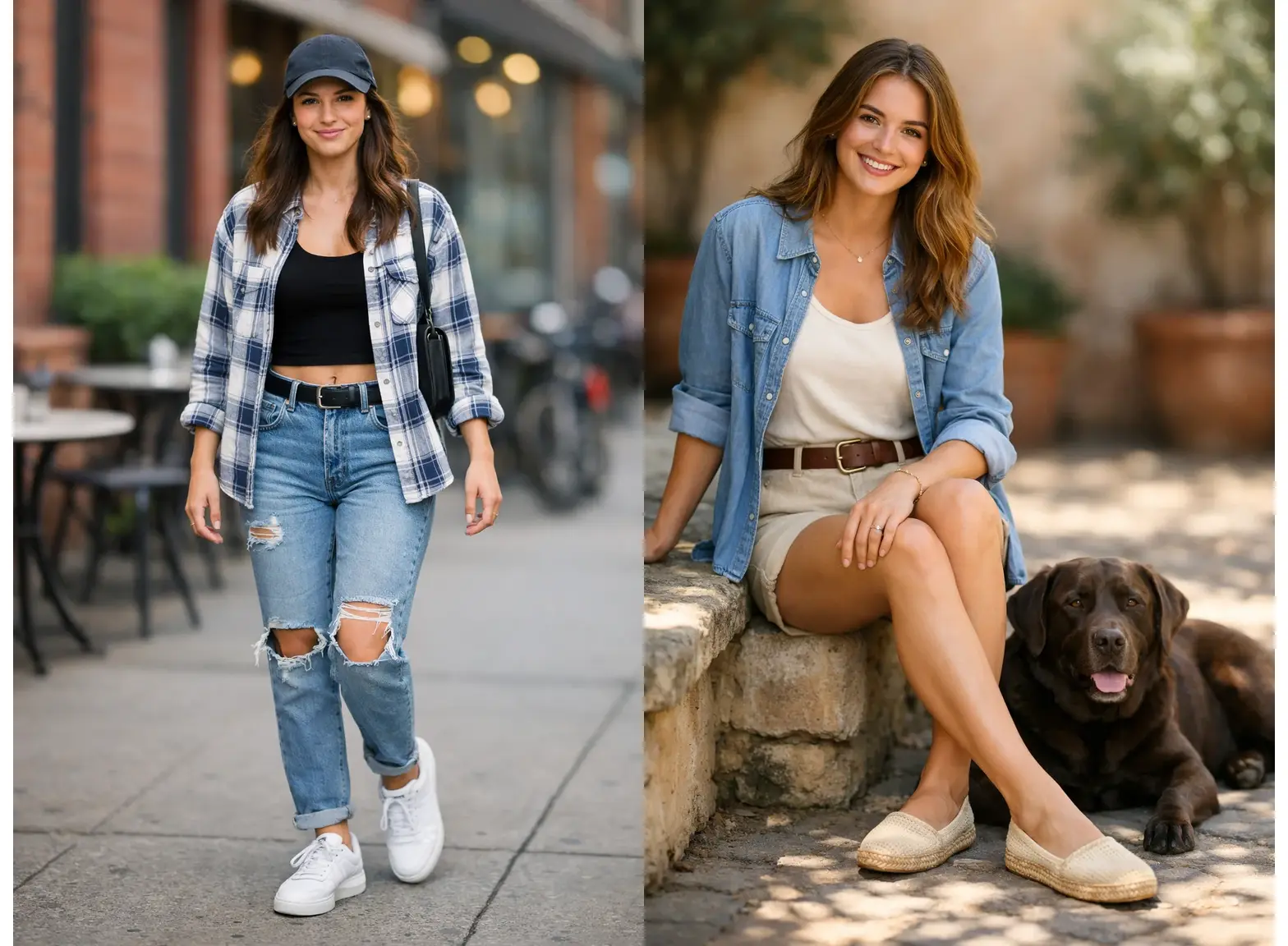
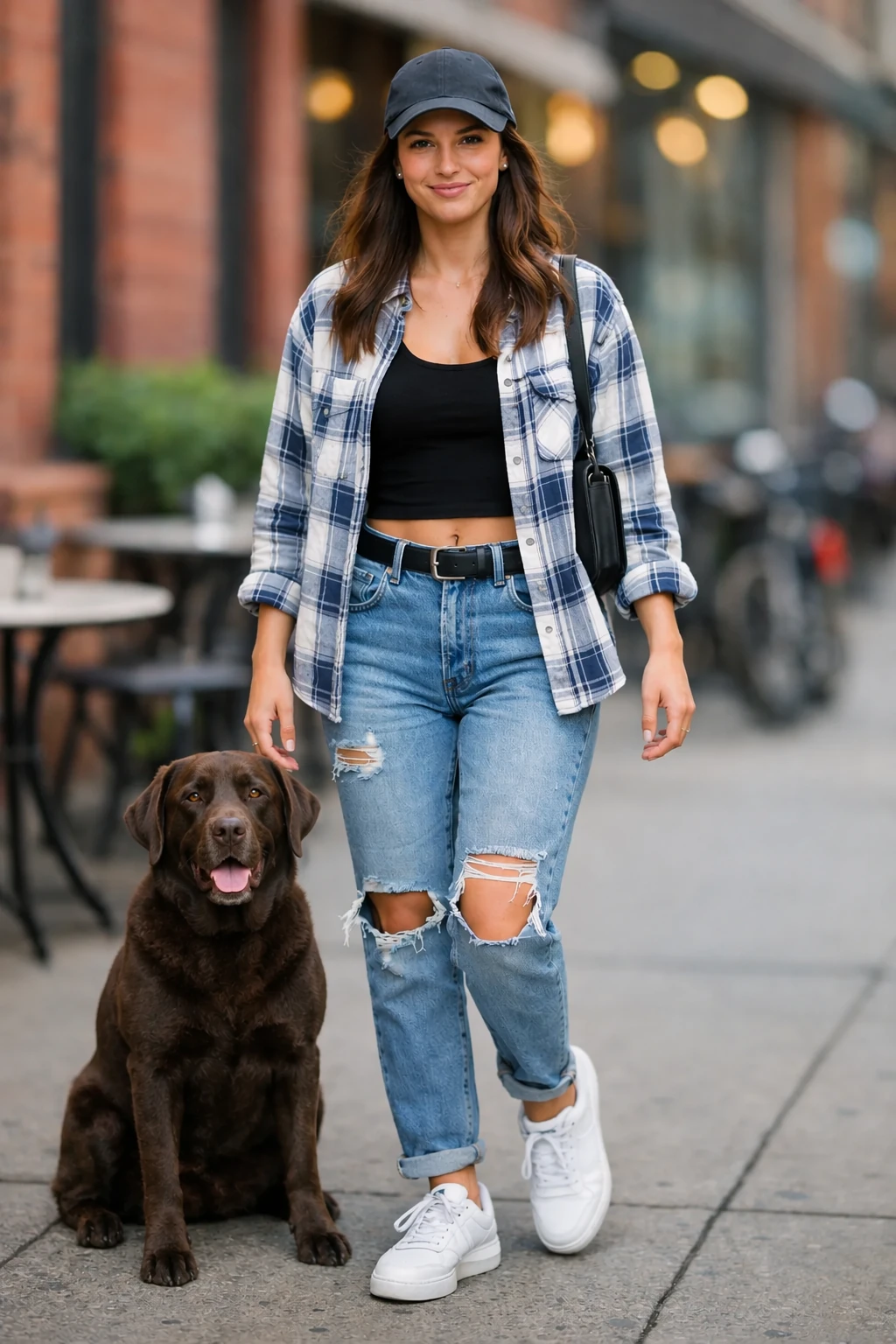
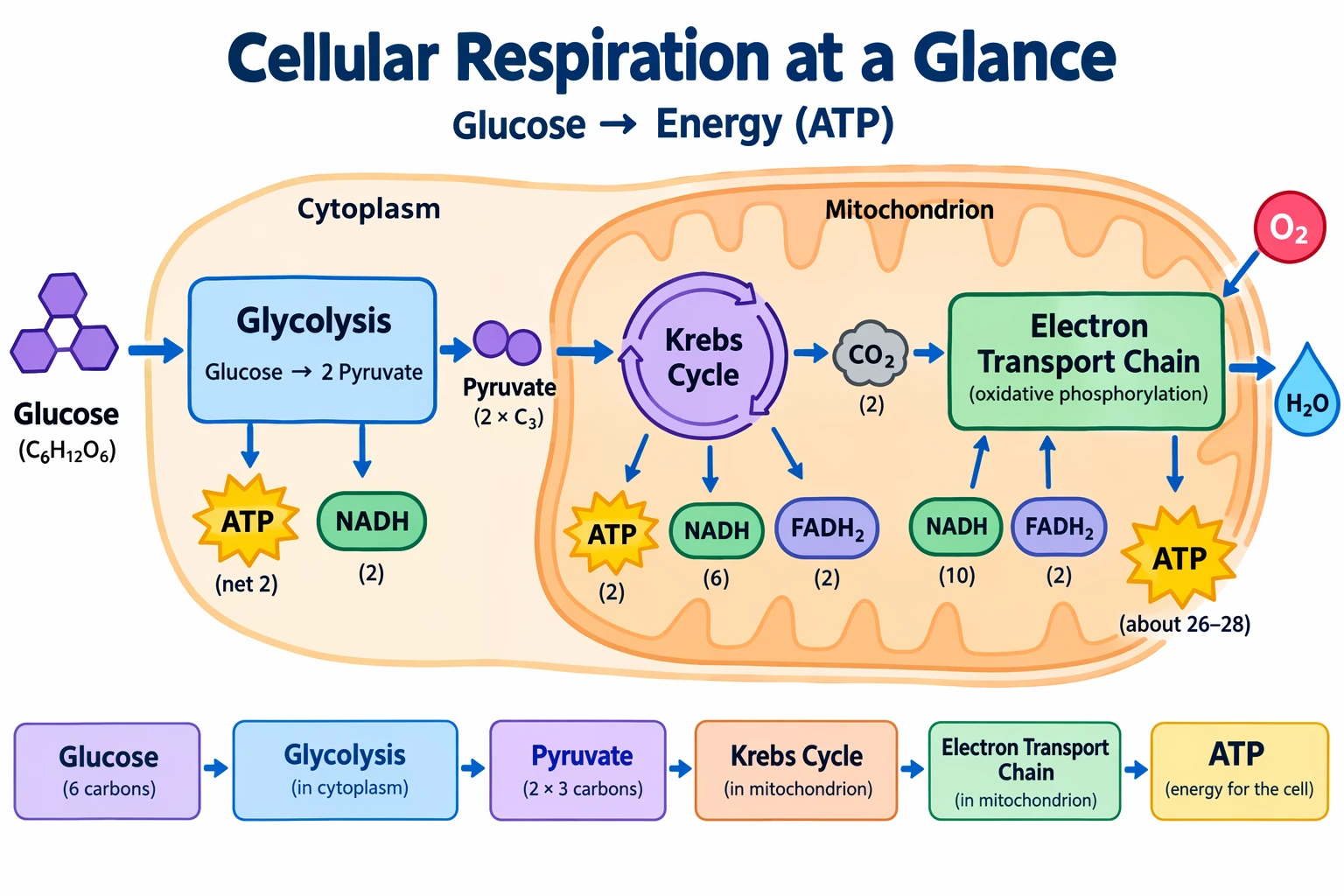
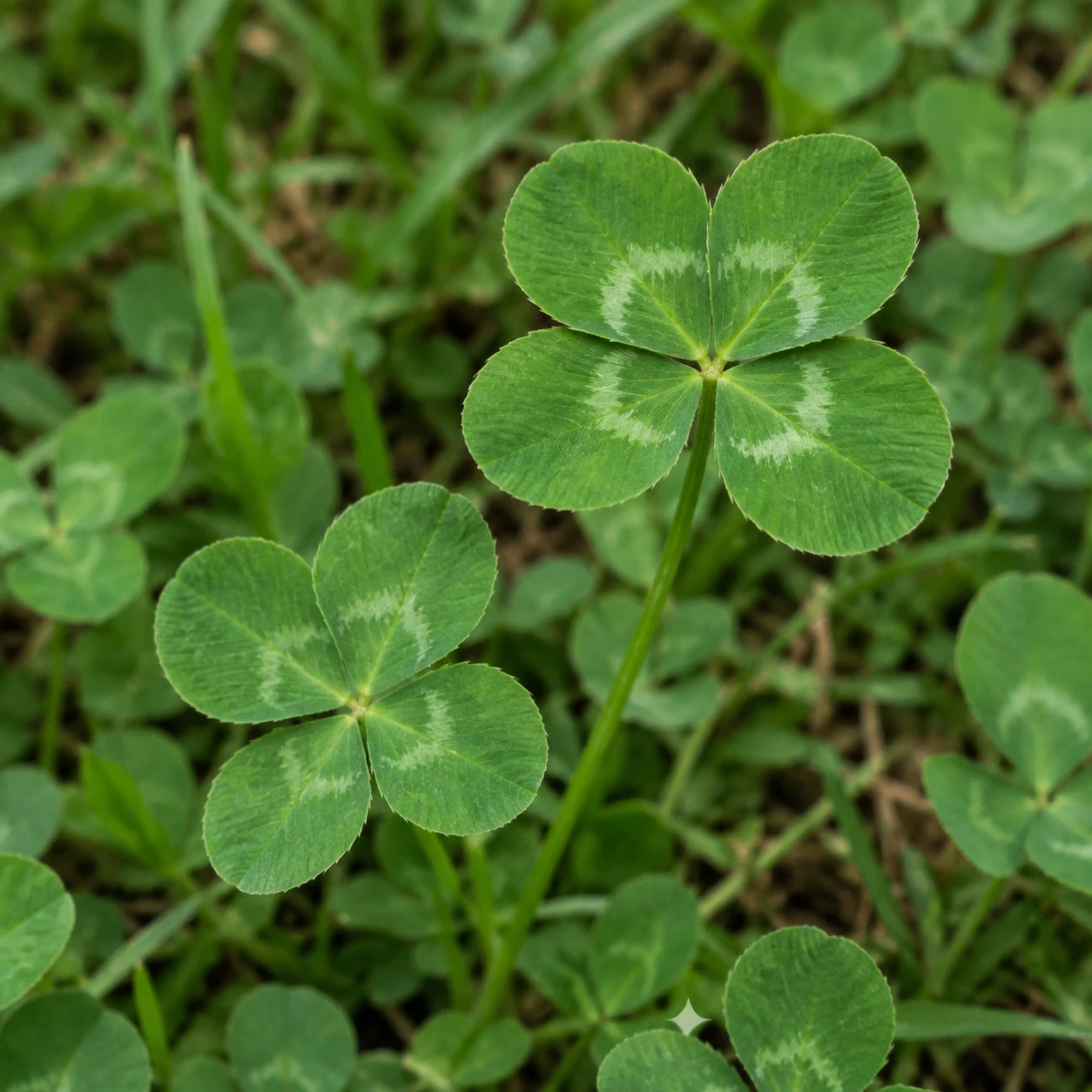
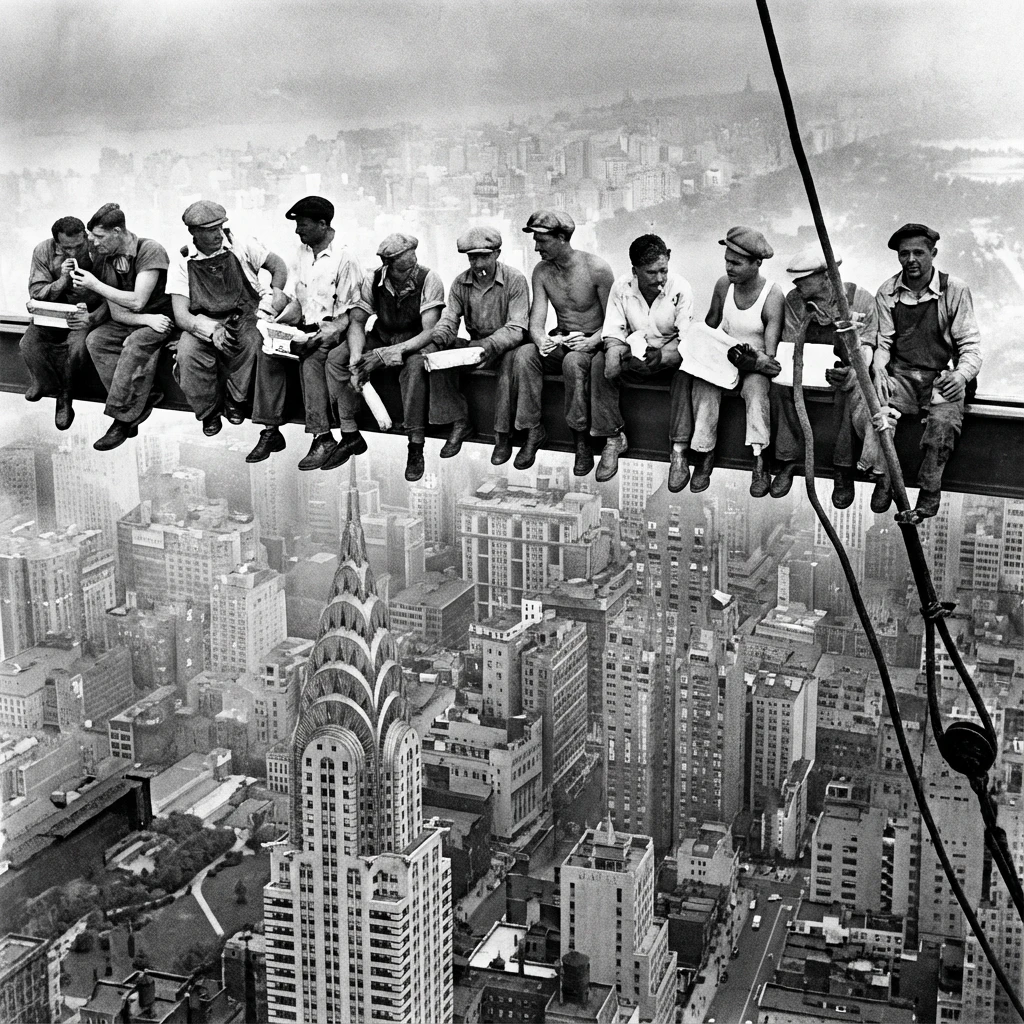
See how Flare edits specific details, combines references, renders text, and handles fine textures.

Compare Flare, Sunburst and GPT-Image 2

Compare OpenAI’s model positioning and the settings available in Wizmade.

Scroll sideways to compare every model.

ModelGPT Image 2.5 FlareGPT Image 2.5 SunburstGPT-Image 2
Best forFast drafts and everyday editsMore precise edits and fine detailsDetailed prompts and text rendering
Resolution1K, 2K, 4K1K, 2K, 4K1K, 2K, 4K
Maximum outputs per request441
Reference imagesUp to 8Up to 8Up to 8

Sources: OpenAI’s GPT Image 2.5 announcement · GPT-Image 2 model documentation

How to use GPT Image 2.5 Flare

Generate or refine GPT Image 2.5 Flare images in three steps inside the workbench above.

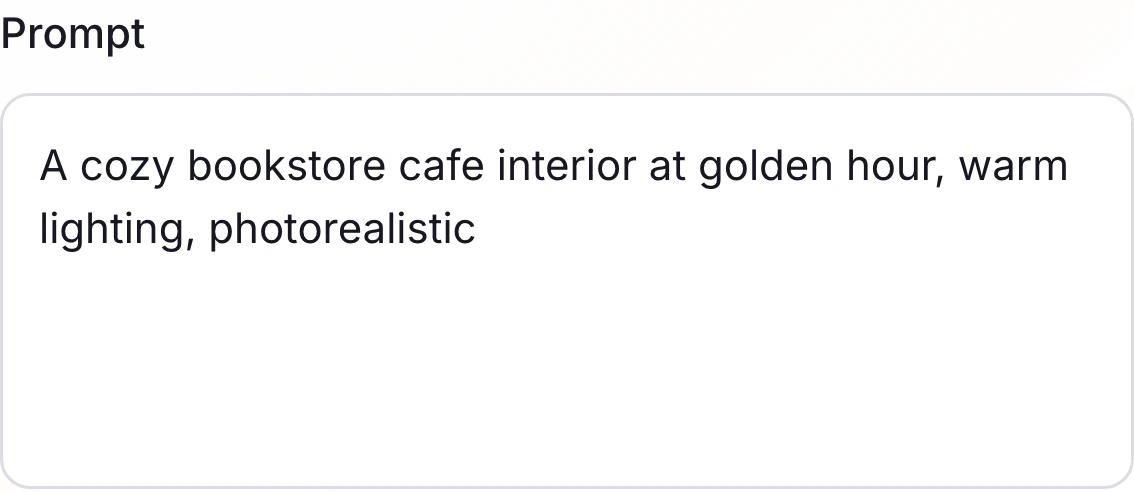
Wizmade workbench prompt editor showing a GPT Image 2.5 Flare scene description
1

Write a prompt or upload references

Describe what you want in Text to Image. To edit an image, switch to Image to Image and upload the references you want Flare to use.

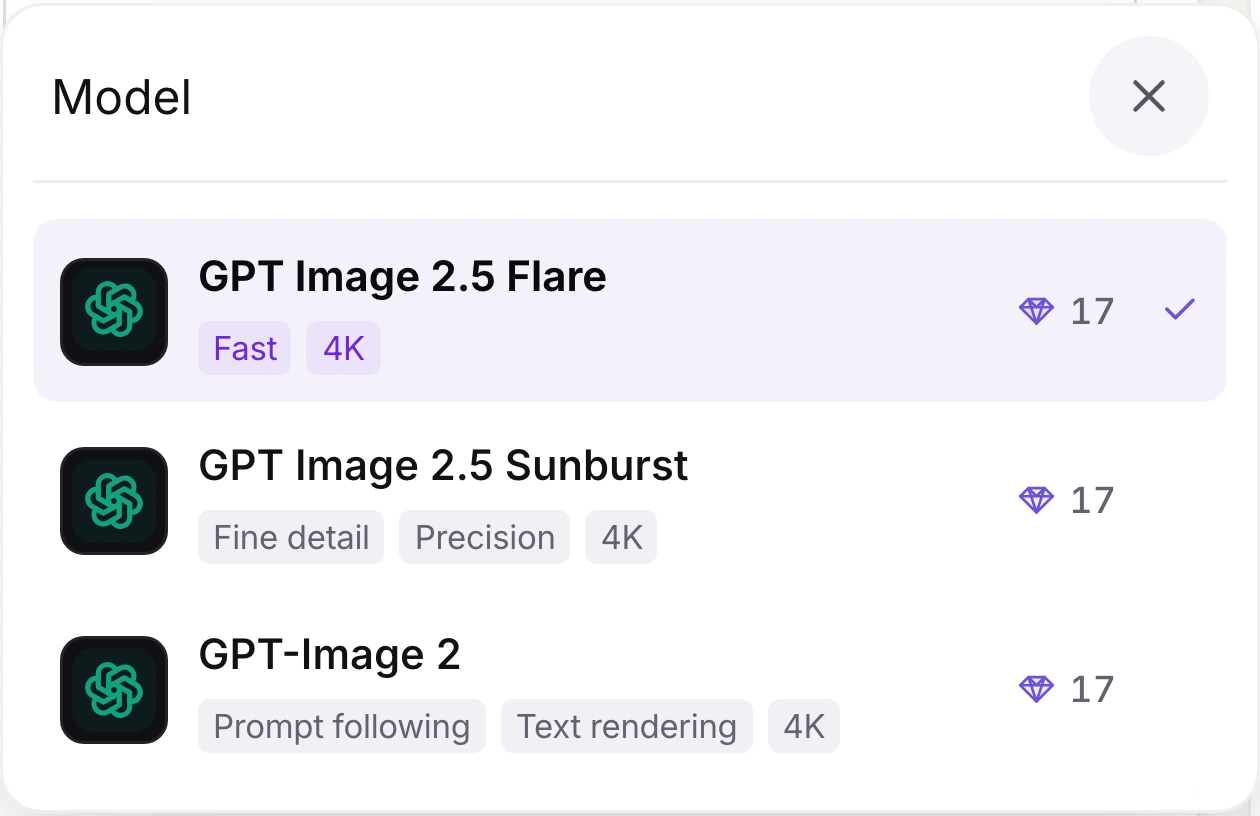
Wizmade model menu with GPT Image 2.5 Flare selected
2

Review GPT Image 2.5 Flare

Choose GPT Image 2.5 Flare in the model menu. Set your aspect ratio, resolution, and number of outputs.

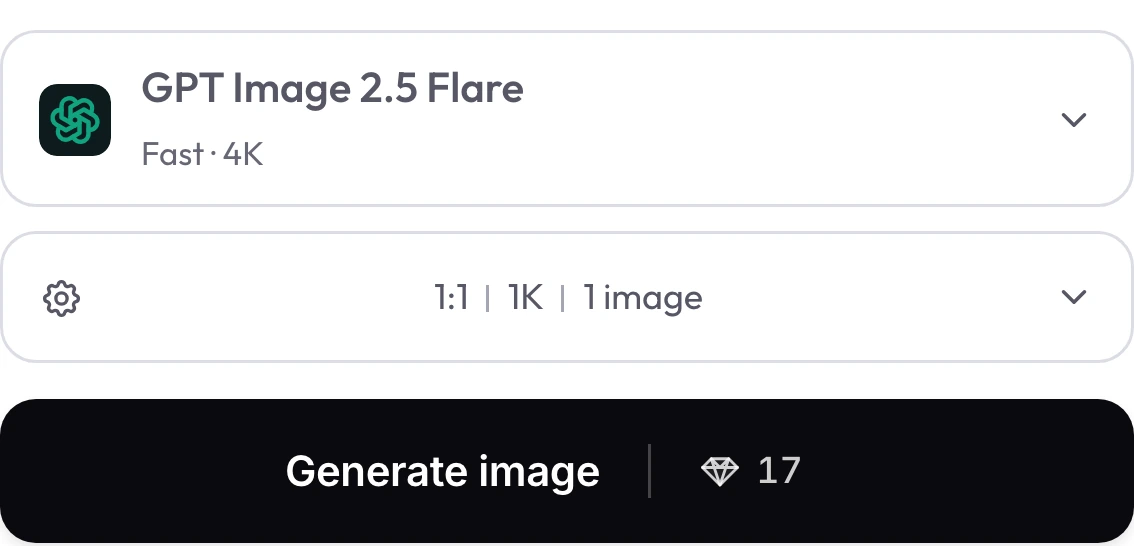
Wizmade bottom bar with GPT Image 2.5 Flare settings, Generate image button, and a live diamond quote
3

Set your output and generate

Check the live credit quote beside Generate image, then select Generate image to see the results in the workbench.

GPT Image 2.5 Flare settings in Wizmade

Review the live parameters exposed by the GPT Image 2.5 Flare configuration in the Wizmade workbench.

SettingAvailable options
WorkflowsText to Image; Image to Image; Templates (in-page workbench)
Resolution1K, 2K, 4K
Aspect ratios1:1, 9:16, 16:9, 3:2, 2:3, 4:3, 3:4, 5:4, 4:5, 21:9, auto
OutputsUp to 4 per request
Reference imagesUp to 8 reference images in Image to Image mode
CreditsReview the live 💎 quote inside the workbench before generating.

Community discussion on Reddit

GPT Image 2.5 Flare FAQs

Answers about GPT Image 2.5 Flare capabilities, settings, reference uploads and credits in Wizmade.

What is GPT Image 2.5 Flare in Wizmade?

GPT Image 2.5 Flare is OpenAI’s everyday image model in the GPT Image 2.5 family. In Wizmade, you can create from a prompt or edit with reference images using the available workbench settings.

Can I try GPT Image 2.5 Flare for free?

Yes. New Wizmade accounts get 60 starter credits. Check the workbench quote before you generate.

What is Flare best for?

Use Flare to draft visuals quickly, combine reference images, or make everyday edits. OpenAI positions Sunburst for work that needs tighter editing control.

Can I generate multiple images at once with Flare?

Yes. Open the parameters pill next to the model selector and pick between 1 and 4 outputs per request; the live 💎 quote updates immediately before you submit.

How does Flare handle Image to Image and reference images?

Wizmade lets you add up to 8 reference images in Image to Image mode. Describe the change you want; OpenAI says GPT Image 2.5 is better at focused edits while keeping surrounding details.

Which resolutions and aspect ratios are supported?

Wizmade exposes 1K, 2K, and 4K resolutions alongside 10 preset aspect ratios (1:1, 16:9, 9:16, 4:3, 3:4, 3:2, 2:3, 5:4, 4:5, 21:9) plus Auto.

How many credits does GPT Image 2.5 Flare cost in Wizmade?

The 💎 quote depends on your selected resolution and output count. Check the live quote beside Generate image before submitting; it reflects the current settings.

How does Flare differ from GPT Image 2.5 Sunburst and GPT-Image 2?

OpenAI positions Flare for everyday image creation with the GPT Image 2.5 improvements in quality, editing, and speed. Sunburst offers more precision for detailed creative work and longer generation times. GPT Image 2 is a separate model version; choose it when its available settings and price suit your task.

Can I use generated Flare images commercially?

Commercial use depends on the rights to your inputs and the way you use the output. Follow Wizmade’s Terms and check any applicable third-party rights before publishing.

Create or edit an image with Flare

Start with a prompt or upload your own reference images in the Wizmade workbench.