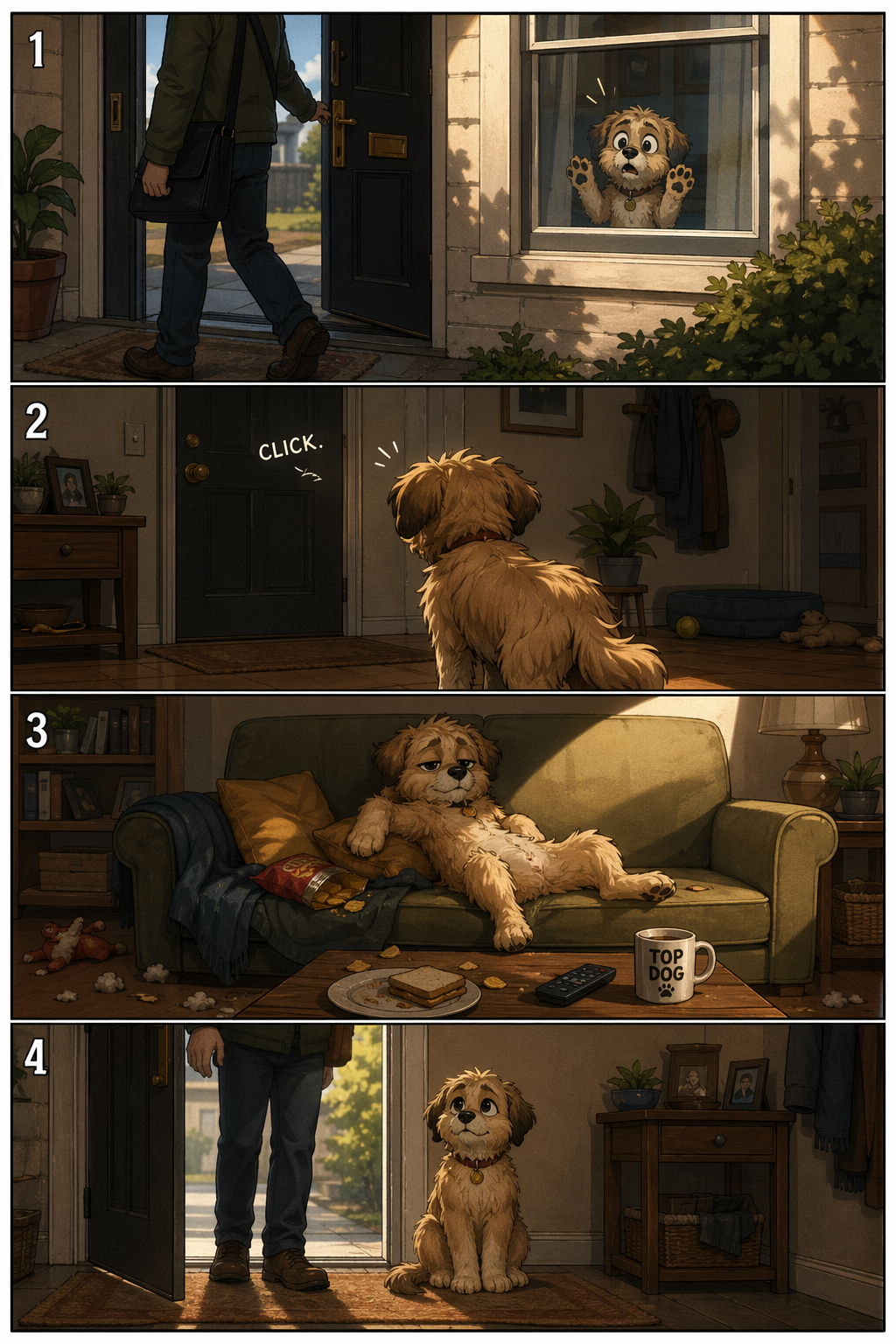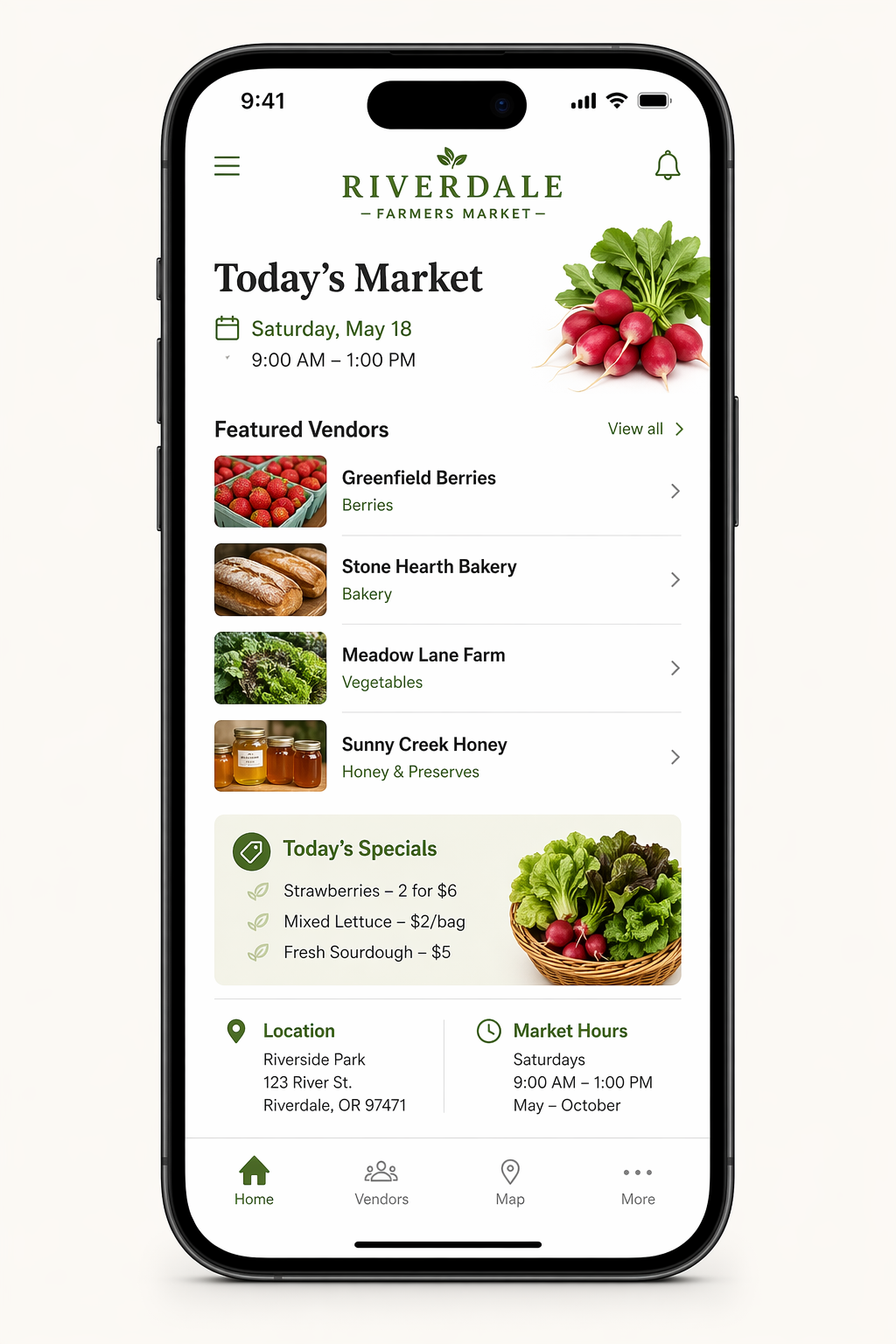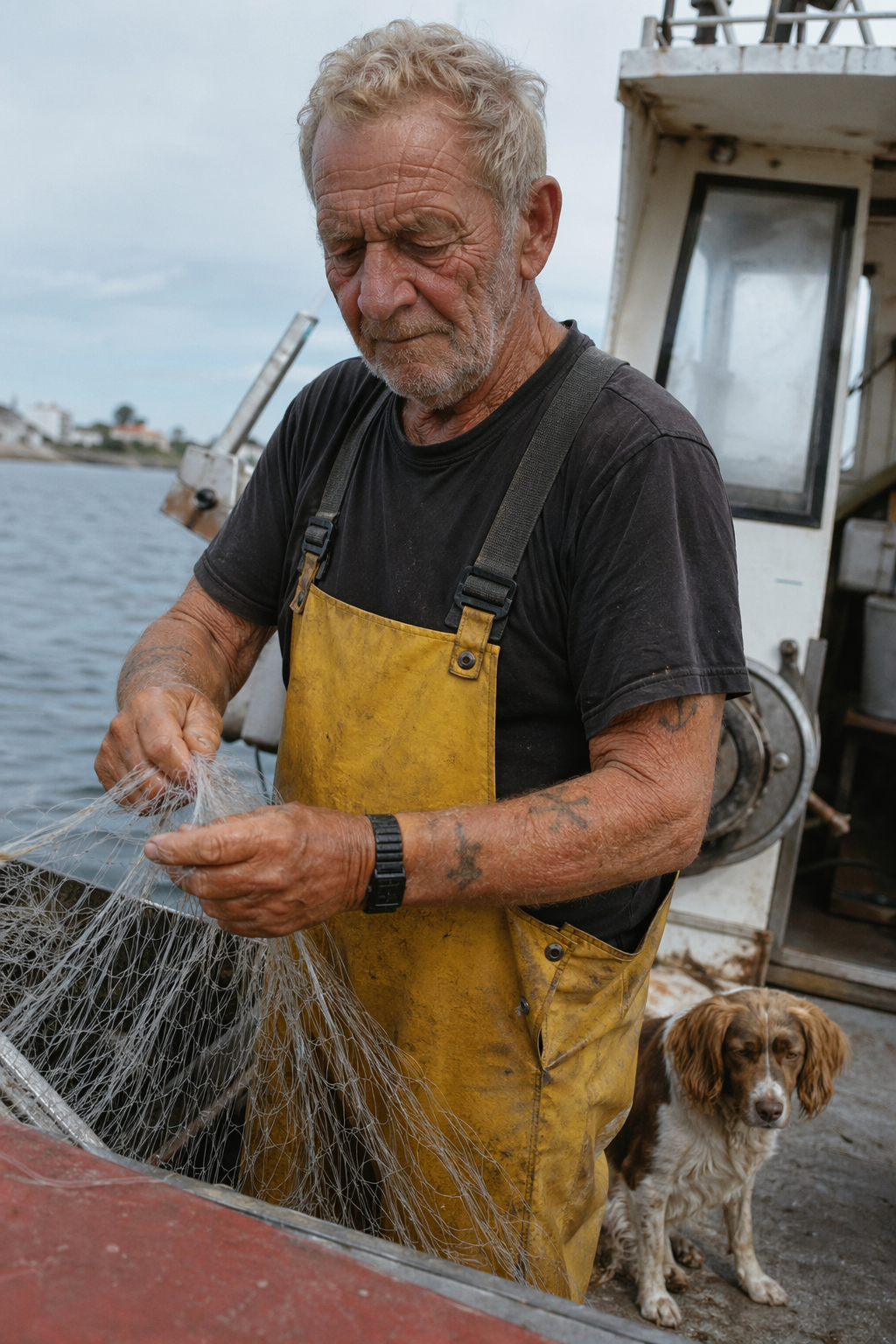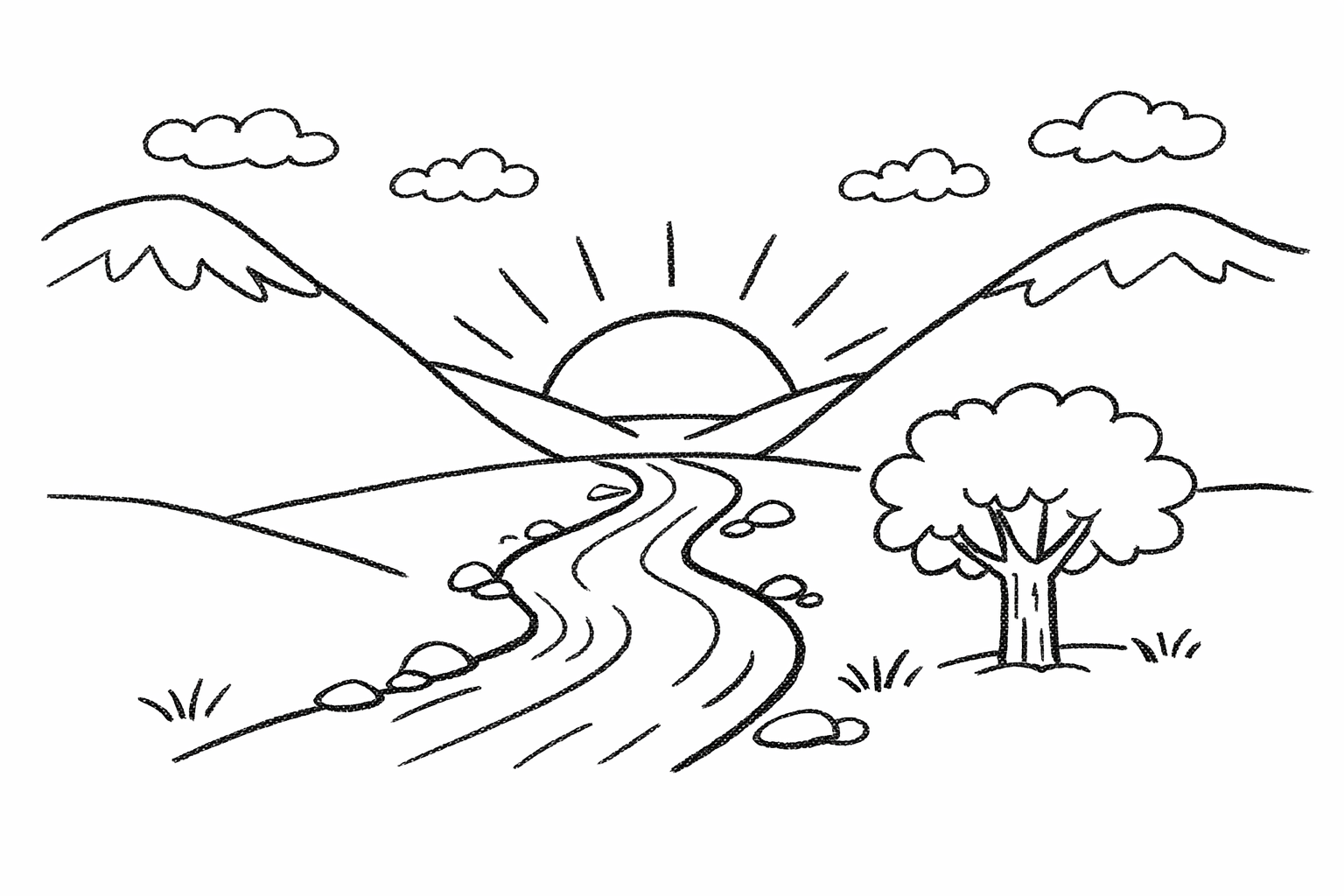
GPT-Image 2 AI Image Generator

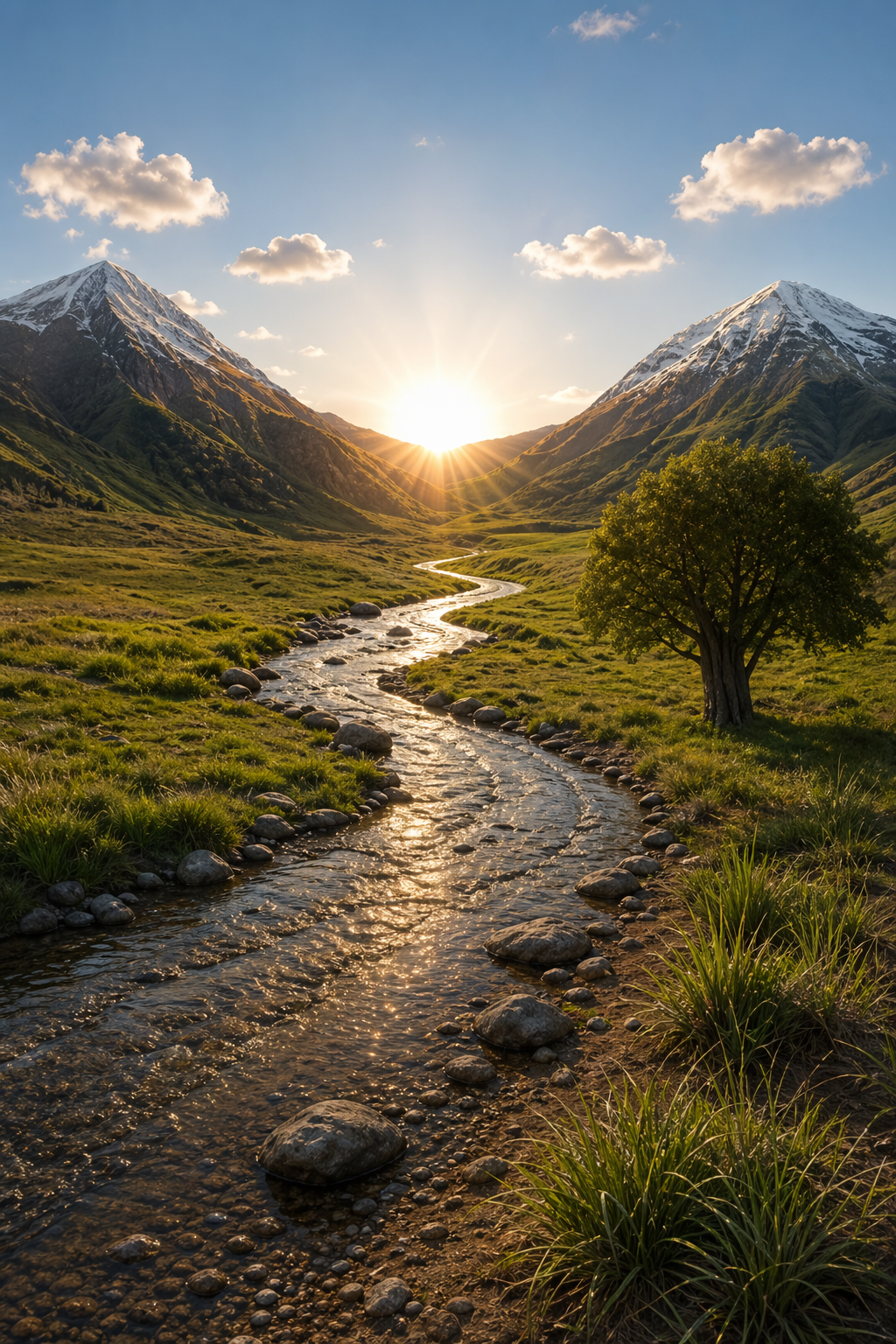
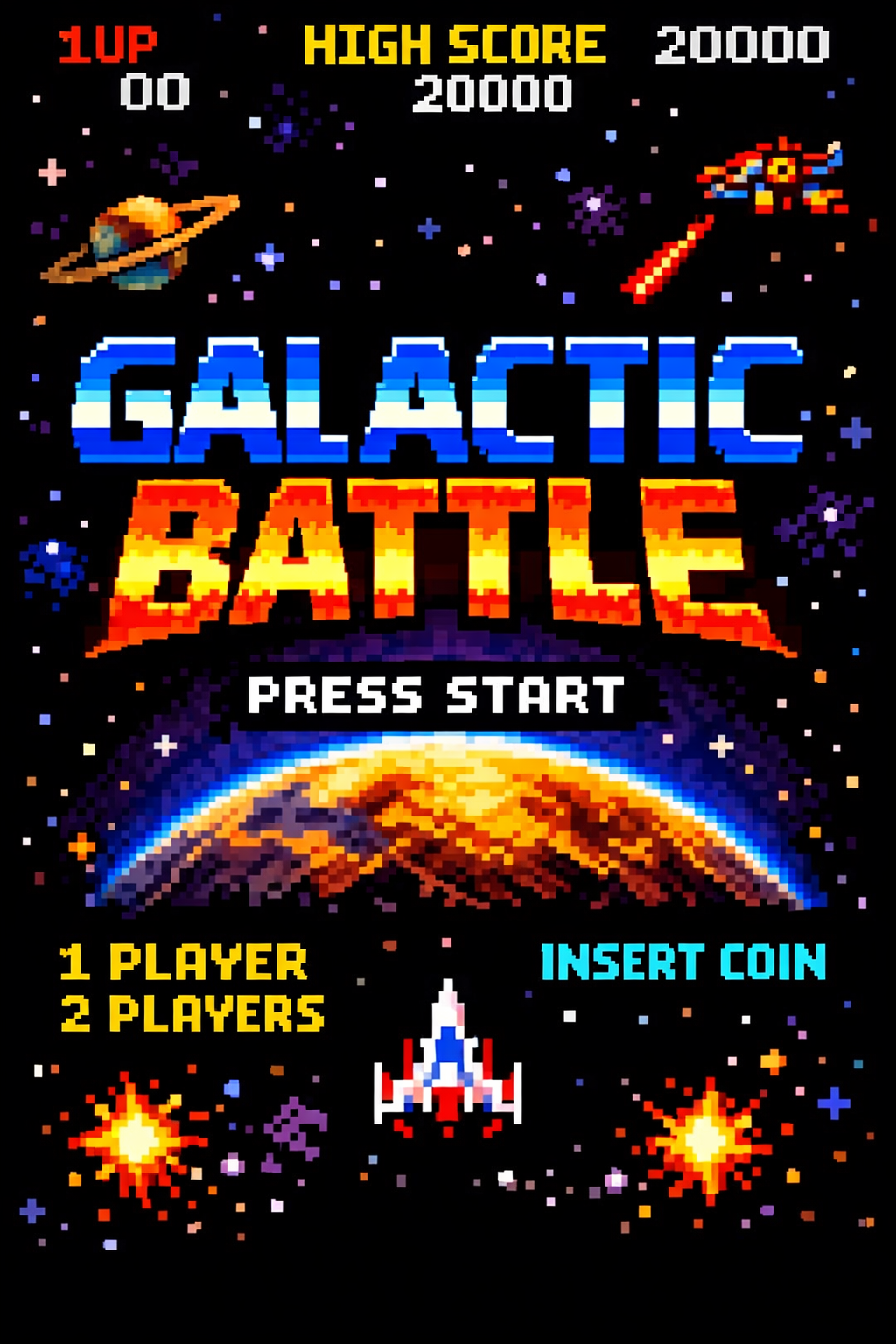
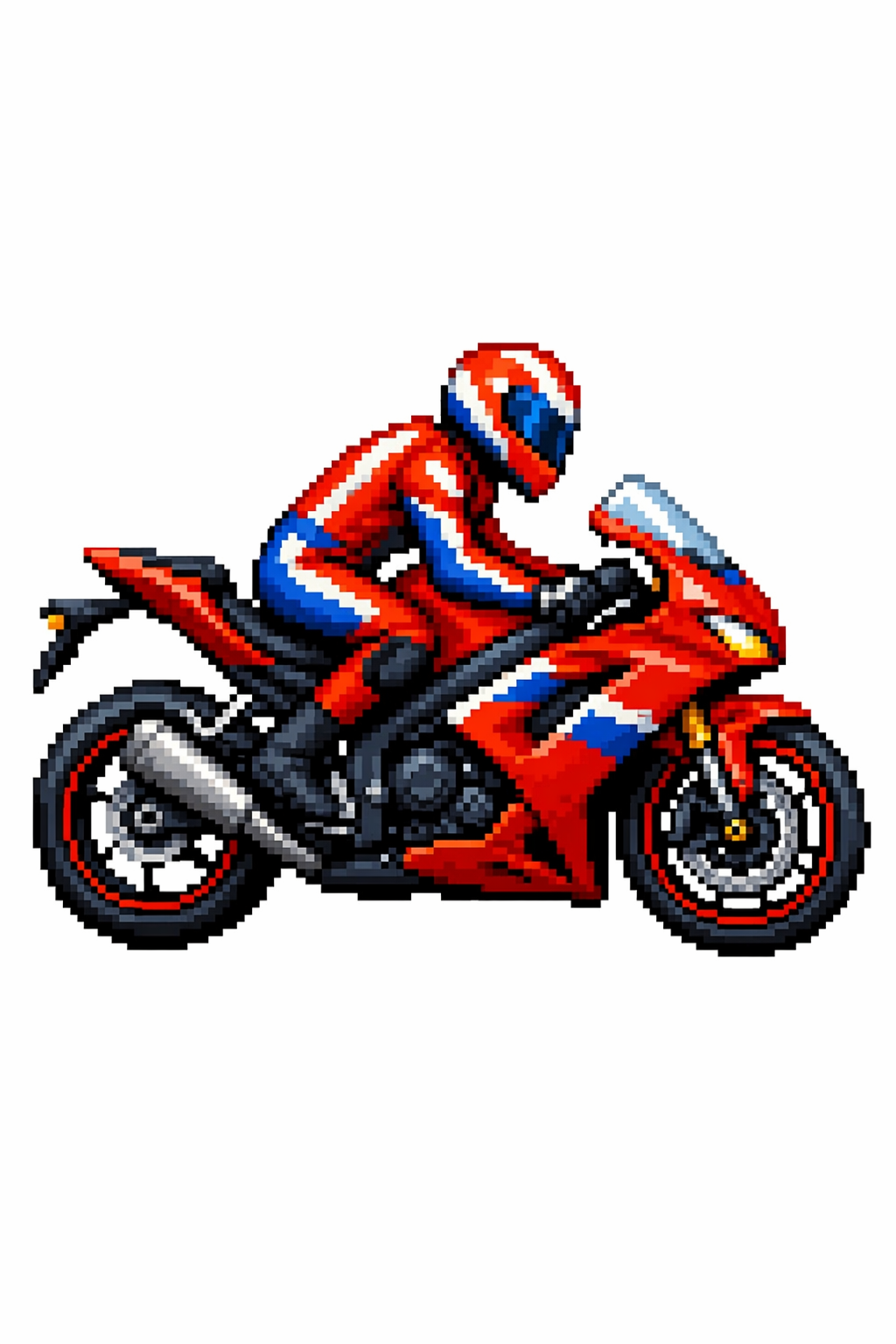
Create with OpenAI GPT Image 2 in Wizmade. Explore photorealistic scenes, structured layouts, interface mockups, and focused edits from references.

New accounts receive 60 free starter credits — review the live quote in the workbench before generating.

What makes GPT-Image 2 different?

Create with OpenAI GPT Image 2 in Wizmade. Explore photorealistic scenes, structured layouts, interface mockups, and focused edits from references.

How to use GPT-Image 2

Generate or refine GPT-Image 2 images in three steps inside the workbench above.

Wizmade Studio light-mode composer set to Text to Image with GPT-Image 2 prompt input
1

Start with a prompt or reference image

Enter a text prompt for a new image, or switch to Image to Image and add reference images within the current upload limit.

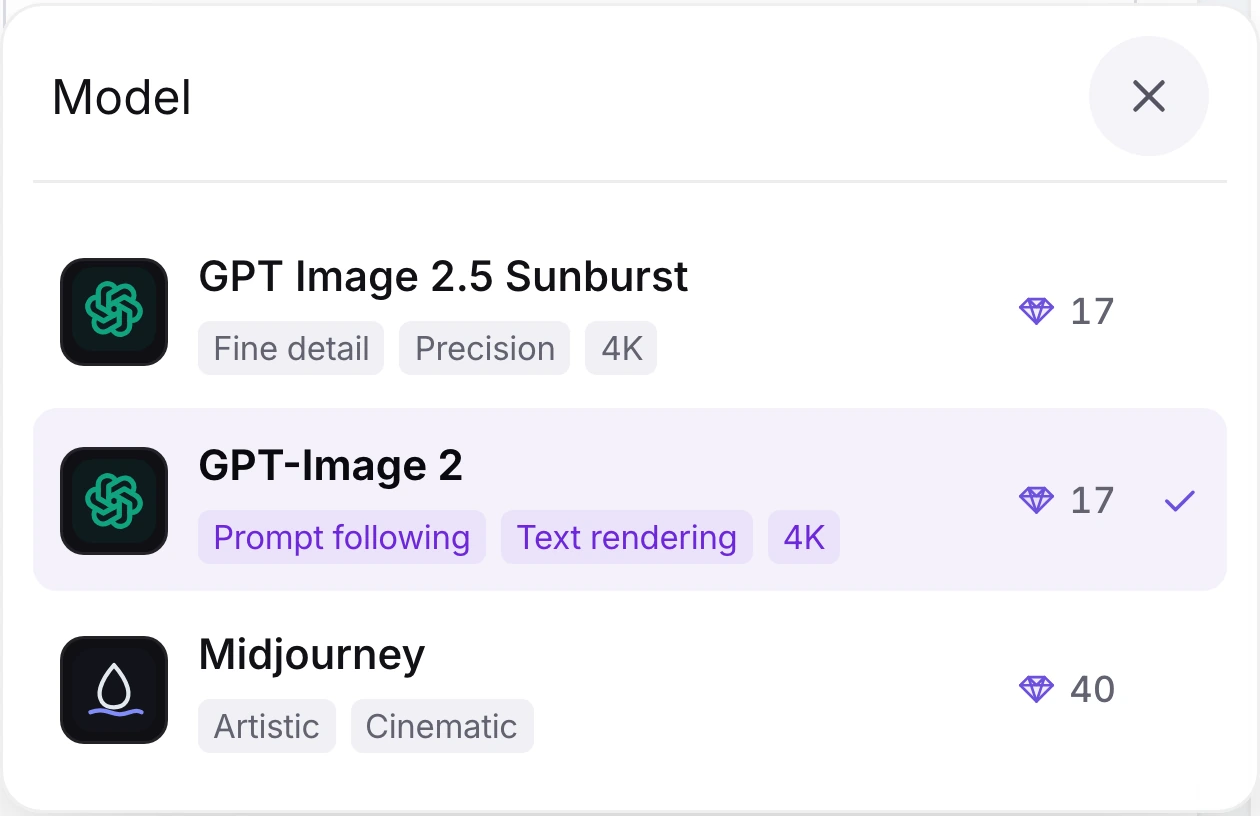
Model selector open with GPT-Image 2 selected
2

Select GPT-Image 2

Open the model selector and choose GPT-Image 2. Check the selected model before you continue.

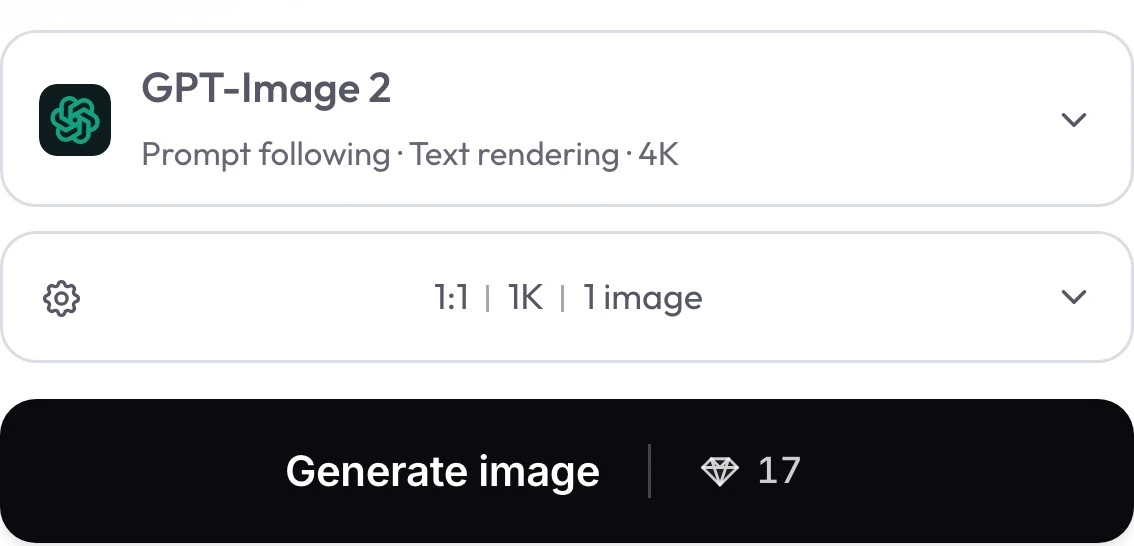
Wizmade generation bar showing GPT-Image 2 selected with 1:1 aspect ratio, 1K resolution, 1 image output, and Generate image | 💎 17 button
3

Set the image dimensions

Choose an available aspect ratio and resolution, then review the live diamond quote on Generate image.

GPT-Image 2 settings in Wizmade

Review the live parameters exposed by the GPT-Image 2 configuration in the Wizmade workbench.

SettingAvailable options
WorkflowsText to Image; Image to Image (in-page workbench)
Resolution1K, 2K, 4K
Aspect ratios1:1, 9:16, 16:9, 3:2, 2:3, 4:3, 3:4, 5:4, 4:5, 21:9, 2:1, 1:2, 3:1, 1:3, 9:21, auto
Outputs1 per request
Reference imagesUp to 8 reference images in Image to Image mode
CreditsReview the live 💎 quote inside the workbench before generating.

GPT-Image 2 FAQs

Answers about GPT-Image 2 capabilities, settings, reference uploads and credits in Wizmade.

How is GPT-Image 2 different from GPT Image 2.5 Flare and Sunburst?

Wizmade lists GPT-Image 2, GPT Image 2.5 Flare, and GPT Image 2.5 Sunburst as separate OpenAI models. Compare the available modes and settings in the selector before creating.

How many reference images can GPT-Image 2 take in Studio?

In Wizmade Image to Image mode, the current GPT-Image 2 flow accepts up to 8 reference images per submission.

Which resolutions and credit rates apply to GPT-Image 2?

Choose from the resolutions available in the settings panel. The Generate image button shows the live diamond quote for your current settings.

Does GPT-Image 2 handle long text labels and charts cleanly?

OpenAI describes GPT Images 2.0 as handling detail and complexity such as dense text. Check every label and figure in the generated image before using it.

Which aspect ratios are available on GPT-Image 2?

The aspect-ratio menu lists the current presets and Auto sizing. See the settings panel above for the options available in Wizmade.

How should I start quickly with these examples?

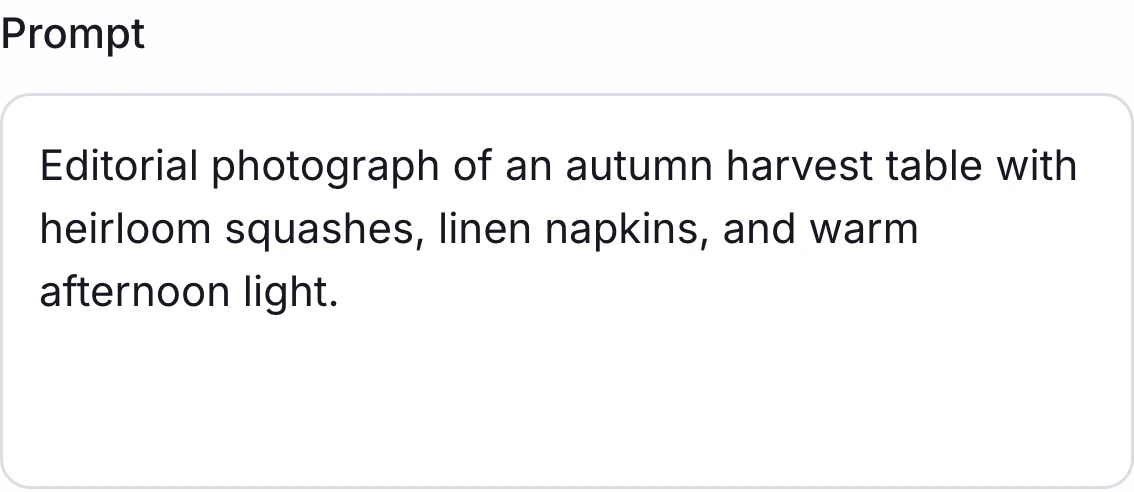
Select a Try prompt link to place its wording in the workbench. Review the selected model and live quote before you decide whether to generate.

Create your next image with GPT-Image 2

Write your prompt, adjust aspect ratio and resolution, or switch to Image to Image with your own references in the workbench above. New accounts include 60 free starter credits with live 💎 quotes before every generation.